Windows 11 Search: Settings, Privacy and Fixes

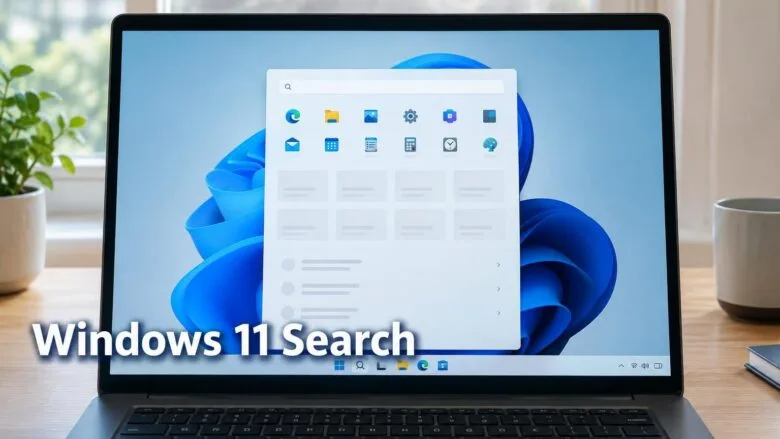
Windows 11 search covers the search box on the taskbar, the search in the Start menu, and the Windows Search indexing service that finds files on your PC. Most search problems come from one of three places: what Windows indexes, whether web and cloud results are mixed in, or an index that has stopped updating. This page sorts the 17 guides by the job you are trying to do. Begin with the first guide if you are new to the search experience. Go straight to the repair section if search has stopped working.
Learn how the search box works
Start here if you have just upgraded or you are not sure what the taskbar search does. These guides explain the search panel and how the taskbar feature differs from the older search options.
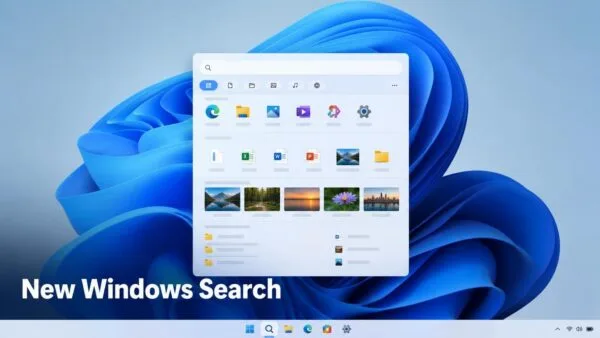 How to Use the New Windows Search Experience in Windows 11 Windows 11 new search experience: how to use it. It is in Experimental Insider builds only, so check your build, join a channel, then press Windows + S.
 Windows 11 Taskbar: What Is the Search Feature Master the Windows 11 taskbar search! find apps, files, settings & web results. Learn how to use this powerful feature efficiently.
Control what search shows and where it looks
Use these guides to decide whether search shows web results, Microsoft Store suggestions and cloud content, and which folders it covers. Open Settings first, since most of these options live there.
 How to Open the Settings App in Windows 11 Open Settings in Windows 11 with 4 easy methods. Use keyboard shortcuts, Start menu, Power User menu, or Run box to access settings and customize your…
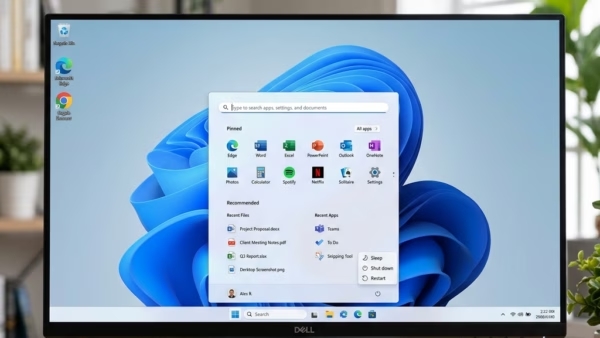 How to Make Windows Start and Search Work Better in Windows 11 Boost Windows 11 Start and search performance! Learn how to configure privacy settings to personalize your experience and find apps/files faster.
 How to Choose Where Windows Search for Files in Windows 11 Control where Windows 11 searches for files by customizing windows search index locations. Speed up file retrieval by optimizing your indexing settings.
 How to Turn Microsoft Store Suggested Search Results on or off in Windows 11 Control Microsoft Store suggestions in Windows 11 search. Learn how to turn these app recommendations on or off via Settings or Registry Editor.
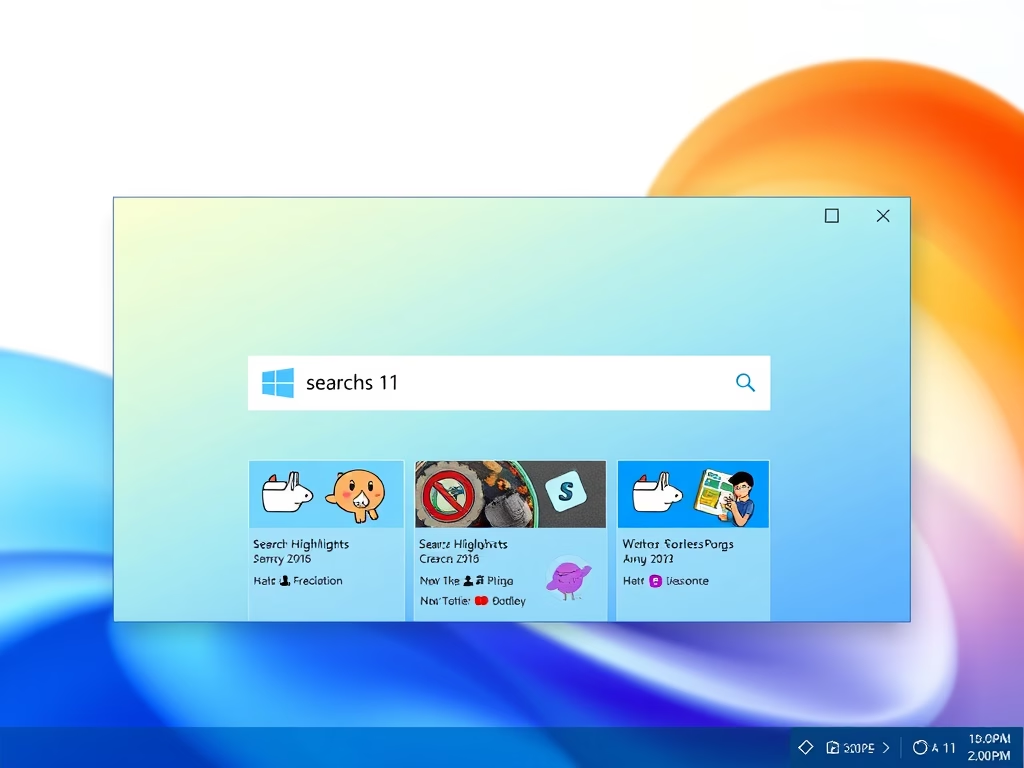 How to Enable or Disable Search Highlights in Windows 11 Enable or disable Windows 11 search highlights in seconds. Control colorful pictures and info in your search box with simple Settings or Group Policy steps.
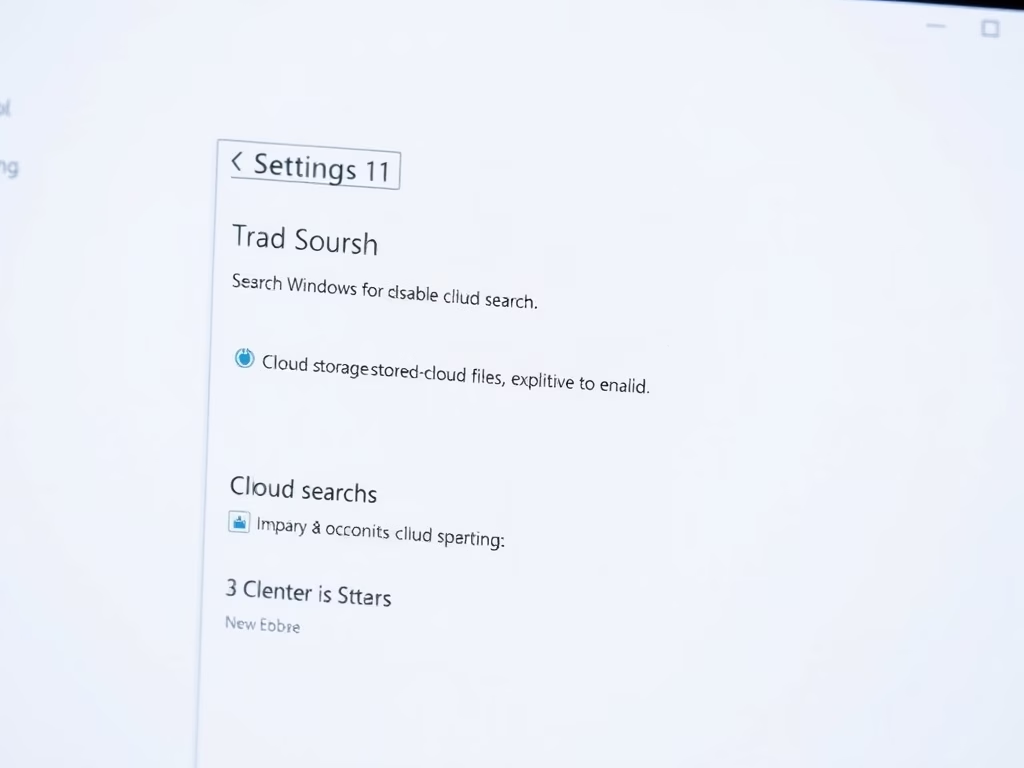 How to Enable or Disable Cloud Search in Windows 11 Enable or disable cloud search in Windows 11 with three simple methods. Control OneDrive file searches directly from your PC's search bar using Settings…
Use search with your phone, apps and Copilot
These guides cover search tasks that reach beyond files on your PC. They include sending a text from search, finding local files through Copilot, and controlling which command-line apps launch from search.
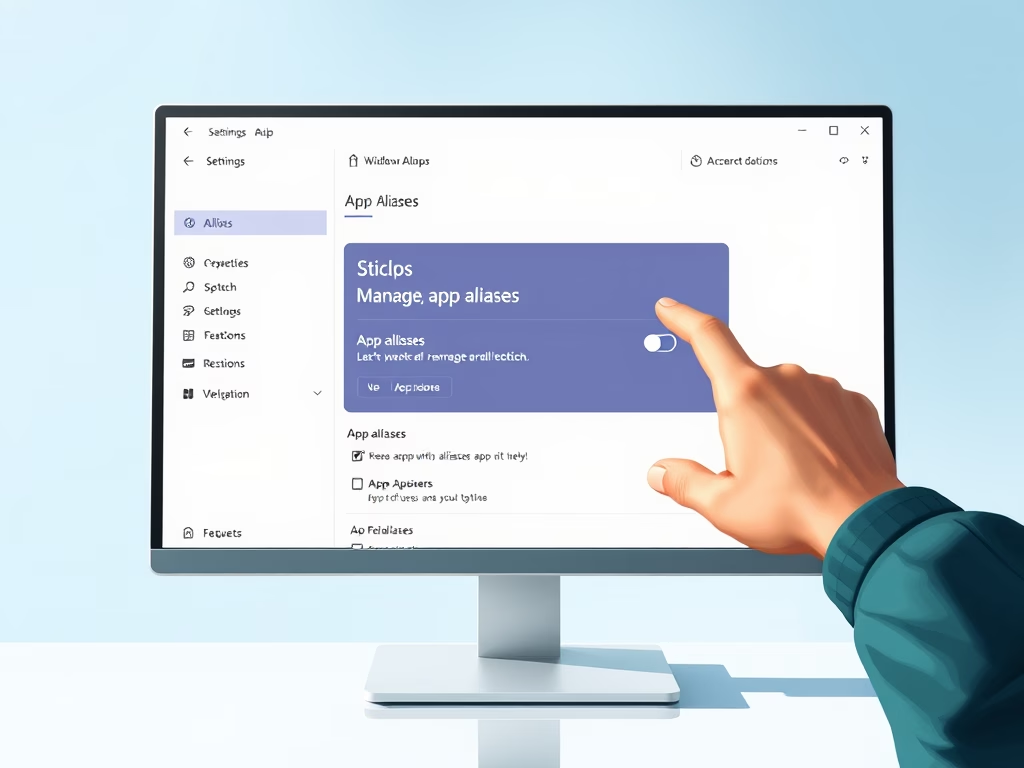 How to Change App Execution Aliases in Windows 11 Manage app execution aliases in Windows 11 to resolve conflicts and choose which app opens from Command Prompt. Follow simple steps in Settings.
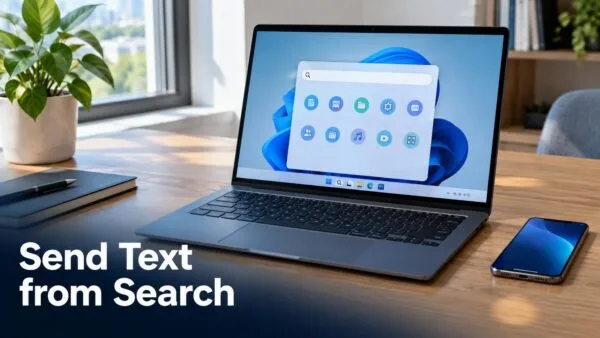 How to Send a Text from Windows 11 Search Using Phone Link Send a text from Windows 11 search with Phone Link once the rollout reaches your PC. Setup checklist, and texting from Phone Link until then.
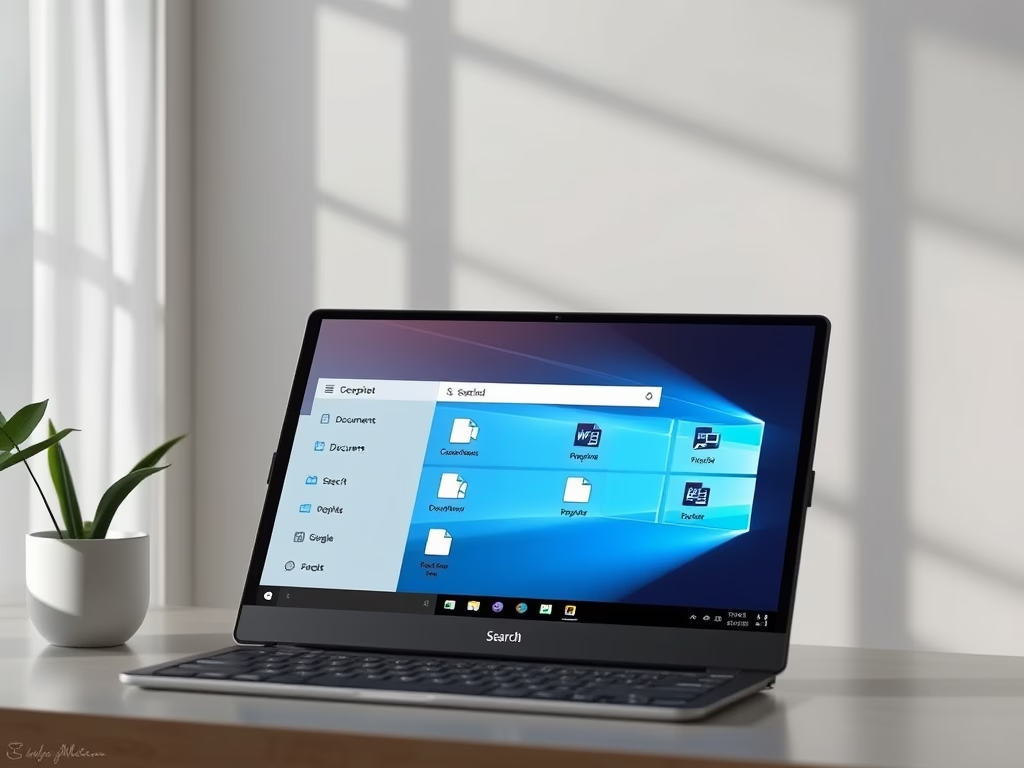 How to Search Local Files with Windows 11 Copilot Use Windows 11 Copilot to search files faster with simple language. Enable file search, find documents, photos & more in seconds.
Clear your search history
Windows keeps a record of recent searches on this PC and in your Microsoft account. Use these guides to clear the device list or the cloud list separately. Clearing history does not remove your files or apps.
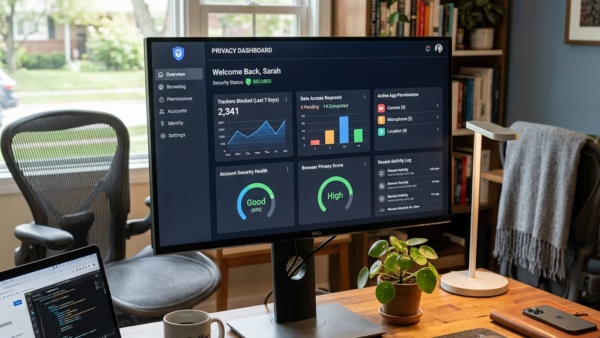 How to Delete Bing Search History in the Cloud Protect your online privacy by following our simple guide to delete Bing history. Clear specific searches or your entire cloud data in just a few clicks.
 How to Clear Recent Device Search History in Windows 11 Protect your privacy and keep your PC tidy by following our simple guide to clear search history in Windows 11. Remove all or specific items with ease.
Fix search when results are missing or it stops working
Check the indexing status first to see whether Windows is still building the index. If the index is stuck or broken, use the repair and reset guides, which rebuild it. Rebuilding can slow your PC for a while, so expect searches to be slower until it finishes.
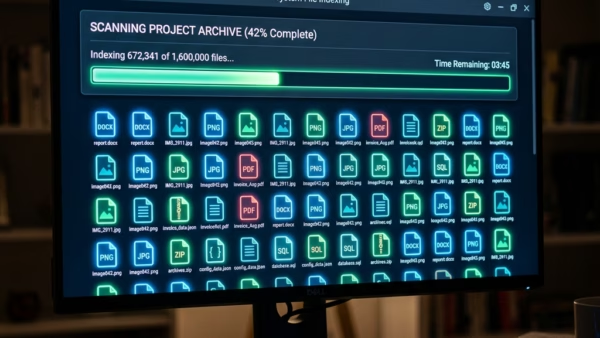 How to Check Search Indexing Status in Windows 11 Struggling with slow file searches? Discover how to check your Windows search indexing status to ensure your files are organized for instant results.
 How to Fix Windows 11 Search and Indexing Fix Windows 11 search not working. Restart the Windows Search service first, then run the troubleshooter or rebuild the index to restore fast file search.
 How to Reset Windows Search in Windows 11 Fix Windows Search issues fast. Reset Windows Search in Windows 11 using our step-by-step guide with PowerShell script—no files deleted, quick results.
 How to Repair Windows 11 Search and Indexing Features Repair Windows 11 search and indexing by installing updates, running the troubleshooter, restarting the service, or rebuilding the index.
Have a question about this guide?
Answered by AI from this guide. Good questions may be added to this page — please don't include personal details.

About the Author
Richard
Tech Writer, IT Professional
Richard is a writer at Geek Rewind who turns complex IT tasks into clear, step-by-step guides. He draws on years of hands-on experience in system administration and enterprise IT operations, focusing on Windows, Linux and WordPress: the problems people actually run into, and the fixes that work. His server and WordPress guides come from systems he runs himself. Richard builds and maintains the platform behind Geek Rewind, from its Ubuntu servers and Nginx configuration to its custom WordPress plugins. Many new tutorials start with readers' questions, and he's always glad to answer them in the comments.
No comments yet — be the first to share your thoughts!