Enable Optimize App Window Sizing on Windows 11


Managing how mobile apps display on a desktop helps keep workflows tidy. Windows 11 includes a dedicated toggle for resizing mobile app windows through Phone Link.
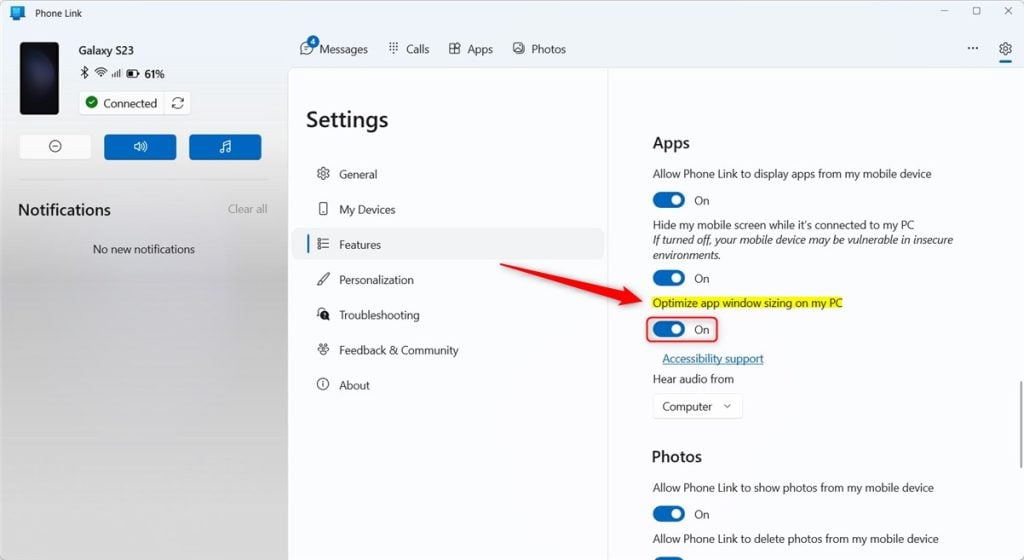
Open the Phone Link app and go to Settings , then select Features. Locate “Optimize app window sizing on my PC” and toggle the switch to On to enable or Off to disable this feature. This setting adjusts your phone app window size to fit your PC screen.
The Phone Link app is a feature on Windows that allows you to link your phone and PC using Wi-Fi or Bluetooth and access your phone’s apps and data from your PC. It lets you browse, play, order, chat, and more using your PC’s larger screen and keyboard while your phone stays in your pocket or desk.
Connecting a mobile device opens up several options. Phone Link lets text messages, app notifications, and mobile audio route straight through the desktop alongside tools to turn allow the phone link app to sync over mobile without Wi-Fi on or off, unlink your phone from Windows, enable or disable auto startup for the phone link app, send and receive text messages from the app, add or remove Phone Link on the widgets board, turn dark mode on or off, open your phone screen in the app, turn show notifications for all my apps on or off, show notifications in the Phone Link feature feed, enable or disable using Phone Link with Windows suggestions, open Phone Link notification banners in the mobile app or Phone Link, enable or disable Phone Link to show text messages, enable or disable Phone Link to make calls from your mobile device.
When you use the Phone Link app and allow displaying your phone’s app on Windows, you can enable or disable a feature that resizes the app window on the Windows PC.
Controlling the “Optimize app window signing on my PC” feature in Phone Link helps tailor how mobile software behaves on desktop displays. This capability proves particularly useful when running mobile software on a larger monitor.
Turning this feature on refines window scaling across the desktop. Leaving it turned off stops the window from scaling dynamically, which can restrict desktop multitasking.
Turn "Optimize app window sizing on my PC" on or off
Adjusting this preference takes only a few clicks inside the Phone Link settings menu.
Here's how to do it.
First, open the Phone Link app.
Then, choose to add your phone. If phones are connected to the Phone Link app, click the Settings button (gear) at the top right corner and select Features on the menu.

On the right of the Features settings page, under Apps, select the "Optimize app window sizing on my PC" tile. Then, toggle the switch button to the On position to enable it.
To disable it, toggle the switch button to the Off position.
That should do it.
Conclusion:
- This article provided a comprehensive guide on changing the "Optimize app window sizing on my PC" settings in the Phone Link app on Windows 11.
- The step-by-step instructions, accompanied by visual aids, are aimed to facilitate a smooth process for enabling or disabling this feature.
- Readers are encouraged to use the comments section for feedback, error identification, or additional insights.
Was this guide helpful?

About the Author
Richard
Tech Writer, IT Professional
Richard is a writer at Geek Rewind who turns complex IT tasks into clear, step-by-step guides. He draws on years of hands-on experience in system administration and enterprise IT operations, focusing on Windows, Linux and WordPress: the problems people actually run into, and the fixes that work. His server and WordPress guides come from systems he runs himself. Richard builds and maintains the platform behind Geek Rewind, from its Ubuntu servers and Nginx configuration to its custom WordPress plugins. Many new tutorials start with readers' questions, and he's always glad to answer them in the comments.




No comments yet — be the first to share your thoughts!