

This article explains tuning on or off notifications when Outlook is closed in Windows 11.
The new Outlook app in Windows 11 is a redesigned and updated version of the popular email and calendar management software. It has a modern user interface, and new features make it easier to stay on top of your emails and appointments.
The app has many features, including support for subscription management, email forwarding, setting default From address, backing up your mailbox, changing the reading pane, opening a new window for a message, language translations, turning text predictions on or off, switch primary account, sharing a calendar, changing language, date and time format, public a calendar, show week numbers in Outlook calendar, deleting your search history, export your search history, add or remove events from emails to your Calendar, switch to dark mode, link preview, sound alerts for notifications, and more.
The new Outlook app also allows you to turn on or off notifications when the app is closed.
Turning on the “Send notifications when Outlook is closed” feature can be helpful. This feature allows you to receive notifications on your desktop for new emails or upcoming appointments even when you’re not actively using the Outlook app. This can be useful for staying updated on your schedule or important emails without constantly checking the app.
On the other hand, turning off this feature can be beneficial if you don’t want to be distracted by notifications when you’re not using the app or if you have limited system resources and want to conserve them by disabling unnecessary features. Ultimately, it depends on your personal preferences and work style.
Turn “Send notifications when Outlook is closed” on or off
As mentioned, users can choose to receive notifications when they are not using the Outlook app. Or turn it off to avoid distractions.
Here’s how to do it.
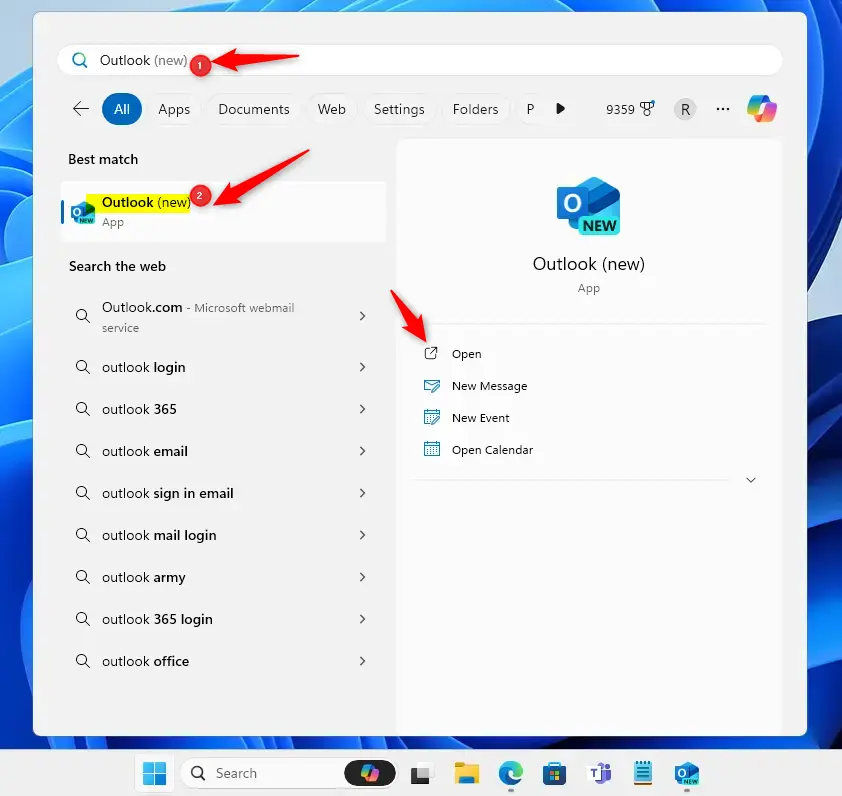
First, open the Outlook app by clicking on its icon in the Start menu or searching for it in the taskbar search box.
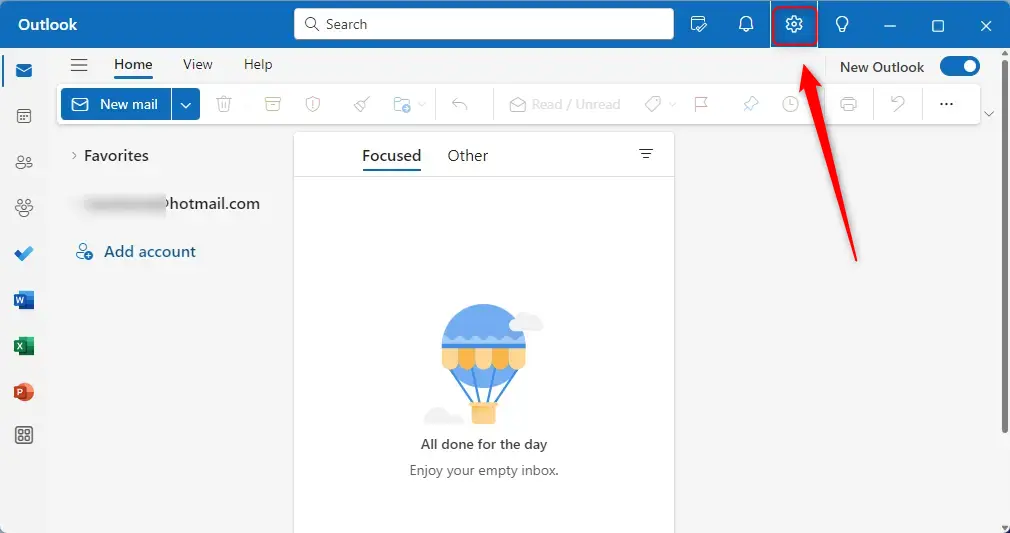
Once Outlook is open, click on the Settings gear icon at the top right of the menu bar.
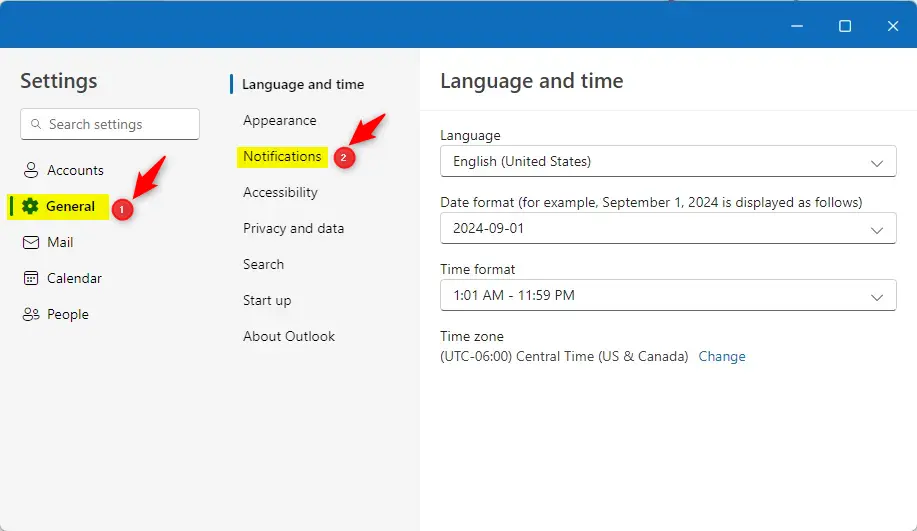
In the Settings sidebar, click General to open a sub-menu, then select Notification to open the settings.
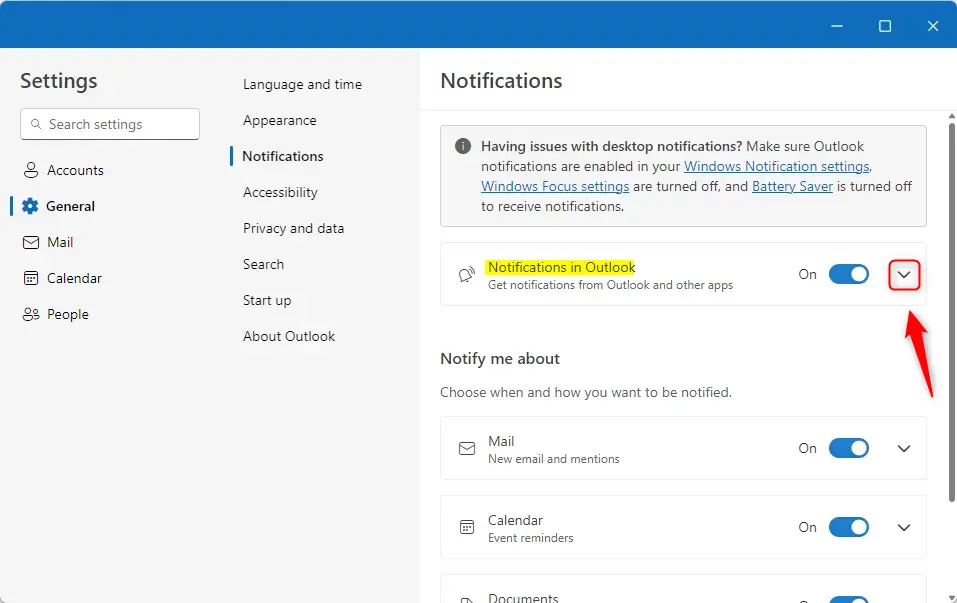
Under the Notifications settings, look for the Notifications in Outlook section. You should now see a dropdown caret allowing you to enable or disable sounds for notifications.
(This assumes you have “Notification in Outlook” turned on.) If Notifications are not enabled, the settings below won’t have any effects.
On the expanded caret, check the box next to “Send notifications when Outlook is closed” to enable receiving notifications when the app is closed.
Uncheck the box to disable notifications when you’re not using the app.
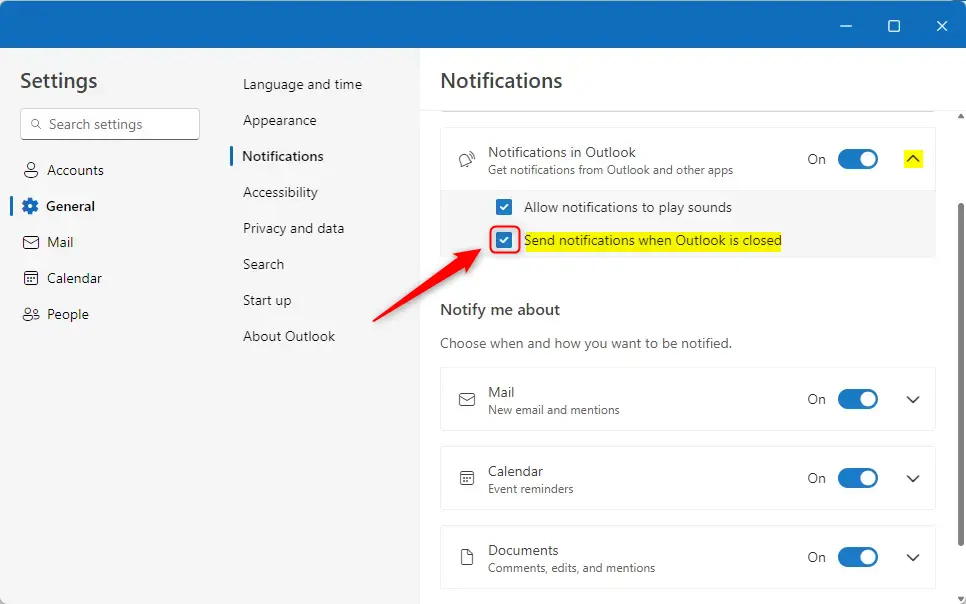
You can exit the app when you’re done.
If you are having issues with notifications, make sure Outlook notifications are enabled in your Windows Notification settings, Windows Focus settings are turned off, and Battery Saver is turned off to receive notifications.
That should do it!
Conclusion:
- Enabling or disabling notifications when Outlook is closed on Windows 11 can help you manage your productivity and stay updated on important emails and appointments.
- The option to receive notifications when the app is closed provides the convenience of staying informed without actively using the Outlook app.
- Conversely, based on personal preferences and work style, disabling this feature can help minimize distractions and conserve system resources.
- Following the outlined steps, you can easily configure this setting to suit your needs and enhance your Outlook experience on Windows 11.




Leave a Reply