How to Add or Remove Sidebar in Microsoft Edge

You can add or remove the sidebar in Microsoft Edge through its settings menu to customize your browsing experience.
The Edge sidebar is a convenient panel on the right side of your browser, giving you quick access to features like Search, Discover, and Microsoft 365 apps without leaving your current tab.
This tool, built on the Chromium engine, aims to streamline your workflow by bringing essential functions closer. For example, hiding the sidebar can give you more screen space to view web content, which is especially helpful on laptops or smaller monitors.
You can show or hide the sidebar in Microsoft Edge using the toggle switch in Settings under Appearance. Alternatively, click the small button at the top of the sidebar itself to quickly hide it.
How to Hide the Sidebar Using the Button
If the sidebar is visible, look for a small button at the top of the sidebar. Click this button to hide it quickly.
How to Show or Hide the Sidebar in Edge Settings
You can turn the Microsoft Edge sidebar on or off directly in the browser’s settings. If it’s missing or you just want to hide it for a cleaner look, this is the easiest way to manage it.
- Open Microsoft Edge.
- Click the three dots menu button (Settings and More) in the top right corner. Or use the keyboard shortcut
Alt + F. - Select Settings from the menu.

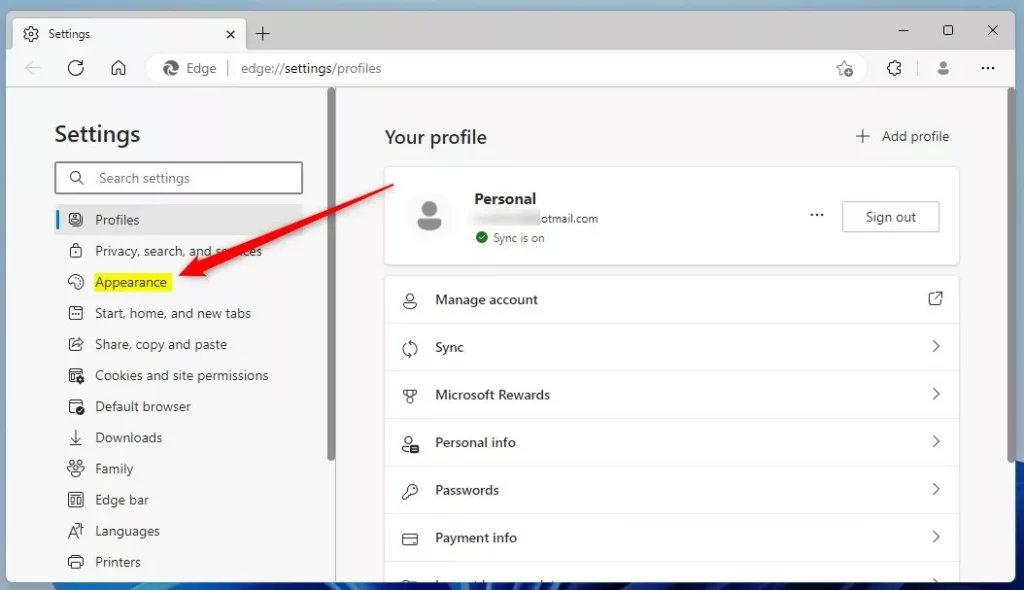
- On the left side, click Appearance.
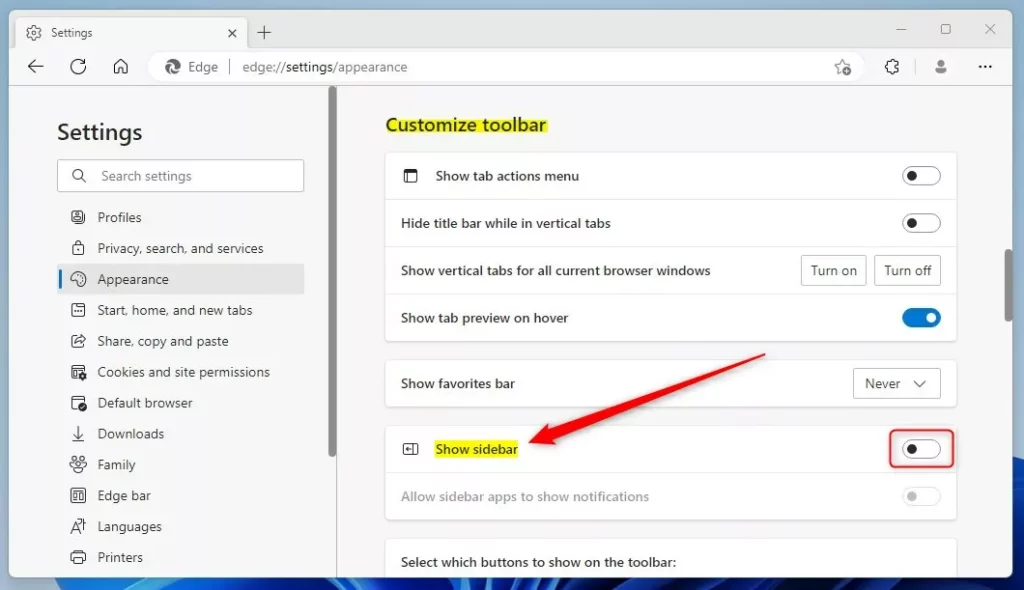
- Look for the Customize toolbar section.
- Find the toggle switch labeled Show sidebar.
- Turn the toggle On to display the sidebar. Turn it Off to hide it.
How to Show or Hide the Sidebar Using the Registry
For more control over the Microsoft Edge sidebar, you can change its settings using the Windows Registry Editor. This method is for users who are comfortable editing system files and need to make advanced adjustments.
If you want more control, you can change the sidebar setting directly in the Windows Registry Editor.
- Open the Windows Registry on your computer.
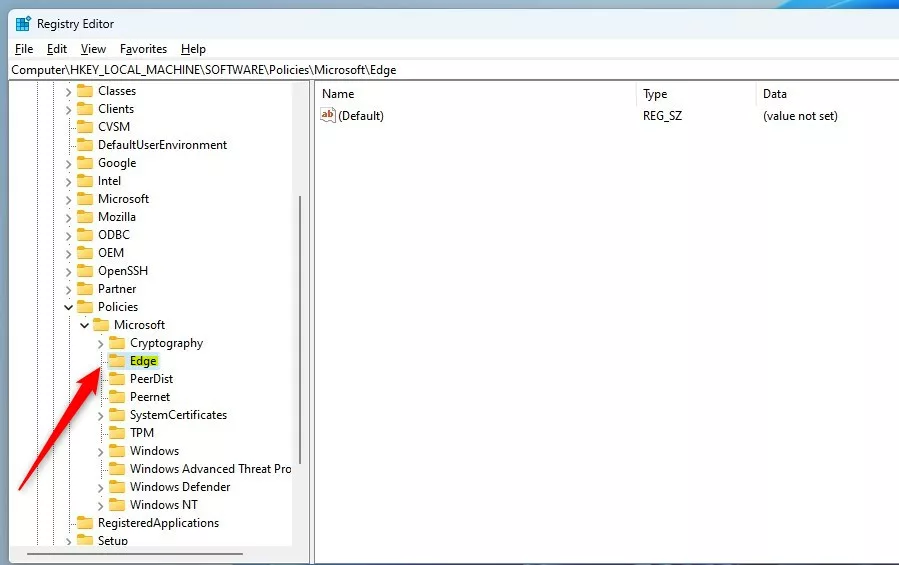
- Navigate to this location:
HKEY_LOCAL_MACHINE\SOFTWARE\Policies\Microsoft\Edge - If you don’t see an Edge folder, right-click on the Microsoft folder and create a new subfolder called Edge.
- Right-click in the empty space on the right side of the Edge folder.
- Select New and then DWORD (32-bit) Value.
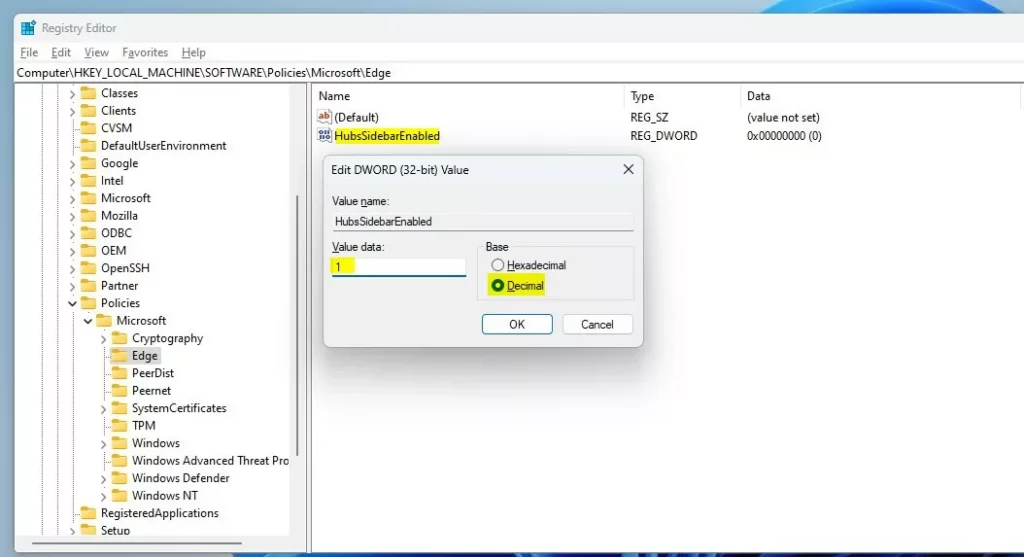
- Name the new key
HubsSidebarEnabled. - Double-click the new key to open it.
- In the Value data field, enter
1to show the sidebar. Enter0to hide it. - Click OK to save.
That’s it! Your changes should take effect immediately.
Summary
You can easily manage the Microsoft Edge sidebar in a few ways, whether you want a quick fix or more control. Options include using a simple button, adjusting settings within Edge, or editing the Windows Registry for advanced changes.
- Quick button: Click the button on the sidebar to hide it instantly.
- Settings: Use Edge Settings and toggle the sidebar on or off under Appearance.
- Registry: Advanced users can edit the Windows Registry to control the sidebar setting.
Choose whichever method works best for you. No matter which method you choose, you’ll have complete control over the sidebar’s appearance.
Is Edge removing the sidebar?
Technically, the Sidebar will still exist, but in a different form. Microsoft is removing the ability to add apps to the Sidebar, and a future update to Edge will remove any apps users have already added. But the core experience provided by the Sidebar is being retired.
Was this guide helpful?

About the Author
Richard
Tech Writer, IT Professional
Richard, a writer for Geek Rewind, is a tech enthusiast who loves breaking down complex IT topics into simple, easy-to-understand ideas. With years of hands-on experience in system administration and enterprise IT operations, he’s developed a knack for offering practical tips and solutions. Richard aims to make technology more accessible and actionable. He's deeply committed to the Geek Rewind community, always ready to answer questions and engage in discussions.


[…] First, open the Microsoft Edge browser. […]
[…] First, open the Microsoft Edge browser. […]
[…] First, open the Microsoft Edge browser. […]
[…] First, open the Microsoft Edge browser. […]
[…] First, open the Microsoft Edge browser. […]
[…] First, open the Microsoft Edge browser. […]
[…] First, open the Microsoft Edge browser. […]
[…] First, open the Microsoft Edge browser. […]
[…] First, open the Microsoft Edge browser. […]
[…] can hide the sidebar on the Microsoft Edge browser, but doing so wouldn’t conceal the Bing Chat or […]
[…] First, open the Microsoft Edge browser. […]
[…] First, open the Microsoft Edge browser. […]
[…] First, open the Microsoft Edge browser. […]
[…] First, open the Microsoft Edge browser. […]
[…] First, open the Microsoft Edge browser. […]
[…] First, open the Microsoft Edge browser. […]
[…] First, open the Microsoft Edge browser. […]
[…] First, open the Microsoft Edge browser. […]
[…] First, open the Microsoft Edge browser. […]
[…] First, open the Microsoft Edge browser. […]
[…] First, open the Microsoft Edge browser. […]
[…] First, open the Microsoft Edge browser. […]
[…] First, open the Microsoft Edge browser. […]
[…] First, open the Microsoft Edge browser. […]
[…] First, open the Microsoft Edge browser. […]
[…] First, open the Microsoft Edge browser. […]
[…] you use Copilot in Edge, you can automatically open it in the sidebar to show you relevant web experiences alongside your web […]
[…] First, open the Microsoft Edge browser. […]
[…] First, open the Microsoft Edge browser. […]
[…] First, open the Microsoft Edge browser. […]
[…] First, open the Microsoft Edge browser. […]
[…] First, open the Microsoft Edge browser. […]
[…] First, open the Microsoft Edge browser. […]
[…] First, open the Microsoft Edge browser. […]
[…] First, open the Microsoft Edge browser. […]
[…] First, open the Microsoft Edge browser. […]
[…] First, open the Microsoft Edge browser. […]
[…] Open the Microsoft Edge browser. […]
[…] can change the default text size for all websites in the Edge settings. First, open the Microsoft Edge browser. Click the three horizontal dots in the top right corner and select […]
[…] Open the Microsoft Edge browser. […]
[…] Open the Microsoft Edge browser. […]