How to Change Font Size in Microsoft Edge

You change font size in Microsoft Edge by using the browser’s zoom settings, which affect all web content.
Zoom in Microsoft Edge lets you control the default size of text and images displayed on websites. You can set this to a specific percentage, like 110% or 125%, to improve readability.
This is useful if you experience eye strain or find the default font size too small or too large for comfortable browsing. You can easily adjust it whenever you need to.
Adjust the zoom level in Edge settings under Appearance to change font size for all websites. You can also use Ctrl + Plus or Ctrl + Minus for temporary adjustments on a single page. For articles, F9 activates Immersive Reader with text size options.
Using the Zoom Feature
The quickest way to change font size in Microsoft Edge for just one page is to use the Zoom feature.
Change the text size in Microsoft Edge
You can change the font size in Microsoft Edge by going into the browser’s settings and adjusting the text size options.
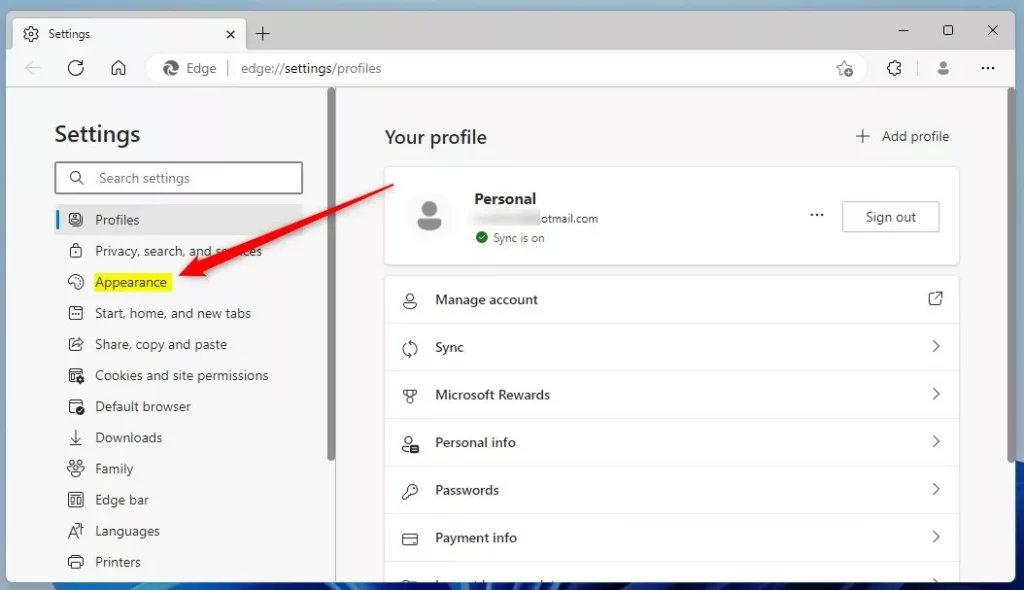
On the left side of the screen, click Appearance.
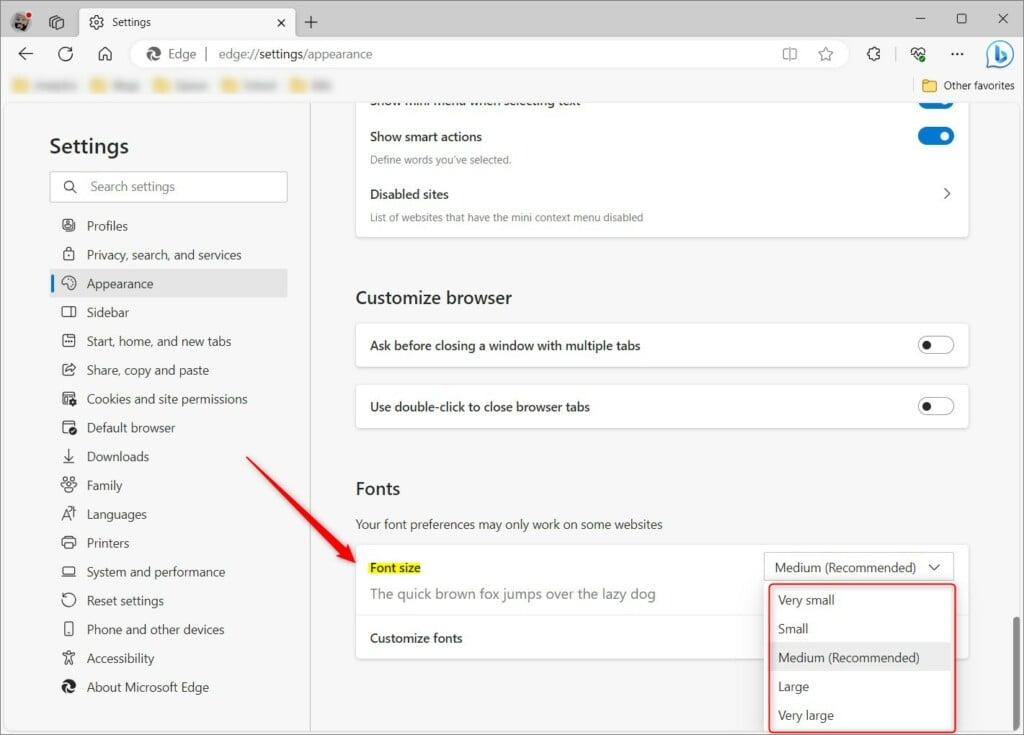
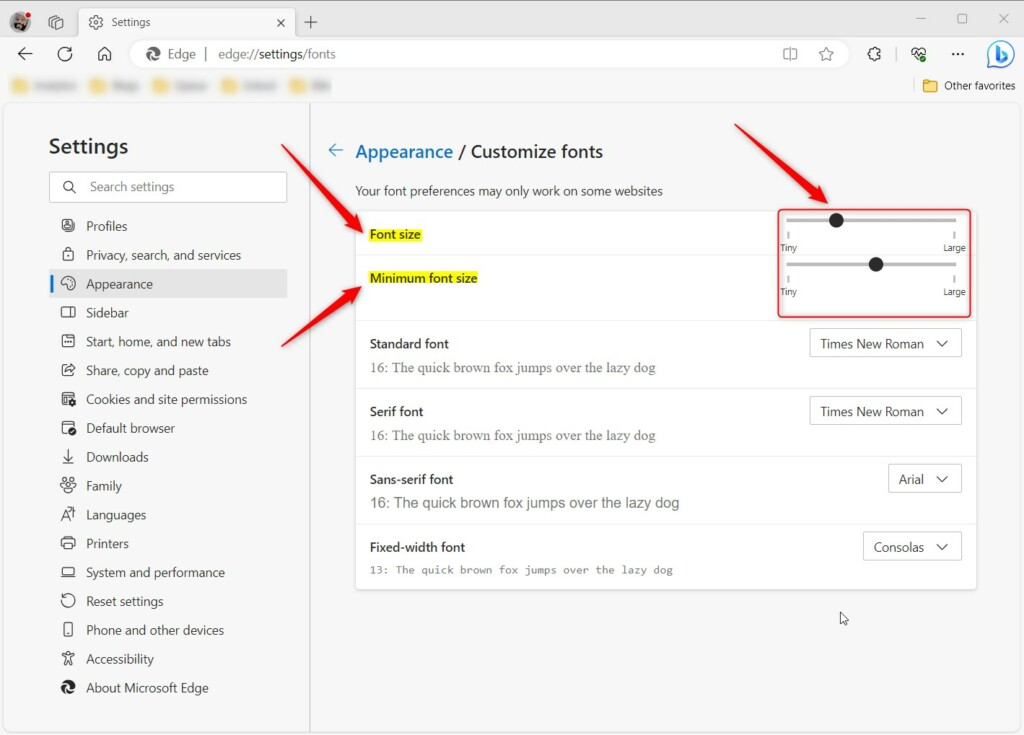
Scroll down to the Fonts section. Here, you will see sliders for Font size and Minimum font size. Move the sliders to the right to make your text larger. Why use this? This keeps the text size consistent across almost every website you visit. What happens? You will no longer have to squint at small text on your favorite sites.
Customize Font in the Microsoft Edge browser
Microsoft Edge lets you customize fonts for a better reading experience, either through the Immersive Reader or more detailed settings.
If you need more control, go back to Settings, select Appearance, and click Customize fonts. Here, you can pick specific font styles for your browser to use. What happens then? Your browser will show text in the exact style and size you prefer.
That should do it!
Reference:
Conclusion:
So, we’ve gone over how to change the default font or text size in Microsoft Edge. You can adjust these settings to make your browsing experience more comfortable. Please use the comments section below the article for further details or to contribute to this guide.
How to change display size in Edge?
The size of your screen can be easily adjusted in Microsoft Edge. Click on the 3 horizontal dots in the top right corner of the browser to display a drop-down list. Scroll down to Zoom and click + to zoom in or click – to zoom out.
Was this guide helpful?

About the Author
Richard
Tech Writer, IT Professional
Richard, a writer for Geek Rewind, is a tech enthusiast who loves breaking down complex IT topics into simple, easy-to-understand ideas. With years of hands-on experience in system administration and enterprise IT operations, he’s developed a knack for offering practical tips and solutions. Richard aims to make technology more accessible and actionable. He's deeply committed to the Geek Rewind community, always ready to answer questions and engage in discussions.




No comments yet — be the first to share your thoughts!