
This article explains muting or unmuting meeting chat notifications when using Microsoft Teams.
Microsoft Teams is a collaboration platform developed by Microsoft that integrates chat, video meetings, file storage, and application integration.
The free version is installed on Windows with its icon on the Taskbar.
There are many settings one can enable in the Microsoft Teams app. You can connect your Google calendar, turn the camera and mic on or off on the lock screen, turn read receipts on or off, auto start Teams, disable Teams chat, sync contacts with Teams, connect to Google Calendar, link your mobile device, turning message preview on or off, turn spell check on or off, turn on or off phone number in search results, manage notifications, turn on or off suggested replies in chat, enable or disable sound notifications, enable or disable notifications for incoming calls and meetings, enable or disable notifications during calls and meetings, enable or disable chat message notifications, turn @mentions notifications banners on or off, turn notifications for likes and reactions on or off, turn meeting start notifications on or off, and more.
When you use Teams, you can mute or unmute meeting chat notifications, mute until you join, or send a message during a meeting. This feature helps minimize distractions.
If you are presenting or sharing your screen, you might find the chat notifications distracting and want to mute them. On the other hand, if you are a participant and need to follow up on a chat message, you might want to unmute the notifications.
Adjust meeting chat notifications in Teams
As mentioned, you can change meeting chat notifications to minimize distractions in Teams.
Here’s how to do it.
First, launch the app by clicking the Start menu and selecting it on the All Apps list.

You can also launch the app from the Taskbar or Taskbar overflow.

When you first launch the Teams app, the mini window will open. Click the expansion button on the menu bar to open the full Teams window.

In the full Teams window, click the Settings and more ( …) button next to your profile picture and select Settings from the menu.

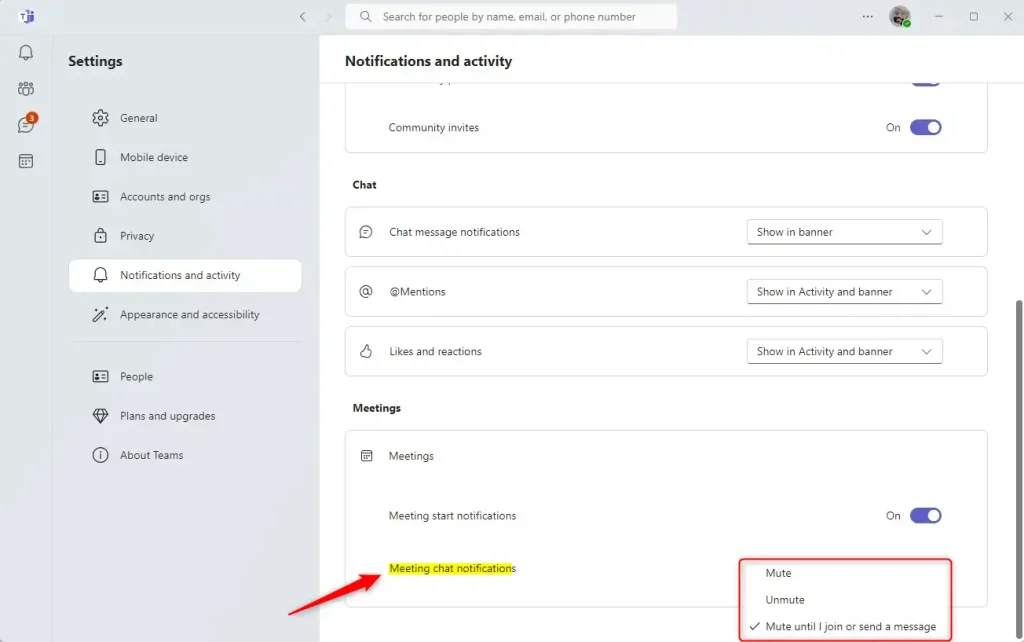
Next, select the Notifications and activity tab on the left of the Settings page. Then, under “Meetings,” select the “Meeting start notifications” tile.
Then, choose one of the available options:
- Mute
- Unmute
- Mute until I join or send a message
That should do it!
Conclusion:
- In this article, we have guided you through adjusting meeting chat notifications in Microsoft Teams to minimize distractions and improve your meeting experience.
- Using the step-by-step instructions provided, you can easily mute, unmute, or temporarily mute meeting chat notifications.
- Customizing your meeting chat notifications can enhance productivity and reduce distractions during Microsoft Teams meetings.
- We hope this guide has helped you improve your Microsoft Teams usage. We welcome any feedback or additional questions in the comments section below.

Leave a Reply