How to Enable Respect Power Settings When Indexing in Windows 11


This guide shows you how to turn the “Respect power settings when indexing” option on or off in Windows 11. You can change it in Settings or in the Registry Editor.
Open Settings , then go to Privacy & security, followed by Searching Windows. Find “Respect power settings when indexing” and toggle the switch to On or Off. This setting pauses indexing during power-saving modes to conserve battery.
What Is Indexing?
Windows indexing scans your files and emails in the background. That way, results appear quickly when you search your PC. The scan uses disk and CPU time, so it also uses battery on a laptop or tablet.
There are two ways Windows can index your files:
If you use Classic indexing, you can choose which folders or drives to include. That lets you control which locations get indexed and how.
Why Use “Respect Power Settings When Indexing”?
One useful setting is “Respect power settings when indexing”. When it is on, Windows pauses indexing when your PC is in battery saver mode or another power-saving mode. This saves battery life. The trade-off is that new or changed files may not show up in search results until indexing resumes.
How to Turn On or Off “Respect Power Settings When Indexing” in 🪟 Windows 11
You can turn “Respect power settings when indexing” on or off to control how much power your PC uses while it searches for and catalogs files. The setting tells Windows whether to pause indexing when the device is in a power-saving state. It matters most on laptops and tablets. On a desktop PC that is always plugged in, you will rarely notice a difference.
You do not need an administrator account for this method. It works the same on Windows 11 Home and Pro.
- Open the Settings app. Click the Start button and select Settings, or press
Windows key + Ion your keyboard. The Settings window should open.

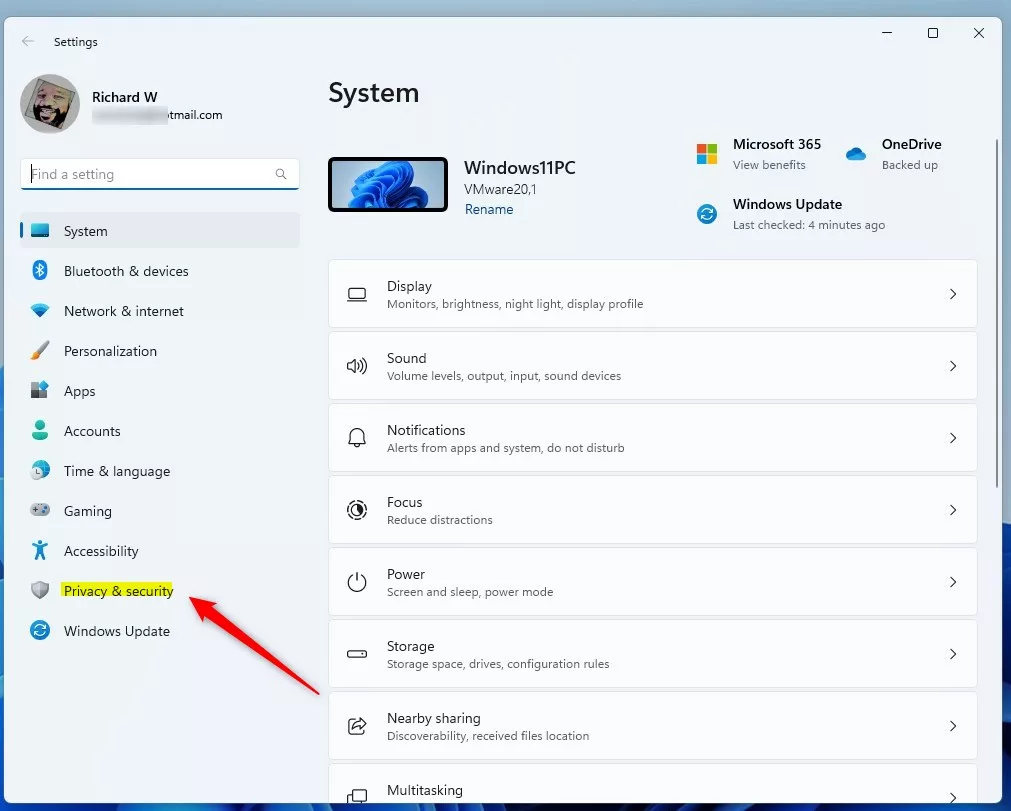
- In the Settings window, click Privacy & security in the left menu. The privacy options appear on the right.
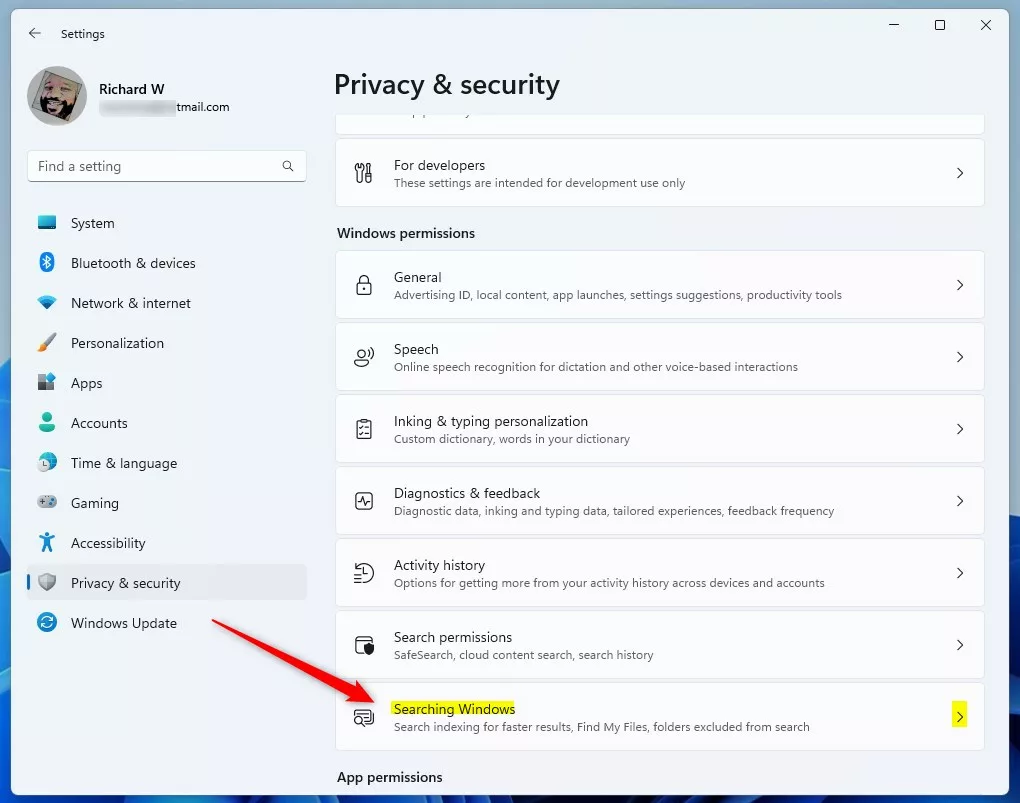
- On the right side, click Searching Windows. The page shows your search and indexing options.
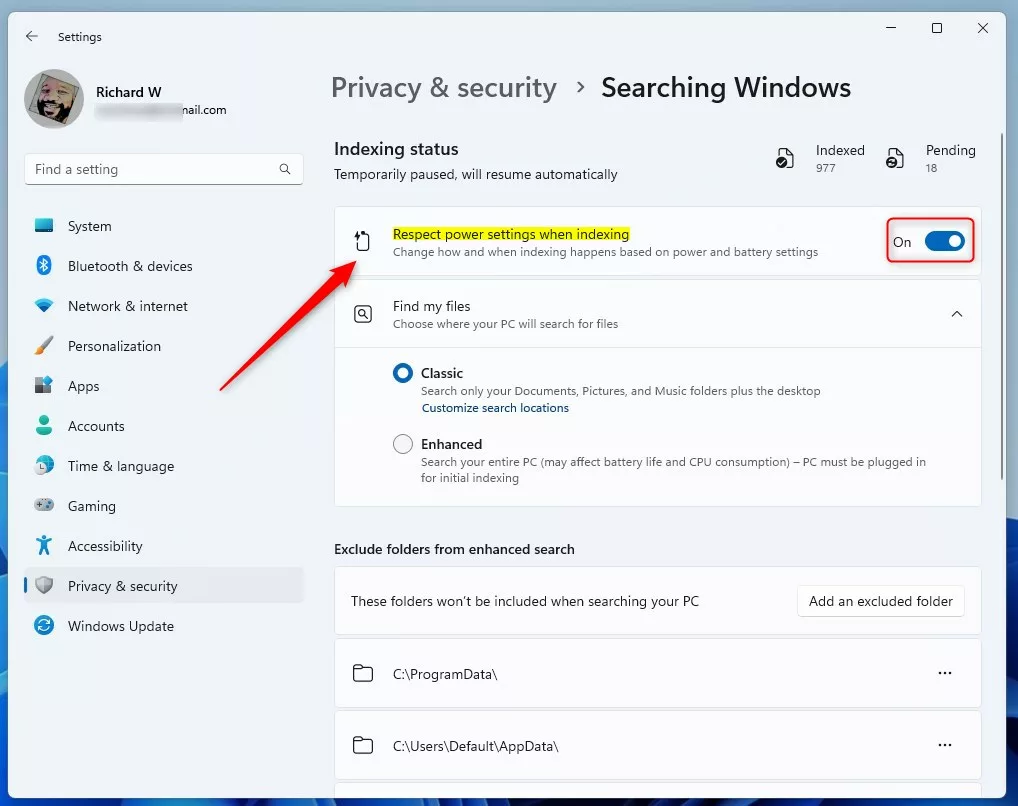
- Under Indexing status, find the Respect power settings when indexing option.
- Set the switch to On to enable it, or Off to disable it. The change takes effect straight away. You do not need to click a save button.
If you can't find this option, your version of Windows 11 may not show it on this page. Run Windows Update and look again. If it is still missing, the Registry Editor method below sets the same option.
- Close the Settings app. You do not need to restart your PC for this method. To undo the change, repeat the steps and flip the switch back.
How to Change This Setting Using the Windows Registry Editor (Advanced)
If you are comfortable with advanced system changes, you can set this option in the Windows Registry Editor. This method writes the setting directly to a specific registry path. It is useful when the option is missing from Settings, or when you need to apply it on several PCs. Be careful in the registry, because a wrong edit can cause problems. Consider creating a restore point or exporting the key before you change anything.
- [ADMIN REQUIRED] Open the Registry Editor. You need to be signed in with an administrator account. If you don't know how to open it, see here: Open Registry in Windows 11.
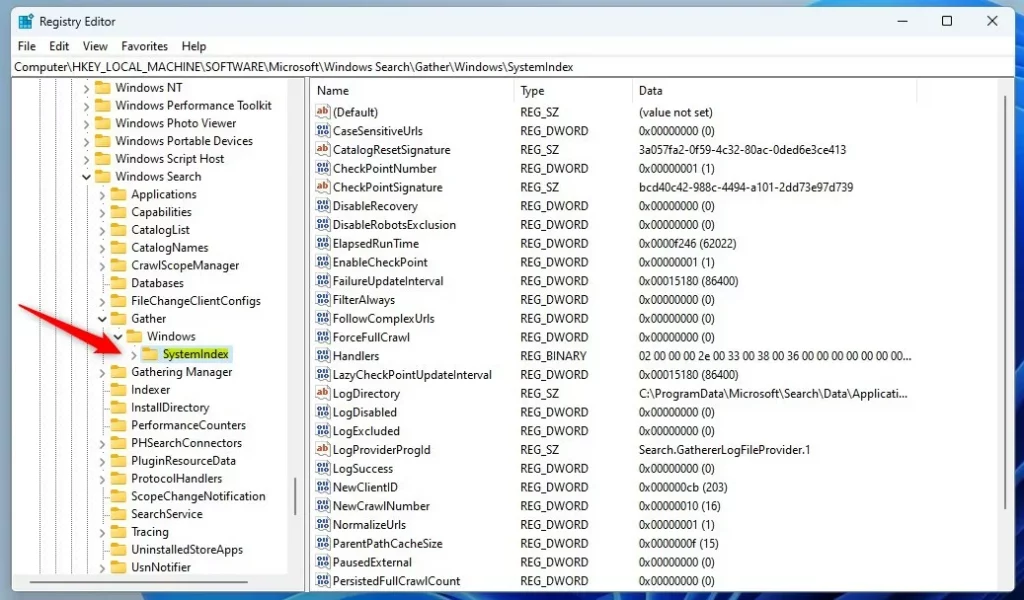
- In the Registry Editor, go to this path:
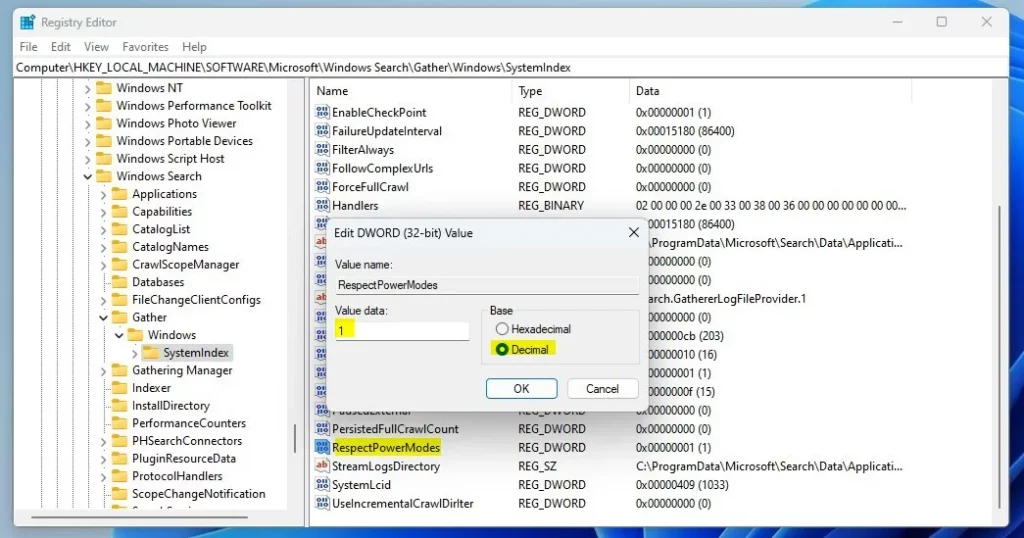
HKEY_LOCAL_MACHINE\SOFTWARE\Microsoft\Windows Search\Gather\Windows\SystemIndex - If you don't see a SystemIndex key, right-click the Windows key, select New Key, and name it SystemIndex.
- Click the SystemIndex key to select it. Its values are listed on the right.
- On the right side, right-click an empty space and pick New DWORD (32-bit) Value. A new value appears with its name ready to edit.
- Name the new value RespectPowerModes. If the value already exists, skip steps 5 and 6.
- Double-click RespectPowerModes and enter this under Value data:
1to turn ON respecting power settings.0to turn OFF respecting power settings.
- Click OK, then close the Registry Editor.
- Restart your computer to apply the change.
To undo the change, go back to the same value and set it to the opposite number, then restart.
Summary
Turning on "Respect power settings when indexing" helps your PC save battery by pausing indexing while it is in a power-saving mode. You can change it at any time in Settings or in the Registry Editor.
Have a question about this guide?
Answered by AI from this guide. Good questions may be added to this page — please don't include personal details.
Did this guide fix your problem?

About the Author
Richard
Tech Writer, IT Professional
Richard is a writer at Geek Rewind who turns complex IT tasks into clear, step-by-step guides. He draws on years of hands-on experience in system administration and enterprise IT operations, focusing on Windows, Linux and WordPress: the problems people actually run into, and the fixes that work. His server and WordPress guides come from systems he runs himself. Richard builds and maintains the platform behind Geek Rewind, from its Ubuntu servers and Nginx configuration to its custom WordPress plugins. Many new tutorials start with readers' questions, and he's always glad to answer them in the comments.
No comments yet — be the first to share your thoughts!