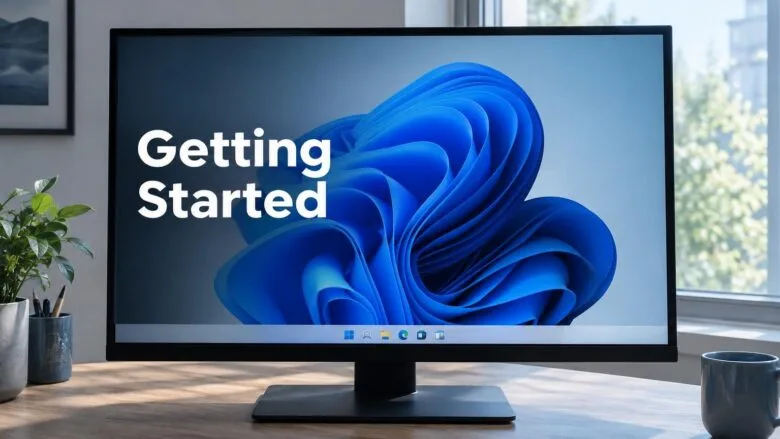
A Windows 11 desktop with a centred taskbar and Start button, showing the starting point for a beginner's guide to Windows 11.
Getting started with Windows 11 comes down to five places: the taskbar, the Start menu, Settings, File Explorer, and Windows Update. The quickest way to get your bearings is to sign in, press the Win to open Start, and then go to Settings›Windows Update to install any waiting updates.
Windows 11 is the current version of Microsoft’s operating system, the software that runs your PC and every app on it. It centres the taskbar and Start button by default, and it groups system options in one Settings app.
Getting started with Windows 11 comes down to five places: the taskbar, the Start menu, Settings, File Explorer, and Windows Update. Press the Win to open Start, then go to Settings›Windows Update to install any waiting updates. The taskbar sits along the bottom of the screen, and its system tray holds the clock and status icons.
Advertisement
What Happens the First Time You Start Windows 11
On a new PC, Windows 11 runs a setup process before you reach the desktop. It asks for your region, keyboard layout, network, and account details, then signs you in.
📝Good to KnowWindows 11 Home needs an internet connection during this first setup. If you cannot connect, check that your Wi-Fi network appears in the list or plug in a network cable (an Ethernet cable, which runs from your PC to your router), then try again.
Advertisement
After setup, or after a big update, Windows may show welcome screens that point out new features and suggest settings. They are optional. If they keep appearing and you do not want them, turn off the welcome experience in Windows 11.
When setup finishes, you see the desktop: a background picture, a few icons, and a bar along the bottom called the taskbar.
The Windows 11 Desktop Layout
Learn these parts first. Nearly everything you do in Windows 11 starts from one of them.
The Taskbar
The taskbar is the bar along the bottom of the screen. In Windows 11, its icons sit in the centre by default, with the Start button (the Windows logo) among them.
The taskbar holds the Start button, the search box or icon, shortcuts to apps, and buttons for the apps that are running. The exact icons vary by PC and by version. A line under an icon means the app is open.
The right end of the taskbar is the system tray (the area with the clock and status icons). If an icon you expect is missing, select the small arrow there to show hidden icons.
Windows 11 taskbar icons: Widgets, Start, Search, Task view, Applications, System tray.
1. Widgets
2. Start
3. Search bar
4. Task view
5. Taskbar icons
6. Quick settings
The Start Menu
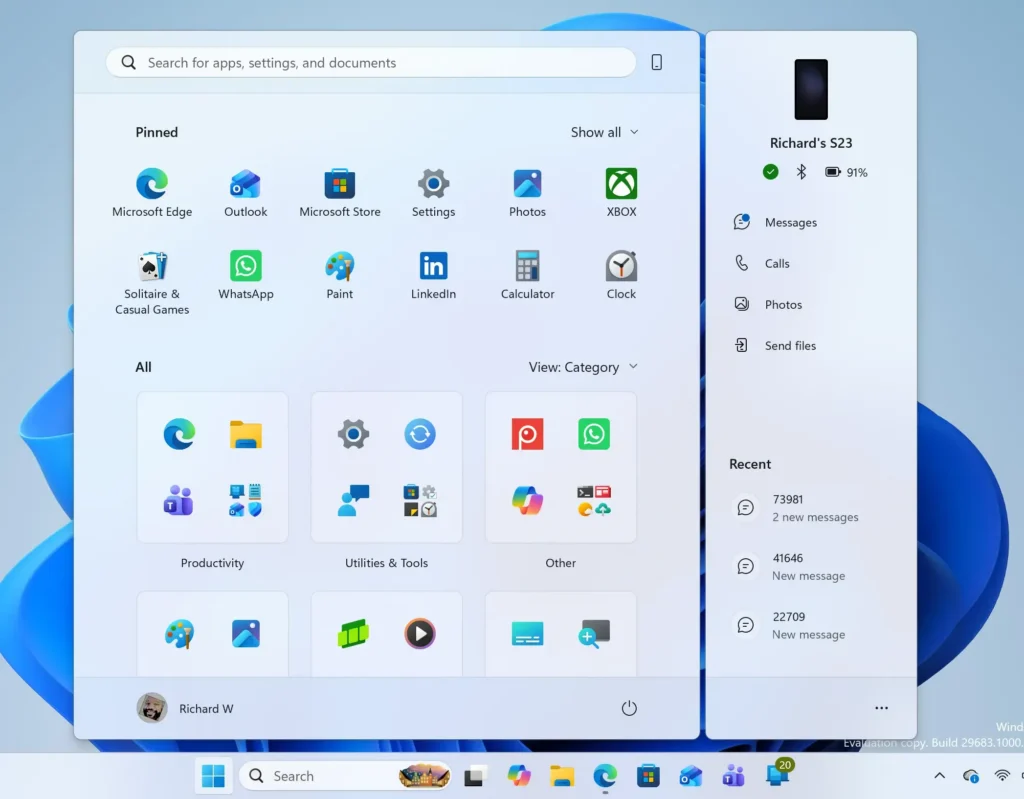
The Start menu is where you open apps, find files, and shut the PC down. Select the Start button or press the Win to open it.
In the original Windows 11 layout, the top of Start shows Pinned apps (shortcuts you choose to keep there). Below that is a Recommended area with recent files and newly added apps. An All button opens the full list of installed apps. Your account picture and the power button sit along the bottom.
💡TipTo sign out, restart, or shut down, select the Power button in Start. To lock the PC without signing out, press Windows key + L.
Windows 11 Start menu search panel for opening OpenSSH Client settings
Search
Search finds apps, files, settings, and web results from one box. Select the search box on the taskbar, or press Windows key + S, and start typing.
Typing the name of a setting, such as “Night light” or “Default apps”, is often faster than browsing through Settings.
Quick Settings and Notifications
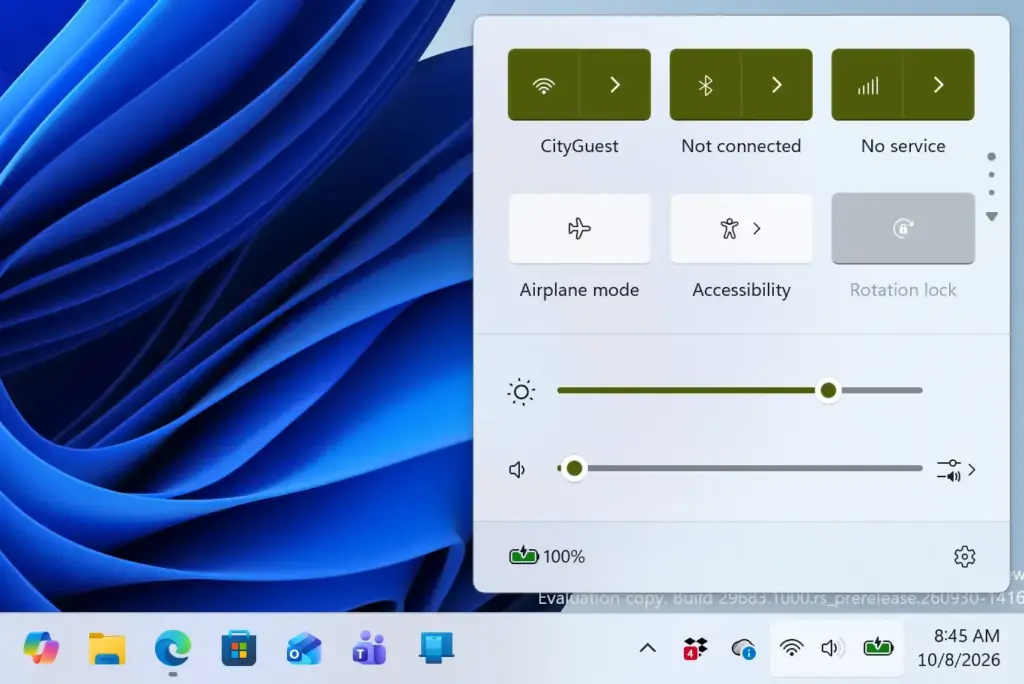
Select the Wi-Fi, speaker, or battery icons at the right end of the taskbar to open Quick Settings (a panel of switches for Wi-Fi, Bluetooth, volume, and brightness). The keyboard shortcut is Windows key + A.
Select the date and time to open the notification centre, which holds your recent notifications and a calendar. The shortcut is Windows key + N.
Windows 11 Quick Settings flyout menu for Wi-Fi, volume, and brightness controls
Widgets
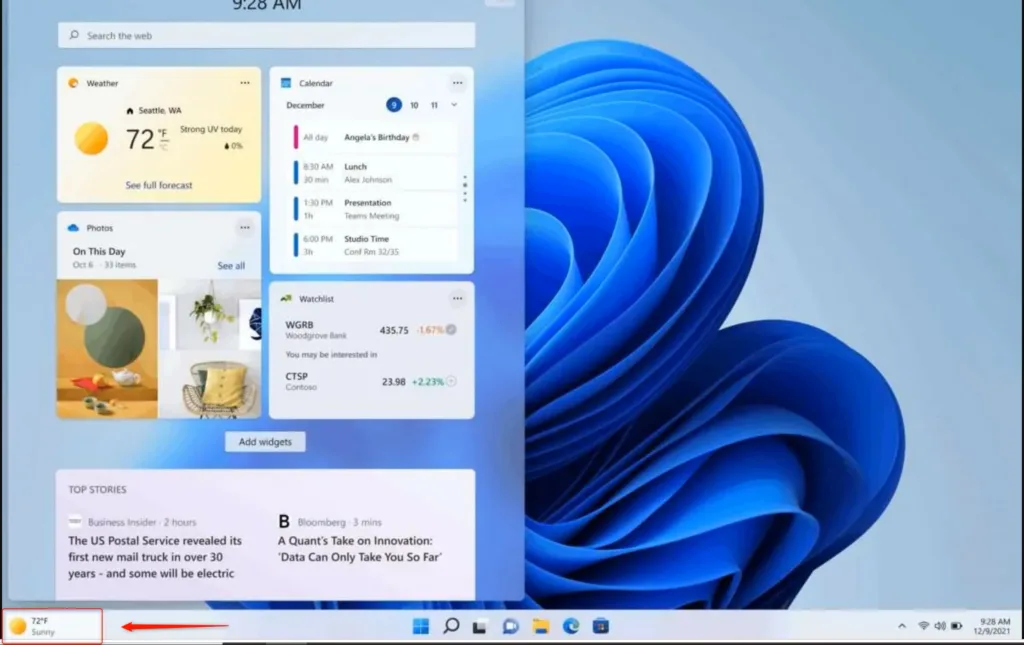
Widgets are small panels showing items such as weather, news, and calendar entries. Select the Widgets button on the taskbar or press Windows key + W to open them.
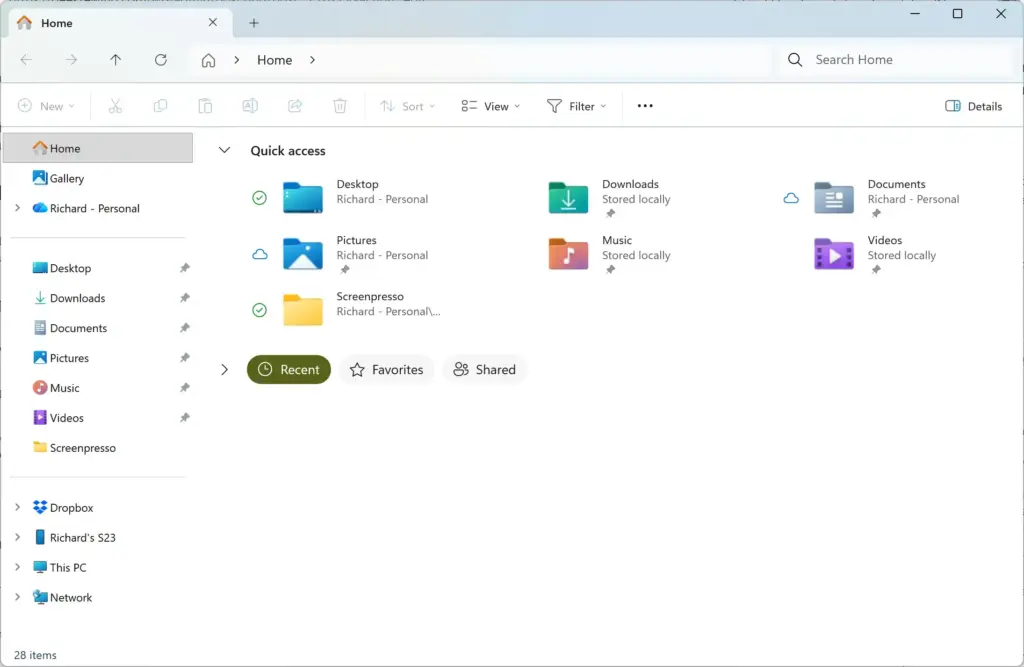
File Explorer is the app for browsing your files and folders. Press Windows key + E or select the folder icon on the taskbar to open it.
The left pane (the navigation pane) lists places such as Home, Desktop, Downloads, Documents, and Pictures. The main area shows what is inside the selected folder.
Windows 11 File Explorer showing Dropbox folder in sidebar.
Settings
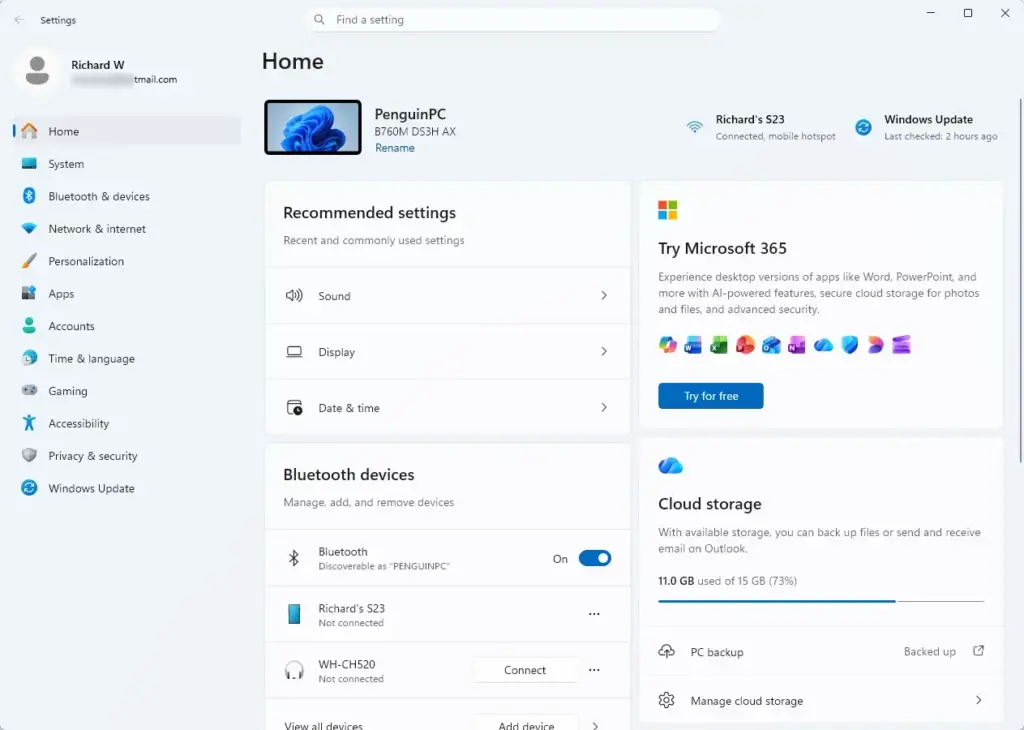
Settings is the main place to change how Windows 11 behaves. Press Windows key + I to open it.
The left side lists categories: System, Bluetooth & devices, Network & internet, Personalization, Apps, Accounts, Time & language, Gaming, Accessibility, Privacy & security, and Windows Update. Select a category and its options appear on the right.
Settings › Home
Advertisement
How to Get Started with Windows 11: First Steps
These steps help you get started with Windows 11 on a new PC, in the order that matters most: sign in, update, secure, then personalise.
Sign in to Windows. Enter the PIN, password, or Windows Hello (face or fingerprint) option you set up. The desktop and taskbar appear.
Press the Win to open Start. This shows your pinned apps and recent items. Press the key again, or press Esc, to close it.
Open Settings. Press Windows key + I. The Settings window opens with the category list on the left. Windows 11 Start menu search panel for opening OpenSSH Client settings
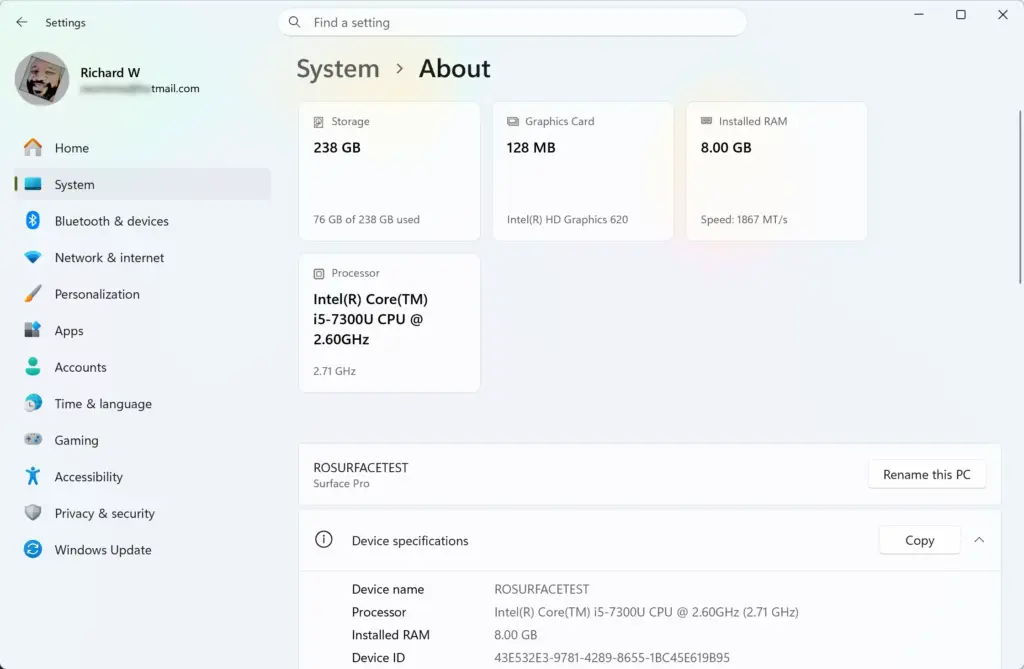
Check your Windows version. Go to Settings›System›About. Under Windows specifications, note the Edition (Home or Pro) and Version. You need these if a menu on your PC looks different from a guide. Settings › System › About
Check your network connection. Select the Wi-Fi icon at the right end of the taskbar, then pick your network if it is not connected. Windows needs internet access for the next step.
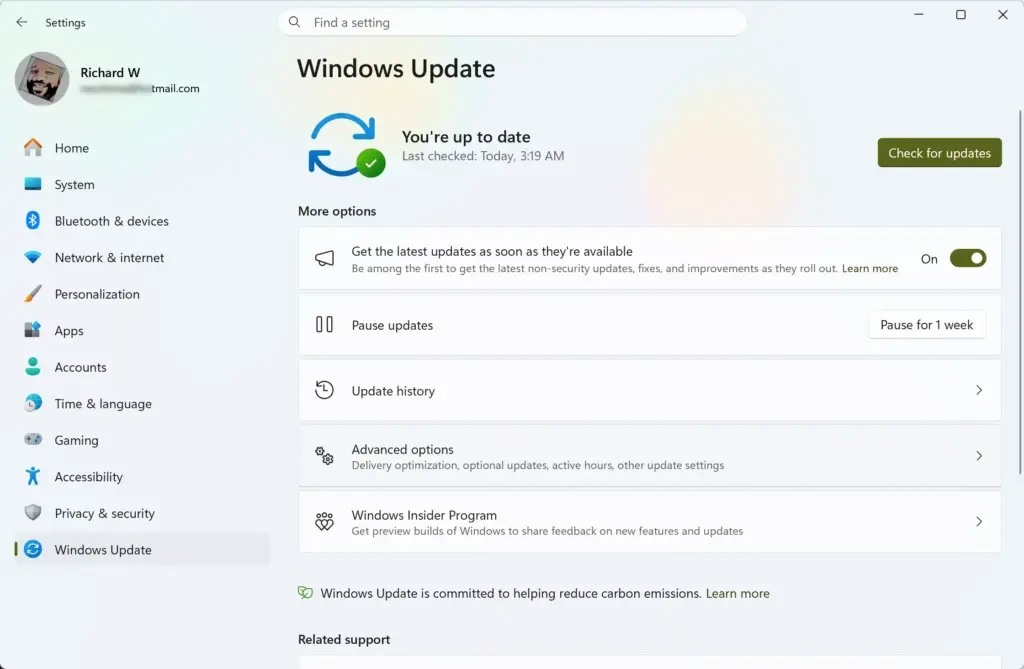
Open Windows Update. Go to Settings›Windows Update, then select Check for updates. Updates install security fixes and driver updates (the software that lets Windows work with your hardware), so run this before anything else. On a work or school PC, an administrator (the person who manages the computer) may control updates, and some installs may ask for administrator approval. Settings › Windows Update
Look for the Windows Insider banner. If Windows Update says your PC is receiving preview builds, it is enrolled in the Windows Insider Program. Preview builds (test versions of Windows that Microsoft releases early) can be unstable. To leave, follow How to Stop Getting Insider Preview Builds on Windows 11 PC.
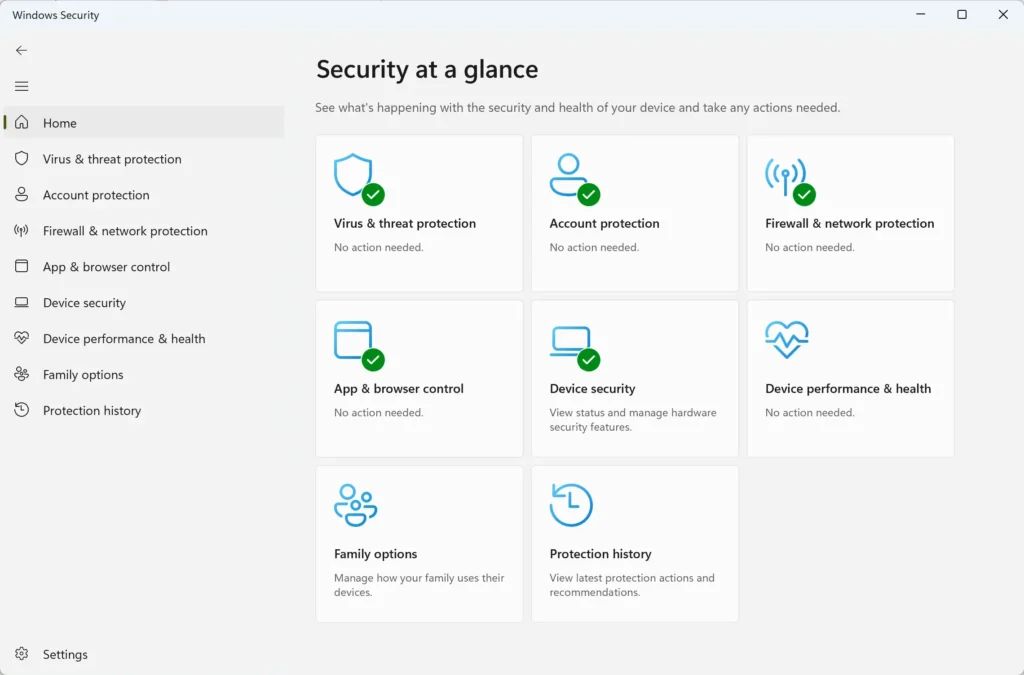
Open Windows Security. Go to Settings›Privacy & security›Windows Security, then select Open Windows Security. Windows SecurityThis is the built-in antivirus and firewall. Green check marks mean no action is needed. Any warning icon includes a button to fix the problem.
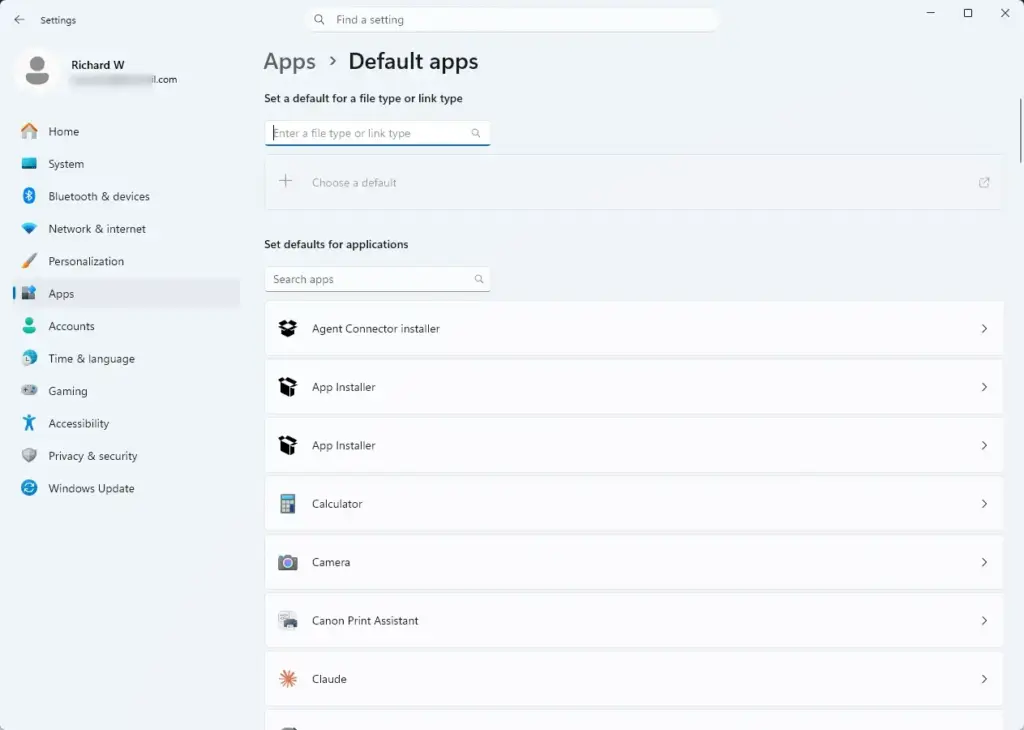
Set your default apps. Go to Settings›Apps›Default apps. This controls which app opens web links, PDFs, and music files. Select an app in the list to change its defaults. Settings › Apps › Default apps
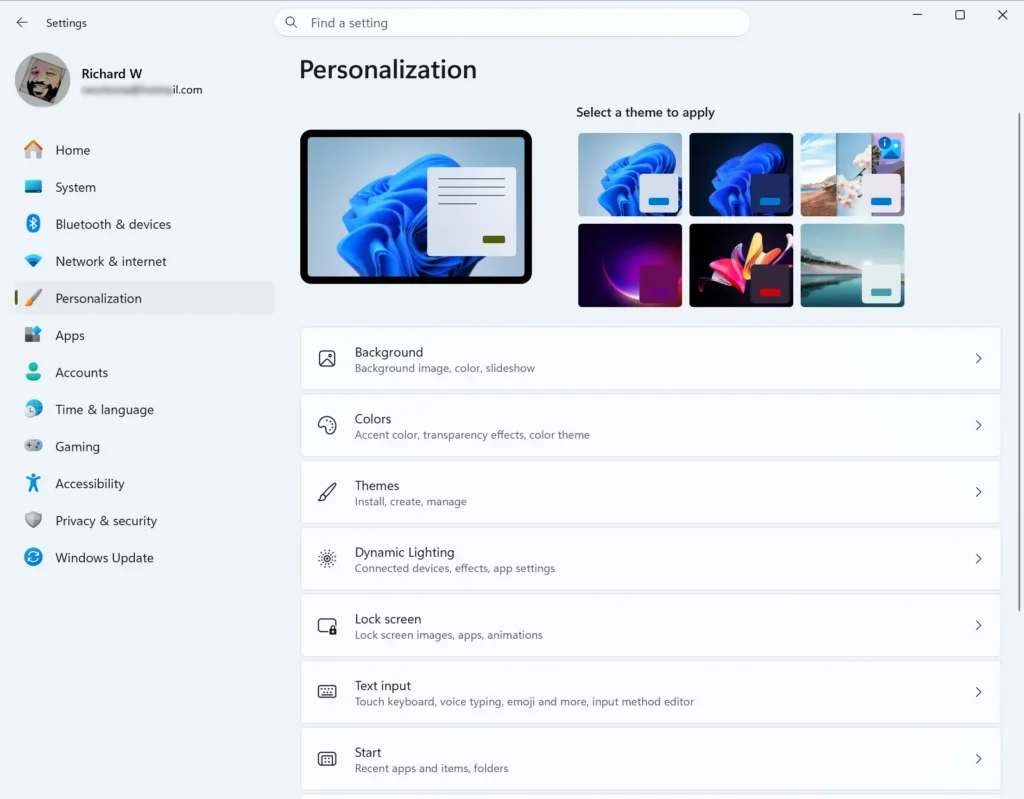
Choose a look. Go to Settings›Personalization. Select Background to change the picture or Colors to switch between Light and Dark mode. The change applies at once. Settings > Personalization
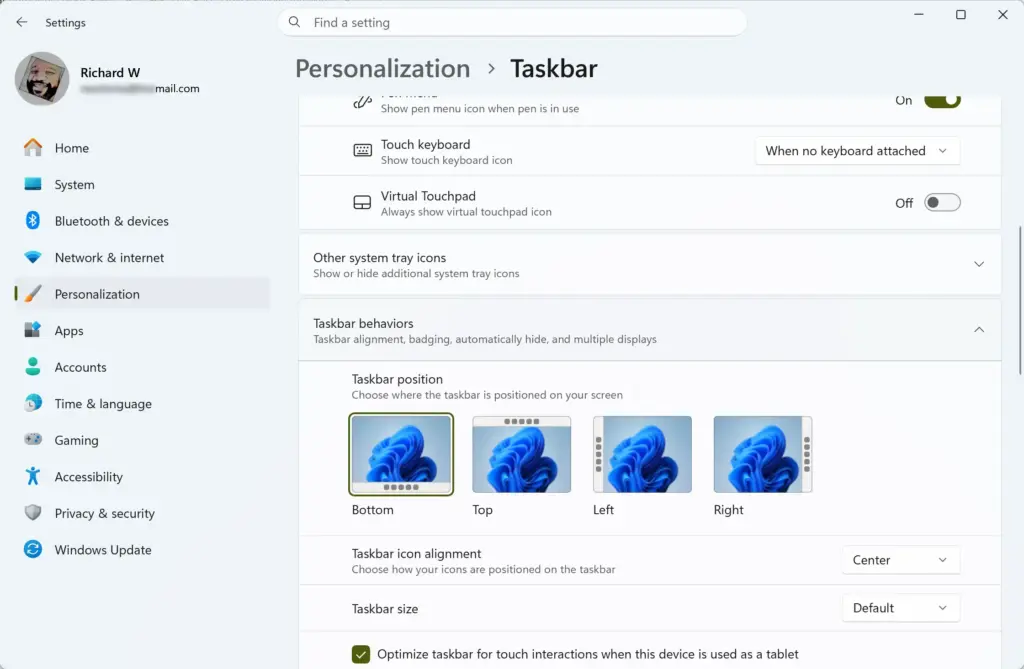
Move the taskbar icons to the left if you prefer. Go to Settings›Personalization›Taskbar, expand Taskbar behaviors, and set Taskbar alignment to Left. To undo it, set the option back to Center. Settings > Personalization > Taskbar
Pin the apps you use most. Open Start, select All, right-click an app, and choose Pin to Start. For the taskbar, choose More and then Pin to taskbar. The app now opens in one click.
Open File Explorer. Press Windows key + E and click Documents and Downloads in the left pane. This is where most of your saved files go.
Check your backup options. Go to Settings›Accounts and look for Windows backup. If it is listed, it can back up your folders, settings, and apps to your Microsoft account. Recent versions include it, and it may be missing on older builds.
Try Snap layouts. Hover over the Maximize button at the top right of any window, then choose a layout. Snap layouts (a way to arrange windows side by side) are useful on larger screens.
Advertisement
Keyboard Shortcuts Worth Learning First
These shortcuts save time and work on every edition of Windows 11:
Windows key + E opens File Explorer.
Windows key + I opens Settings.
Windows key + S opens Search.
Windows key + A opens Quick Settings.
Windows key + N opens the notification centre.
Windows key + D shows or hides the desktop.
Windows key + Tab opens Task View, a screen that shows every open window and any virtual desktops (separate workspaces you can switch between).
Windows key + L locks the PC.
Ctrl + Shift + Esc opens Task Manager, where you can close an app that has stopped responding.
Why Your Screen Might Look Different
Windows 11 changes through feature updates, so menus and layouts differ between versions. Check Version in Settings›System›About, as in the steps above, before you assume something is missing.
Four things commonly cause differences. Each one has its own bullet below.
Home and Pro editions. Both have the same desktop layout. Pro adds business features, such as extra management tools, that do not appear on Home.
PC maker software. Computers from Dell, HP, Lenovo, and others often ship with extra pinned apps and utilities. Right-click any pinned item and choose Unpin from taskbar or Unpin from Start to remove it from view.
Work or school management. If your PC belongs to an organisation, an administrator can hide or lock settings. A message such as “Some settings are managed by your organization” confirms it.
Option not listed. If a setting from this guide is missing, install pending updates first and check again. Some options arrive only in newer versions.
What to Do Next
Your PC is now updated and protected, and the main parts of the desktop should feel familiar. The next step is to work through the 20 essential tips for new Windows 11 users and keep the ones that suit how you work.
If the welcome screens keep returning after updates, turn off the welcome experience. Run Check for updates in Windows Update every few weeks, because feature updates can change menu names and layouts.
📬 Get new Windows tips in your inbox
One email when we publish something worth your time. We send a link to confirm. No spam, unsubscribe anytime.
Share
Have a question about this guide?
Answered by AI from this guide. Good questions may be added to this page — please don't include personal details.
Richard is a writer at Geek Rewind who turns complex IT tasks into clear, step-by-step guides. He draws on years of hands-on experience in system administration and enterprise IT operations, focusing on Windows, Linux and WordPress: the problems people actually run into, and the fixes that work.
His server and WordPress guides come from systems he runs himself. Richard builds and maintains the platform behind Geek Rewind, from its Ubuntu servers and Nginx configuration to its custom WordPress plugins.
Many new tutorials start with readers' questions, and he's always glad to answer them in the comments.



No comments yet — be the first to share your thoughts!