How to Disable or Enable Welcome Experience in Windows 11


The Welcome Experience in Windows 11 shows full-screen setup prompts and tips after major system updates finish installing . These screens push new features or ask you to finish setting up your PC.
Turning off this feature lets you skip the nag screens so your desktop loads straight away after an update. You need an Administrator account on your PC to change this setting.
You can disable the Windows 11 welcome experience by going to Settings System Notifications and unchecking “Show me the Windows welcome experience.” Alternatively, for advanced users, edit the registry at 🗝️HKEY_CURRENT_USER\
Method 1Settings App (Standard Users)
Managing notifications for a single account starts right inside the Settings app (Win+I).
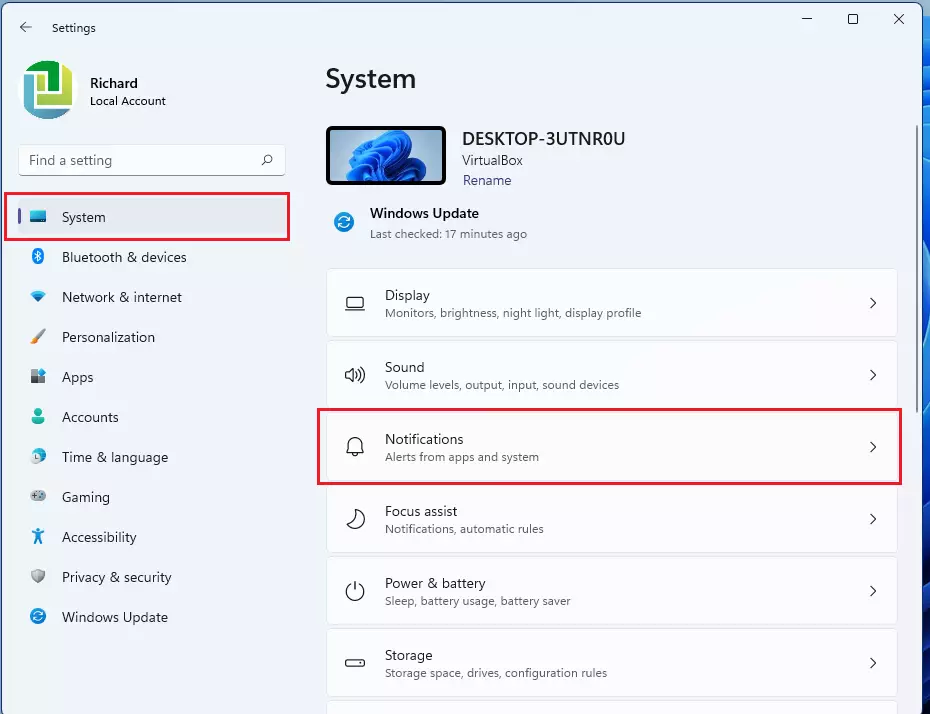
- Open Settings (Win+I).
- Navigate to System Notifications.
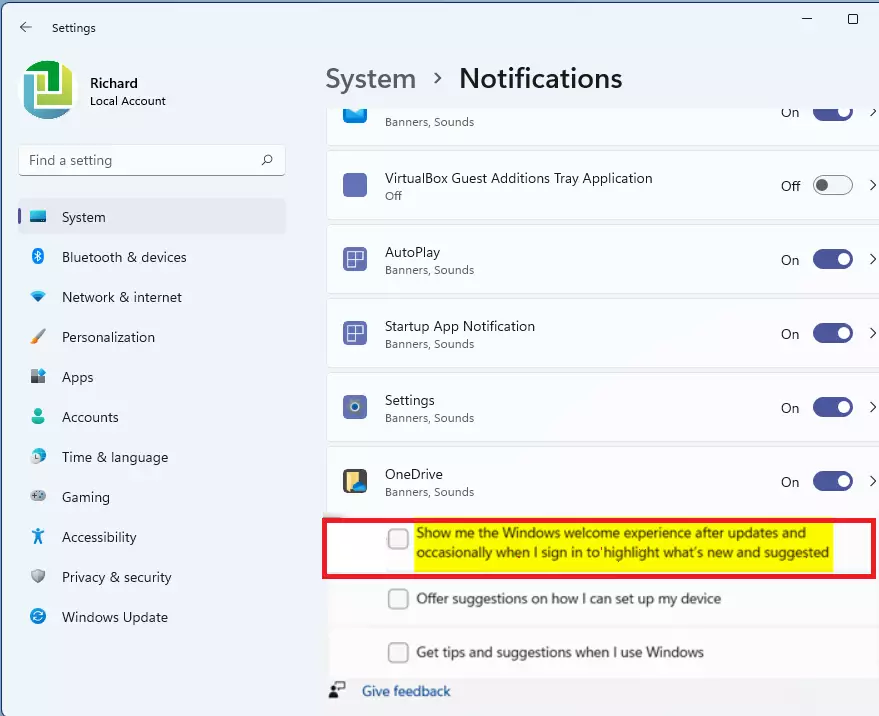
- Scroll to the bottom and uncheck Show me the Windows welcome experience after updates and occasionally when I sign in.

Method 2Registry Editor (Power Users)
Registry Editor lets you turn off the Windows 11 welcome experience by modifying a specific registry key when you cannot access the standard settings menu. This advanced method requires administrator privileges and changes the ContentDeliveryManager key to block post-update setup screens permanently across your user profile.
HKEY_CURRENT_USER\Software\Microsoft\Windows\CurrentVersion\ContentDeliveryManager
Locate the SubscribedContent-310093Enabled DWORD value (a specific type of registry entry used to store numerical settings).
Double-click the value and change its data to 0 to turn off the feature.
Method 3Group Policy (Enterprise & IT Admins)
Local Group Policy Editor allows system administrators to disable the Windows 11 welcome experience across multiple machines using domain management tools. You open the policy editor through the Run dialog, locate the Windows Welcome Experience folder under administrative templates, and turn on the policy to block setup screens for every user.
- Press Win + R, type gpedit.msc, and hit Enter.
- Navigate to Computer Configuration Administrative Templates Windows Components Windows Welcome Experience.
- Enable the policy: Turn off Windows Welcome Experience.
Troubleshooting Persistent Pop-ups
If the screen persists, verify that AllowWindowsConsumerFeatures is disabled in your registry under HKEY_LOCAL_MACHINE\SOFTWARE\Policies\Microsoft\Windows\CloudContent. This setting stops consumer suggestions from triggering the setup sequence.
Summary
Turning off the Windows 11 welcome experience is achievable through the Settings app, Registry Editor, or Group Policy.
Was this guide helpful?

About the Author
Richard
Tech Writer, IT Professional
Richard is a writer at Geek Rewind who turns complex IT tasks into clear, step-by-step guides. He draws on years of hands-on experience in system administration and enterprise IT operations, focusing on Windows, Linux and WordPress: the problems people actually run into, and the fixes that work. His server and WordPress guides come from systems he runs himself. Richard builds and maintains the platform behind Geek Rewind, from its Ubuntu servers and Nginx configuration to its custom WordPress plugins. Many new tutorials start with readers' questions, and he's always glad to answer them in the comments.



No comments yet — be the first to share your thoughts!