Use Sticky Notes on Your Windows 11 Desktop

- 15 steps
- Needs administrator rights
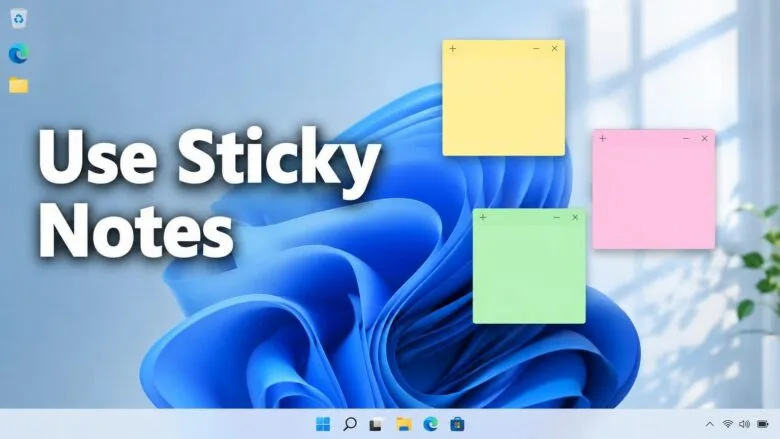
To add a note, open Start, search for Sticky Notes, and select the plus (+) button. Sticky Notes in Windows 11 is a built-in app that puts small, colored note windows on your desktop for reminders, lists and snippets of text.
The app saves every note automatically, so there is no Save button. This post covers creating, formatting, moving and pinning notes, plus how to keep them in view and what to check when they go missing.
To use Sticky Notes on your Windows 11 desktop, click Start, type Sticky Notes, and open the app, then select the + (New note) button. Type your text, drag the note by its top bar to place it, and drag a corner to resize it. Notes save automatically, so there is no Save button.
How Sticky Notes behaves on the desktop
Sticky Notes does not paste notes into your wallpaper. Each note is a separate small window that sits on top of the desktop like any other app window. That has two practical effects.
Second, a note can be covered by other windows. Both are normal. Later sections cover ways to keep notes within reach.
Sticky Notes is also a different feature from decorative desktop stickers. If you want artwork on your wallpaper rather than text notes, read how to enable desktop stickers in Windows 11 instead.
Before you start
You do not need administrator rights. Sticky Notes runs under your own user account, and every step below works from a standard account.
The app comes with Windows 11 Home and Pro. It is a Microsoft Store app, so it updates through the Store, and button positions can differ slightly between app versions. The labels in this post match the current Sticky Notes app.
A Microsoft account is optional. Without one, notes stay on that PC. With one, they sync (keep matching copies up to date) to your other devices. The sign-in and sign-out steps for Sticky Notes are covered in a separate post.
Use Sticky Notes on your 🪟 Windows 11 desktop, step by step
These steps take you from opening the app to placing, formatting and pinning notes so you can use Sticky Notes on your Windows 11 desktop.
- Click the Start button on the taskbar . The Start menu opens with a search box at the top.
- Type Sticky Notes in the search box. The app appears at the top of the results.
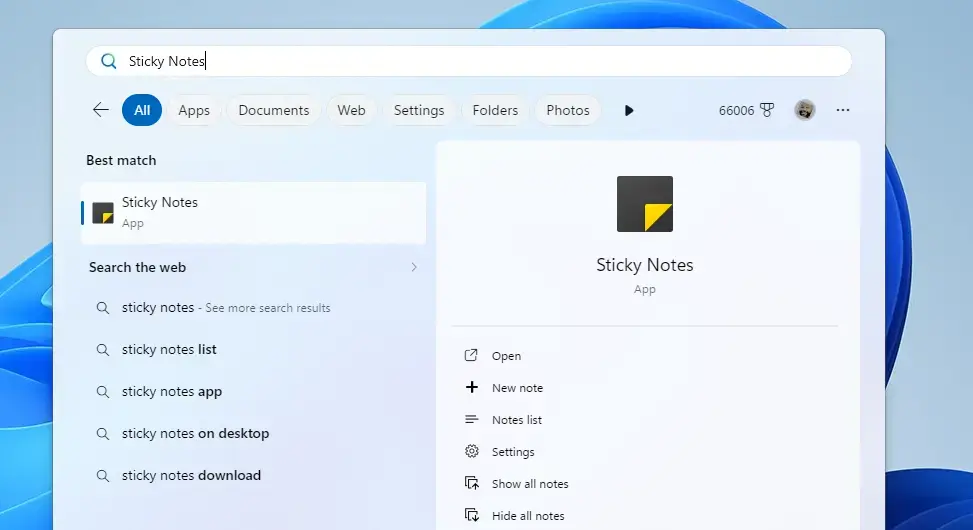
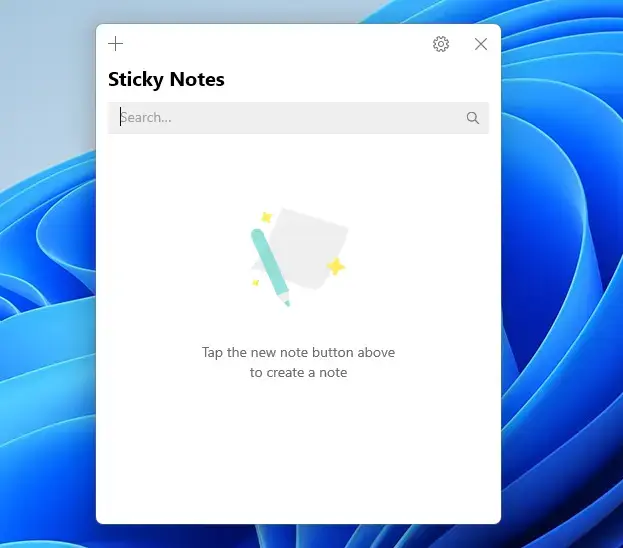
Start Menu - Select Sticky Notes in the results. The app opens. If you already have notes, they appear in a window called the notes list, and each saved note opens in its own window. If you have none, a blank note opens.
- Select the + (New note) button. It sits in the top-left corner of a note window and in the notes list window. A new, empty note appears, usually in yellow.
- Click inside the note and type your text. Each note saves automatically as you type.
- Drag the note by its top bar to move it. Drop it where you want it on the desktop, such as beside the app you are working in.
- Drag a corner or edge of the note to resize it. Make it larger for lists and smaller for a short reminder.
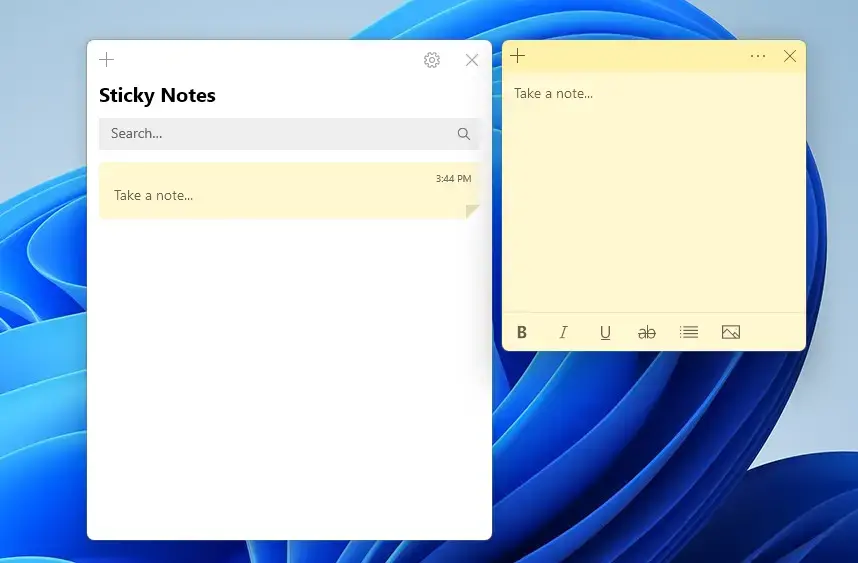
- Select your text, then use the toolbar at the bottom of the note to format it. The toolbar offers bold, italic, underline, strikethrough, a bulleted list, and an option to add an image. If you do not see the toolbar, click inside the note first.
- Select the More options button (the three dots) in the top-right corner of the note. A menu opens with a row of color swatches.
- Select a color swatch to change the note’s color. The note changes color right away. Using a different color for each kind of note makes them easier to tell apart at a glance.
- Press Ctrl+N inside a note to create another one. A second note opens in its own window, and you can place the notes side by side.
- Select the X (Close) button on a note to put it away. Closing does not delete the note. It stays in the notes list.
- Open the notes list and double-click a note to bring it back to the desktop. If the notes list is not open, select the More options button on any note and choose Notes list.
- Right-click the Sticky Notes icon on the taskbar while the app is open, then choose Pin to taskbar . The icon now stays on the taskbar after you close the app, so you can reopen your notes in one click.
- Delete a note you no longer need by selecting More options on that note, then choosing Delete note. A confirmation prompt may appear. Confirm it to remove the note.
Deleting a note removes it from the app, and if you were signed in, from your other synced devices too. Copy the text somewhere else first if there is any doubt.
If a step does not work as described
If the + button does nothing, close all Sticky Notes windows and reopen the app from Start. If the toolbar at the bottom of a note is missing, click inside the note text, because the toolbar appears only when a note is active. If the note’s top bar is hard to grab, drag from an empty strip near the top edge rather than from the buttons.
Keep Sticky Notes within reach
Because notes are normal windows, a few habits keep them from getting lost. Pinning the app to the taskbar (step 14) is the most useful one. You can also pin it to Start: right-click the app in the Start search results and choose Pin to Start.
If you prefer a clickable icon on the desktop itself, create a shortcut to the app. The post on creating desktop shortcuts in Windows 11 explains the general method for apps, files, folders and websites.
Keep a note above other windows
Sticky Notes has no built-in option to stay on top of other windows. If you need that, Microsoft PowerToys (a free set of extra Windows utilities from Microsoft) includes a tool called Always On Top. Install PowerToys, turn on Always On Top in its settings, select the note, and press the shortcut shown in the PowerToys settings. Check the shortcut there, because you can change it.
This is optional and separate from Sticky Notes itself. If you do not want to install another tool, move the notes to a second monitor. You can also drag your main window to one half of the screen so the notes stay visible.
Keyboard shortcuts for notes
These shortcuts work while a note is active:
- Ctrl+N creates a new note.
- Ctrl+B makes selected text bold.
- Ctrl+I makes selected text italic.
- Ctrl+U underlines selected text.
- Ctrl+T applies strikethrough (a line through the text) to selected text.
Strikethrough is handy for a to-do list, because you can cross off an item without deleting it.
Sync notes between devices
Signing in to Sticky Notes with a Microsoft account backs up your notes to the cloud and makes them appear on other signed-in devices. To sign in, open the notes list, select the Settings button (the gear icon), and choose the option to sign in with your Microsoft account. The same Settings panel also controls the color mode, which is covered later in this post. The full walkthrough, including how to sign out, is in the post on signing in and out of Sticky Notes.
If you stay signed out, notes are stored only on this PC. That works fine for a single computer, but you have no cloud copy if something goes wrong with the PC or the app.
Fix common Sticky Notes problems
Sticky Notes does not appear in Start
Open the Microsoft Store, search for Sticky Notes, and install it. If the Store shows an Open button instead of Install, the app is present, so check All apps in the Start menu and scroll to the S section. Because the app comes from the Store, a missing app usually means it was uninstalled.
Notes are not on the desktop after you restart
Sticky Notes does not always reopen your notes on its own after a restart. Open the app from the taskbar or Start, then double-click the notes you want in the notes list. Pinning the app to the taskbar makes this a one-click job.
A note seems to be gone
Check the notes list before assuming it was deleted. A note you closed with the X button is still in the list. If it is not there and you were signed in on another device, open Sticky Notes on that device to see whether the note is still present. Notes that you deleted through Delete note cannot be recovered from within the app, so this post does not cover recovery.
Notes from the old Sticky Notes do not show up
If you upgraded from an earlier Windows version and expected older notes, sign in with the same Microsoft account you used before. Notes saved only on another PC will not move across without that account. This post does not cover a supported way to move local notes between PCs. Signing in to sync is the reliable route.
Sticky Notes looks too bright or too dark
Open the notes list, select the Settings button, and look for the color mode option. You can choose a light or dark appearance, or follow your Windows setting. Change individual note colors separately from the More options menu on each note.
What to do next
The full guide to using Sticky Notes in Windows 11 goes deeper into the notes list and the app's settings. If you want to decorate the desktop as well, adding stickers to your desktop in Windows 11 is the closest related task. To undo the setup, delete the notes you no longer need and unpin the app by right-clicking its taskbar icon and choosing Unpin from taskbar.
Have a question about this guide?
Answered by AI from this guide. Good questions may be added to this page — please don't include personal details.
Did this guide fix your problem?

About the Author
Richard
Tech Writer, IT Professional
Richard is a writer at Geek Rewind who turns complex IT tasks into clear, step-by-step guides. He draws on years of hands-on experience in system administration and enterprise IT operations, focusing on Windows, Linux and WordPress: the problems people actually run into, and the fixes that work. His server and WordPress guides come from systems he runs himself. Richard builds and maintains the platform behind Geek Rewind, from its Ubuntu servers and Nginx configuration to its custom WordPress plugins. Many new tutorials start with readers' questions, and he's always glad to answer them in the comments.
No comments yet — be the first to share your thoughts!