Enable Insights in Microsoft Sticky Notes: A How-To Guide


Insights in Microsoft Sticky Notes scans your text for dates, times, phone numbers, and addresses so you can set reminders or open maps with a single click. Microsoft Sticky Notes is a built-in Windows app that lets you pin colorful notes right on your PC screen.
Turning on Insights makes those notes much smarter by automatically turning important details into clickable links. You need an active internet connection for the feature to read your notes and pull up the right info.
Ensure you are signed into Sticky Notes with your Microsoft account. Insights will then automatically activate, making dates, times, and addresses in your notes interactive.
How to enable or disable insights for sticky notes in 🪟 Windows 11
You can turn on Microsoft Sticky Notes Insights in the app settings to automatically detect dates, times, and phone numbers in your notes. To enable or disable this feature, open Sticky Notes, click the three dots menu icon to open the settings panel, and toggle the Enable insights switch to on or off depending on what you want.
Here’s how to enable or disable Insights for Notes.
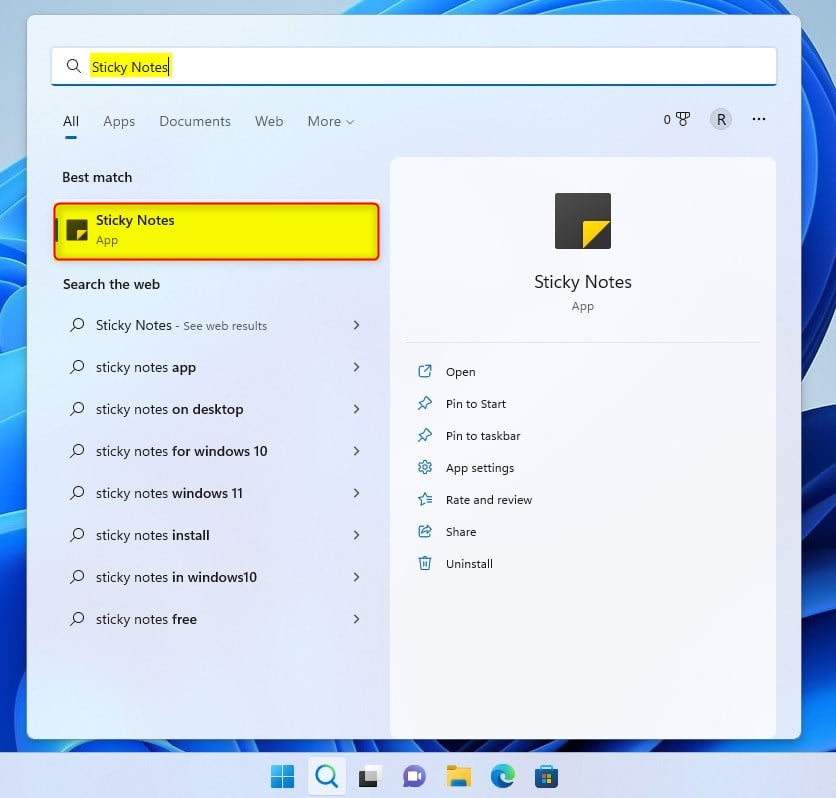
Launch the Sticky Notes app to view your list of notes. Press the Start key, type Sticky Notes into the search bar, and select the Sticky Notes App from the results.
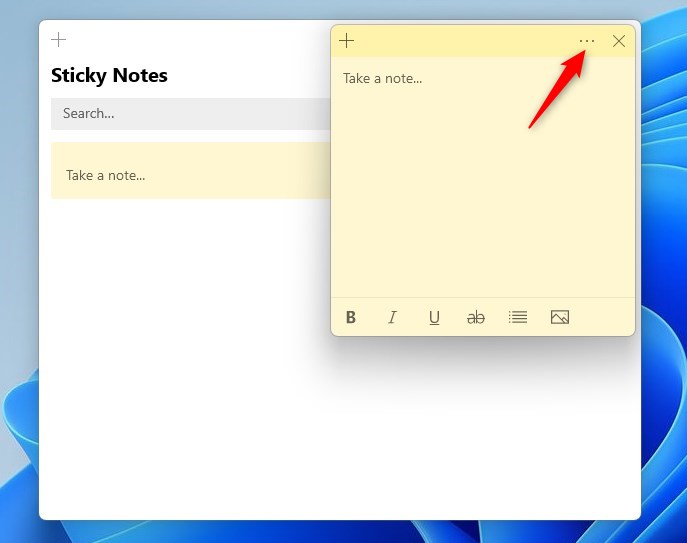
If only a single note appears, click or tap the ellipsis icon ( … ) in the upper-right corner of the note. Then, click or tap Notes list.
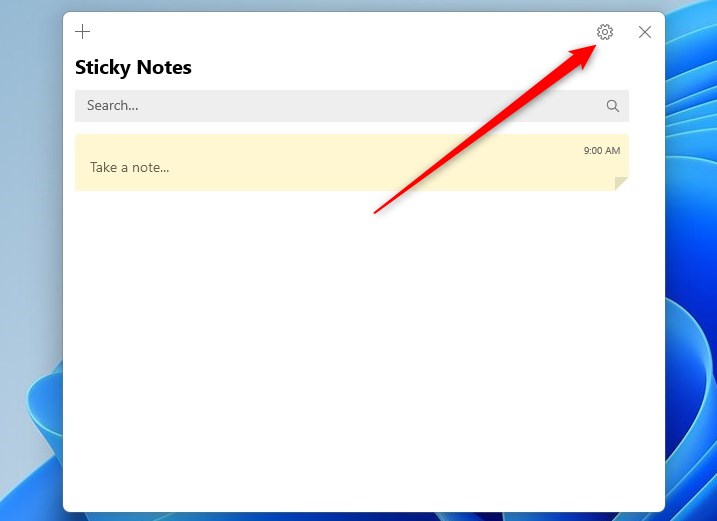
Next, click the settings icon located in the upper-right of the notes list.
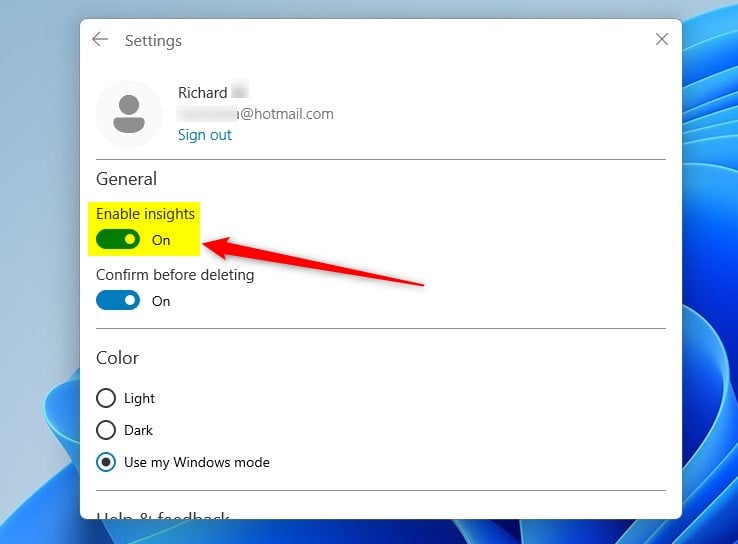
In the settings window, toggle the switch for Enable insights to On or Off. Insights is now active.
Click the close icon ( X ) in the upper-right corner to close the note. Your note saves automatically.
That should do it!
Conclusion:
- Enabling Insights for Microsoft Sticky Notes enhances note-taking efficiency
- Syncing notes across devices with a Microsoft account boosts accessibility and productivity
- Disabling Insights may be preferred for users looking to maintain a simpler note-taking experience
Was this guide helpful?
100% of readers found this helpful (1 votes)

About the Author
Richard
Tech Writer, IT Professional
Richard is a writer at Geek Rewind who turns complex IT tasks into clear, step-by-step guides. He draws on years of hands-on experience in system administration and enterprise IT operations, focusing on Windows, Linux and WordPress: the problems people actually run into, and the fixes that work. His server and WordPress guides come from systems he runs himself. Richard builds and maintains the platform behind Geek Rewind, from its Ubuntu servers and Nginx configuration to its custom WordPress plugins. Many new tutorials start with readers' questions, and he's always glad to answer them in the comments.



No comments yet — be the first to share your thoughts!