How to Transfer Files from USB to Windows 11

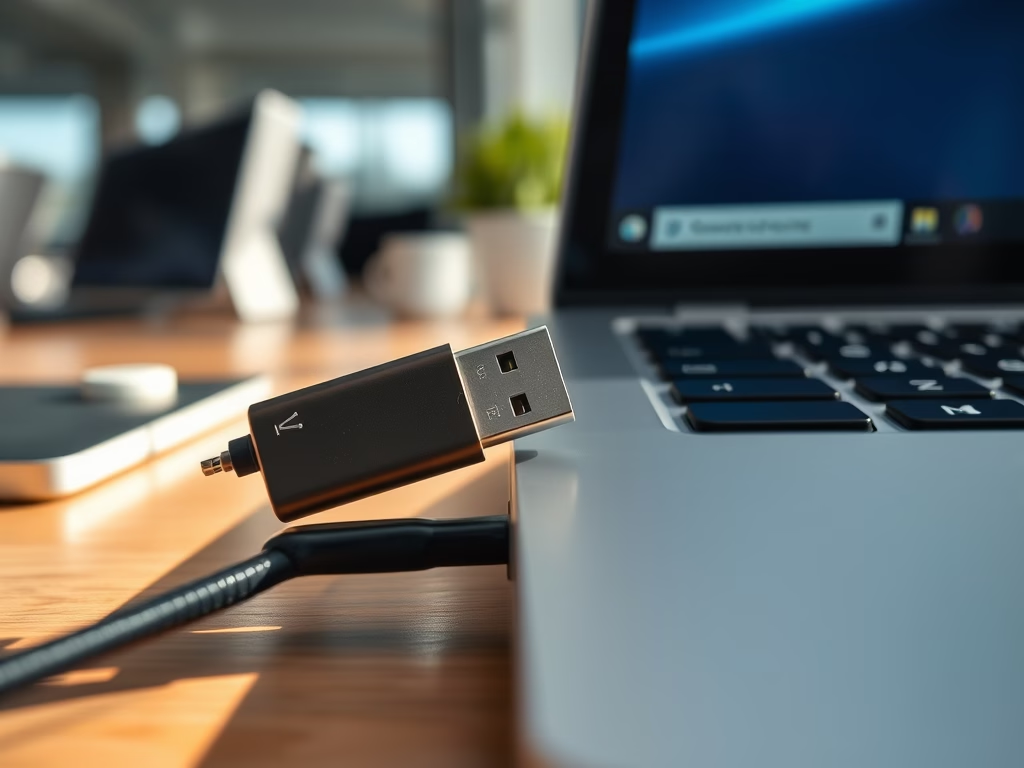
Transferring files from a USB drive to your computer is the most reliable way to move photos, documents, and videos without needing the internet.
Why do this? It keeps your data safe and accessible even when you are offline.
What happens when done? Your files are stored directly on your computer’s hard drive, making them faster to open and easier to organize.
What You Need
Windows 11 works with many types of USB drives, including USB 2.0, 3.0, 3.1, 3.2, and USB-C flash drives. If your computer does not have the right port, you can use a USB hub or adapter.
How to Transfer Files from USB to Windows 11
Step 1: Plug In Your USB Drive
Insert your USB drive into the correct port. USB 3.0 or higher ports are often blue inside. Make sure it is fully seated.
Step 2: Wait for Windows to Recognize the Drive
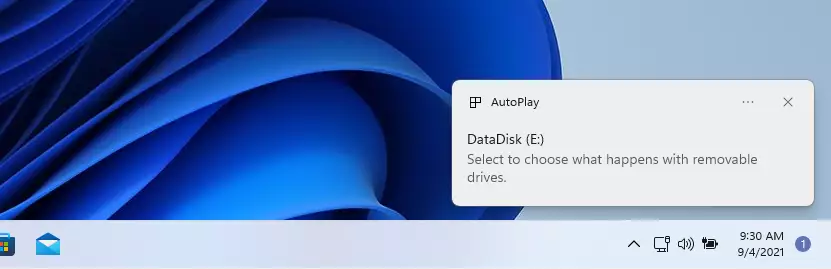
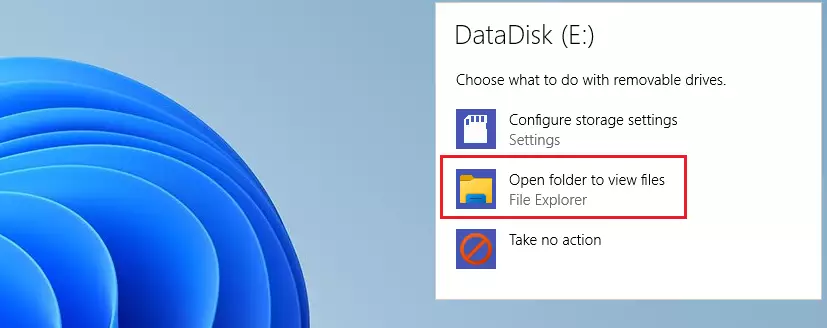
Windows 11 will usually show a notification. Click Open folder to view files.
Step 3: Find Your USB Drive (If No Pop-Up Appears)
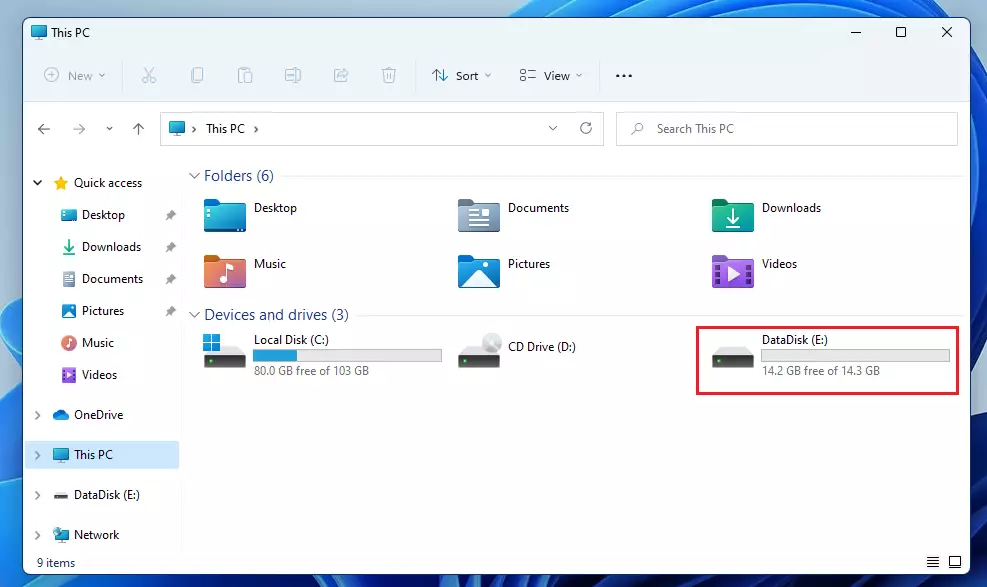
If nothing happens, open File Explorer by pressing Windows key + E. Click This PC on the left. Your drive will appear under Devices and drives.
Step 4: Pick Which Files You Want to Copy
Select your files. Pro-Tip: Use Ctrl + C to copy and Ctrl + V to paste. This is much faster than using the mouse.
Step 5: Paste Your Files
Navigate to the folder on your computer where you want the files to live. Press Ctrl + V to complete the transfer.
Troubleshooting USB Recognition Issues
If your USB drive is not detected, try these steps:
- Try a different USB port on your computer.
- Open Device Manager (requires admin privileges) to check for driver errors.
- Use Disk Management to see if the drive needs a drive letter assigned.
Transfer Speed Optimization
To get the best speed, always plug your USB 3.0 drive into a blue USB 3.0 port. Avoid using cheap USB hubs, as they can slow down your transfer speed significantly.
File System Compatibility
If you cannot copy files larger than 4GB, your drive is likely formatted as FAT32. To fix this, you must format the drive to NTFS or exFAT. Warning: Formatting erases all data on the drive. Back up your files first.
Summary
You have learned how to connect a USB drive, locate it in File Explorer, and move files using keyboard shortcuts. You also learned how to troubleshoot common detection issues and optimize transfer speeds. By following these steps, you can safely manage your external storage and keep your files organized on Windows 11.
Why is my USB drive not showing up in Windows 11?
This often happens due to a loose connection, a faulty USB port, or a missing drive letter. Try plugging the drive into a different port. If that fails, open Disk Management to see if the drive is listed there and assign it a new drive letter to make it visible in File Explorer.
How do I transfer large files over 4GB to a USB drive?
The FAT32 file system has a 4GB file size limit. To transfer larger files, you must reformat your USB drive to the NTFS or exFAT file system. Right-click the drive in File Explorer, select Format, and choose NTFS or exFAT from the File System dropdown menu.
Is it safe to pull out a USB drive without ejecting?
It is not recommended. Pulling a drive out while Windows is still writing data can corrupt your files or damage the drive. Always use the Safely Remove Hardware icon in the taskbar to ensure all background processes are finished before you physically remove the USB device from your computer.
Was this guide helpful?
100% of readers found this helpful (1 votes)

About the Author
Richard
Tech Writer, IT Professional
Richard, a writer for Geek Rewind, is a tech enthusiast who loves breaking down complex IT topics into simple, easy-to-understand ideas. With years of hands-on experience in system administration and enterprise IT operations, he’s developed a knack for offering practical tips and solutions. Richard aims to make technology more accessible and actionable. He's deeply committed to the Geek Rewind community, always ready to answer questions and engage in discussions.


hello, I switched to using a laptop with Windows 11 (passed down to me by another person), so i am trying to copy over files and folders from my existing laptop (Windows 10). I copied the files and folders onto an external hard disk drive. when i try to copy over to the other laptop, some folders it just doesn’t copy over. when i clicked paste, there is no response, any idea? thanks! i am searching google and YouTube but not getting any hint yet.
Copying files from external HDD to Windows 11 HDD forces those files to be stored on OneDrive. As only 5 GiG is available on the “free” storage of OneDrive, anything over that gets tagged as a error being unavailable.
The easy option is to fork out more money to Microsoft for more storage where it is downloaded from when needed, another slow process, costly, and not all that secure. Microsoft has our files, not us. We just provide Microsoft with the medium to stalk us.
Windows 11 is NOT free. In exchange for Windows 11, we give up our rights to privacy.
To transfer all files docs/pics/video/downloads etcetera, is to search the Internet or Google, for how to disable OneDrive. Then copy the file to where you want them, not where Windows wants them.
10000%
I’m really beginning to hate Windows 11!!!
[…] with the Microsoft Windows operating system. A graphical user interface lets you view, copy, move, delete, and rename files and folders and organize them […]
[…] is included in the Microsoft Windows operating system. A graphical user interface lets you view, copy, move, delete, and rename files and folders and organize them […]
[…] How to copy files to USB devices in Windows 11 […]
[…] included in the Microsoft Windows operating system. A graphical user interface lets you view, copy, move, delete, and rename files and folders and organize them […]
[…] included in the Microsoft Windows operating system. A graphical user interface lets you view, copy, move, delete, and rename files and folders and organize them […]
[…] you don’t want Windows Updates to download all previously downloaded updates again, you can copy the content from the old SoftwareDistribution.old Folder into the newly created symlink SoftwareDistribution […]
[…] is included in the Microsoft Windows operating system. A graphical user interface lets you view, copy, move, delete, and rename files and folders and organize them […]
[…] is included in the Microsoft Windows operating system. A graphical user interface lets you view, copy, move, delete, and rename files and folders and organize them […]
[…] large files between computers can be slow and frustrating. Most people rely on USB drives to copy files from one computer to another, but this is often inefficient for big data transfers. Using File Explorer can also make your […]