How to Set Default Microphone in Microsoft Teams


Microsoft Teams is a popular app used for video calls, chats, and meetings. Sometimes, your computer might try to use the wrong microphone, making it hard for others to hear you. This guide will help you pick the right one.
Why change your microphone?
You may have a headset, a webcam microphone, and your computer’s built-in mic all connected at once. Changing these settings ensures Teams uses the device with the best sound quality.
What happens when done?
Once you finish these steps, your computer will use your preferred microphone for every meeting until you choose to change it again.
You can connect your Google calendar, turn the camera and mic on or off on the lock screen, turn read receipts on or off, auto start Teams, disable Teams chat, sync contacts with Teams, connect to Google Calendar, link your mobile device, turning message preview on or off, manage teams notifications during calls, and set default speakers to your computer for use with the app.
How to change your microphone in Microsoft Teams
First, open the Microsoft Teams app. You can find it in your Start menu under your list of apps.

You can also open the app from the Taskbar or Taskbar overflow.

Once the app is open, look for the three dots (…) next to your profile picture. Click them and select Settings.

On the left side of the screen, click on Devices. Look for the section labeled Audio settings. Use the drop-down menu under Microphone to select the device you want to use.
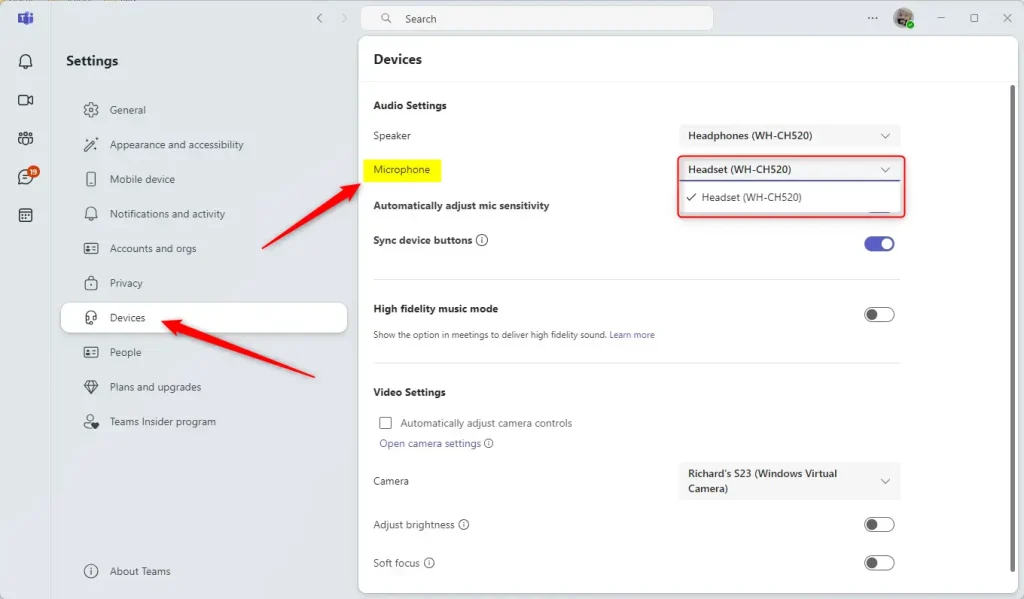
Note: You do not need admin privileges to change these settings. Any standard user account can adjust these preferences.
Summary
- Easy Access: You can quickly change your audio setup through the Settings menu in Teams.
- Multiple Devices: If you have more than one microphone plugged into your PC, you can easily toggle between them.
- Better Sound: Selecting a high-quality external microphone will make your voice much clearer during your calls.
How do I change the default microphone in Microsoft Teams?
Can I use multiple microphones with Microsoft Teams?
Why is my microphone not working in Microsoft Teams?
What should I do if Teams doesn't recognize my microphone?
Is there a way to test my microphone in Microsoft Teams?
Was this guide helpful?

About the Author
Richard
Tech Writer, IT Professional
Richard, a writer for Geek Rewind, is a tech enthusiast who loves breaking down complex IT topics into simple, easy-to-understand ideas. With years of hands-on experience in system administration and enterprise IT operations, he’s developed a knack for offering practical tips and solutions. Richard aims to make technology more accessible and actionable. He's deeply committed to the Geek Rewind community, always ready to answer questions and engage in discussions.


[…] message preview on or off, manage teams notifications during calls, set default speakers, set default microphone, enable high fidelity sound, and […]
[…] message preview on or off, manage teams notifications during calls, set default speakers, set default microphone, enable high fidelity sound, change mic sensitivity, set default camera, and […]
[…] preview on or off, manage teams notifications during calls, set default speakers, set default microphone, enable high fidelity sound, change mic sensitivity, set default camera, hide […]