How to Enable Advanced Reading in Windows 11 Narrator


This guide shows you how to turn the “Advanced Details” feature on or off for the Windows 11 Narrator. This feature reads extra information like help text and button labels aloud.
Narrator is a screen reader built into Windows. It reads what is on your screen and describes your actions. This is very helpful for people with low vision.
When using Narrator, you can turn on or off its keyboard shortcuts, launch it automatically, adjust the voice, speed, and volume, manage natural voices, lower other apps volume when Narrator is speaking, change Narrator audio output device, change verbosity level, emphasize formatted text, enable or disable Narrators phonetic reading, and pause for punctuation.
Why use advanced details?
Narrator can provide extra info, such as font size, text color, and button instructions. You should turn this on if you want a very detailed description of your screen. You should turn it off if you want a simpler, faster experience without extra talk.
What happens when done?
Once you toggle this setting, Narrator will immediately change how it speaks. It will either start providing extra details or switch to a simpler reading mode based on your choice.
How to enable or disable advanced details
Step 1: Open the Settings app
Open the Windows Settings app. You can do this by clicking the Start menu or by pressing the Windows key + I on your keyboard.

Step 2: Go to Narrator settings
In the Settings menu, look at the left sidebar. Click on Accessibility. On the right side, find and click the Narrator tile.
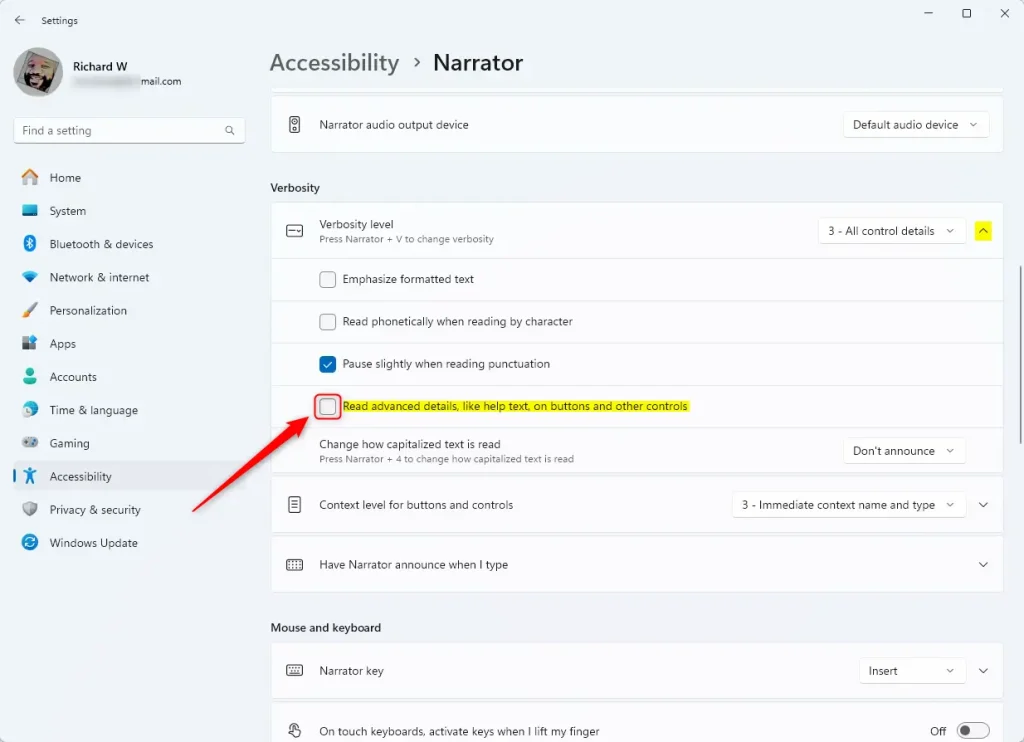
Step 3: Toggle advanced details
Scroll down to the Verbosity section. Look for the option labeled Read advanced details, like help text, on buttons and other controls. Click the toggle switch to turn it On or Off.
Note: This process does not require admin privileges.
Step 4: Close Settings
Once you have made your choice, you can simply close the Settings window. Your changes are saved automatically.
Summary
The Narrator app helps you navigate Windows 11 by reading your screen aloud. By toggling “Advanced Details” in the Accessibility settings, you can choose whether you want to hear extra info about buttons and text or keep the reading simple. This allows you to customize your computer experience to fit your specific needs.
How do I enable advanced reading in Windows 11 Narrator?
What is the purpose of advanced details reading in Narrator?
Can I disable advanced details reading in Narrator?
What are the benefits of using Narrator in Windows 11?
Is Narrator available in all versions of Windows 11?
Was this guide helpful?





[…] formatted text, enable or disable Narrators phonetic reading, pause for punctuation, adjust how the Narrator read advanced details, and […]
[…] formatted text, enable or disable Narrators phonetic reading, pause for punctuation, adjust how the Narrator read advanced details, adjust the way capitalized text is read, add a braille display with Narrator, change the […]
[…] formatted text, enable or disable Narrators phonetic reading, pause for punctuation, adjust how the Narrator read advanced details, adjust the way capitalized text is read, add a braille display with Narrator, change the […]
[…] formatted text, enable or disable Narrators phonetic reading, pause for punctuation, adjust how the Narrator read advanced details, adjust the way capitalized text is read, add a braille display with Narrator, change the […]
[…] the Narrator app, you can enable or disable Narrator phonetic reading, pause for punctuation, adjust how the Narrator read advanced details, adjust the way capitalized text is read, add a braille display with Narrator, change input and […]
[…] Narrator, you can enable or disable Narrator phonetic reading, pause for punctuation, adjust how the Narrator read advanced details, adjust the way capitalized text is read, add a braille display with Narrator, change input and […]