What Is OneDrive in Windows 11 and How It Works

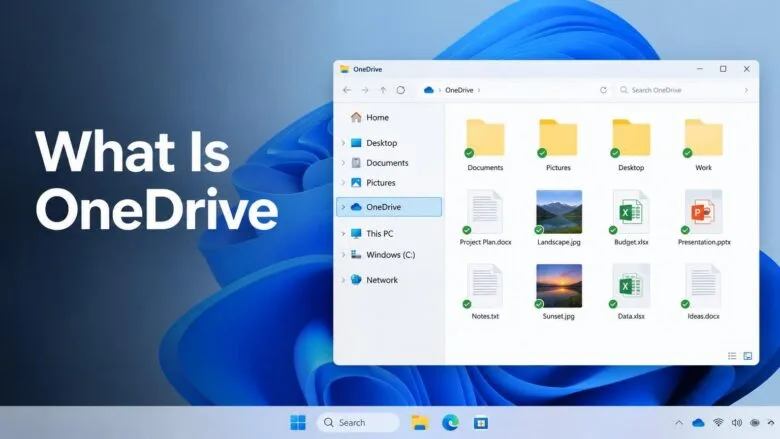
OneDrive in Windows 11 is Microsoft’s cloud storage service, built into the operating system and tied to your Microsoft account. It keeps copies of your files on Microsoft’s servers and syncs them with a OneDrive folder in File Explorer, so the same files are available on your PC, your phone, and the web.
Windows 11 ships with the OneDrive app already installed, and it often starts signing you in during setup. This page explains what OneDrive does, how syncing and the file icons work, and what it does not do. It also covers how to find OneDrive on your PC and where to go if you want it off.
OneDrive in Windows 11 is Microsoft’s cloud storage service, built into the operating system and tied to your Microsoft account. It keeps copies of your files on Microsoft’s servers and syncs them with the OneDrive folder in File Explorer, so the same files appear on your PC, phone, and the web. Deleting a file from that folder removes it everywhere it syncs.
What Is OneDrive in Windows 11?
OneDrive is an online storage space (often called cloud storage) that belongs to your Microsoft account. Instead of a file living only on your PC’s drive, OneDrive stores it on Microsoft’s servers as well. If your PC fails or you sign in on another device, the files are still there.
On Windows 11, OneDrive works as both an app and a folder. The app runs in the background and handles uploads and downloads. The folder appears in File Explorer, in the navigation pane on the left, and behaves like any other folder. You can open it, drag files into it, and rename or delete items.
OneDrive works on Windows 11 Home and Pro. You need a Microsoft account to use it. A work or school account also works, and that version is managed by your organization.
How OneDrive Works on Windows 11
Three ideas explain most of what OneDrive does: syncing, on-demand files, and folder backup.
Syncing between your PC and the cloud
Sync means keeping two copies of a file identical. When you save a file in your OneDrive folder, the app uploads it to your online storage. When you change that file on another device or on the OneDrive website, the change downloads to your PC.
OneDrive does give you a safety net. Deleted items go to the OneDrive Recycle Bin on the OneDrive website, where you can restore them. A file’s previous versions are also available from its right-click menu under Version history in File Explorer and on the web. Neither one replaces a real backup of your most important files.
Files On-Demand: files that show but don’t take space
Files On-Demand is the feature that lets OneDrive list every file in your account without storing all of them on your PC. A file you have not opened shows up in File Explorer as a small placeholder. When you double-click it, OneDrive downloads the full file, and it then opens normally.
This matters if your cloud storage is larger than your PC’s drive. You can see everything and only pay local disk space for what you use. The trade-off is that an online-only file needs an internet connection to open.
You control this per file or folder. Right-click an item in your OneDrive folder and pick one of these options:
- Always keep on this device downloads the item and keeps it on your PC, so it works offline.
- Free up space removes the local copy but leaves the file in the cloud as a placeholder.
Folder backup for Desktop, Documents and Pictures
OneDrive can protect your Desktop, Documents, and Pictures folders. When you turn on folder backup, Windows changes where those folders live so their contents sit inside your OneDrive folder. They look the same in File Explorer, but they now sync to the cloud.
This is the setting behind a common surprise: people notice their Desktop files appear on a second PC or that OneDrive storage fills up fast. To check or change it, open the OneDrive app’s settings and go to the Sync and backup tab, then select Manage backup. The next section shows how to reach those settings.
Turning on folder backup is a bigger change than it looks, because it affects where your everyday folders are stored. The guide to setting up OneDrive on Windows 11 walks through the sign-in and backup prompts.
Where to Find OneDrive on Your PC
You can check that OneDrive is running and signed in from three places. None of these steps need administrator rights.
- Open File Explorer and look at the navigation pane on the left. A folder named OneDrive means the app is signed in to a personal account. A work or school account shows as OneDrive – followed by the organization’s name.
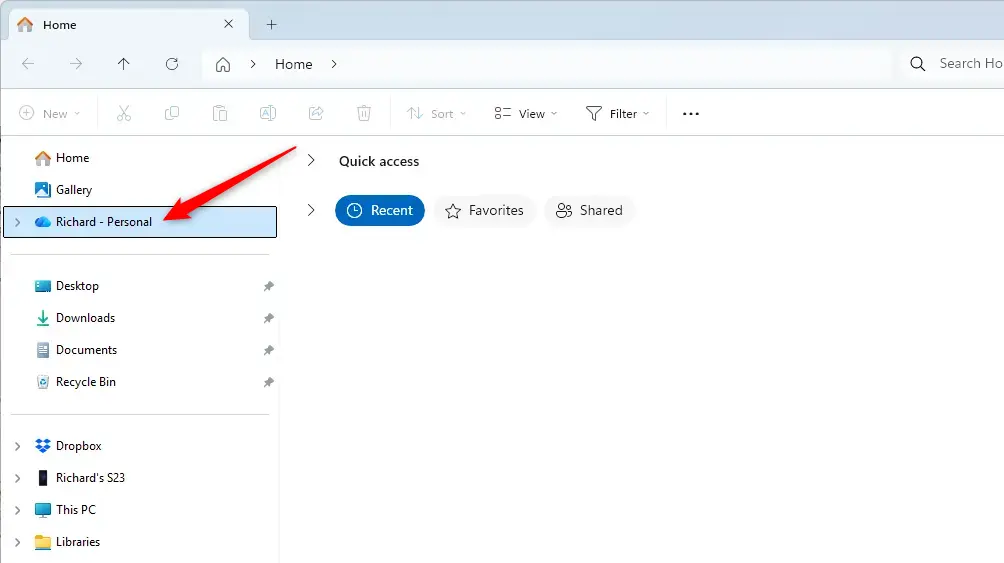
File Explorer - Look at the notification area at the right end of the taskbar. A white or blue cloud icon is OneDrive. If you do not see it, select the Show hidden icons arrow (the small caret) to open the overflow area.
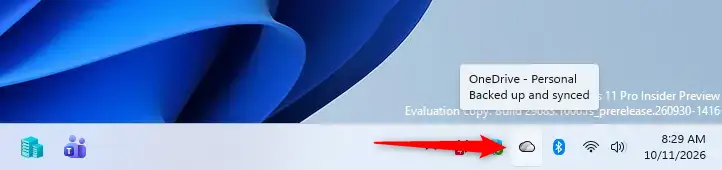
Taskbar - Select the cloud icon. A panel opens showing your recent files, your sync status, and how much storage you have used.
- Select the Help & Settings gear icon in that panel, then select Settings. The OneDrive settings window opens, with tabs such as Sync and backup and Account.
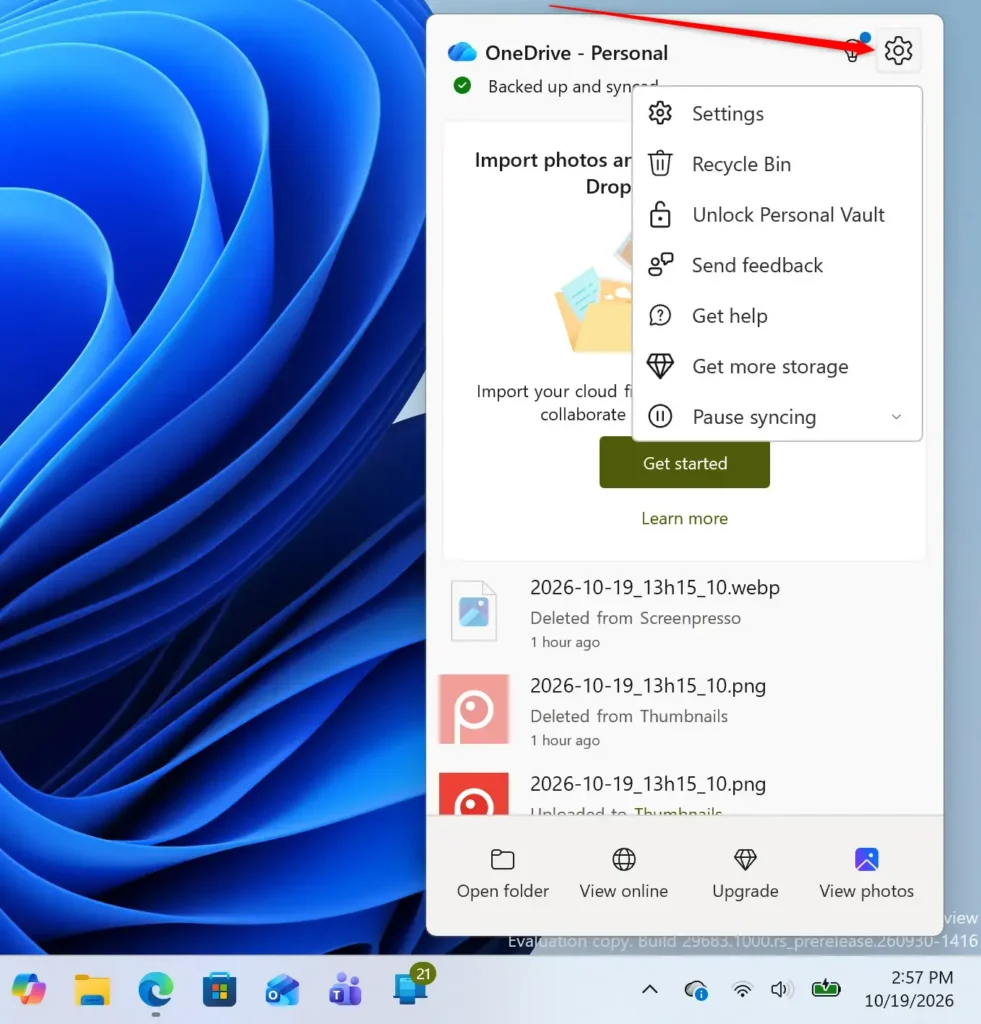
If there is no cloud icon and no OneDrive folder in File Explorer, the app is either not running, not signed in, or hidden. Windows 11 includes a OneDrive entry in the Start menu’s search, so type OneDrive there and open the app to start it. For a quicker route to the settings window, see how to open OneDrive settings from the taskbar.
If the OneDrive folder is missing from the navigation pane but the app is running, the entry may be hidden. The post on hiding or showing OneDrive in File Explorer covers that.
What the OneDrive Icons in File Explorer Mean
Each file and folder in your OneDrive folder carries a small status icon. These icons tell you where the file lives right now. The exact artwork can change slightly between OneDrive updates, but the meanings stay the same.
- Cloud outline: the file is online only. It takes no space on your PC and downloads when you open it.
- Green check in a hollow circle: the file was downloaded to your PC when you opened it. Windows can remove the local copy later if space runs low.
- White check in a solid green circle: the file is set to Always keep on this device, so it stays on your PC.
- Two circular blue arrows: the file is syncing now.
- Red circle with a white X: a sync problem needs your attention. Select the OneDrive cloud icon in the taskbar to read the message.
The same icon appears on the OneDrive cloud in the taskbar. A paused or error state there usually explains why a change has not reached other devices.
What Else OneDrive Does
Beyond storage and sync, OneDrive on Windows 11 includes a few features worth knowing about.
- Sharingright-click a file or folder in File Explorer and use the OneDrive share option to create a link. The recipient does not need a copy of the file on their own PC.
- Access from other devicessign in at the OneDrive website or in the OneDrive mobile app to open the same files on a phone or another computer.
- Personal Vaulta protected area inside OneDrive that asks for extra identity verification before it opens. It suits documents such as scans of IDs. The guide to setting up OneDrive Personal Vault on Windows 11 explains the steps.
- Office integrationWord, Excel, and PowerPoint can save straight to OneDrive, which keeps those files synced without any extra step.
What OneDrive Does Not Do
OneDrive has limits, and knowing them prevents most of the common frustrations.
It is not unlimited. Your storage allowance depends on your Microsoft account and any Microsoft 365 plan attached to it. When the allowance fills up, OneDrive stops uploading new files and shows a warning. Free up cloud space or upgrade the plan to resume.
It also needs a connection for online-only files. On a flight or an unreliable network, a placeholder file will not open. Set important files to Always keep on this device before you go offline.
Personal Accounts vs. Work or School Accounts
You can sign in to OneDrive with more than one kind of account. A personal Microsoft account gives you the folder named OneDrive. A work or school account gives you a second folder named after the organization, and the two stay separate.
Work and school OneDrive is controlled by your administrator. That person can limit sharing, set storage rules, or require folder backup. If an option in OneDrive is greyed out or locked on a work PC, an organization policy is the likely cause, and you need to ask your IT team to change it. Changing it on your own is not possible.
Why OneDrive Might Be Missing or Not Syncing
If OneDrive does not behave as described above, check these causes before changing anything else.
- The app is not running or signed in. Start OneDrive from the Start menu and sign in with your Microsoft account.
- Syncing is paused. Select the cloud icon in the taskbar and look for a paused message. Resume syncing from that panel.
- Your storage is full. OneDrive shows a storage warning in the same panel.
- It was turned off or unlinked. If someone unlinked the PC, the folder stays on the drive but stops syncing. See how to turn OneDrive on or off in Windows 11.
- Sync is stuck or showing errors. A reset often clears this. The guide to resetting OneDrive sync on Windows 11 shows how.
If your PC feels slow while OneDrive is working through a large upload, read whether OneDrive could be slowing down your Windows 11 PC.
How to Stop or Remove OneDrive
OneDrive is optional. You can stop it without losing files, as long as you understand what each choice does.
Closing the app stops syncing until OneDrive starts again, usually at your next sign-in. This is the lightest option and reversible at any time. The post on quitting and closing OneDrive in Windows 11 covers it.
Unlinking the PC from your account stops syncing for good until you sign in again. Files already in the cloud stay there. Files in the local OneDrive folder stay on your PC, but they no longer sync. Before you unlink, check that any folders you backed up with Manage backup are where you expect them.
If you want to keep OneDrive but store it on a different drive, you do not need to remove it. Use the guide to moving your OneDrive folder in Windows 11. To copy everything from the cloud to the PC before making a bigger change, see how to download all files from OneDrive to Windows.
What to do next
If OneDrive is not signed in yet, the next task is to set up OneDrive on Windows 11 and decide whether to back up your Desktop, Documents, and Pictures folders. Open the OneDrive settings window and check Manage backup before you accept any prompt, so you know which folders are syncing. If you decide OneDrive is not for you, the guide to turning OneDrive on or off shows how to stop it and how to bring it back later.
Have a question about this guide?
Answered by AI from this guide. Good questions may be added to this page — please don't include personal details.
Did this guide fix your problem?

About the Author
Richard
Tech Writer, IT Professional
Richard is a writer at Geek Rewind who turns complex IT tasks into clear, step-by-step guides. He draws on years of hands-on experience in system administration and enterprise IT operations, focusing on Windows, Linux and WordPress: the problems people actually run into, and the fixes that work. His server and WordPress guides come from systems he runs himself. Richard builds and maintains the platform behind Geek Rewind, from its Ubuntu servers and Nginx configuration to its custom WordPress plugins. Many new tutorials start with readers' questions, and he's always glad to answer them in the comments.
No comments yet — be the first to share your thoughts!