Turn Off the Laptop Screen but Keep an External Monitor on in Windows 11

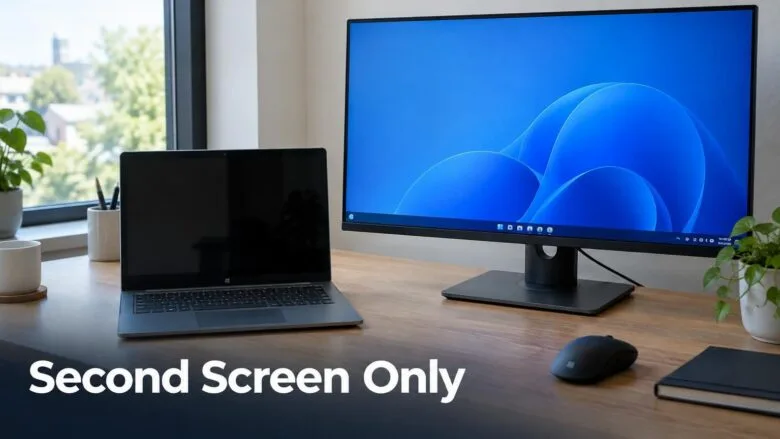
Turning off the laptop screen while keeping an external monitor on in Windows 11 means telling Windows to show your desktop on the second display only. The quickest way is the Project menu (a small panel for choosing how Windows uses several screens). Press the Windows key + P shortcut and choose Second screen only.
The laptop panel goes dark, and the external monitor becomes your only display. The same option lives in Settings System Display. Both methods work on Home and Pro editions of a currently supported Windows 11 version (25H2 or 26H2).
This guide covers both methods, plus a separate lid setting that keeps the PC running with the lid closed, which is what you want for a docked laptop. It also explains what to do if the external monitor is not detected.
Press Win+P to open the Project menu, then select Second screen only to turn off the laptop screen while keeping an external monitor on in Windows 11. The laptop panel goes dark and the external monitor becomes your only display.
Before You Start
Check these three points first. They cause most failed attempts.
- Plug in the external monitor, power it on, and set it to the correct input (HDMI, DisplayPort, or USB-C). If Windows cannot see the monitor, it does not offer a second-screen-only mode.
- Confirm that the external monitor shows your desktop right now. Switching to Second screen only on a monitor that is not working leaves you with two dark screens.
- If you plan to close the lid, have an external keyboard and mouse ready. Without them, you cannot control the PC.
No restart or sign-out is needed for any step here. None of the steps change files or installed apps, and you can reverse every one of them.
Turn Off the Laptop Screen With the Project Menu
The Project menu controls how Windows 11 uses more than one display. It is the fastest route to turn off the laptop screen and keep the external monitor on.
- Connect the external monitor. Plug in the cable and power on the monitor. It should show your desktop, usually as an extension of the laptop screen.
- Press
Windows key + P. The Project menu slides in on the right side of the screen with four options: PC screen only, Duplicate, Extend, and Second screen only.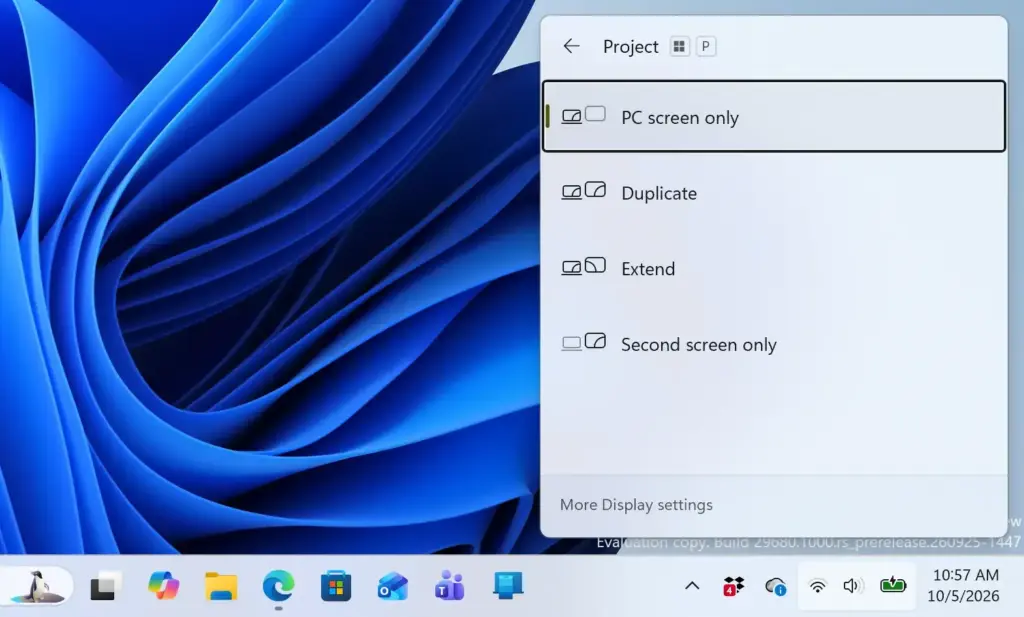
- Select Second screen only. Click it, or press the
Down arrowkey until it is highlighted and pressEnter. The laptop screen goes black, and everything moves to the external monitor. - Check the external monitor. Your desktop, taskbar, and open windows now appear there only.
That’s it. The laptop screen is off, and the external monitor is your only display until you change the mode again.
If the Project menu lists only PC screen only, or the other options are greyed out, Windows does not detect a second display. Check the cable and the monitor’s input source, then try again. The troubleshooting section below has more fixes.
To bring the laptop screen back, press Windows key + P again and choose Extend or PC screen only.
Turn Off the Laptop Screen in Display Settings
These steps turn off the laptop screen and keep the external monitor on:
- Open Settings. Press
Windows key + I. The Settings window opens with a list of categories on the left.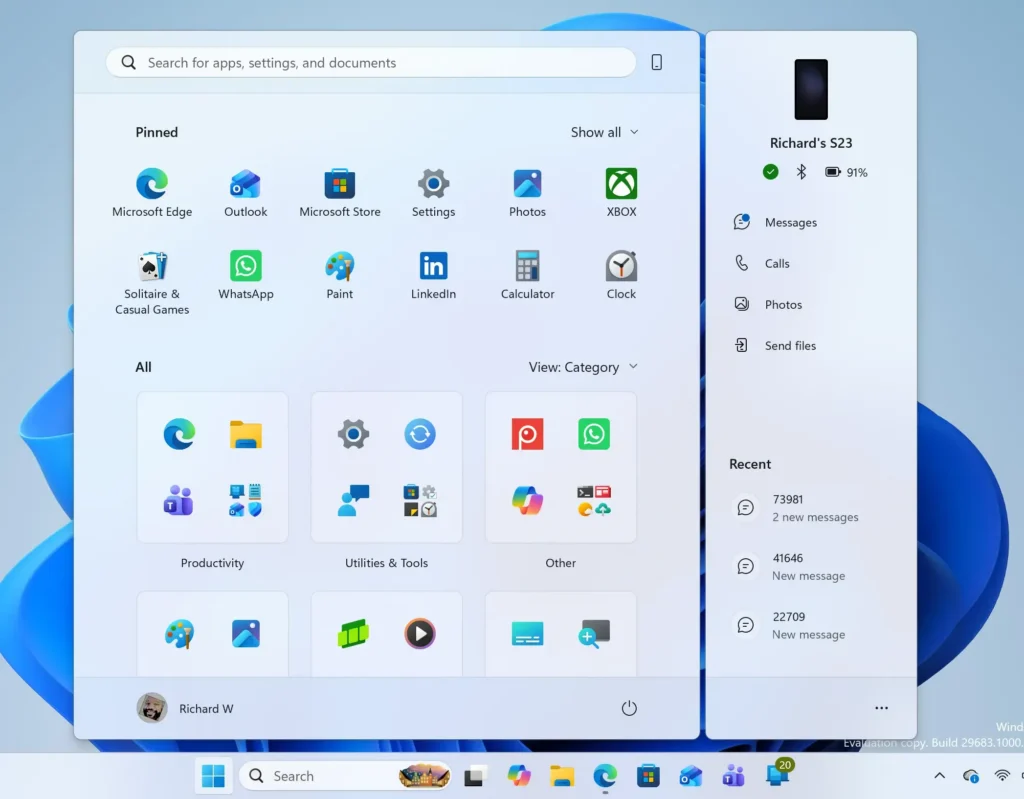
Windows 11 Start menu search panel for opening OpenSSH Client settings - Select System. It is the first item in the left pane.
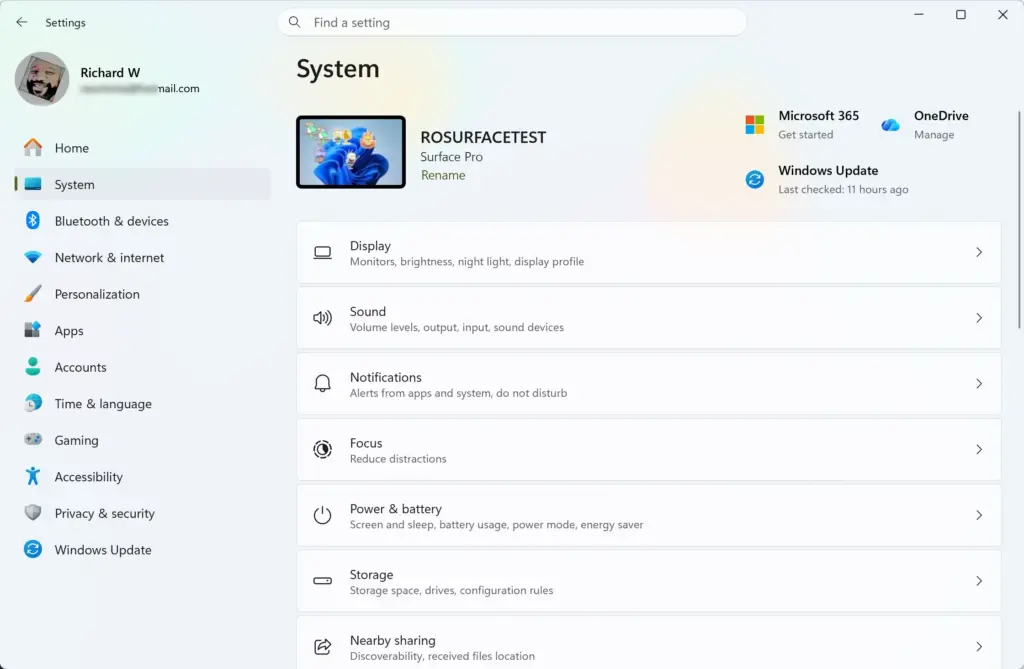
Settings › System - Select Display. The page shows a diagram of your screens, each with a number.
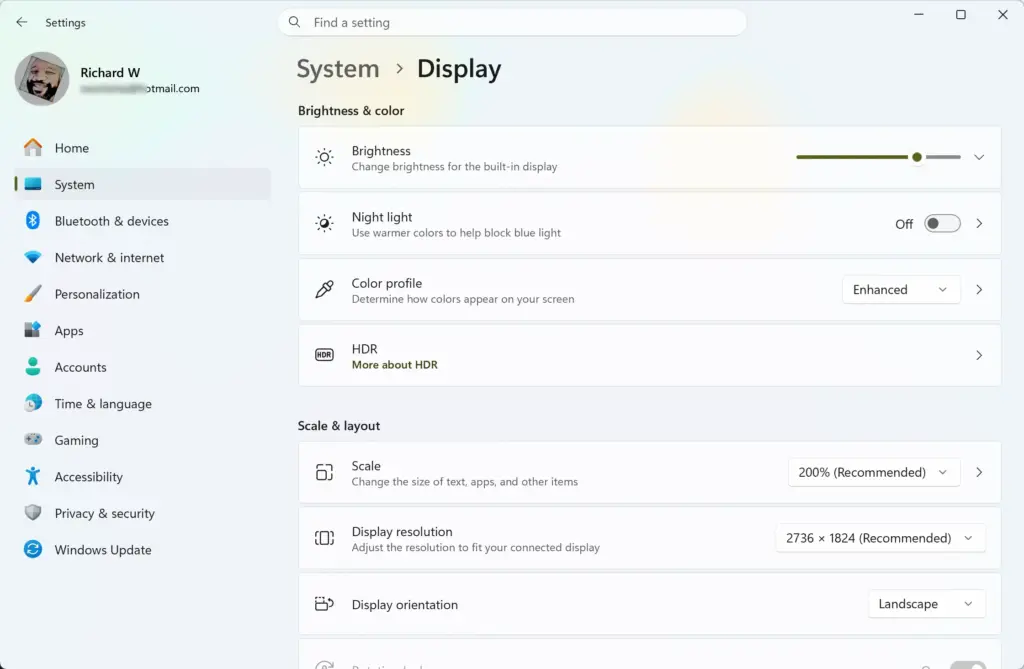
Settings › System › Display - Click Identify. A large number appears on each screen. Note which number belongs to the laptop panel and which to the external monitor. On most laptops the built-in screen is 1, but check rather than assume.
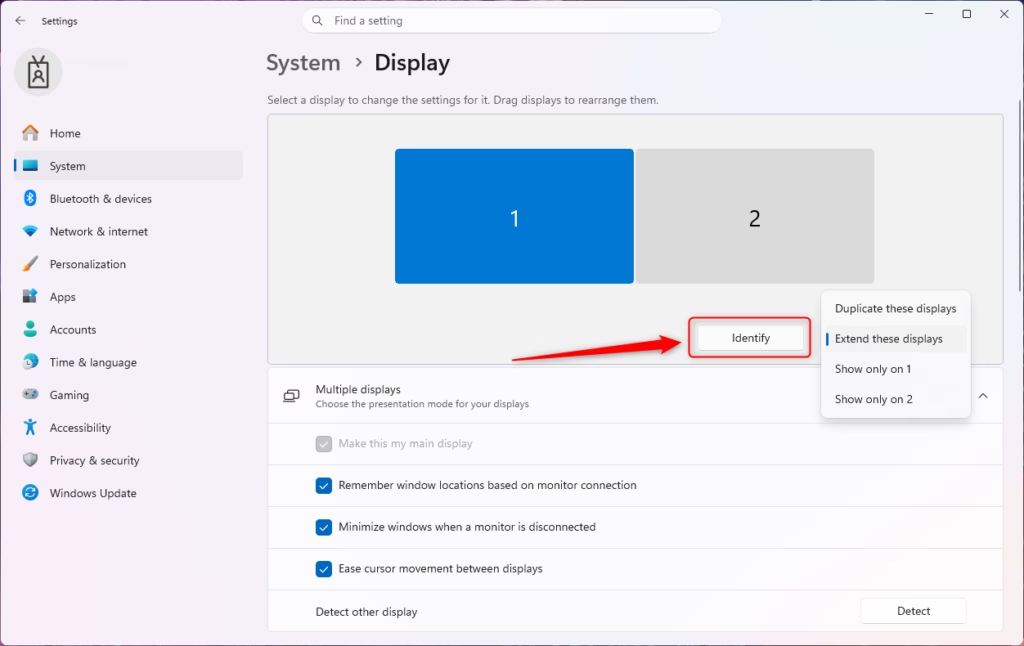
Windows 11 multiple displays identify screen numbers. - Scroll down and expand Multiple displays. If you see a Detect button, Windows has not found your second monitor yet. Click it and wait a few seconds.
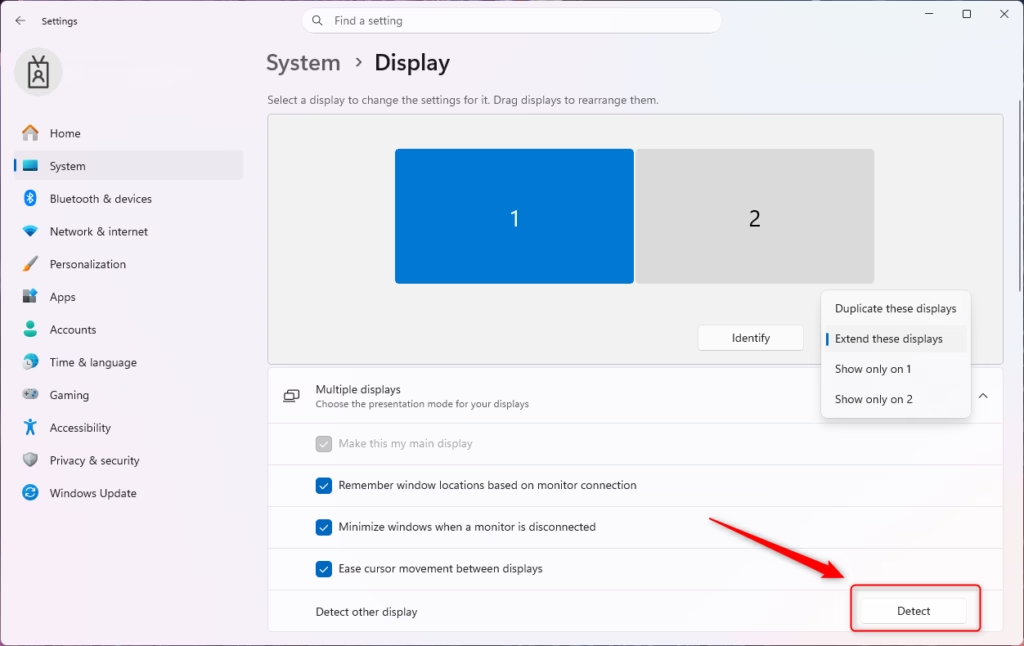
Windows 11 multiple displays detect new monitors prompt. - Open the display mode dropdown. It reads Extend these displays if both screens are on.
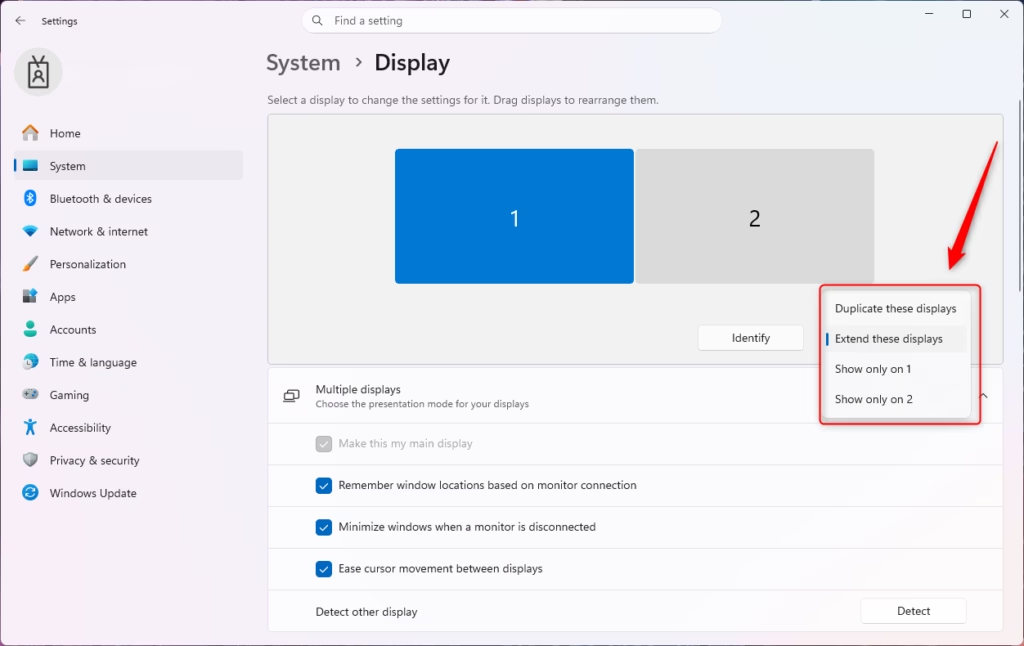
Windows 11 multiple displays project options for screen duplication. - Select the option that shows only the external monitor. If the external monitor is number 2, choose Show only on 2. If it is number 1, choose Show only on 1. The laptop screen goes black.
- Click Keep changes. A prompt asks whether to keep the new display settings and counts down from about 15 seconds. If you do not click, Windows reverts to the previous setup.
That’s it. The external monitor is now the only active display, and Windows keeps this mode until you change it.
The revert prompt is a safety net. If the external monitor stays black after step 7, do nothing, and the laptop screen returns by itself.
To undo the change later, return to Settings System Display Multiple displays and choose Extend these displays. Both screens light up again.
Make the External Monitor Your Main Display
- Open Settings System Display. The screen diagram appears.
- Click the external monitor in the diagram. A blue outline shows it is selected.
- Scroll down and expand Multiple displays. The options for the selected screen appear.
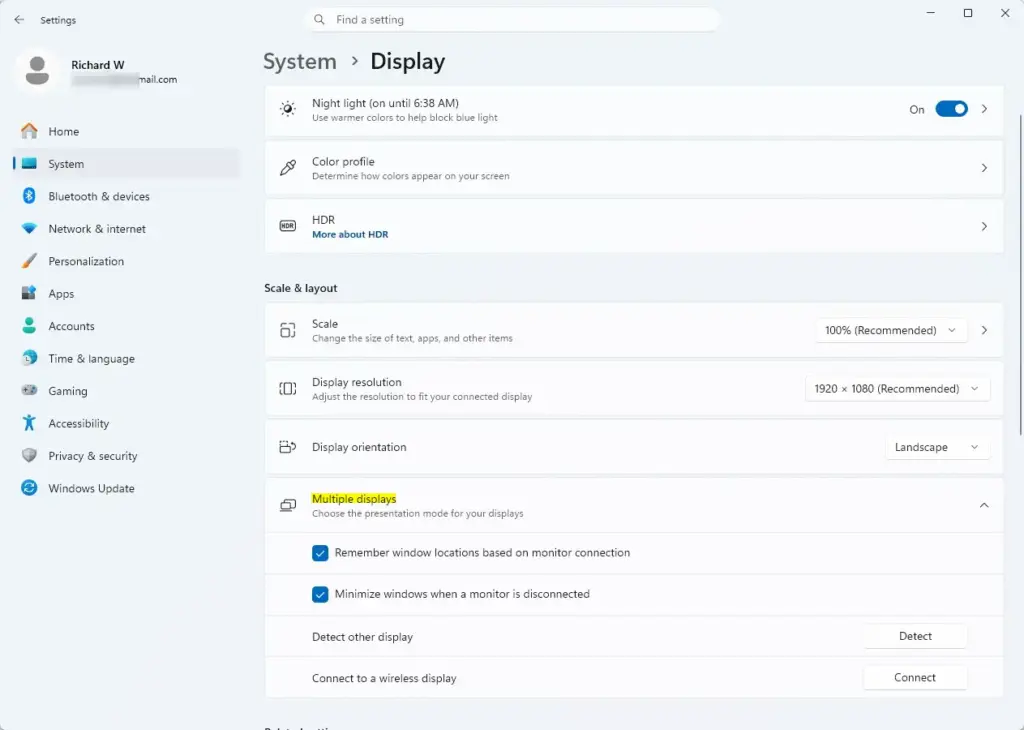
Settings › System › Display › Multiple displays - Select Make this my main display. The taskbar and Start button move to the external monitor.
You should now have the external monitor set as your main display. Windows 11 treats the main display as the home for the taskbar’s notification area and for new app windows. If you later unplug the monitor, the laptop screen takes that role back.
Keep the External Monitor On When You Close the Lid
By default, closing a laptop lid puts the PC to sleep, which turns off the external monitor too. Change the lid setting so the PC keeps running with the lid closed. This is called clamshell mode (using a closed laptop as a desktop PC with an external screen), and it is the usual setup for a docked laptop.
First set the display mode with one of the methods above. Then follow these steps to change what closing the lid does:
- Open Settings. Press
Windows key + I. - Select System, then select Power & battery. The power page opens.
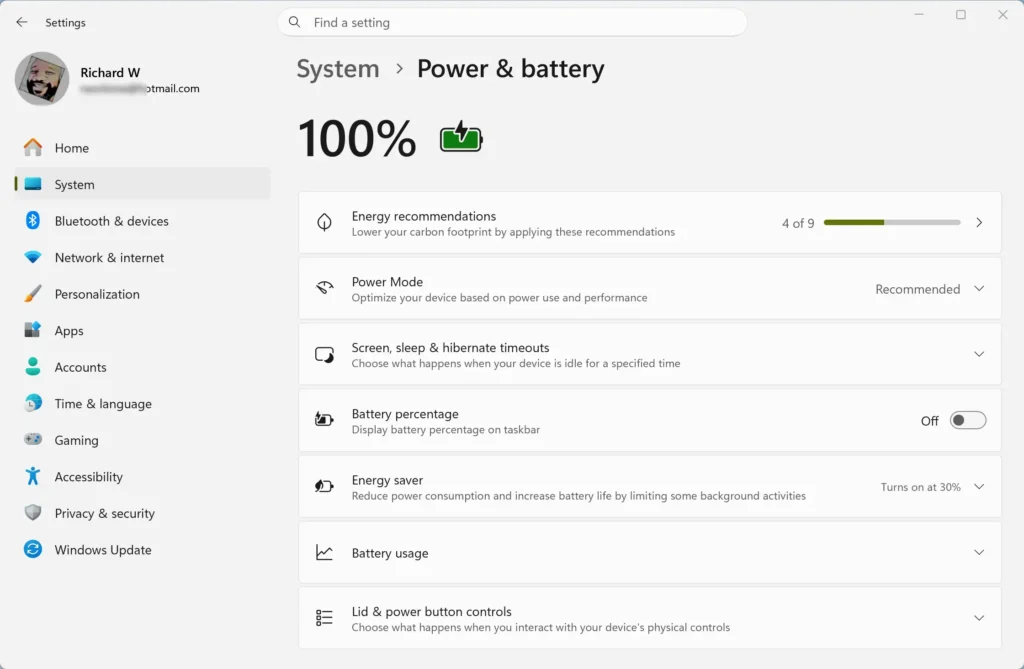
- Expand Lid, power & sleep button controls. A set of dropdowns appears.
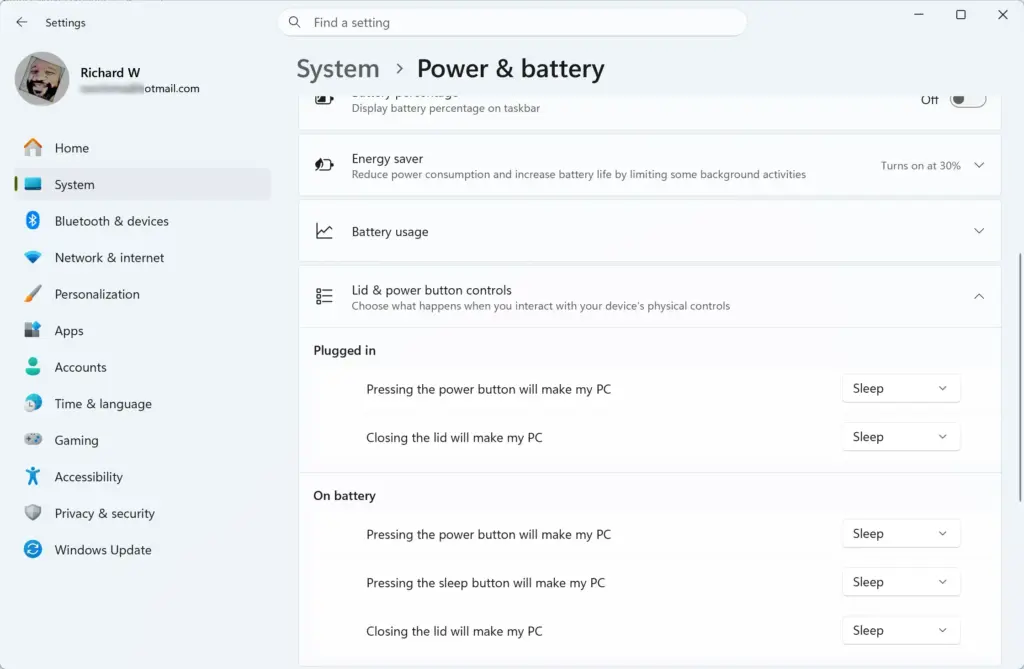
- Find Closing the lid will make my PC. This row has separate dropdowns for On battery and Plugged in.
- Select Do nothing in the Plugged in dropdown. A docked laptop is normally on its charger, so this is the setting that matters most. Change the On battery dropdown too if you want the same behavior away from a charger.
- Close the lid. The external monitor stays on, and the PC keeps running.
That’s it. With the lid closed, the laptop panel is dark and the external monitor is the only active display. Use the external keyboard and mouse to control the PC. If the PC does sleep for any reason, press a key on the external keyboard or move the mouse to wake it on most systems.
If your version of Windows 11 does not show these options under Power & battery, use the older route: Control Panel Hardware and Sound Power Options Choose what closing the lid does. It offers the same Do nothing choice.
Closed laptops trap heat, especially when the vents sit on the underside or along the hinge. Leave airflow around the vents, and avoid soft surfaces such as a bed or sofa.
The lid setting does not depend on the display mode. You can set Do nothing and keep both screens on, or turn off the laptop screen with the lid open. To undo it, set the dropdown back to its previous choice, such as Sleep. No restart or sign-out is needed.
What Happens to the Laptop Screen Later
Windows 11 treats the laptop screen as turned off, not removed. A few events change that.
- Unplugging the monitorWindows usually brings the laptop screen back automatically. If it stays black, press
Windows key + Pand choose PC screen only. - Plugging the monitor back inWindows often restores the last arrangement it used with that monitor. Some devices do not remember it, so check the Project menu if the laptop screen does not behave as expected.
- Screen timeoutThe power setting that turns off the display after a period of inactivity applies to every connected screen, not only the laptop panel. Review it with the guide on how to change screen timeout to turn off display after in Windows 11.
If the Option Is Missing or Does Not Work
Several things can stop the laptop screen from switching off. Work through these in order.
Windows does not detect the external monitor
The Project menu shows only PC screen only, and Display settings shows one screen. First check the cable at both ends and confirm the monitor input matches the port you used. Then open Settings System Display, expand Multiple displays, and click Detect.
If you use a docking station (a box that connects several devices to your laptop through one cable) or a USB-C adapter, unplug it, wait ten seconds, and reconnect it. Try a different port or cable if you have one.
The external monitor goes black after you switch
This happens when the monitor was not working properly before the change. In Settings, wait for the 15-second prompt to revert. The Project menu has no countdown, so press Windows key + P, press the Down arrow key to reach Extend, and press Enter. The laptop screen returns even though you cannot see the menu.
If the monitor keeps blinking or flickering, the cause is often a graphics driver (the software that controls your display hardware). See why the Windows 11 screen keeps flickering after a graphics driver update.
The laptop screen turns back on by itself
Some laptops reset the display mode after sleep or after a monitor is turned off and on. Check Settings System Display again and reselect the second-screen-only mode. A graphics control panel from NVIDIA, AMD, or Intel may have its own multi-display settings that override Windows. Menu names vary between vendors, so check your vendor’s documentation for the exact options.
The setting is greyed out or a company policy applies
On a work or school PC, an administrator can lock display settings. Ask your IT department. Home and Pro editions of a currently supported Windows 11 version (25H2 or 26H2) behave the same here, so the edition is not the cause.
Related Screen Options
Switching the laptop panel off is different from dimming it, and different from making it sleep when you walk away. For those tasks, use these guides:
- To turn the screen off automatically when you leave your desk, see how to automatically turn off your screen with presence sensing in Windows 11. This uses presence sensing (a feature that uses a sensor to detect whether you are at your desk), so it needs a PC with a compatible sensor.
- To lower brightness on battery power, see how to turn on or off lower screen brightness when using Battery Saver in Windows 11.
What to Do Next
With the laptop screen off, the external monitor is your only screen, so arrange your open apps to fit it. The guide on how to split screen in Windows 11 shows how to snap windows side by side. If you want both screens back later, press Windows key + P and choose Extend.
Frequently asked questions
How to shut off battery saver so that the screen will be lighter?
Battery Saver lowers your screen brightness when it is on, so turning it off brings the brightness back. Open Settings, select System, then select Power & battery, and find the Battery Saver section to switch it off. If the screen still looks dim on battery, check the separate setting for lower screen brightness when using Battery Saver and turn that off too.
Still have a question?
Answered by AI from this guide. Good questions may be added to this page — please don't include personal details.
Did this guide fix your problem?

About the Author
Richard
Tech Writer, IT Professional
Richard is a writer at Geek Rewind who turns complex IT tasks into clear, step-by-step guides. He draws on years of hands-on experience in system administration and enterprise IT operations, focusing on Windows, Linux and WordPress: the problems people actually run into, and the fixes that work. His server and WordPress guides come from systems he runs himself. Richard builds and maintains the platform behind Geek Rewind, from its Ubuntu servers and Nginx configuration to its custom WordPress plugins. Many new tutorials start with readers' questions, and he's always glad to answer them in the comments.
No comments yet — be the first to share your thoughts!