How to Keep Your Windows 11 Screen on Indefinitely with PowerToys


Awake (a tool built into Microsoft PowerToys version 0.60 or later) keeps your Windows 11 screen on indefinitely without changing your main power and sleep settings. It overrides standard system timers so your display stays active during long file downloads or video playback.
You can turn on Awake right from your system tray with just two clicks. It stops your PC from going to sleep for as long as you need, letting you work or watch media without interruption.
Use PowerToys Awake to keep your Windows 11 screen on indefinitely. Open PowerToys, select Awake, turn “Enable Awake” on, choose “Keep awake indefinitely” under Behavior, and toggle “Keep screen on” to On. Your display will now stay active.
What happens when done?
The built-in Settings app offers a reliable approach for permanent changes. Power & battery settings open directly by clicking here.
- Open Settings.
- Go to System Power & battery.
- Click Screen and sleep.
- Change the time for On battery power and When plugged in to Never.
Method 1Using 🪟 Windows 11 Settings
Windows 11 Settings lets you keep screen on Windows 11 without letting your computer go to sleep or turn off the display. You can change these display and sleep timers directly in the main system settings app without downloading any extra tools. This built-in method gives you total control over how long your monitor stays awake while you are away from the keyboard.
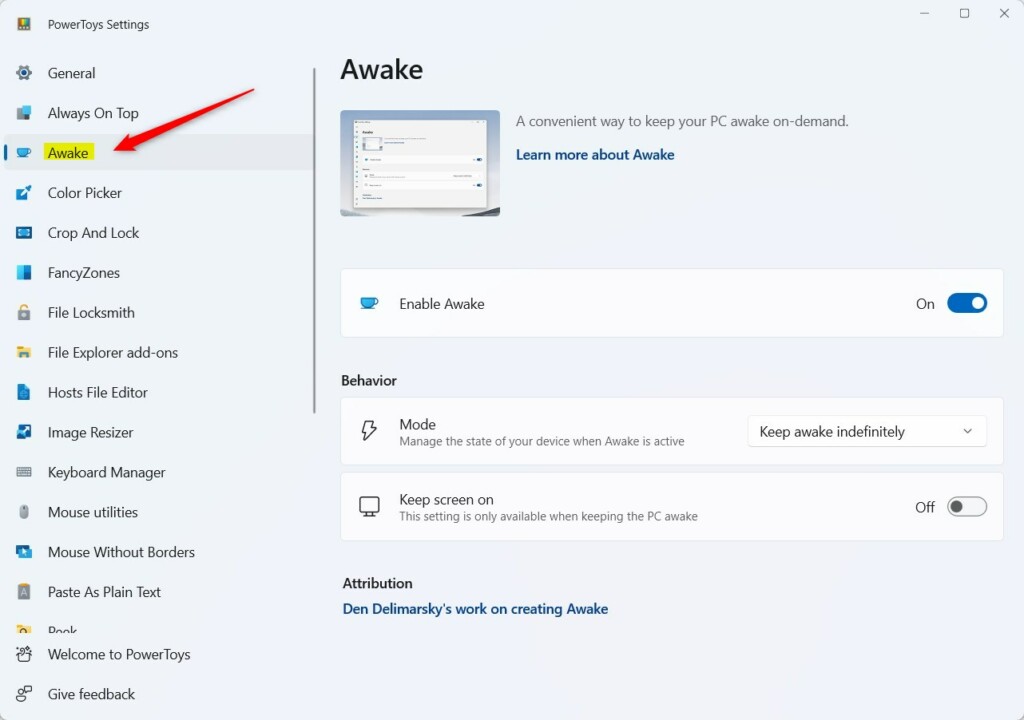
- Open the PowerToys app.
- Click on Awake in the left menu.
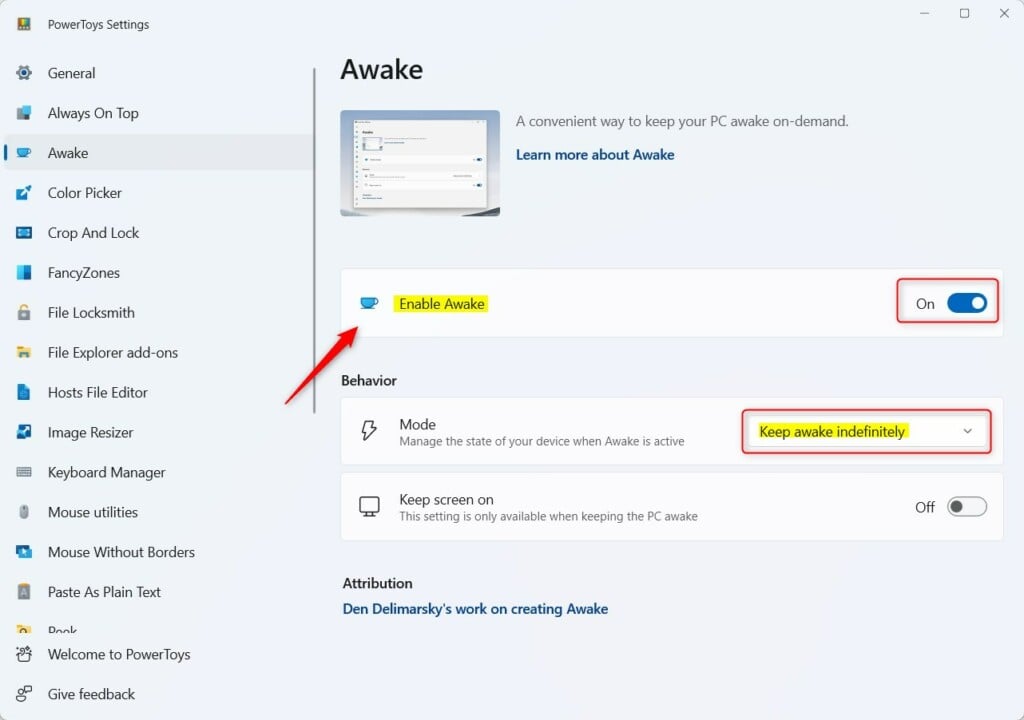
- Flip Enable Awake to On.
- Under Behavior, select Keep awake indefinitely.
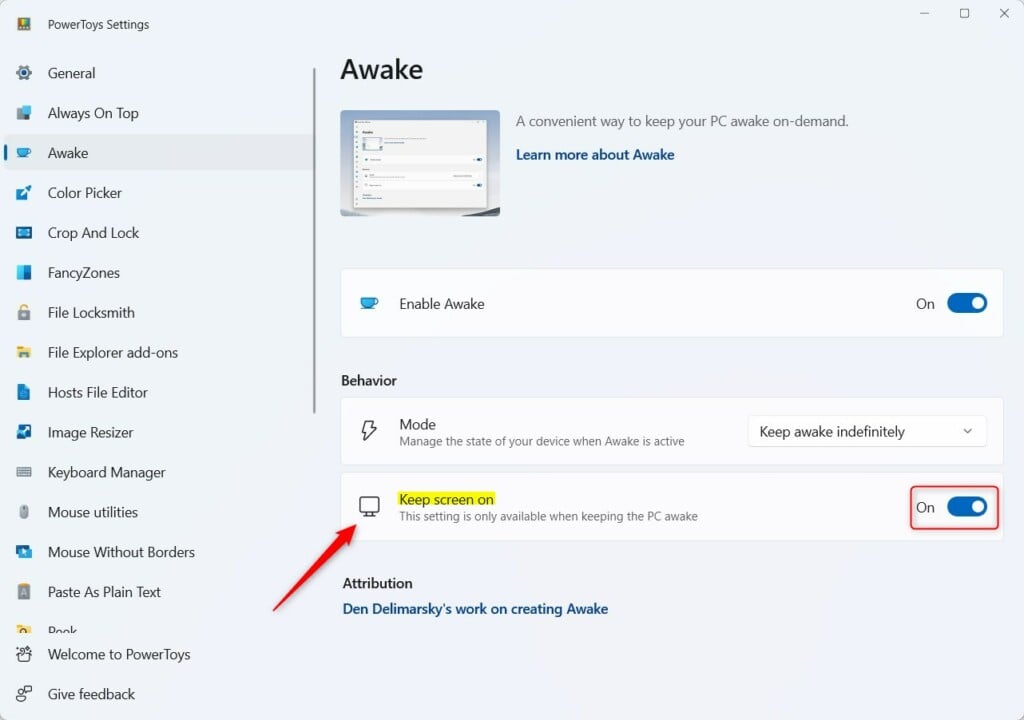
Find the Keep screen on option and toggle the switch to On to ensure the display never turns off.
Method 2Using PowerToys Awake
Classic Control Panel tools offer deeper management capabilities.
- Press Win + R, type control, and hit Enter.
- Go to Hardware and Sound Power Options.
- Click Change plan settings next to your active plan.
- Set Turn off the display to Never.
Method 3Control Panel Power Options
Background apps or strict system policies managed by an administrator often override display settings if the screen keeps shutting off unexpectedly.
Troubleshooting Persistent Sleep Issues
Several good options exist for keeping the display active. The built-in Settings app handles permanent changes, while PowerToys Awake suits temporary needs. Power plan configurations require careful review if unexpected sleep behavior persists.
Summary
Was this guide helpful?

About the Author
Richard
Tech Writer, IT Professional
Richard is a writer at Geek Rewind who turns complex IT tasks into clear, step-by-step guides. He draws on years of hands-on experience in system administration and enterprise IT operations, focusing on Windows, Linux and WordPress: the problems people actually run into, and the fixes that work. His server and WordPress guides come from systems he runs himself. Richard builds and maintains the platform behind Geek Rewind, from its Ubuntu servers and Nginx configuration to its custom WordPress plugins. Many new tutorials start with readers' questions, and he's always glad to answer them in the comments.



No comments yet — be the first to share your thoughts!