

Phone Link is a Windows feature that lets you link your phone and PC using Wi-Fi or Bluetooth and access your phone’s apps and data from your PC. It means you can browse, play, order, chat, and more using your PC’s bigger screen and keyboard while your phone stays in your pocket or on your desk.
When your phone is connected to your PC, you can choose how to display notifications, choose to hear audio from the PC or phone, turn allow the phone link app to sync over mobile without Wi-Fi on or off, unlink your phone from Windows, enable or disable auto startup for the phone link app, send and receive text messages from the app, add or remove Phone Link on the widgets board, turn dark mode on or off, open your phone screen in the app, turn show notifications for all my apps on or off, show notifications in the Phone Link feature feed, enable or disable using Phone Link with Windows suggestions, open Phone Link notification banners in the mobile app or Phone Link, enable or disable Phone Link to show text messages, and more.
Make and Manage Calls Using Phone Link
Why use this? Phone Link lets you make and receive calls right from your PC. This is helpful when your phone is not nearby. You can also use your PC’s bigger screen and keyboard for calling. Managing calls from your PC helps you stay organized and focused while working.
What happens when you enable this? Once you turn on “Allow Phone Link to make and manage calls from my mobile device,” you can start making and receiving calls through the Phone Link app on your Windows PC.
How to Turn This Feature On or Off
- Open the Phone Link app on your Windows PC.
- Choose to add your phone. If a phone is already connected to Phone Link, click the Settings button (gear icon) at the top right corner and select Features from the menu.
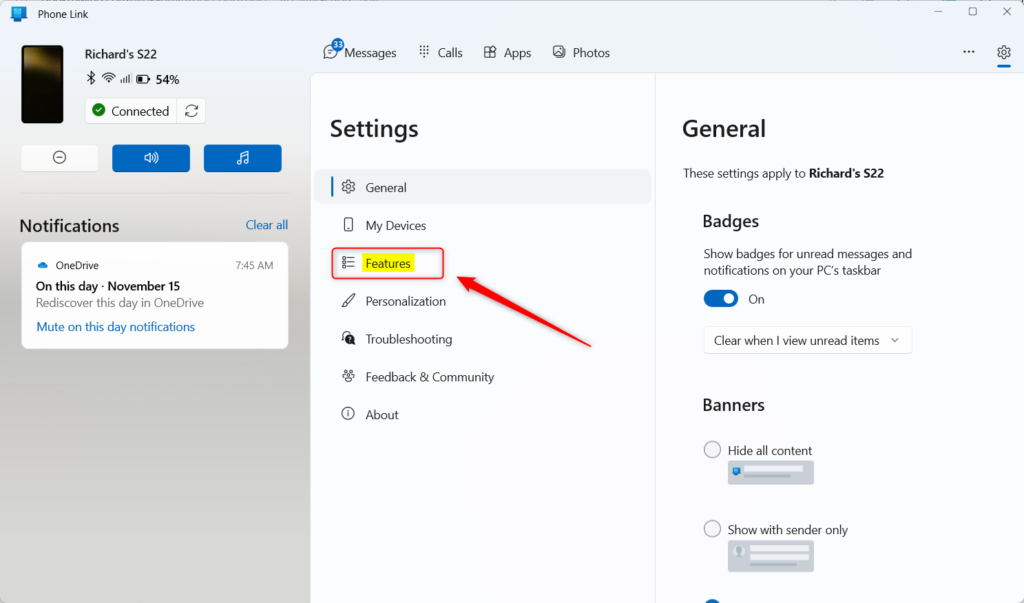
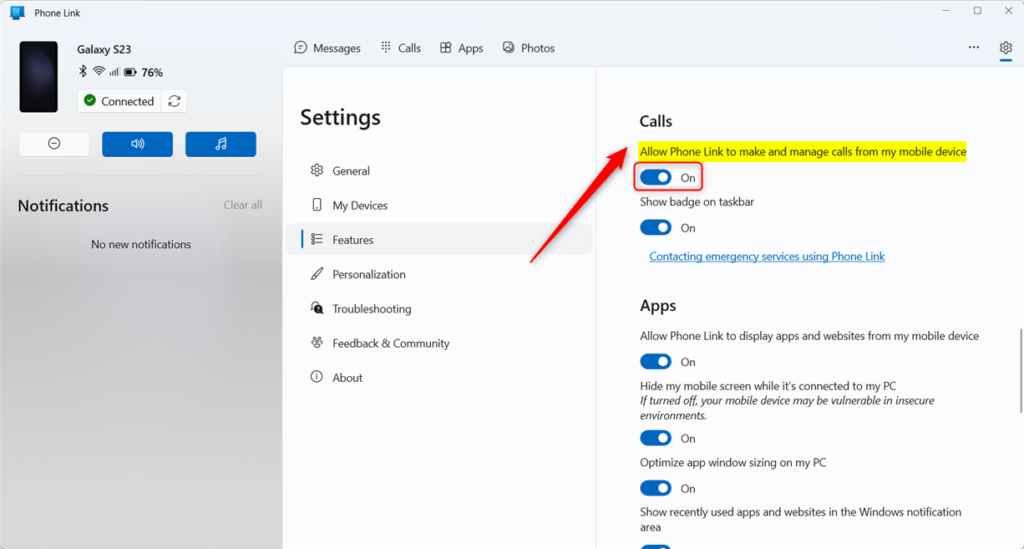
- On the Features settings page, look for the Calls section on the right side.
- Click the tile that says “Allow Phone Link to make and manage calls from my mobile device.”
- Toggle the switch button to the On position to enable the feature. To turn it off, toggle the switch to the Off position.
That’s it! You are done.
Summary
The “Allow Phone Link to make and manage calls from my mobile device” setting gives you control over call management through the Phone Link app on Windows. Enabling this feature lets you make and receive calls from your PC, which is convenient when your phone is not nearby. The steps above show you how to turn this setting on or off in just a few clicks. This gives you more control and flexibility when managing your calls while using your PC.


Leave a Reply