How to Enable or Disable Cloud Search in Windows 11

Cloud Search in Windows 11 combines web results from Microsoft accounts with local files directly inside the taskbar search box . It pulls documents and photos from OneDrive and shows them alongside items stored on your local drive.
You might turn Cloud Search off for privacy, or to speed up searches on slower hardware. Once it is off, Windows 11 stops querying online services when you type a search term. This tutorial covers three ways to change it: Settings, Local Group Policy Editor and Registry Editor.
Open Settings Privacy & security Search Windows and toggle Enable deep content search of cloud content on or off. The change takes effect immediately without a restart.
What is Cloud Search?
Cloud Search helps you find files, photos and settings stored online in services like OneDrive or SharePoint, right from the search box on your PC. Without it, search only looks at what is stored on the machine. With it on, results from your signed-in online accounts appear in the same list.
This feature is available on special Copilot+ PCs and Windows 11 version build 26100.3624 or later. If an option described below is missing on your PC, check that you are signed in with the right kind of account. Also check that Windows is fully updated, because menus can change between builds.
How to Turn Cloud Search On or Off Using Windows Settings
This is the easiest method and works on both Home and Pro. You only need a normal user account.
- Click the Start menu (Windows icon) at the bottom of your screen. On a default Windows 11 install it sits in the centre of the taskbar , or at the left if you have moved the taskbar alignment.
- Select Settings (gear icon). Or press Win+I on your keyboard to open Settings quickly. The Settings window opens with a list of categories on the left.
- In Settings, click Privacy & security on the left side panel. The right side now shows the privacy and permission options for Windows.
- On the right side, find and click Search Windows. On some builds the cloud options are on the neighbouring Search permissions page instead, so check there if you do not see them.
- Look for the option called Enable deep content search of cloud content and click the toggle switch to turn it on or off. The toggle shows On or Off as soon as you click it. There is no Save button.
If the toggle is missing or greyed out, your PC may be managed by an organisation that controls the setting through policy. A policy set with the Group Policy or Registry methods below also locks this toggle. To undo your change, return to the same page and flip the toggle back.
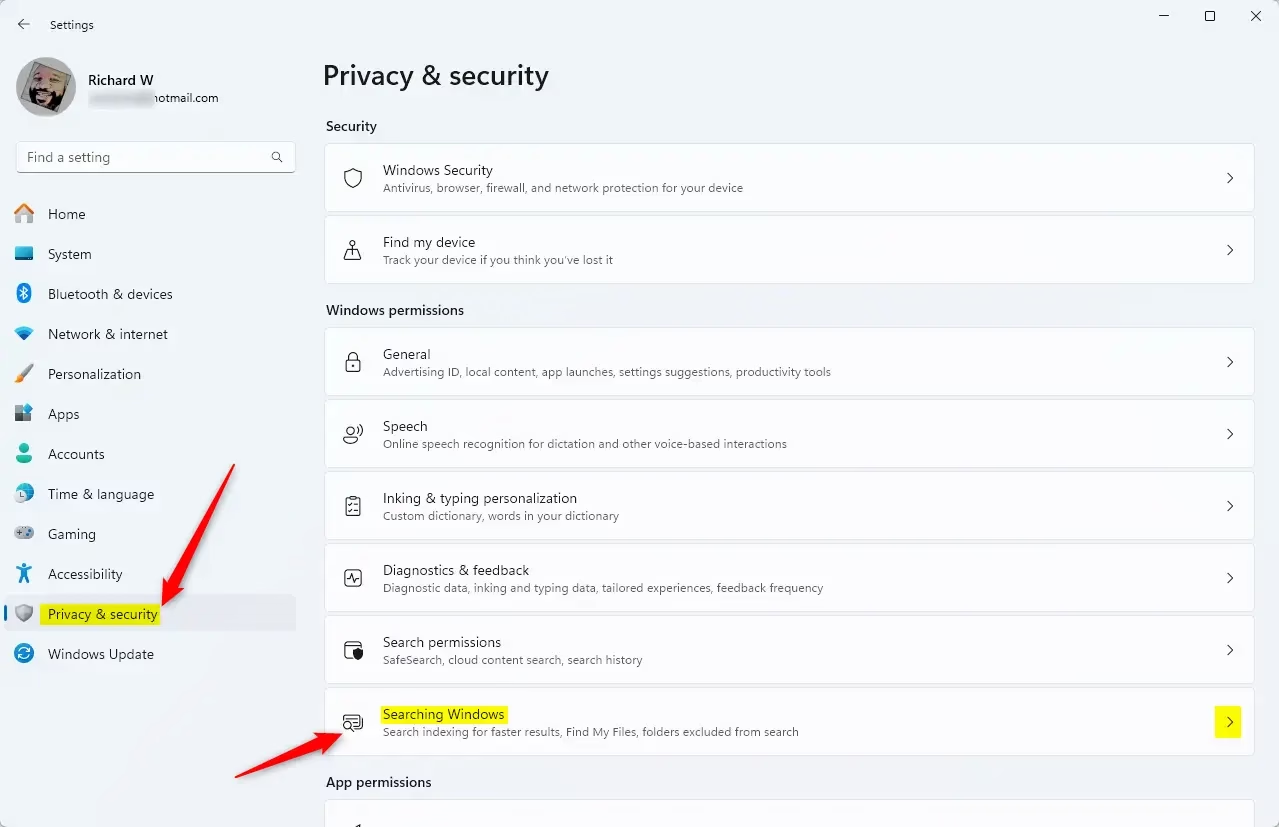
The cloud search settings in Windows 11 control whether web results and files from your linked online accounts appear in your search results. You can turn the feature on or off directly through the Privacy & security menu without touching any advanced tools.
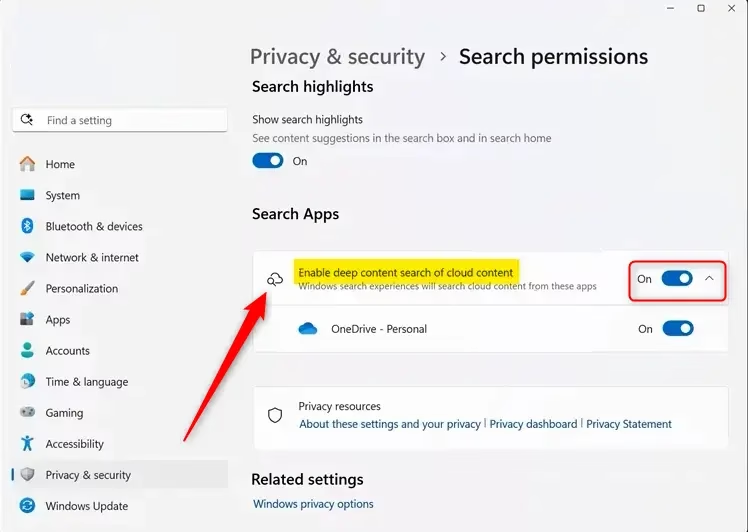
Because this is a per-user setting, it applies to the account you are signed in with. Other accounts on the same PC may need the same change. Results from online accounts can also depend on which accounts are signed in to Windows.
When finished, you can close the Settings window. A restart is not normally needed. If old results still appear in search, sign out and back in, then try the search again.
How to Enable or Disable Cloud Search Using Group Policy Editor
Cloud search policies can be managed using the Local Group Policy Editor if you are running Windows Pro or Enterprise. This method lets administrators control cloud content indexing across the system using a built-in administrative tool. Windows Home does not include the Group Policy Editor, so Home users should use the Registry method further down.
- [Admin Required] Press the Start menu button and type
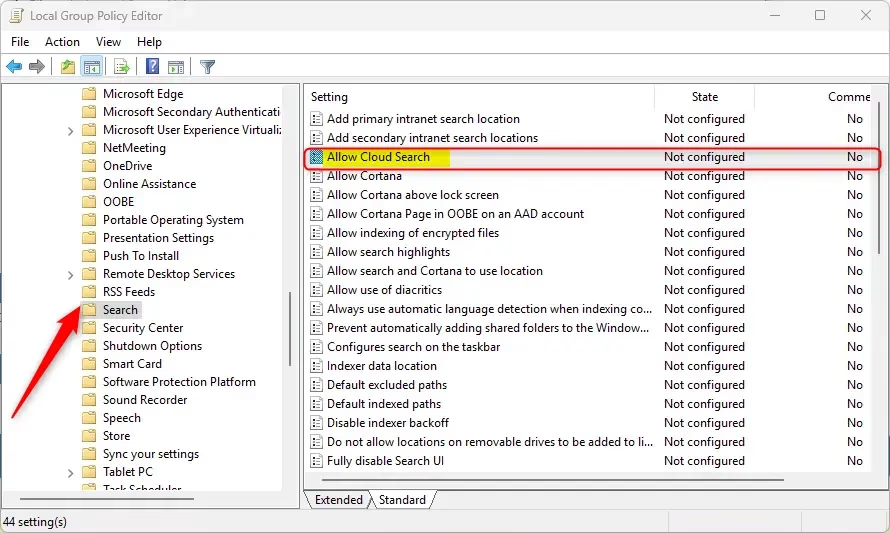
Edit group policy, then press Enter to open the Local Group Policy Editor. You need an administrator account. If nothing matches, you are probably on Windows Home. - In the left pane, follow this path: Computer Configuration Administrative Templates Windows Components Search. Click Search and the list of Search policies appears on the right.
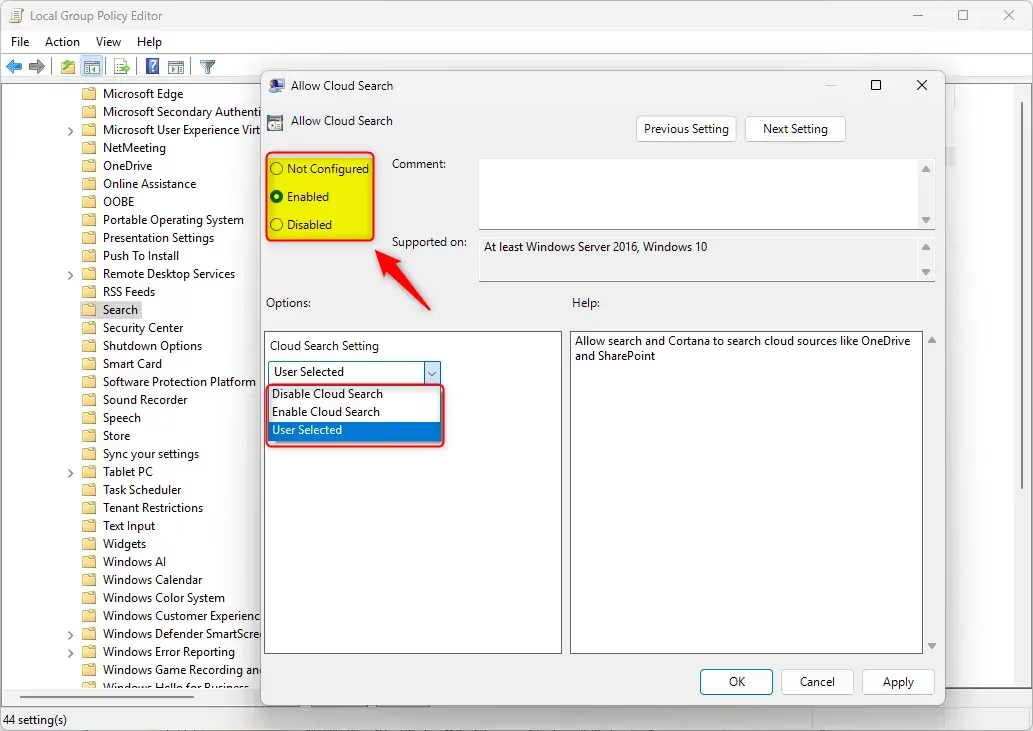
- On the right, find and double-click Allow Cloud Search. A settings window opens for that policy.
- Choose from these options:
- Not Configured – Default setting (Windows decides). Choose this to undo a change you made earlier.
- Enabled – Turns cloud search on.
- Disabled – Turns cloud search off.
- Click OK to save. The policy window closes and the new state shows in the State column. If the change does not take effect straight away, restart the PC or sign out and back in.
How to Enable or Disable Cloud Search Using Registry Editor
Cloud search settings can be changed directly through the Registry Editor by modifying specific system keys. This registry approach works well on Windows Home editions where the Group Policy Editor is not available. It also works on Pro. Changes here affect the whole PC, so work carefully.
You will also need an administrator account.
Backup your registry Create a System Restore point
- [Admin Required] Press the Start menu button, type
regedit, and press Enter to open the Registry Editor. Click Yes if the User Account Control prompt appears. - In Registry Editor, navigate to this folder:
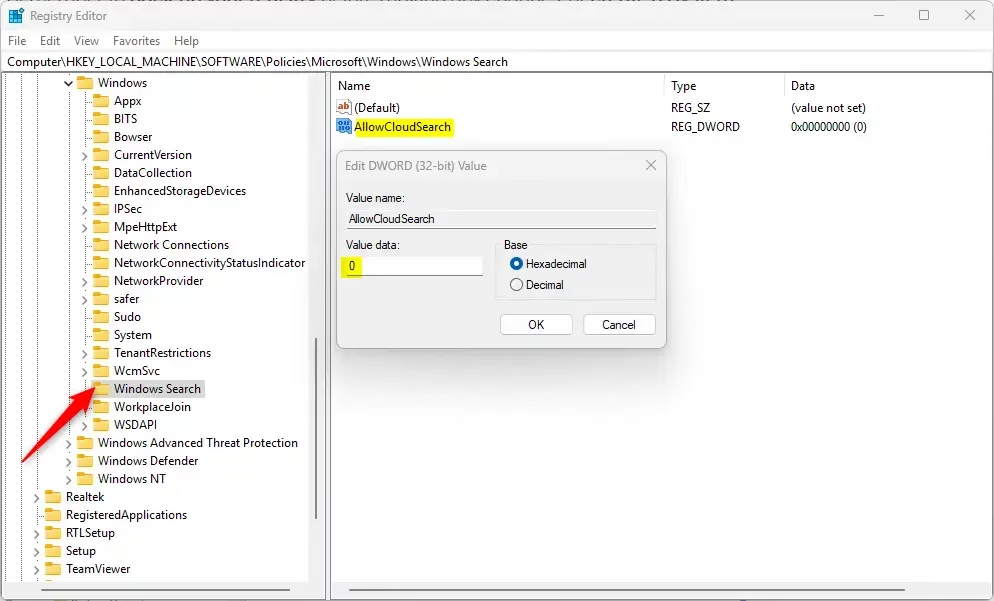
HKEY_LOCAL_MACHINE\SOFTWARE\Policies\Microsoft\Windows\Windows Search. You can expand the folders in the left pane one at a time. - If you don't see the Windows Search folder, right-click Windows, select New Key, and name it Windows Search. The new key appears under Windows in the left pane.
- Inside Windows Search, right-click the empty space on the right side, select New DWORD (32-bit) Value, and name it AllowCloudSearch. Use the 32-bit type even if your Windows is 64-bit.
- Double-click AllowCloudSearch and set its value to:
- 1 to enable Cloud Search
- 0 to disable Cloud Search
- Click OK and close Registry Editor. The value now shows in the right pane with the number you entered.
- Restart your computer to apply changes.
Right-click it in Registry Editor, choose Delete, confirm, and restart the PC. Windows then goes back to its default behaviour.
Summary
Windows 11's Cloud Search feature makes finding online files and photos simple, and you can control it using Settings, Group Policy, or Registry Editor. Use Settings if you just want a quick switch for your own account. Use Group Policy on Pro or Enterprise, or the registry on Home, when you need the setting applied across the whole PC.
Have a question about this guide?
Answered by AI from this guide. Good questions may be added to this page — please don't include personal details.
Did this guide fix your problem?

About the Author
Richard
Tech Writer, IT Professional
Richard is a writer at Geek Rewind who turns complex IT tasks into clear, step-by-step guides. He draws on years of hands-on experience in system administration and enterprise IT operations, focusing on Windows, Linux and WordPress: the problems people actually run into, and the fixes that work. His server and WordPress guides come from systems he runs himself. Richard builds and maintains the platform behind Geek Rewind, from its Ubuntu servers and Nginx configuration to its custom WordPress plugins. Many new tutorials start with readers' questions, and he's always glad to answer them in the comments.
No comments yet — be the first to share your thoughts!