How to Enable or Disable Settings Search Helper in Windows 11


- 2 ways to do it
- Needs administrator rights
- Group Policy needs Windows 11 Pro, Enterprise or Education
- Includes a restart or sign-out
The Settings Search Helper in Windows 11 lets you find system settings using plain words instead of exact technical names. Type a phrase like “fix my sound” or “connect to wi-fi” and it takes you to the right page, so you skip the nested menus.
Preview builds such as Windows 11 version 23H2 need the system language set to English for this feature to work. Leaving the helper on makes settings easier to find. Turning it off saves some system resources if you prefer traditional searching.
You can change this setting in two ways: the Local Group Policy Editor or the Registry. Both are covered below. Pick the one that matches your edition of Windows.
Open Run (Win+R), type gpedit.msc, navigate to Computer Configuration Administrative Templates Windows Components Windows AI, double-click “Disable Settings agentic search experience”, select Disabled to turn it on or Enabled to turn it off, then click OK. For Windows 11 Home, use Registry Editor to delete or add the DisableSettingsAgent value under 🗝️HKEY_LOCAL_MACHINE\
How to Turn the Settings Search Helper On or Off
If you are not sure which type of account you are using, open Settings and go to Accounts. Your account type is shown under your name.
Option 1Using the Local Group Policy Editor (For 🪟 Windows 11 Pro, Enterprise, Education)
Local Group Policy Editor is a built-in administrative tool for configuring system settings. It is available on Windows 11 Pro, Enterprise, and Education. Windows 11 Home does not include it, so Home users should skip to the Registry method further down.
The change comes down to one policy. Its state decides whether the helper is on or off.
- Press Win+R to open the Run box.
- Type
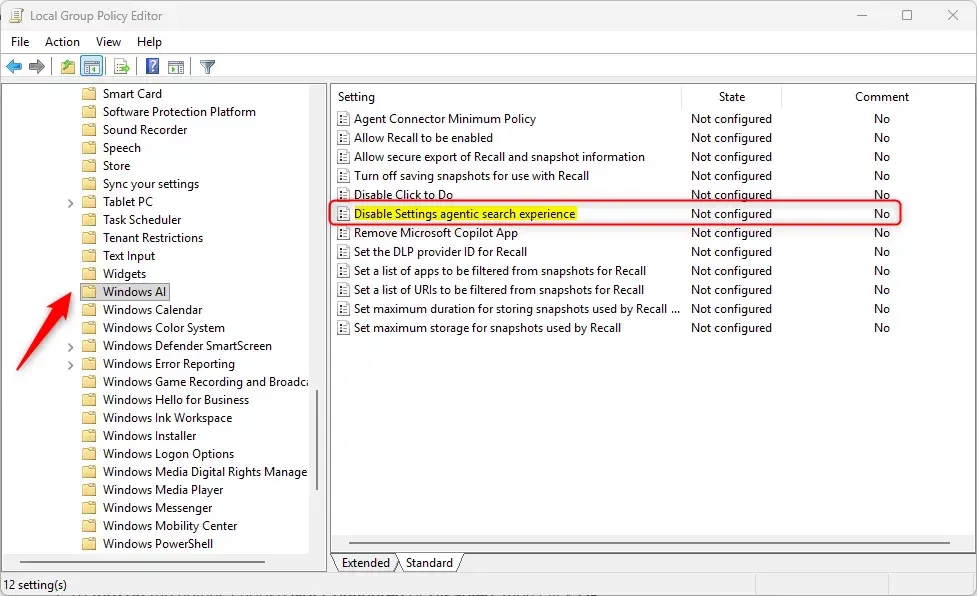
gpedit.mscand press Enter. The Local Group Policy Editor opens. If a User Account Control prompt appears, click Yes. - In the left panel, go to: Computer Configuration Administrative Templates Windows Components Windows AI. The policies for that folder now appear in the right panel.
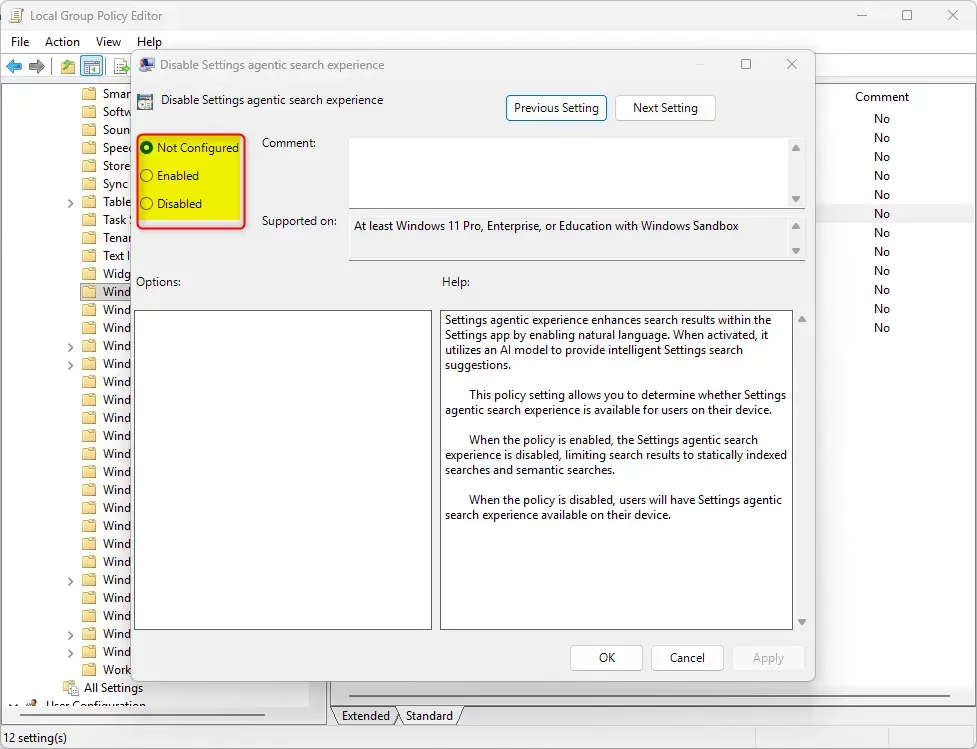
- In the right panel, find “Disable Settings agentic search experience” and double-click it. A settings window for that policy opens.
- To turn on the helper, select Not Configured or Disabled, then click OK.
- To turn off the helper, select Enabled, then click OK.
The policy name is a “disable” setting, so the logic is reversed. Enabled means the helper is switched off. Not Configured is the default and leaves the helper on.
If you do not see the Windows AI folder or the policy, your build probably does not include this feature yet. Make sure you are on a recent version of Windows 11, such as 24H2, and that Windows Update is current. If the change does not take effect right away, sign out and back in, or restart the computer. To undo the change, open the same policy and set it back to Not Configured.
Option 2Using the Windows Registry (For All Windows Editions)
Windows Registry is a database that stores low-level system settings. This method works on every edition of Windows 11, including Home. Use it when you do not have the Group Policy Editor. You add or delete specific values to switch the search assistant on or off.
⚠️ Admin privileges required for this step.
To Turn On the Settings Search Helper (Default):
reg delete "HKEY_LOCAL_MACHINE\SOFTWARE\Policies\Microsoft\Windows\WindowsAI" /v DisableSettingsAgent /fTo Turn Off the Settings Search Helper:
The Windows Settings Search Helper improves finding settings by understanding questions asked in plain English, similar to a conversation. This feature guides users directly to their desired settings.
After applying either change, sign out and back in, or restart the computer, so Windows reads the new value. To reverse the change, apply the other block above, or restore the registry backup you exported.
For more official information, check out Microsoft’s guide: Configure the agent in Windows Settings.
Summary
Windows 11 version 24H2 introduces the Settings Search Helper as a new tool for interpreting user questions during troubleshooting or configuration. If you run an older build, you may not see the feature or its policy at all. The Group Policy Editor and the Registry are the two ways to control it, and both do the same job. Use Group Policy if your edition has it, and the Registry if it does not.
Have a question about this guide?
Answered by AI from this guide. Good questions may be added to this page — please don't include personal details.
Did this guide fix your problem?

About the Author
Richard
Tech Writer, IT Professional
Richard is a writer at Geek Rewind who turns complex IT tasks into clear, step-by-step guides. He draws on years of hands-on experience in system administration and enterprise IT operations, focusing on Windows, Linux and WordPress: the problems people actually run into, and the fixes that work. His server and WordPress guides come from systems he runs himself. Richard builds and maintains the platform behind Geek Rewind, from its Ubuntu servers and Nginx configuration to its custom WordPress plugins. Many new tutorials start with readers' questions, and he's always glad to answer them in the comments.
No comments yet — be the first to share your thoughts!