How to Back Up Important Folders to OneDrive in Windows 11

Backing up important folders to OneDrive in Windows 11 automatically saves copies of your files to Microsoft’s cloud. This feature ensures your photos, documents, and other essential files are safe and accessible from any device.
Windows 11’s OneDrive backup lets you choose specific folders on your PC, like Documents or Desktop, to sync. Once you set it up, any changes you make to files in these folders are immediately copied to OneDrive.
This built-in tool protects your data from computer failures or accidental deletions. You can often get started with basic OneDrive backup in just a few quick steps.
Open OneDrive Settings, click “Manage backup,” and toggle backup On for folders like Documents, Pictures, or Desktop. This automatically syncs your chosen local folders to the cloud.
OneDrive Backup vs. Windows Backup
Think of OneDrive backup for your everyday files, keeping them synced and safe in the cloud. Windows Backup, on the other hand, saves your system settings and app list for restoring your entire computer.
| Feature | OneDrive Backup | Windows Backup Utility |
|---|---|---|
| Purpose | File Syncing | System Recovery |
| Storage | Microsoft 365 Cloud | Microsoft Account Cloud |
| Access | Anywhere | During PC Setup |
Manage OneDrive Backup in 🪟 Windows 11
OneDrive backup Windows 11 settings let you choose which folders sync automatically to your cloud storage. Open the OneDrive app from your Taskbar to turn folder protection on or off, check your storage space, and pick specific folders like Documents or Pictures to keep safe online.
Open the OneDrive app from the Start menu , or navigate to 📁C:\

When the app opens, click the Help & Settings (gear) icon, then select Settings.
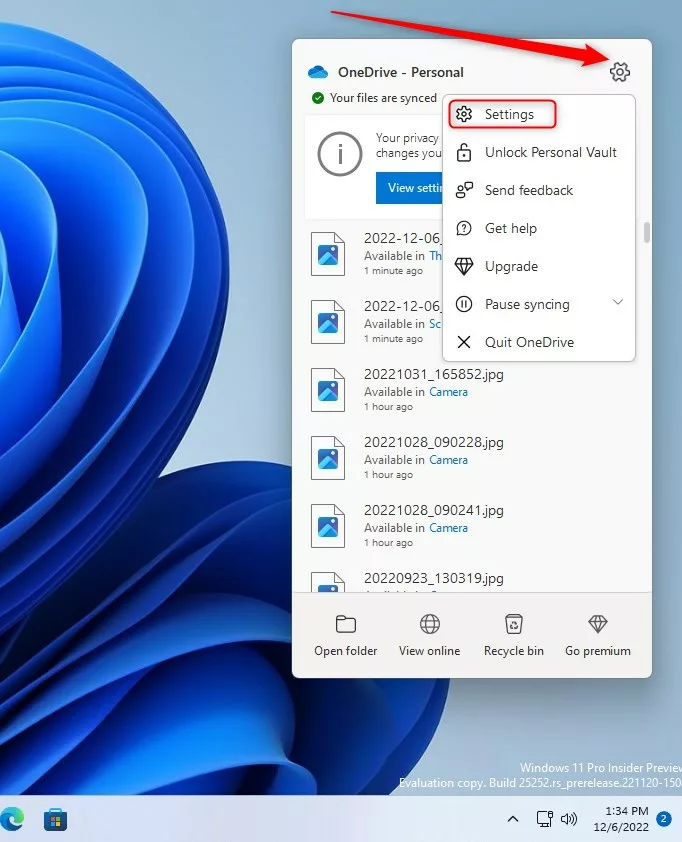
On the Settings screen, click the Manage backup button under the Sync and Backup section.

You will see a list of folders like Documents, Pictures, Desktop, Music, and Videos. Use the toggle button to turn backup On or Off for each folder.

Verifying Your Sync
To ensure your files are successfully syncing, look for the green checkmark icon on your files in File Explorer. A solid green circle with a white checkmark means the file is saved to your device and the cloud. A blue icon means it is syncing.
Restoration Process
If you lose a file, you can recover it. Right-click the file in your OneDrive folder and select Version history. This allows you to restore older versions of your work. You can also check the Recycle Bin on the OneDrive website to recover deleted items.
Troubleshooting Common Errors
Fix OneDrive backup errors Windows 11 issues by checking file permissions, closing programs that are currently using your files, and making sure you are signed into your Microsoft account. Resetting the OneDrive app from your Start menu can also clear stuck sync problems and get your files uploading again.
OneDrive uses special file links called reparse points and junction points to connect your local folders with the cloud. If these become corrupted, reset the app. Keep in mind that there's a limit to how long a file's path (its address) can be. If a file's path goes over 260 characters, it won't sync.
Summary
In summary, using OneDrive backup in Windows 11 protects your important data by automatically syncing files to the cloud, so remember to check sync status and storage limits.
Was this guide helpful?

About the Author
Richard
Tech Writer, IT Professional
Richard is a writer at Geek Rewind who turns complex IT tasks into clear, step-by-step guides. He draws on years of hands-on experience in system administration and enterprise IT operations, focusing on Windows, Linux and WordPress: the problems people actually run into, and the fixes that work. His server and WordPress guides come from systems he runs himself. Richard builds and maintains the platform behind Geek Rewind, from its Ubuntu servers and Nginx configuration to its custom WordPress plugins. Many new tutorials start with readers' questions, and he's always glad to answer them in the comments.



[…] can automatically back up your essential folders (your Desktop, Documents, and Pictures folders) on your device with […]
[…] can automatically back up your essential folders (your Desktop, Documents, and Pictures folders) on your device with the OneDrive […]
[…] can automatically back up your essential folders (your Desktop, Documents, and Pictures folders) on your device with the OneDrive […]
[…] can automatically back up your essential folders (your Desktop, Documents, and Pictures folders) on your device with the OneDrive […]
[…] can automatically back up your essential folders (your Desktop, Documents, and Pictures folders) on your device with the OneDrive […]
[…] By default, your device’s essential folders (your Desktop, Documents, and Pictures folders) will automatically be backed up to Microsoft cloud online. […]
[…] can automatically back up your essential folders (your Desktop, Documents, and Pictures folders) on your device with the OneDrive […]
[…] can automatically back up your essential folders (your Desktop, Documents, and Pictures folders) on your device with […]
[…] By default, your device’s essential folders (your Desktop, Documents, and Pictures) will automatically be backed up to Microsoft cloud online. […]
[…] By default, your device’s essential folders (your Desktop, Documents, and Pictures folders) will automatically be backed up to Microsoft cloud online. […]
[…] can even automatically back up important folders like Desktop, Documents, and Pictures to OneDrive. This keeps your files safe and synced on all […]
[…] files and folders to the cloud. This lets you reach your documents from any device. You can also automatically back up your essential folders your important folders like Desktop and […]
[…] also backs up preferences, such as your language and accessibility choices. If OneDrive is turned on is enabled, your chosen folders will automatically upload to the cloud. What happens when done? […]