How to Enable or Disable OneDrive on This Day Notifications


- 15 steps
- Needs administrator rights
- Includes a restart or sign-out
OneDrive On This Day notifications are pop-up memory alerts that show you photos from past years directly on your Windows desktop. Microsoft includes this photo reminder feature in OneDrive version 23.221 and later. If you can’t find the setting described below, your OneDrive app is probably older than that, so update it first.
You can turn these photo alerts on or off at any time through the settings menu inside the OneDrive app. The steps are the same on Windows 11 Home and Pro. This tutorial also covers the phone app, the web, and the Registry Editor for people who want a system-level option.
Navigate to OneDrive Settings, click Notifications, and toggle off ‘Notify me when On this day memories are available.’ You can also manage this in the mobile app or via the OneDrive web settings.
Change settings in the OneDrive app
OneDrive On This Day notifications can be turned on or off directly through the OneDrive app settings on your computer. Open the app settings from your taskbar, go to the notifications tab, and switch the memories option on or off to control when Windows alerts you about past photos.
Nothing is deleted when you turn the alerts off. Your photos stay in OneDrive. Only the pop-up reminders stop. You can reverse the change at any time by following the same steps.
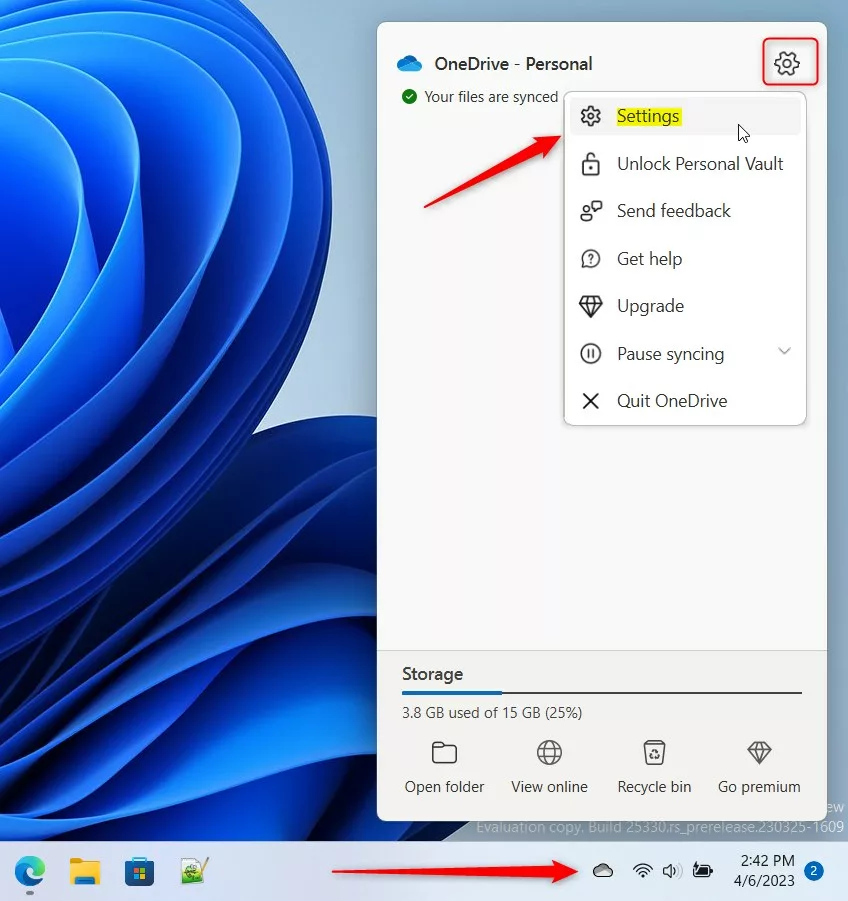
- Click the OneDrive cloud icon in your Taskbar , in the notification area near the clock. If you don’t see it, click the Show hidden icons arrow first. A small OneDrive panel opens, showing your recent sync activity.
- Select the gear icon at the top right of the panel and choose Settings. The OneDrive Settings window opens.
If the OneDrive icon is missing from the taskbar entirely, OneDrive isn’t running. Open it from the Start menu and sign in, then try again.
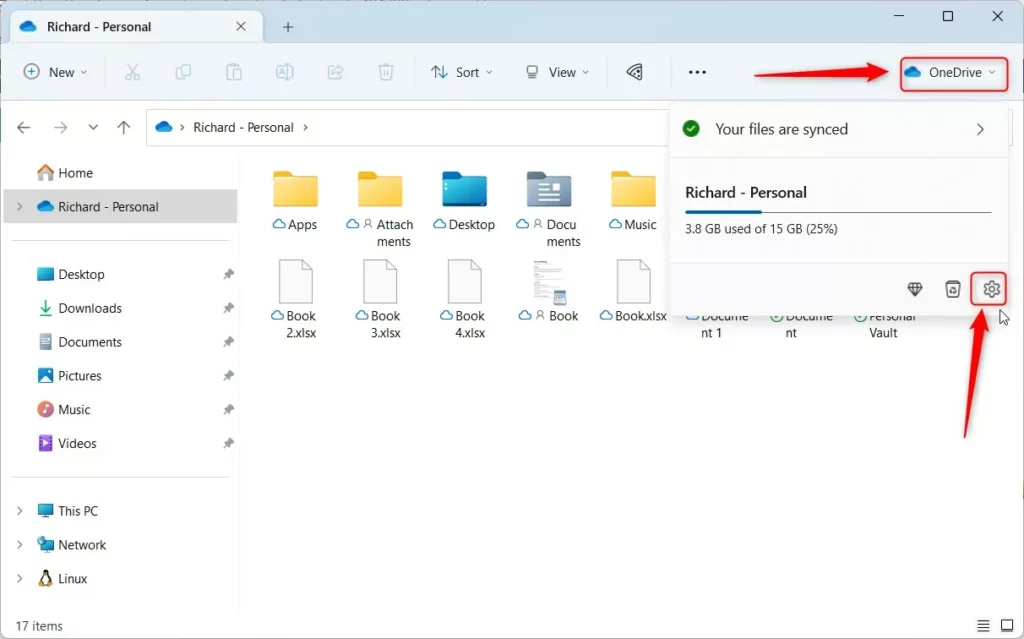
Alternatively, open your OneDrive folder in File Explorer, click the OneDrive button at the top, and select the gear icon. This is handy when the taskbar icon is hidden or the panel won’t open. It leads to the same Settings window.
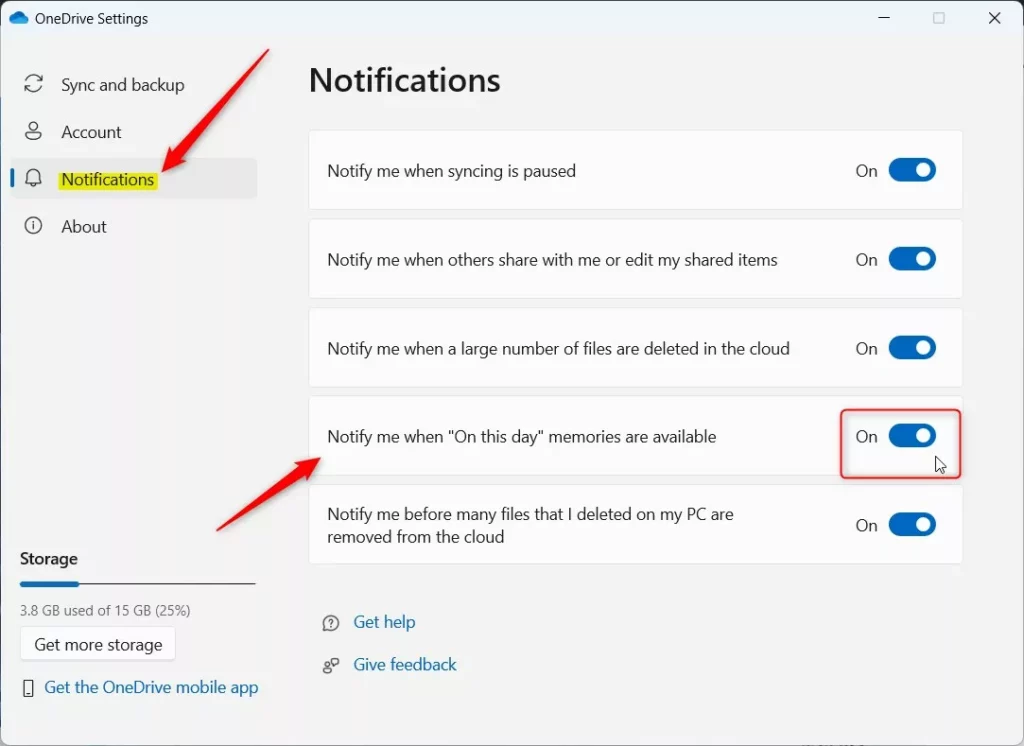
- In the Settings window, click Notifications on the left side. The notification options for OneDrive appear on the right.
- Find the switch for ‘Notify me when On this day memories are available.’
- Toggle this to On or Off based on your preference. The change applies straight away, and you don’t need to restart Windows or OneDrive.
If the Notifications tab or this switch is missing, check your OneDrive version first (it needs to be 23.221 or later). The option may also not appear if you’re signed in with a work or school account instead of a personal Microsoft account. Also, if you still get OneDrive pop-ups after turning this off, they are probably other OneDrive alerts. You can control those in Windows 11 under Settings System Notifications.
Manage OneDrive Memories on Mobile
Managing ‘On This Day’ memory alerts on mobile happens directly within the OneDrive app installed on your phone. The screen layout differs a little between Android and iPhone, so the labels below may sit in slightly different places on your device.
- Open the OneDrive app on your mobile device.
- Tap your profile icon or the Me tab. Your account page opens.
- Go to Settings.
- Tap Notifications. You will see a list of the alert types the app can send.
- Toggle off On This Day memories. The switch should now show as off.
To get the alerts back, return to the same screen and toggle the option on again. If you see no notification options at all, check that OneDrive is allowed to send notifications in your phone’s own system settings.
Disable via OneDrive Web Settings
Photo preferences also respond to changes made through a web browser. Visit the OneDrive web settings page to toggle memory preferences globally. Sign in with the same Microsoft account you use in the OneDrive app, then look for the memories or On This Day option. Menu names on the web can change over time, so look for those words rather than a fixed location.
Change settings using the Registry (Admin Required)
OneDrive On This Day notifications can also be managed using the Registry Editor if you prefer a system-level fix. This method requires administrator rights and involves editing specific registry keys under 🗝️HKEY_CURRENT_USER\
Administrator rights are required to modify these notification settings through the Windows Registry. Proceed here only if you are comfortable navigating advanced system files. A wrong edit in the registry can cause problems, so back up first: in Registry Editor, use File Export to save a copy of the key you are about to change.
- Open the Windows Registry by searching for Registry Editor in the Start menu and opening it. Click Yes if User Account Control asks for permission. The Registry Editor window opens with a tree of keys on the left.
- Go to this path:
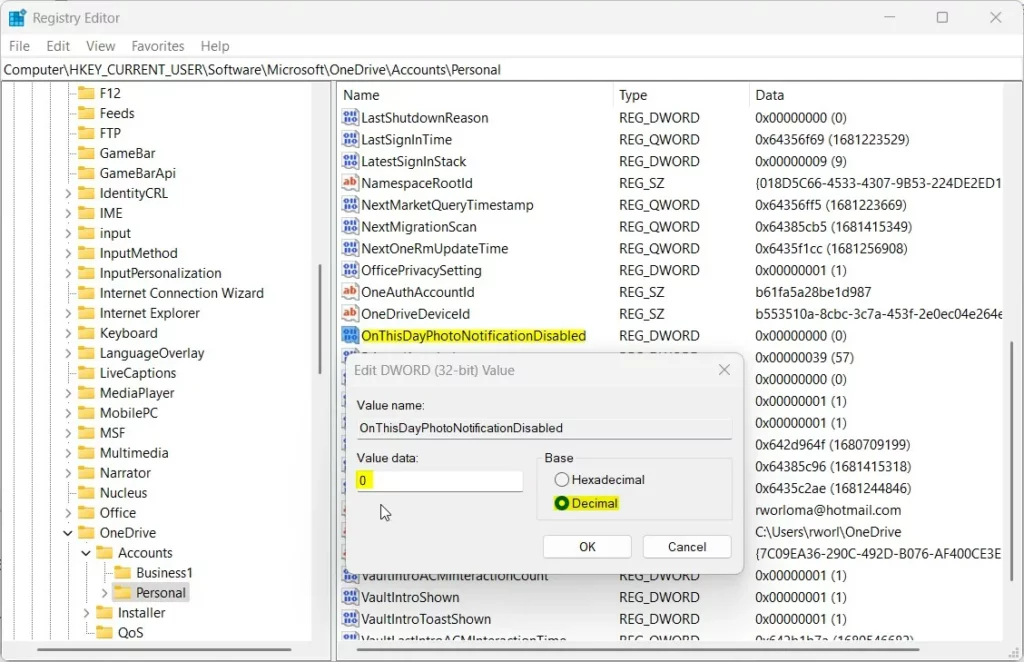
HKEY_CURRENT_USER\Software\Microsoft\OneDrive\Accounts\Personal. Expand each key in the left pane until you reach the last one, and select it so its values appear on the right.
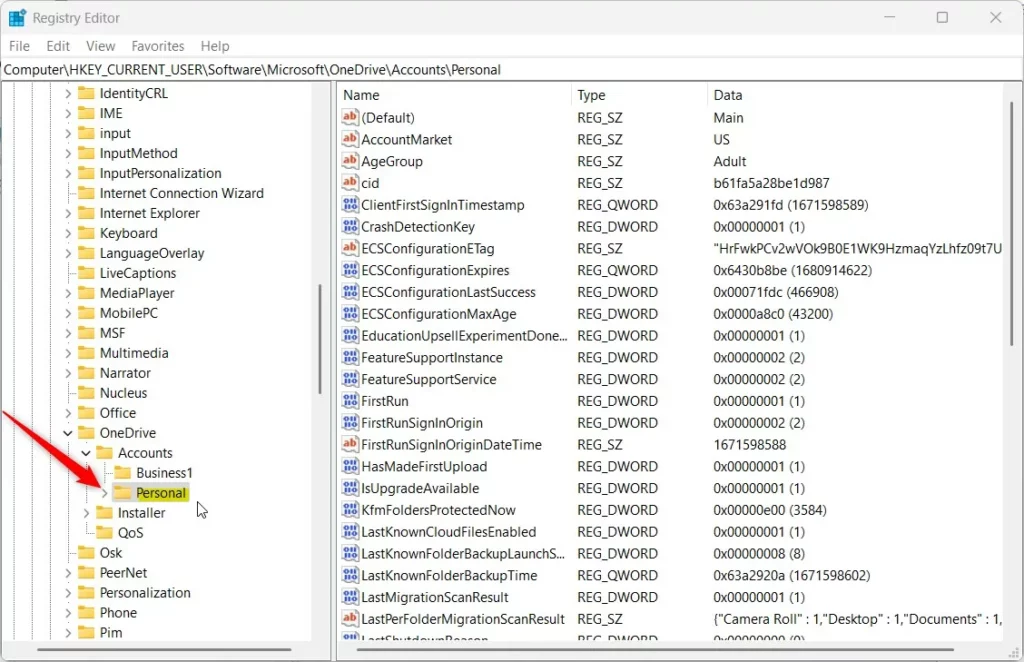
If the Personal folder remains hidden, right-click the Accounts key and create it. Use New Key from the right-click menu, and name the new key Personal.
- Right-click in the empty space on the right side and select New DWORD (32-bit) Value. A new item appears with its name ready to edit.
- Name the new item
OnThisDayPhotoNotificationDisabled. - Double-click this item, set the Base to Decimal, and enter
1to disable or0to enable. Click OK to save. The new value should now show in the list on the right.
To undo the change later, open the same item and enter the other value, or restore the registry file you exported earlier by double-clicking it.
Restart your computer to apply the changes. Registry edits are not always picked up by programs that are already running, and a restart makes sure OneDrive reads the new value.
Summary
OneDrive uses photos to send 'On this day' memory notifications, which respond to controls found in the app, mobile settings, or the Windows Registry. For most people, the Notifications tab in the OneDrive app settings is the simplest option. Use the Registry method only if you need it.
Have a question about this guide?
Answered by AI from this guide. Good questions may be added to this page — please don't include personal details.
Did this guide fix your problem?

About the Author
Richard
Tech Writer, IT Professional
Richard is a writer at Geek Rewind who turns complex IT tasks into clear, step-by-step guides. He draws on years of hands-on experience in system administration and enterprise IT operations, focusing on Windows, Linux and WordPress: the problems people actually run into, and the fixes that work. His server and WordPress guides come from systems he runs himself. Richard builds and maintains the platform behind Geek Rewind, from its Ubuntu servers and Nginx configuration to its custom WordPress plugins. Many new tutorials start with readers' questions, and he's always glad to answer them in the comments.
No comments yet — be the first to share your thoughts!