How to Enable or Disable OneDrive Deletion Notifications in Windows 11


OneDrive deletion notifications in Windows 11 warn you when files are about to be permanently removed from your PC and your cloud storage. They act as a safeguard. OneDrive pauses and tells you before it syncs a large deletion to your other linked devices.
This helps most when you delete a big batch of files by accident. You get a chance to stop the deletion before it spreads to the cloud and to every other device on the account.
Many people find that these warnings are off by default in Windows 11. This article shows you where to find the setting, how to change it, and what to do if the alerts never appear. It also covers a registry method and how to recover files you deleted by mistake.
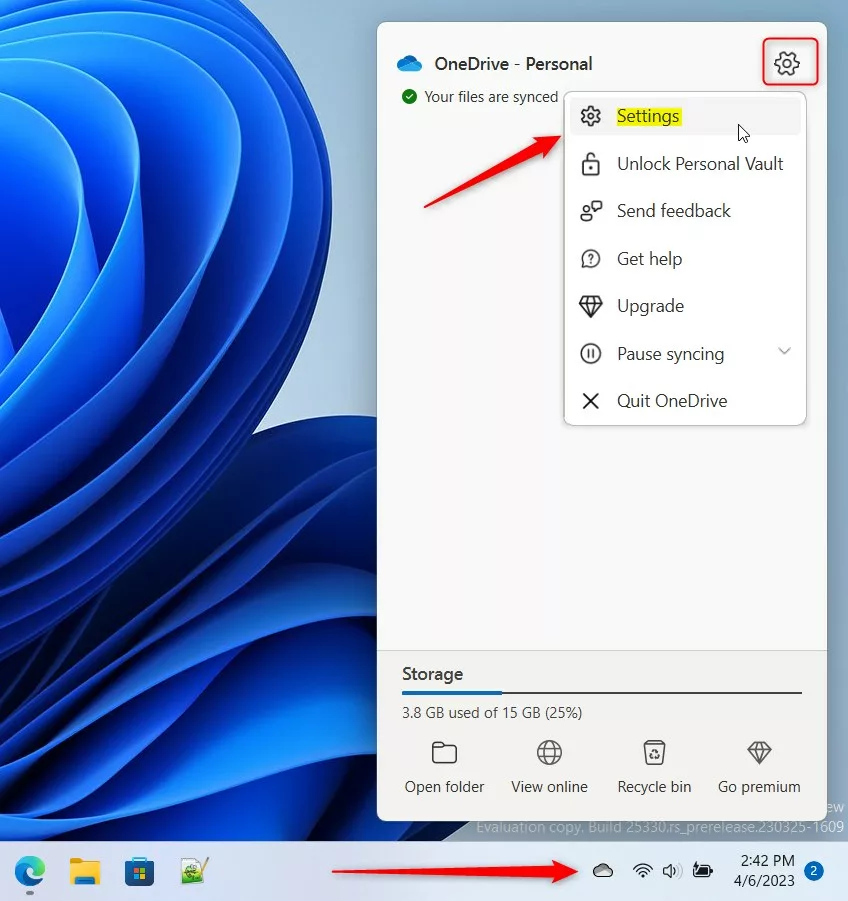
You enable or disable OneDrive deletion notifications by clicking the OneDrive cloud icon on your taskbar , then the gear icon, selecting Settings, and toggling the “Notify me before many files…” option on the Notifications page. This controls whether you get a warning before many deleted files are removed from the cloud.
How to Change OneDrive Deletion Notifications
OneDrive deletion notifications warn you when a large number of files are removed from your cloud storage. To turn them on or off, open the OneDrive settings from your Taskbar , select Notifications, and choose your preference for bulk file deletions. The change applies right away and does not need a restart. To undo it, flip the same switch back.
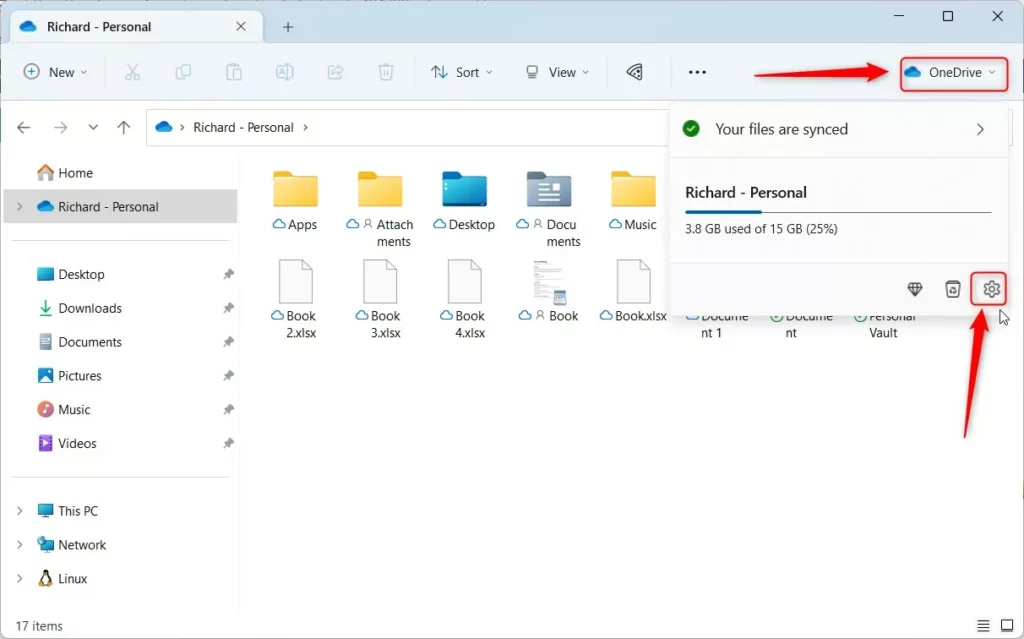
- Click the OneDrive cloud icon on your Taskbar , in the notification area near the clock. If you do not see it, click the Show hidden icons arrow first. You should see the OneDrive panel open above the Taskbar . If the icon is missing entirely, OneDrive is not running (see the troubleshooting section below).
- Click the gear icon in the top-right corner of the panel and select Settings. A separate OneDrive settings window opens.
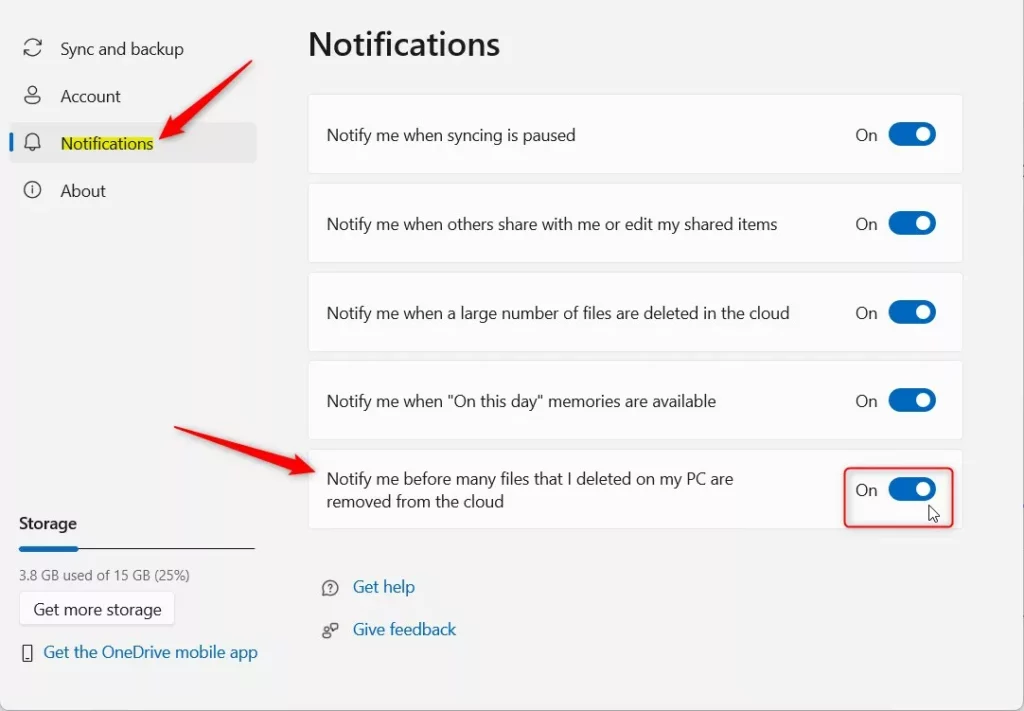
- Click Notifications in the left menu. The right side shows the list of OneDrive alert options. Wording and layout can vary a little between OneDrive versions, so look for the option that mentions deleted files if the page looks different from what you expect.
- Toggle the switch for Notify me before many files that I deleted on my PC are removed from the cloud. Turn it on to get the warning, or off to stop it. If the switch is greyed out on a work or school account, your organization is probably setting it through policy, and you will need to ask your IT admin.
Advanced Settings for Business Users
You can also manage OneDrive deletion notifications through the Windows Registry if you use a work account or need more control. The idea is to change the NotifyOnDelete key inside the Registry Editor at 🗝️HKEY_CURRENT_USER\
Registry Path (a specific location in Windows’ system settings, which requires administrator privileges): 🗝️HKEY_CURRENT_USER\
Before you edit anything, back up the registry. In Registry Editor, choose File Export and save a copy. If something goes wrong, double-click that file to restore it.
Look for the NotifyOnDelete key. Set its value to 1 to enable, or 0 to disable. If you do not see it under that path, do not create anything by guesswork. Use the in-app setting instead. If the change does not seem to take effect, close and reopen OneDrive, or sign out of Windows and back in, so the app reads the new value. To undo the change, set the value back to what it was, or import your backup.
Troubleshooting Missing Notifications
If you are not receiving alerts even though the setting is on, check these items one at a time:
- Ensure Focus Assist or Do Not Disturb mode is off. In current Windows 11 this is called Do not disturb and lives under Settings System Notifications While it is on, OneDrive alerts are silenced. Also make sure notifications from OneDrive are allowed in that same list of apps.
- Check if OneDrive is running in the background. Look for the cloud icon in the notification area. If it is not there, open OneDrive from the Start menu and wait for it to finish starting. A paused or signed-out OneDrive cannot warn you about anything.
- Verify that your account is not a shared folder, as deletion notifications often do not trigger for shared items. The warning is meant for files you removed from your own synced folders, so deleting items from a folder someone else shared with you may not produce an alert.
How to Recover Deleted Files
If you accidentally deleted files, do not panic. In most cases they can still be recovered. Follow these steps:
- Go to the OneDrive website and sign in with the same Microsoft account (personal) or work or school account that holds the files. You should see your OneDrive files page.
- Click on the Recycle Bin in the left sidebar. The deleted items appear in a list. Items stay there for a limited time, which is generally 30 days for personal accounts and 93 days for work or school accounts, unless an admin has changed that.
- Select the files you want to keep and click Restore. They go back to their original folders and sync down to your PC again. Also check the Recycle Bin on your PC, because files deleted locally usually land there as well.
Are Deletion Notifications a Sign of Phishing?
No. Legitimate OneDrive notifications come from the app itself, on your PC. If you receive an email claiming files were deleted, check the sender address. If it is not from Microsoft, it may be a phishing attempt. Never click links in suspicious emails. If you are unsure, open OneDrive directly from the Taskbar or type the website address yourself and check your files there.
Summary
OneDrive deletion notifications are important for keeping your files safe in the cloud. They help you avoid accidental data loss by giving you a moment to stop a bulk deletion before it syncs everywhere. Turning them on takes less than a minute, and you can switch them off again at any time.
Have a question about this guide?
Answered by AI from this guide. Good questions may be added to this page — please don't include personal details.
Did this guide fix your problem?

About the Author
Richard
Tech Writer, IT Professional
Richard is a writer at Geek Rewind who turns complex IT tasks into clear, step-by-step guides. He draws on years of hands-on experience in system administration and enterprise IT operations, focusing on Windows, Linux and WordPress: the problems people actually run into, and the fixes that work. His server and WordPress guides come from systems he runs himself. Richard builds and maintains the platform behind Geek Rewind, from its Ubuntu servers and Nginx configuration to its custom WordPress plugins. Many new tutorials start with readers' questions, and he's always glad to answer them in the comments.
No comments yet — be the first to share your thoughts!