How to Enable Narrator Function Key Announcements in Windows 11


This article explains how to turn the Narrator function key announcement feature on or off in Windows 11. With it on, Narrator speaks the name of each function key as you press it. The steps are the same on Windows 11 Home and Pro.
Open Settings , then go to Accessibility Narrator. Expand the “Have Narrator announce when I type” option under Verbosity. Toggle the “Function keys” switch to On to enable announcements.
What Is Narrator?
Narrator is a screen reader built into Windows. It reads aloud what is on your screen, including text, buttons, menus and other items, so you can use your PC without relying only on what you see. It is mainly meant for people who are blind or have low vision. You can also change how it reads things like punctuation and capital letters.
When you use Narrator, you can enable or disable Narrator phonetic reading, pause for punctuation, adjust how the Narrator reads advanced details, adjust the way capitalized text is read, add a braille display with Narrator, change input and output language for braille with Narrator, and more.
What Are Function Keys?
Function keys, labeled F1 through F12, sit in the top row of your keyboard. Each one performs a different task depending on the app you are in. F2, for example, often renames a selected file in File Explorer , and F5 refreshes a page or window.
On many laptops, the function keys double as media or brightness keys. You may need to hold the Fn key to get F1 through F12. This also affects what Narrator announces, so keep it in mind when you test.
Why Enable Function Key Announcements?
With this feature on, Narrator says the name of a function key out loud when you press it. That way you know which key you hit, even if you cannot see the keyboard or the screen. By default, this feature is turned off. You can turn it on or off whenever you want.
The setting changes what Narrator says. It does nothing unless Narrator is running. To start or stop Narrator quickly, press Windows key + Ctrl + Enter.
How to Enable Narrator Function Key Announcements
- Open the Settings app. Either click the Start menu and select Settings, or press Windows key + I on your keyboard to open Settings app. The Settings window should now be on screen.
- Click Accessibility on the left side. The accessibility options appear on the right.
- Click Narrator on the right side. The Narrator settings page opens.

- Scroll down to the Verbosity section. Click Have Narrator announce when I type to expand it. A list of typing options appears.
- Turn on the Function keys option. Depending on your build of Windows 11, it appears as a toggle or a checkbox. Either way, this turns on "Hear function keys as you type."
- Test it. With Narrator running, press a function key such as F6. Narrator should say the key's name. If you hear nothing, check that Narrator is on and your volume is up.
To turn the feature off again, return to the same page and switch Function keys off. No restart or sign-out is needed. The change takes effect right away.
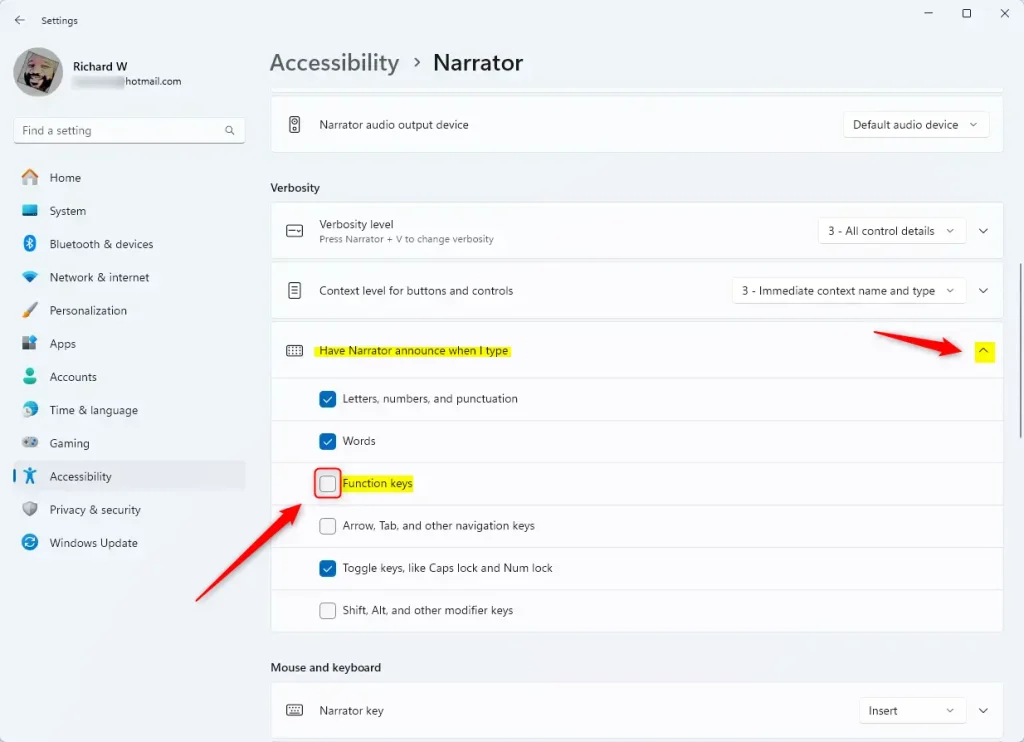
Narrator function key announcements are controlled by one setting in Settings Accessibility Narrator. Once it is on, Narrator tells you which function key you pressed. If you cannot find the option, make sure you have expanded Have Narrator announce when I type under Verbosity. The wording and layout of this page can differ slightly between Windows 11 versions, so scroll through the whole Narrator page if you do not see it at first.
What Happens When You Enable This?
With the setting on, Narrator speaks the name of the function key (F1 through F12) each time you press it. This makes it easier to confirm you pressed the key you meant to, especially before using shortcuts that change settings or close windows. On laptops where function keys share duties with media keys, it also helps you tell which action you triggered.
Summary
Making Narrator announce function keys as you type takes only a few clicks in the Settings app. Because it is a simple on/off setting, you can switch it back at any time.
Was this guide helpful?

About the Author
Richard
Tech Writer, IT Professional
Richard is a writer at Geek Rewind who turns complex IT tasks into clear, step-by-step guides. He draws on years of hands-on experience in system administration and enterprise IT operations, focusing on Windows, Linux and WordPress: the problems people actually run into, and the fixes that work. His server and WordPress guides come from systems he runs himself. Richard builds and maintains the platform behind Geek Rewind, from its Ubuntu servers and Nginx configuration to its custom WordPress plugins. Many new tutorials start with readers' questions, and he's always glad to answer them in the comments.




[…] a screen-reading app built into Windows that reads the text on your screen aloud and describes events for users with low vision or […]
[…] a screen-reading app built into Windows that reads the text on your screen aloud and describes events for users with low vision or […]
[…] a screen-reading app built into Windows that reads the text on your screen aloud and describes events for users with low vision or […]
[…] a screen-reading app built into Windows that reads the text on your screen aloud and describes events for users with low vision or […]