The article explains how to filter profane words in live captions on Microsoft Teams. It outlines steps to access settings, including launching the app, navigating to Settings, and toggling the profanity filter under the "Accessibility" tab. Microsoft Teams integrates various features for enhancing collaboration, including caption management.
Windows
This article outlines the process of enabling or disabling captions in Microsoft Teams, a collaboration platform by Microsoft. Users can access the settings via the app, where they can toggle captions for calls and meetings under the Accessibility tab. The platform also includes options to filter profanity in captions.
This article details how to manage "Filters" in Microsoft Teams, a collaboration platform. Users can easily toggle "Filters" for chats and channels via the Settings menu. Customizing these features enhances user experience and promotes effective collaboration, ensuring users benefit from the platform's latest updates and functionalities.
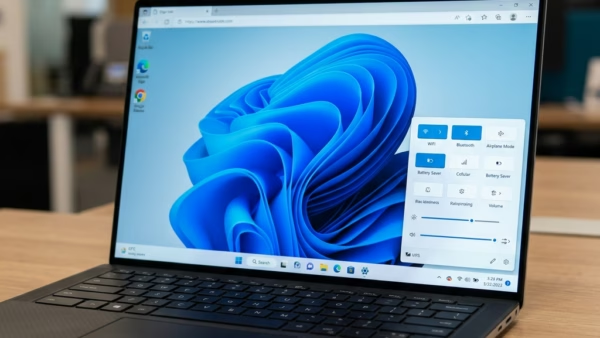
This article outlines how to change the position of on-screen indicators for brightness, volume, and other functions in Windows 11. Users can enable this feature using the ViVeTool command. Additionally, adjustments can be made through the Settings app or the Windows Registry Editor by creating a new DWORD value.
This article details how to repair the Windows Search and Indexing feature in Windows 11. The Windows Search Index improves search speed by indexing specified locations. If issues occur, uninstalling and reinstalling the feature or disabling and re-enabling it through the Windows Terminal can effectively resolve these problems and restore functionality.
This article instructs users on enabling or disabling the "Do Not Disturb" status in Microsoft Teams while sharing a screen. When screen sharing, the application automatically sets this status. Users can adjust this setting by accessing the Privacy tab in the app’s Settings menu to manage their notifications during screen sharing.
This article outlines how to enable or disable the "Always ask where to save downloaded files" feature in Microsoft Teams. It explains that by default, files download to the Downloads folder but can be redirected. The process is simple and helps improve organization, enhancing productivity and workflow management.
The article provides a guide on changing the default download location in Microsoft Teams. Users can access settings through their profile and select a new folder for downloads instead of the default Downloads folder. This feature enhances customization within the Microsoft Teams collaboration platform, streamlining file management for users.
This article outlines how to manage message previews in the Microsoft Teams chat list. Users can enable or disable this feature through the app's settings. Adjusting message previews enhances privacy or visibility based on preference. Microsoft Teams offers various settings for personalization, improving overall user experience and functionality.
The article details the process of enabling the "Hey, Copilot" voice command for hands-free interaction with Microsoft's Copilot on Windows 11. Users can enable or disable the feature via the app's settings. This functionality enhances multitasking by allowing users to converse with the AI assistant while maintaining focus on other tasks.
The article explains the new Copilot Vision feature in Microsoft Copilot for Windows 11, enabling voice interactions to ask questions about on-screen content. Users can integrate Copilot into their workflow, allowing hands-free assistance. Regular updates aim to enhance productivity and user experience, making it a significant advancement in digital engagement.
This article details how to show or hide the system clock in Windows 11's Notification Center. Users can enable this feature via ViVeTool or the Windows Registry Editor. Steps include downloading ViVeTool, running commands, or making registry changes, while emphasizing the importance of backing up the registry for safety.
The article discusses the new text extractor feature in the Snipping Tool for Windows, allowing users to easily copy text to their clipboard without taking screenshots. Accessible via a toolbar button or the Win + Shift + S shortcut, it provides options to manually select text, copy all, and remove line breaks for increased productivity.
The article details how to enable or disable the "Click to Do" feature in Windows 11, enhancing task efficiency by recognizing screen content. Users can access this feature via keyboard shortcuts, the Snipping Tool, or Windows Search. It can be managed through the Settings app, Group Policy Editor, or Registry Editor.
The article details how to enable or disable the Copilot feature in Notepad on Windows 11. Copilot offers AI capabilities like rewriting and summarizing text. Users can toggle this feature in the settings menu, enhancing productivity and editing clarity, while also enjoying various Notepad customization options for an improved experience.