How to Set Default Speaker in Microsoft Teams


You set your default speaker in Microsoft Teams by selecting your preferred audio output device within the application’s settings.
Microsoft Teams is your go-to for collaboration, but sometimes it defaults to the wrong speaker, making it hard to hear calls. This article shows you exactly how to fix that.
Ensuring Teams uses your primary headset or speakers is crucial for clear communication, especially during critical meetings where you can’t afford to miss a word.
By following a few simple steps within Teams, you can permanently select your desired audio output for all future calls, ensuring you hear everything perfectly.
How to change your windows-11/" class="sal-link" rel="noopener" target="_blank" data-sal-id="25577">audio device
You can adjust these settings easily within the app. Note: You do not need admin privileges to change these settings.
- Open the Microsoft Teams app from your Start menu.
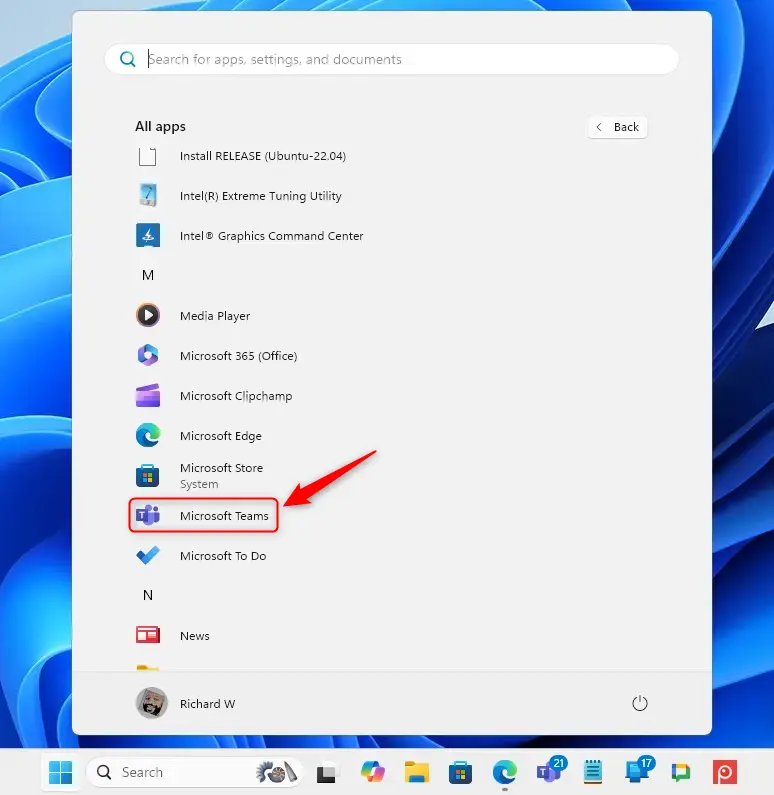
You can also open the app using the Taskbar or Taskbar overflow.

- Click the Settings and more (…) button located near your profile picture. Select Settings from the list.
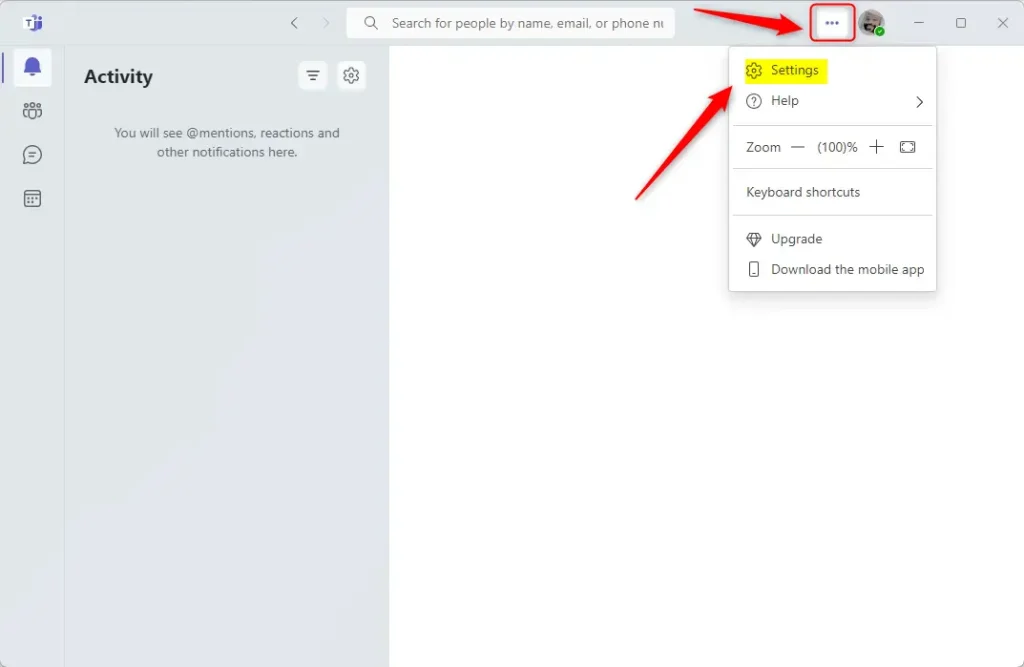
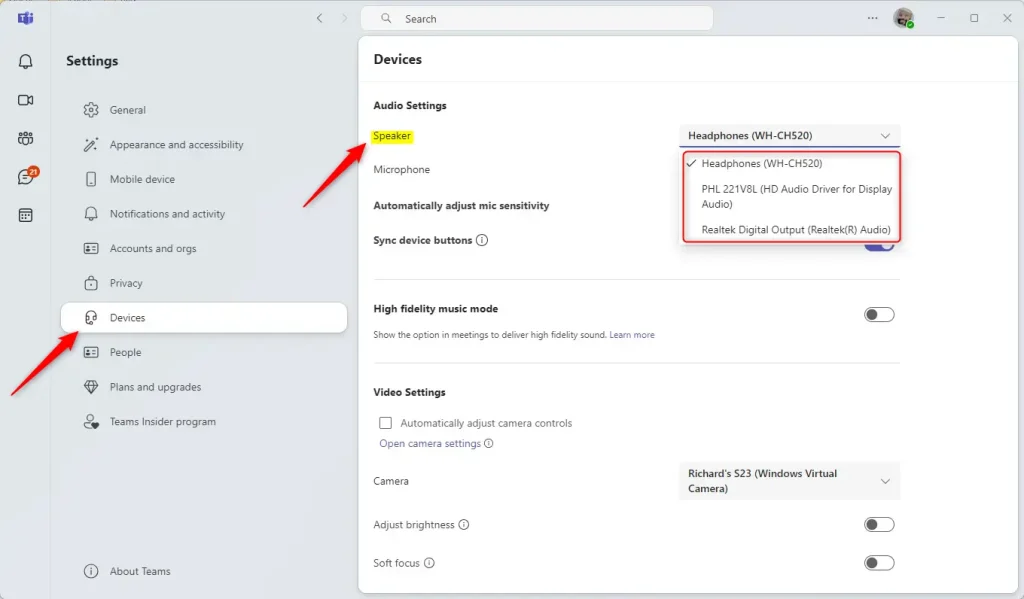
- Select the Devices tab on the left side of the window.
- Under the Audio Settings section, look for the Speaker drop-down menu.
- Click the menu and select the device you want to use from the list.
You can connect your Google calendar, turn the camera and mic on or off on the lock screen, turn read receipts on or off, auto start Teams, disable Teams chat, sync contacts with Teams, connect to Google Calendar, link your mobile device, turning message preview on or off, and manage teams notifications during calls to your computer to use them with these settings.
Summary
Managing your audio is simple. Just remember these steps:
- Open Teams: Start the app from your taskbar or menu.
- Go to Settings: Find the three-dot menu icon.
- Pick your device: Select the right speaker under the Devices tab.
Configuring these settings helps you avoid audio issues and makes your online meetings much smoother.
How do I change the default speaker in Microsoft Teams?
Can I use multiple speakers with Microsoft Teams?
What should I do if my audio settings are not saving in Teams?
Is it possible to test my speaker in Microsoft Teams?
Why can't I hear anything in Microsoft Teams?
Was this guide helpful?

About the Author
Richard
Tech Writer, IT Professional
Richard, a writer for Geek Rewind, is a tech enthusiast who loves breaking down complex IT topics into simple, easy-to-understand ideas. With years of hands-on experience in system administration and enterprise IT operations, he’s developed a knack for offering practical tips and solutions. Richard aims to make technology more accessible and actionable. He's deeply committed to the Geek Rewind community, always ready to answer questions and engage in discussions.



[…] your mobile device, turning message preview on or off, manage teams notifications during calls, set default speakers, set default microphone, enable high fidelity sound, change mic sensitivity, and […]
[…] your mobile device, turning message preview on or off, manage teams notifications during calls, set default speakers, set default microphone, enable high fidelity sound, change mic sensitivity, set default camera, […]
[…] Set Default Speaker in Teams […]