Windows 11 System Restore and Recovery: Step by Step

System Restore is a Windows feature that rolls back system files, settings and installed programs to an earlier point without touching your personal files. Recovery covers the wider set of tools for getting a PC working again, from restore points to the Windows Recovery Environment (a separate startup mode that runs repair tools when Windows will not load). People often find these tools only after something has broken, so they are easy to misunderstand or disable without realising. The guides below show you how to check what protection you have, back up what matters, and start a PC that will not boot normally.
See and manage the restore points you already have
Start here if you want to roll back a recent change or find out why Windows is keeping old snapshots. These guides show you the existing restore points, how often new ones are made, and how to remove old ones to free disk space.
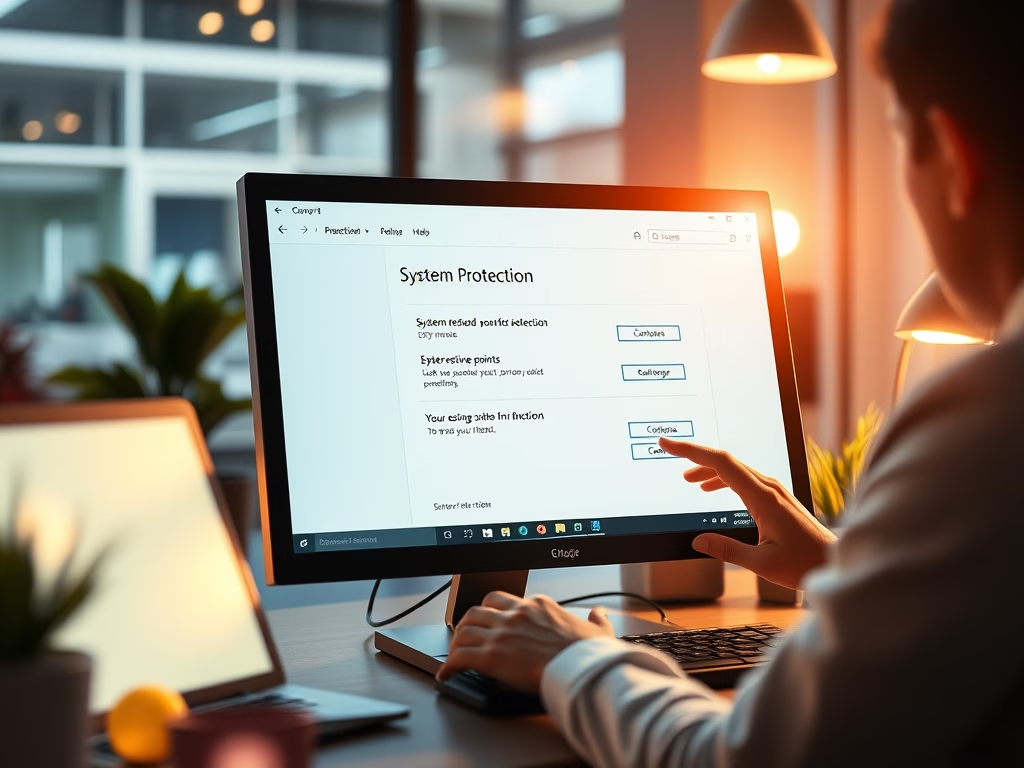 How to See System Restore Points in Windows 11 Find system restore points in Windows 11 using Settings or PowerShell commands. View snapshots of your system to fix problems after updates or new software…
 How to Change How Often Windows 11 Makes Restore Points Control Windows 11 restore points frequency by modifying Registry settings. Create snapshots more often or less frequently to match your system protection…
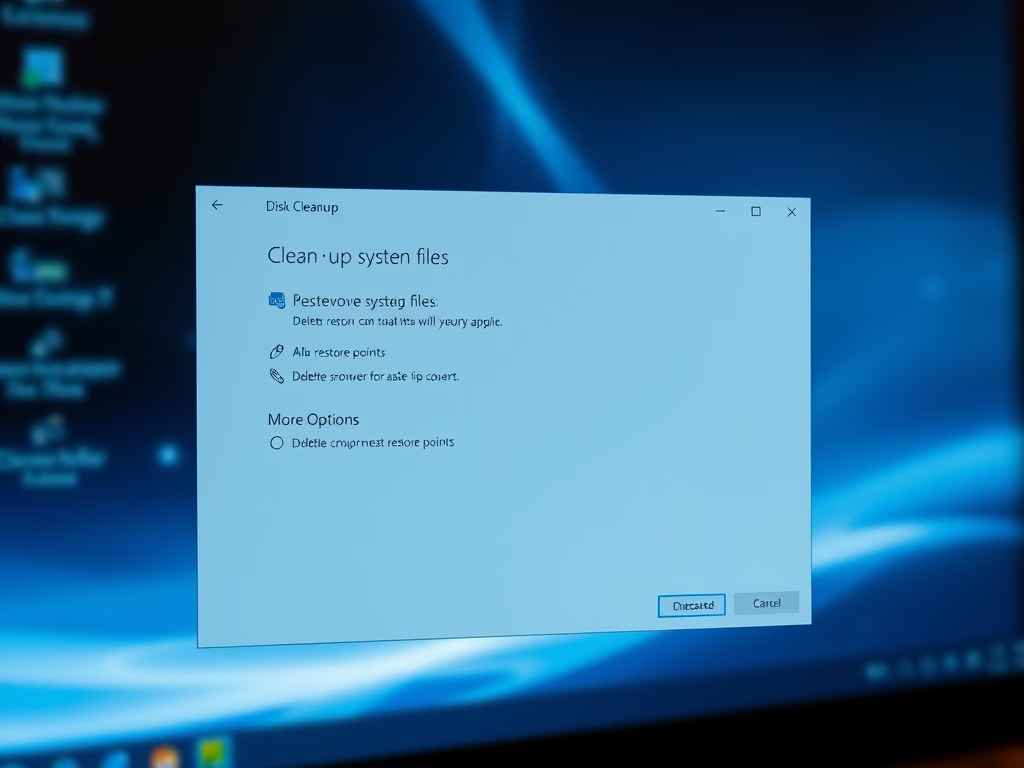 How to Delete Old Restore Points in Windows 11 Free up disk space by learning how to delete restore points in Windows 11. Keep your latest restore point safe while removing old ones with our simple…
Back up your files and drivers before something goes wrong
Restore points do not protect your documents, so you need separate backups. These guides cover recovering personal files from File History (a backup feature that copies files to an external drive), saving device drivers, and creating a recovery drive on a USB stick.
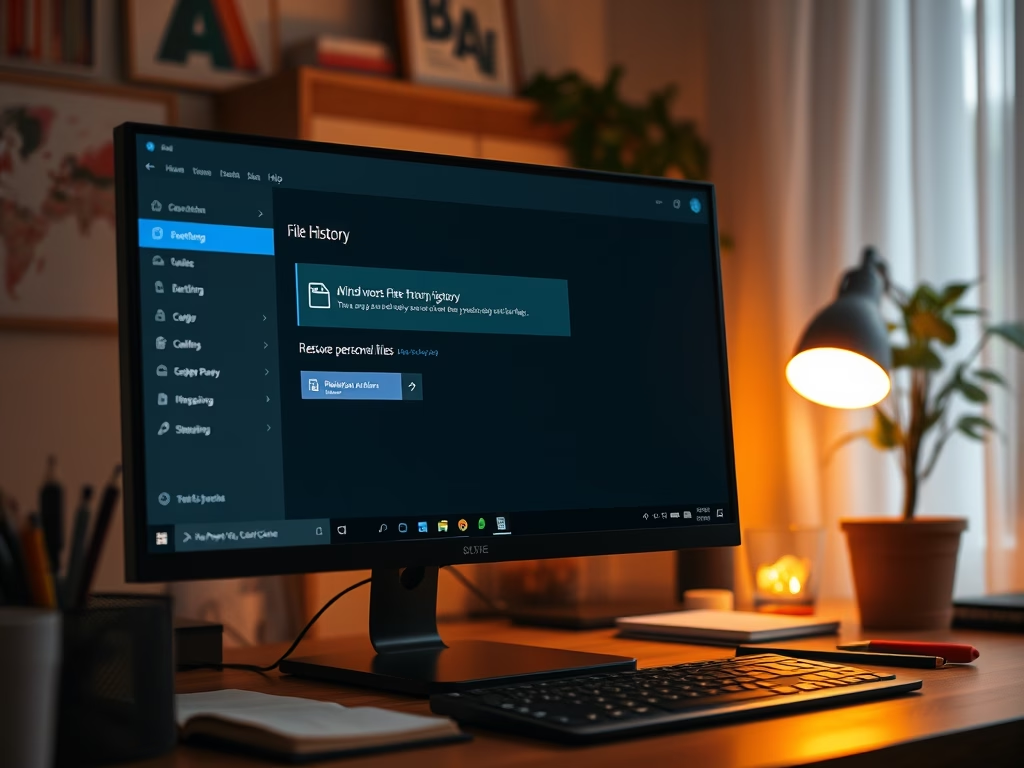 How to Restore Files in Windows 11 Using File History Restore files in Windows 11 using File History. Recover lost or damaged documents with simple steps to ensure your important data is safe.
 How to Backup and Restore Device Drivers on Windows 11 Backup device drivers on Windows 11 to migrate or restore them later. Follow simple commands to export and import drivers.
 How to Create a Recovery Drive in Windows 11 Create a Windows 11 recovery drive to fix startup issues and restore your PC. Step-by-step guide for making a bootable USB drive with repair tools.
Start a PC that will not boot normally
Use these when Windows fails to start or keeps crashing on startup. They cover opening the Windows Recovery Environment, starting from a USB drive, and enabling and testing Quick Machine Recovery, which can repair Windows without a recovery drive.
 How to Boot into Windows Recovery Environment in Windows 11 Boot into the Windows Recovery Environment (WinRE) in Windows 11 with our step-by-step guide.
 How to Boot from USB in Windows 11 Boot from USB in Windows 11 using the boot menu or Windows Advanced Startup.
 How to Enable Quick Machine Recovery in Windows 11 Enable Quick Machine Recovery in Windows 11 to fix startup problems automatically. Follow our simple steps to turn on this feature and keep your PC running…
 How to Test Quick Machine Recovery in Windows 11 Test Quick Machine Recovery in Windows 11 with our step-by-step guide. Enable automatic PC repairs for startup issues using simple commands.
Have a question about this guide?
Answered by AI from this guide. Good questions may be added to this page — please don't include personal details.

About the Author
Richard
Tech Writer, IT Professional
Richard is a writer at Geek Rewind who turns complex IT tasks into clear, step-by-step guides. He draws on years of hands-on experience in system administration and enterprise IT operations, focusing on Windows, Linux and WordPress: the problems people actually run into, and the fixes that work. His server and WordPress guides come from systems he runs himself. Richard builds and maintains the platform behind Geek Rewind, from its Ubuntu servers and Nginx configuration to its custom WordPress plugins. Many new tutorials start with readers' questions, and he's always glad to answer them in the comments.
No comments yet — be the first to share your thoughts!