How to Use Quick Machine Recovery in Windows 11

Quick Machine Recovery (QMR) in Windows 11 repairs a PC that won’t boot by downloading fixes from Windows Update. It runs inside the Windows Recovery Environment (WinRE), so it works even when Windows itself won’t load. You don’t have to reinstall Windows to use it.
Open Advanced Startup (WinRE) and choose Troubleshoot Advanced options Quick machine recovery to have Windows download fixes from Windows Update. If Windows still loads, go to Settings System Recovery and click Restart now beside Advanced startup. If Windows won’t boot, interrupt startup three times in a row by holding the power button. Requires Windows 11 24H2 or later with recent updates.
Traditional repair tools often fail when core system files are corrupted, because they can only use what is already on the PC. Quick Machine Recovery pulls clean replacements from the cloud instead. That means you don’t need a USB recovery drive or manual command-line fixes when a bad update or driver crash stops your PC from starting.
The feature is part of current Windows 11 releases (24H2 and later, with recent updates installed). If you don’t see it on an older build, install the latest Windows updates first. On Windows 11 Home it is normally on by default. On Pro and Enterprise it is often left for an administrator to configure, so a work PC may behave differently from a home one.
Two settings control how Quick Machine Recovery behaves:
- Cloud remediation: This setting lets recovery use Windows Update to find and apply fixes.
- When this is on, your computer connects to the internet and uses Windows Update during recovery.
- When this is off, Windows uses Startup Repair, which looks for fixes only on your computer.
- Auto remediation: This setting automates the recovery process.
- When this is on, your computer automatically connects to Windows Update to find a fix. If it doesn’t find one the first time, it tries again without you doing anything.
- When this is off or not configured, you need to start the recovery process manually.
Here is how the Quick Machine Recovery process works from start to finish:
- Computer crash: If your computer fails to start several times in a row, Windows detects the problem and begins the recovery process.
- Boot to recovery: The computer starts in the recovery environment and launches Quick Machine Recovery.
- Network connection: Once the PC is connected to a network, it checks Windows Update for fixes. A wired connection is the most reliable here.
- Fixing the problem:
- If no fix is found, the computer tries again later. How often it checks and how long it waits depend on the settings you or your administrator have configured.
- If a fix is found, the computer downloads and applies it.
- Restart: After a fix is applied, the computer restarts.
- If the fix works, the computer starts normally into Windows 11.
- If the fix doesn’t work, the computer restarts back into the recovery environment, and the process starts again from step 2.
Here’s How to Manually Start Quick Machine Recovery:
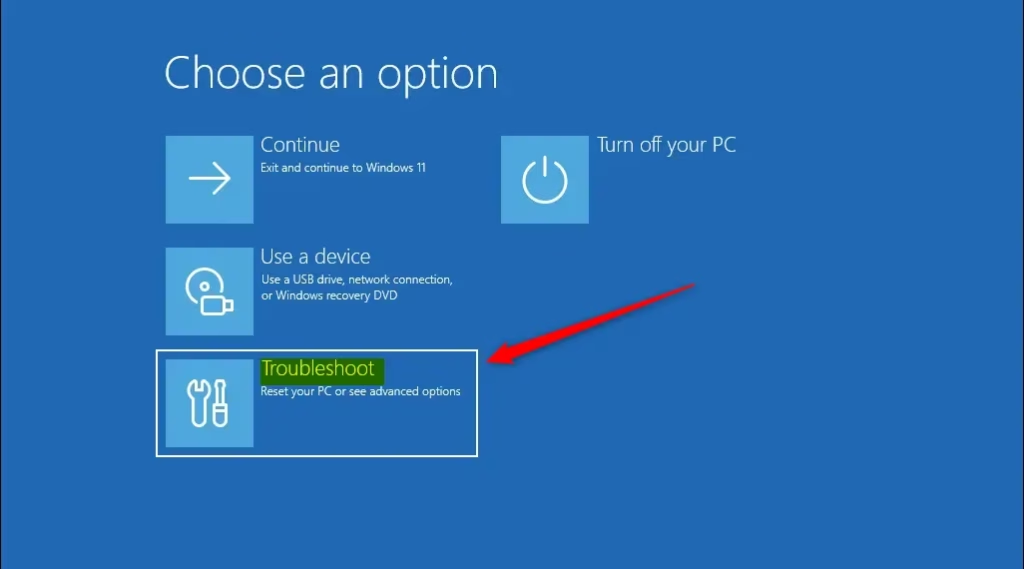
- Start your computer in Advanced Startup (WinRE). If Windows still loads, go to Settings System Recovery, find Advanced startup, and click Restart now. You can also hold the Shift key while you click Restart on the Start menu. If Windows won’t load at all, interrupt the boot by holding the power button as soon as the logo appears, three times in a row. Windows then enters recovery on its own. You should land on a blue screen titled Choose an option.
- Click or tap Troubleshoot.
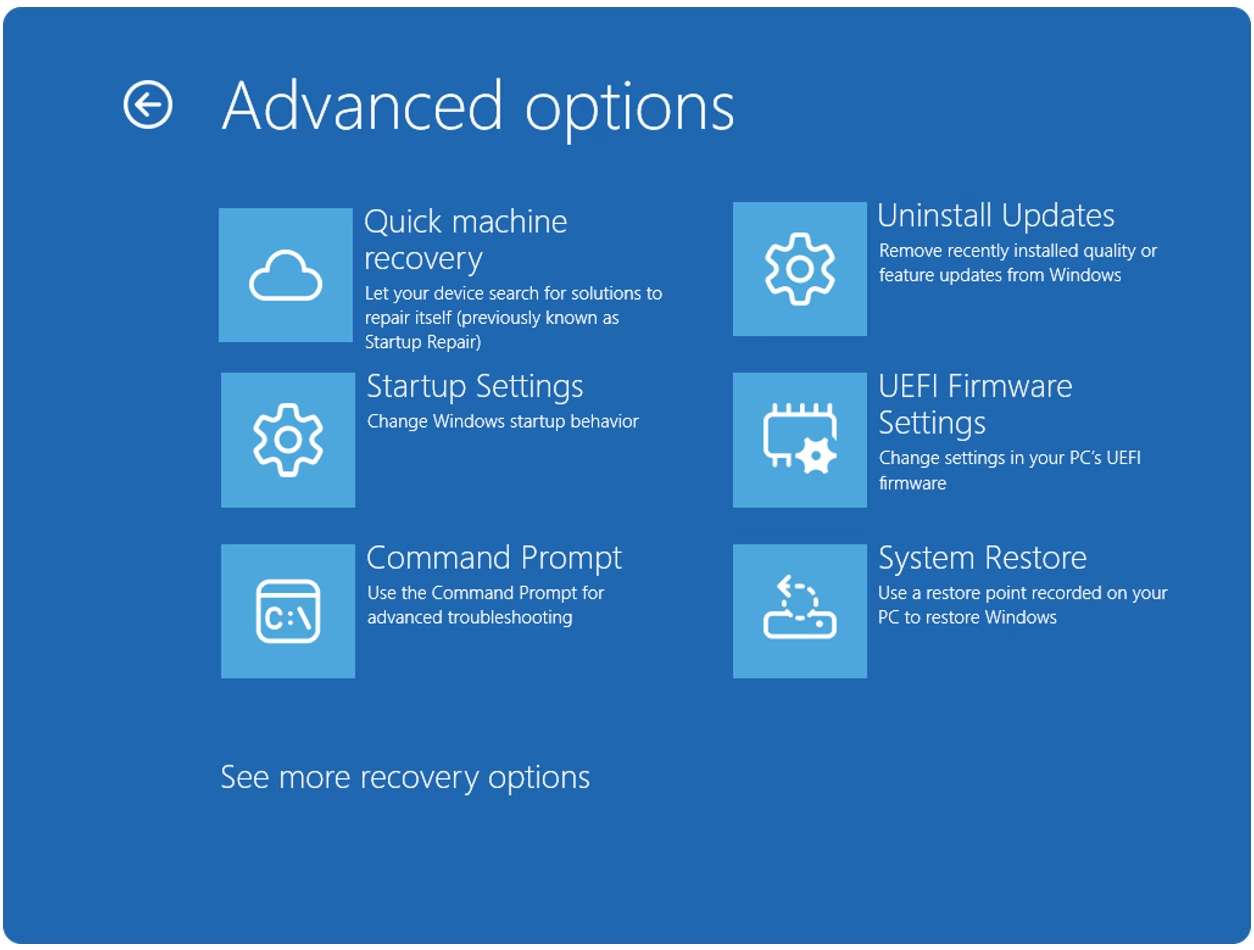
- Click or tap Advanced options.
- Click or tap Quick machine recovery. If you don’t see it, your Windows build is too old to include the feature, or it has been turned off by policy. Install the latest updates if you can, or ask your administrator.
- Quick Machine Recovery starts checking your PC. You should see a progress screen.
- Wait for your computer to connect to the network, then let it check Windows Update for fixes. If you use Wi-Fi and the PC can’t connect, you may be asked to choose a network and enter the password. Plugging in an Ethernet cable avoids this. If the drive is protected by BitLocker, WinRE may ask for your recovery key before it continues.
- See what happens next. The result depends on whether a fix is found:
- If no fix is found and your computer is set to scan only once, you will be shown other recovery options.
- If no fix is found and your computer is set to try again later, it will check again based on those settings.
- If a fix is found, your computer will download and apply it.
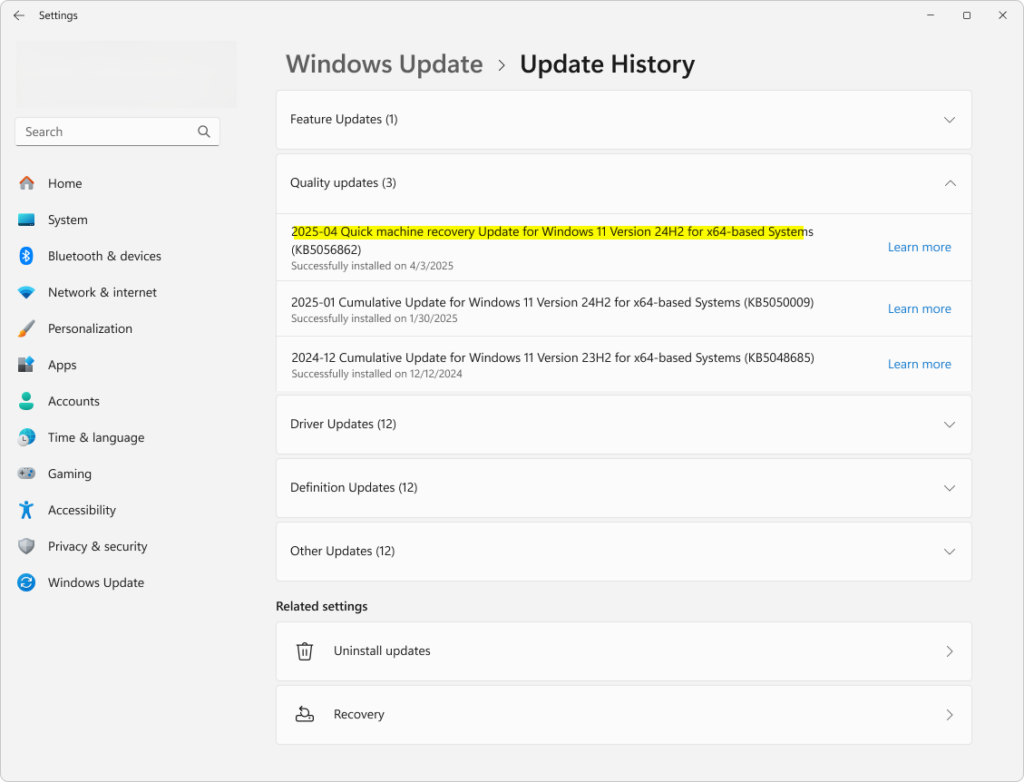
- If a fix was applied, your computer restarts into Windows 11. Open Settings Windows Update Update history and check that the fix is listed. It should appear under Quality updates.
If the PC restarts into recovery again, the fix did not solve the problem. Let the process run again, or use one of the other recovery options on the screen. No restart is needed on your part. Windows handles it.


References:
https://learn.microsoft.com/en-us/windows/configuration/quick-machine-recovery/?tabs=csp
Summary
Quick Machine Recovery in Windows 11 helps fix startup problems automatically. When your PC won’t start correctly, it checks Windows Update for a fix, downloads it, and restarts the machine. You can also start it yourself through the Advanced Startup options. That saves you from building a recovery drive or reinstalling Windows.
Have a question about this guide?
Answered by AI from this guide. Good questions may be added to this page — please don't include personal details.
Did this guide fix your problem?

About the Author
Richard
Tech Writer, IT Professional
Richard is a writer at Geek Rewind who turns complex IT tasks into clear, step-by-step guides. He draws on years of hands-on experience in system administration and enterprise IT operations, focusing on Windows, Linux and WordPress: the problems people actually run into, and the fixes that work. His server and WordPress guides come from systems he runs himself. Richard builds and maintains the platform behind Geek Rewind, from its Ubuntu servers and Nginx configuration to its custom WordPress plugins. Many new tutorials start with readers' questions, and he's always glad to answer them in the comments.
No comments yet — be the first to share your thoughts!