How to Enable Quick Machine Recovery in Windows 11

Quick Machine Recovery in Windows 11 is a built-in recovery tool that repairs startup errors and gets your PC working again in minutes. It works from the Windows Recovery Environment (WinRE) on your own computer, so you can often fix a serious boot failure without a full system reset.
You can turn on Quick Machine Recovery in the Windows Settings app. Doing so before something breaks means the PC is already set up to look for a fix the next time it fails to start.
Open Settings , go to System Recovery, scroll down to Quick machine recovery, and toggle the switch to On. The feature activates immediately and begins checking for fixes from Windows Update if your PC fails to start.
What is Quick Machine Recovery?
Quick Machine Recovery lets your PC fix its own startup problems. When Windows fails to boot properly, it drops into the recovery environment and connects to the internet. It then pulls fixes from Windows Update and applies them to repair system files. You don’t have to step in or reinstall Windows from scratch.
If you can’t find it on your PC, install the latest updates from Windows Update and check again. In an unmanaged setup, the Home edition usually has it switched on by default. Pro and Enterprise PCs managed by an organisation are often controlled by IT policy instead, so the setting there may be locked.
There are two main parts to this feature:
- Cloud remediation: Your PC connects to the internet from the recovery environment and looks for fixes from Windows Update . This needs a working network connection, so a PC that can’t get online can’t use this part.
- Auto remediation: Your PC tries to apply the fixes it finds without you having to step in. If the first attempt doesn’t solve the problem, it can keep checking for new fixes.
Why Use Quick Machine Recovery?
- Faster fixes: Helps your PC recover quickly from startup problems, often without a technician or a USB recovery drive.
- Automatic updates: Uses the latest fixes from Microsoft, so the repair isn’t limited to what was on your disk when the problem started.
- Less hassle: You don’t need to do complicated repairs yourself, such as running command-line repair tools from WinRE.
- Easy to turn on or off: You can control it in Windows Settings , and you can reverse the change at any time.
How to Turn On or Off Quick Machine Recovery
You turn Quick Machine Recovery on or off in the Settings app . The switch is under System and then Recovery. Sign in with an administrator account, because a standard account may not be allowed to change the setting. The steps below are for Windows 11 24H2 or later. Menu wording can differ slightly between builds.
- Open the Settings app. Click the Start menu and select Settings, or press the Windows key + I on your keyboard. The Settings window opens with a list of categories on the left.
- Go to System Recovery On the left side, click System. Then, on the right, scroll down and click Recovery. You should now see recovery options such as Reset this PC and Advanced startup.
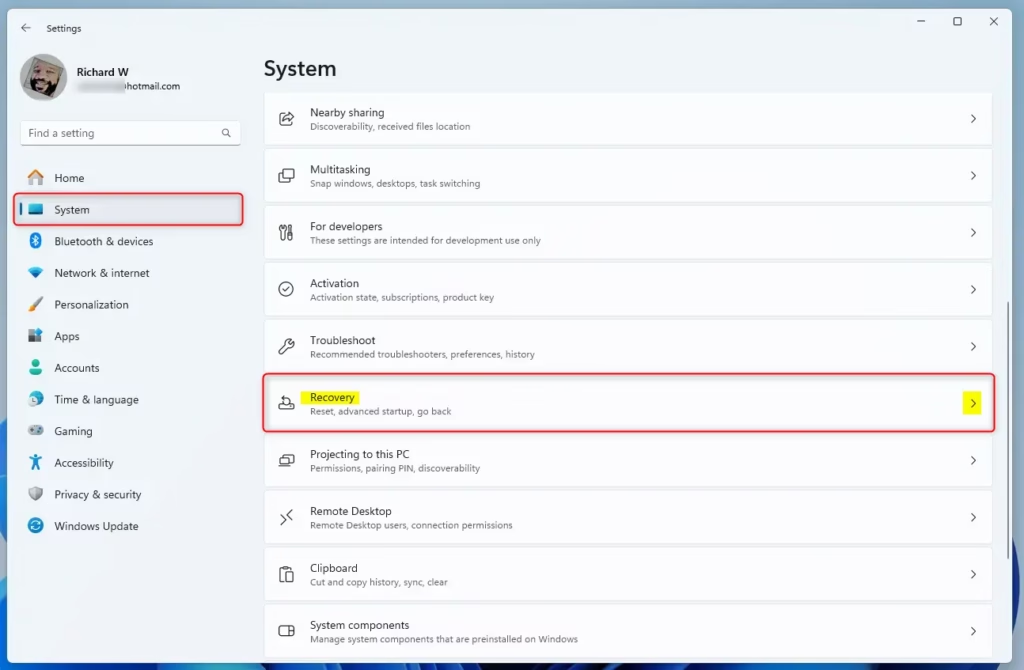
Recovery tile in Settings - Screenshot: finding the Recovery option in Settings.
- Find Quick Machine Recovery. Scroll down and click the Quick machine recovery section to open it. If the section is missing, your PC probably doesn't have the update that adds it yet, so run Windows Update and restart. If you're on a work PC, a policy may be hiding it.
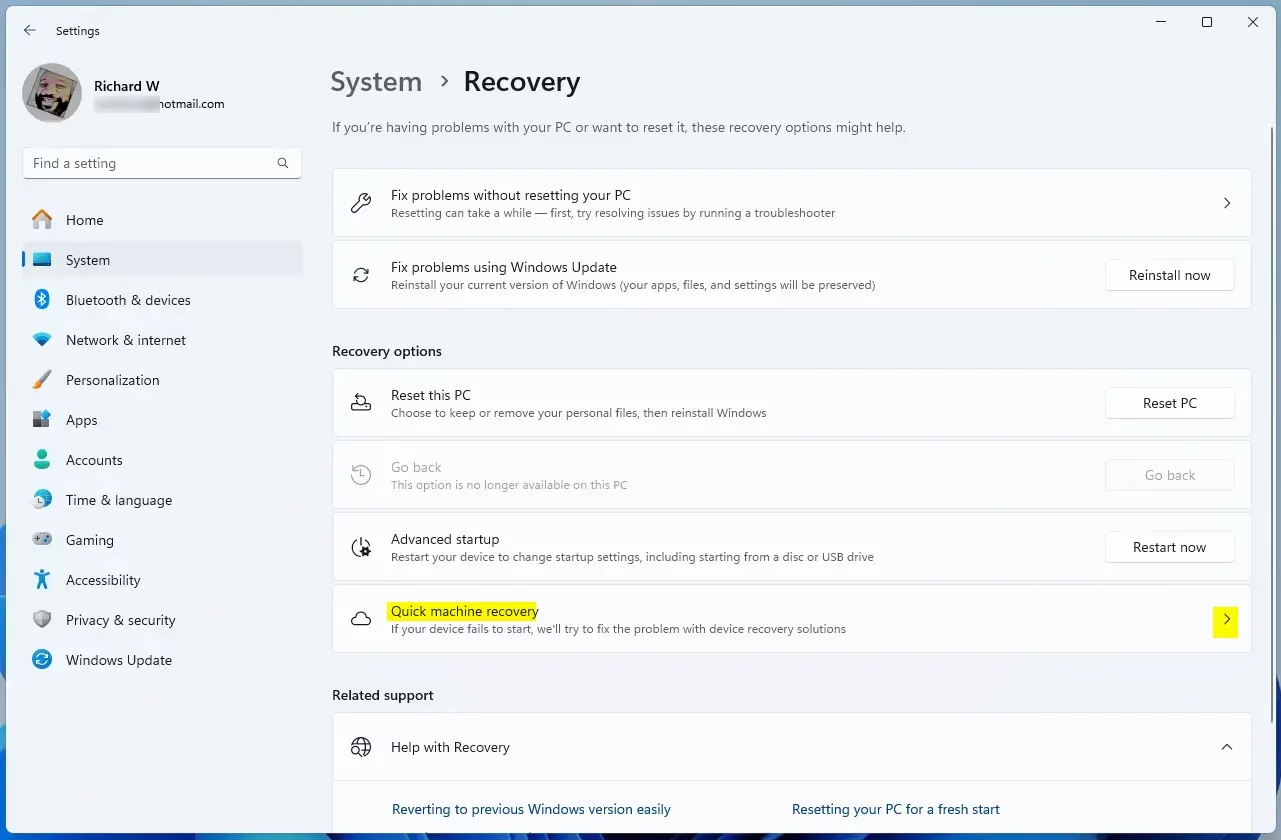
Quick machine recovery tile - Screenshot: the Quick machine recovery settings.
- Turn it on or off. Use the switch to enable or disable Quick Machine Recovery. The switch should now show On if you enabled it. If the switch is greyed out, an administrator policy is controlling it and you'll need to change it through your IT team or with an admin account.
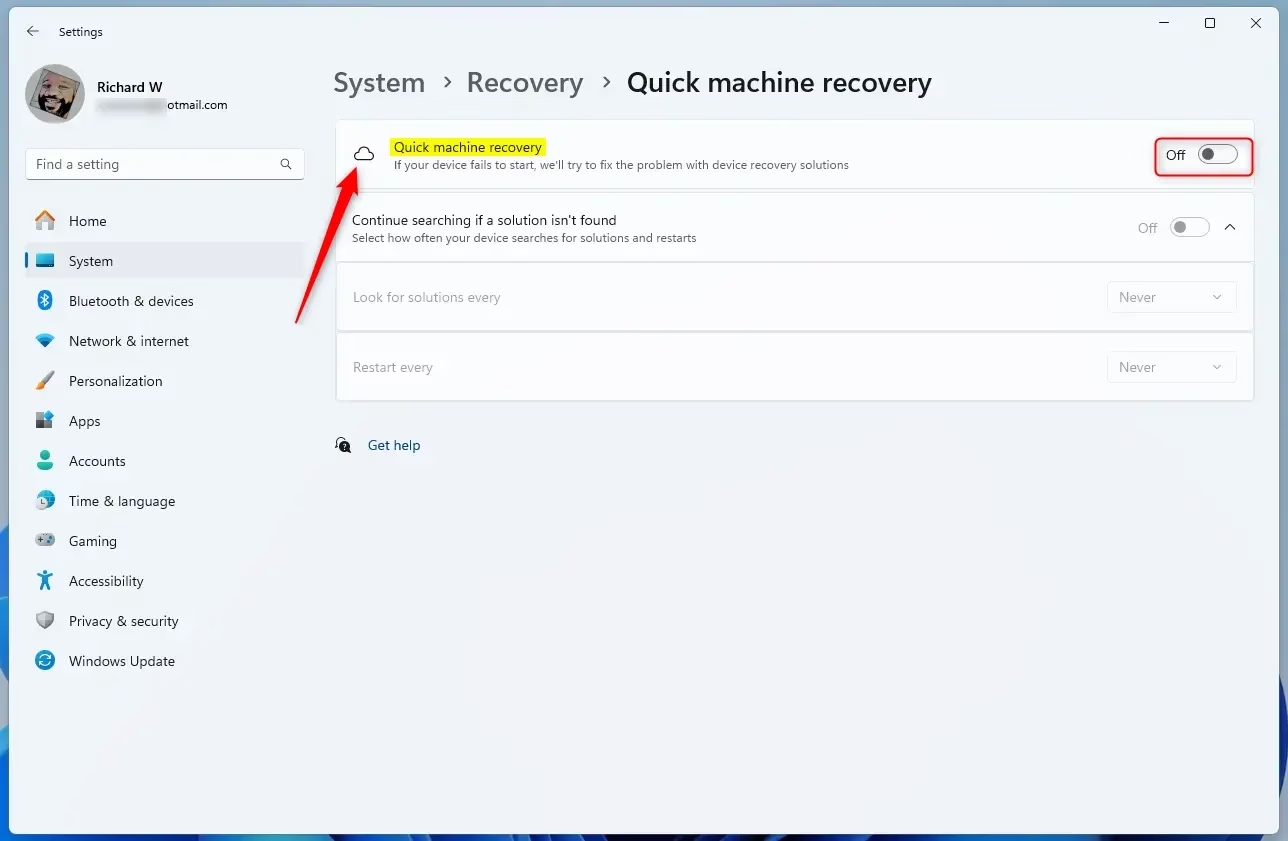
Quick machine recovery toggle button - Screenshot: turning the feature on or off.
- (Optional) Enable automatic searching for fixes. Once Quick Machine Recovery is on, you can also choose how often your PC keeps looking for solutions if it doesn't find one right away. A shorter interval means more attempts during a failed boot. A longer one means fewer attempts. Pick whatever suits the machine. A laptop that is often away from a network may not benefit from frequent checks.
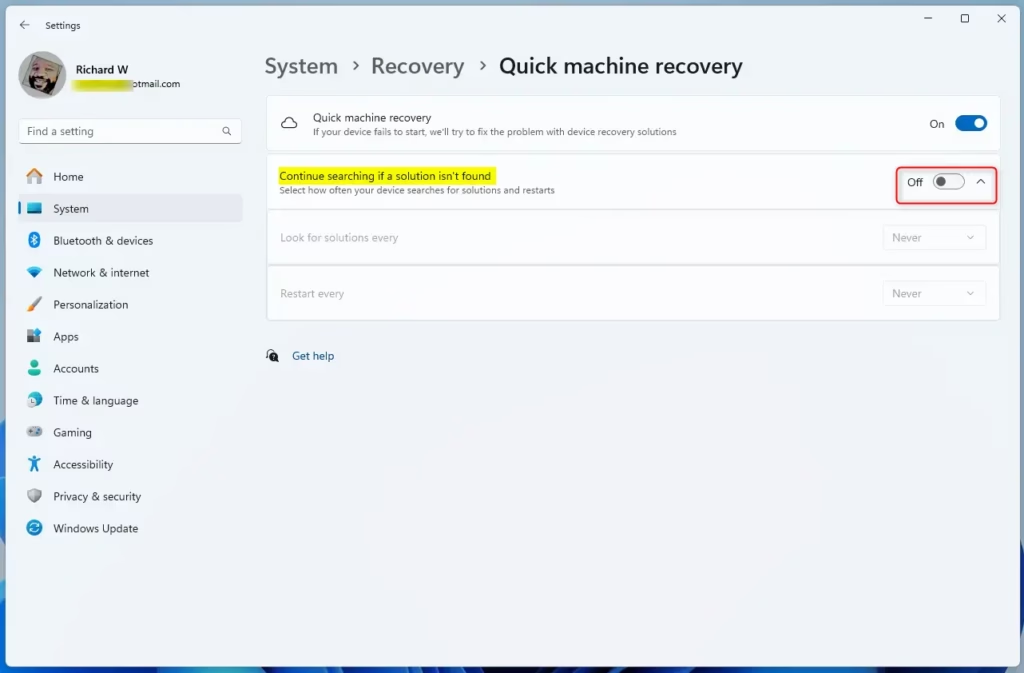
Option to continue searching for solution - Screenshot: choosing to keep looking for fixes automatically.
- Close Settings. Your changes are saved automatically, so there is no Save button to click and you don't need to restart.
After you turn it on, you can also reach Quick Machine Recovery when your PC boots into the advanced recovery options, known as WinRE (the Windows Recovery Environment). This is where the repair actually runs if Windows can't start. Cloud remediation needs a network connection there, so a wired connection is the safest bet. Wi-Fi works only if the recovery environment can join the network.
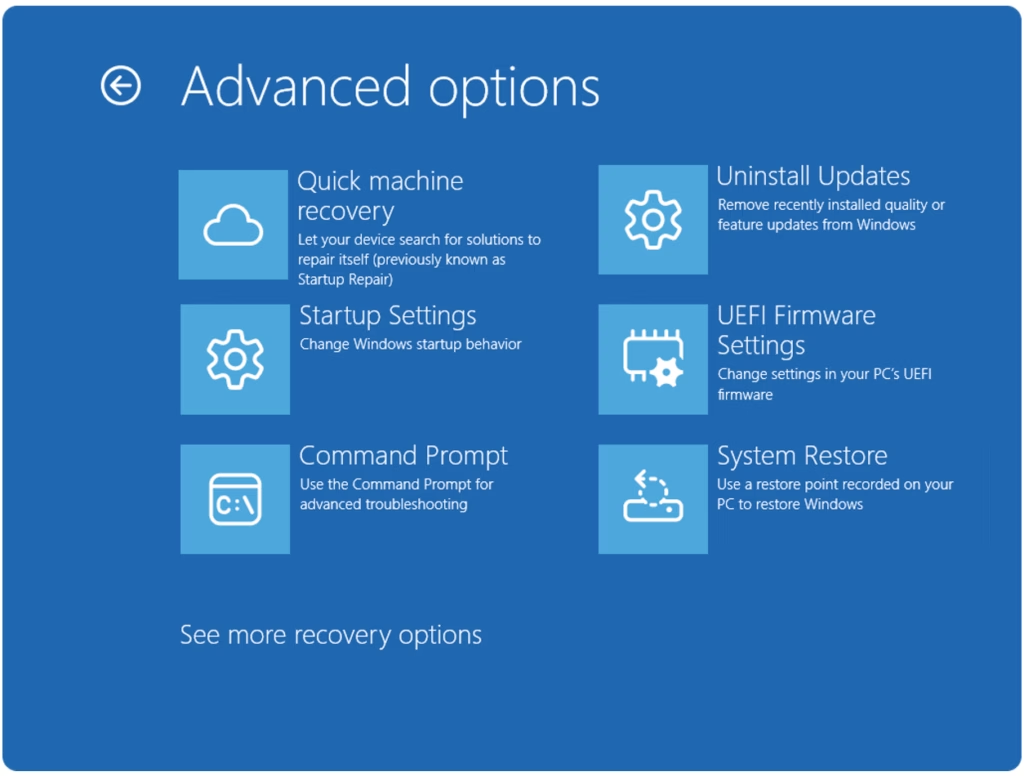
To check that your choice was kept, open Settings, go to System then Recovery, and look at the Quick machine recovery section again. The switch should still be in the position you set. To undo the change, go back to the same place and flip the switch the other way. You don't need to restart for either direction.
More Info and Help
Quick Machine Recovery in Windows 11 has extra support resources in official Microsoft documentation and Windows settings guides. Read these when you need deeper troubleshooting steps or want to see how other recovery tools work alongside automatic cloud fixes on your PC. If you manage several PCs, the Microsoft documentation also covers controlling the feature by policy, which the Settings app alone doesn't cover.
This guide, "How to Open and Use Windows Settings," offers extra help for managing Windows 11 features, including those for quick machine recovery. It gives step-by-step instructions for opening and using the Windows Settings app, which is handy if you aren't yet comfortable moving around it.
Summary
Quick Machine Recovery in Windows 11 finds and applies fixes from the internet to reduce the need for manual repairs when your computer fails to start. It saves you time during system crashes by handling both cloud-based updates and background repairs, and it doesn't require advanced technical knowledge. In short, it does three things:
- Automatically finding and applying fixes from the internet.
- Reducing the need for you or IT help to manually repair your PC.
- Being easy to turn on or off through Settings.
For you, that means fewer prolonged outages after a bad update or driver, and less risk of losing data to a failed repair attempt. It isn't a substitute for backups, though, so keep your important files backed up as well.
That's all there is to it! Your PC will now be better prepared to recover from startup issues with less hassle.
Was this guide helpful?

About the Author
Richard
Tech Writer, IT Professional
Richard is a writer at Geek Rewind who turns complex IT tasks into clear, step-by-step guides. He draws on years of hands-on experience in system administration and enterprise IT operations, focusing on Windows, Linux and WordPress: the problems people actually run into, and the fixes that work. His server and WordPress guides come from systems he runs himself. Richard builds and maintains the platform behind Geek Rewind, from its Ubuntu servers and Nginx configuration to its custom WordPress plugins. Many new tutorials start with readers' questions, and he's always glad to answer them in the comments.




No comments yet — be the first to share your thoughts!