Windows 11 Emoji, Voice Typing and Touch Keyboard

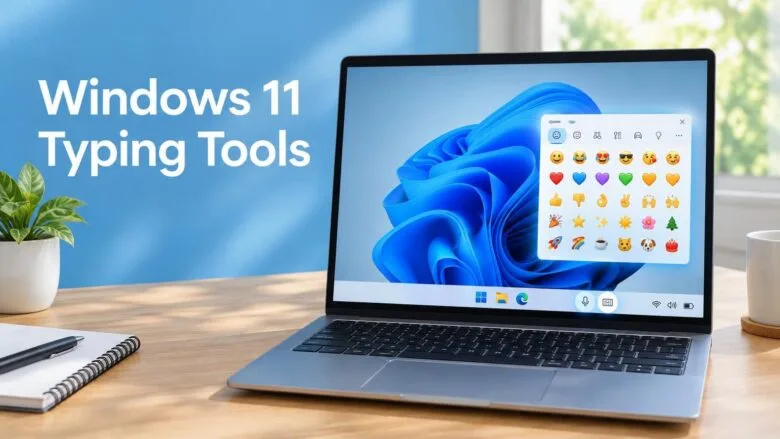
Windows 11 gives you three ways to type beyond the physical keyboard: the emoji panel, voice typing and the touch keyboard. Each has its own switches, and they do not all sit in the same place in Settings. This page sends you to the right guide for each setting, grouped by the task you are trying to finish. If you are new to these tools, begin with emoji, GIFs and symbols, then move to the section that matches your problem.
Insert emoji, GIFs and symbols
Emoji, GIFs and symbols all open from the same panel, but the shortcut that opens it is separate from the one that places the cursor in a text box. Use these guides to add a smiley to a message or a character that is not on your keyboard. The shortcut guide also covers opening the panel without touching the mouse.
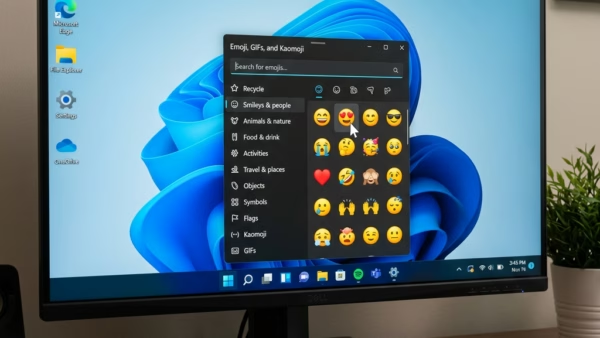 How to Enter Emojis, GIFs and Symbols on Windows 11 Learn Windows 11 alt codes for symbols like © and ™, and use the emoji panel (Windows key + period) for emojis and GIFs.
 How to Use Emojis and GIFs in Windows 11 (Win + . Shortcut) Enhance your communication in Windows 11 with emojis and GIFs! Discover how to express yourself and add personality to your messages.
Dictate text with voice typing
Voice typing turns speech into text in whatever field has the cursor, and it needs a working microphone. These guides show how to start it, where its microphone key appears on the touch keyboard, and how to control whether offensive words are filtered from dictated text.
 How to Start Voice Typing in Windows 11 Master Windows 11 voice typing! Discover the simple Windows key + H shortcut to activate this hands-free dictation tool and start converting speech to text…
 How to Show or Hide Voice Typing Mic on Windows 11 Touch Keyboard Enable the Windows 11 voice typing mic on your Touch keyboard in seconds. Follow our step-by-step guide using Settings or Registry Editor for hands-free…
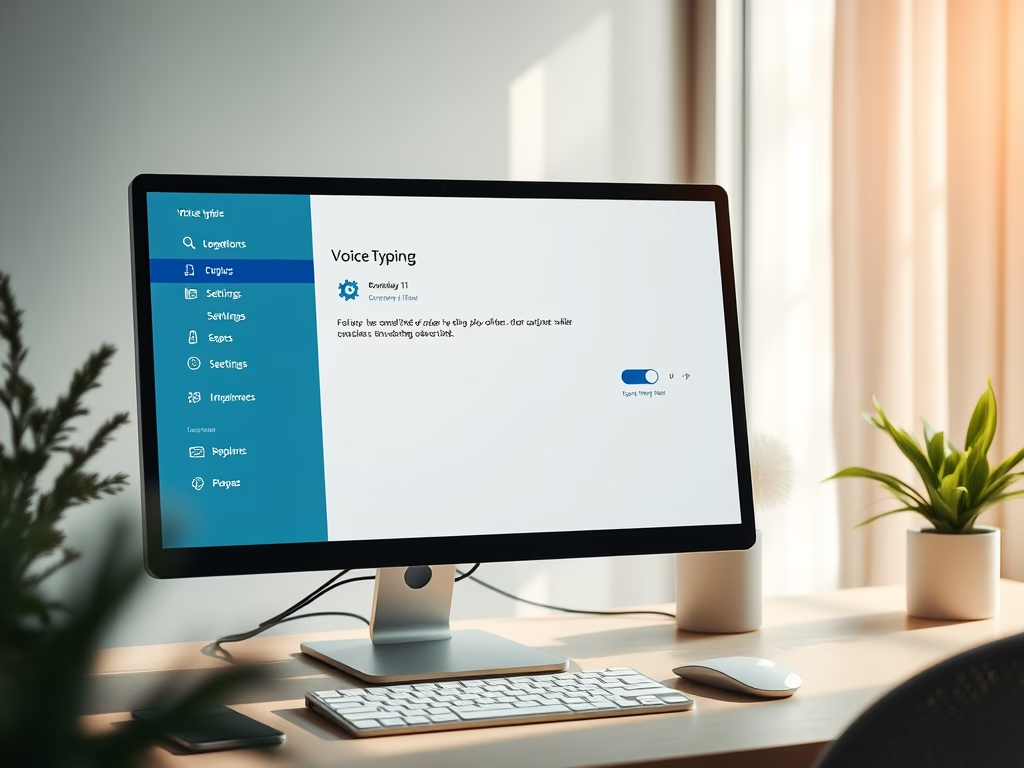 How to Filter Profanity in Windows 11 Voice Typing Control Windows 11's profanity filter in voice typing in a few clicks. Enable censoring or allow all words—customize your typing experience.
Change how the touch keyboard punctuates and capitalizes
The touch keyboard can add capital letters and periods for you as you type. Several of these switches affect each other, so change one at a time and test it in a text box. Turn off only the ones that get in your way.
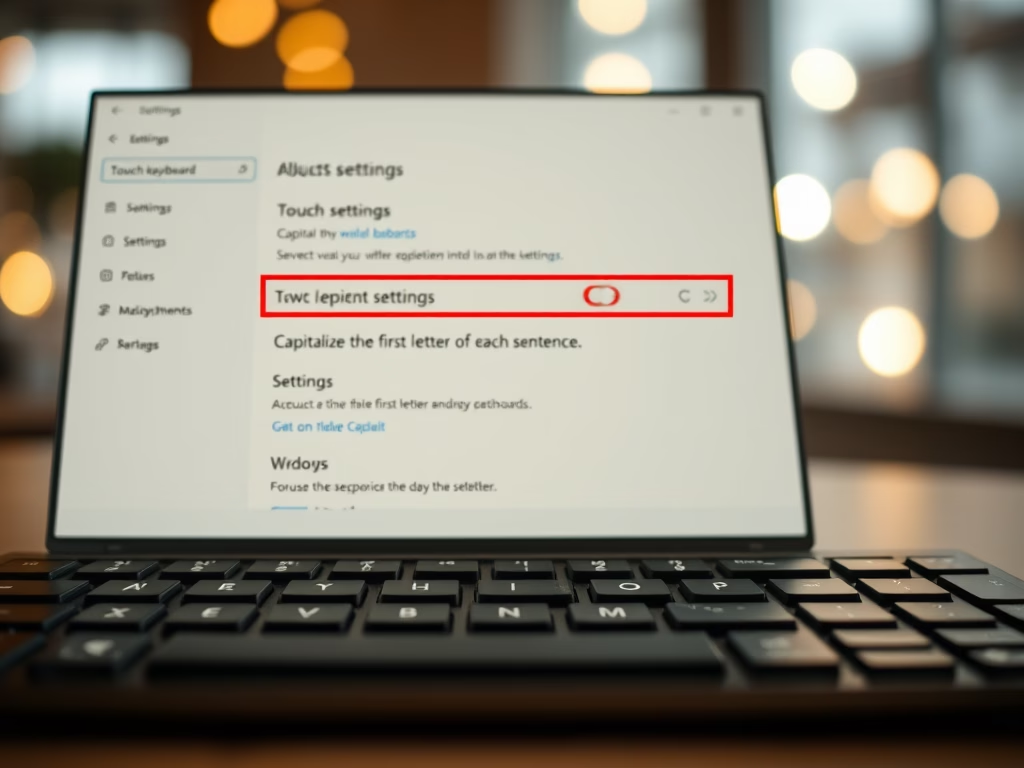 How to Turn On or off Capitalizing the First Letter of Each Sentence on the Touch Keyboard in Windows 11 Master Windows 11 touch keyboard capitalization settings. Enable or disable auto-capitalization of the first letter in sentences using Settings or Registry…
 How to Turn On or off Shift Lock On the Touch Keyboard in Windows 11 Turn Shift Lock on or off on Windows 11's touch keyboard in Settings, or disable it completely with Registry Editor.
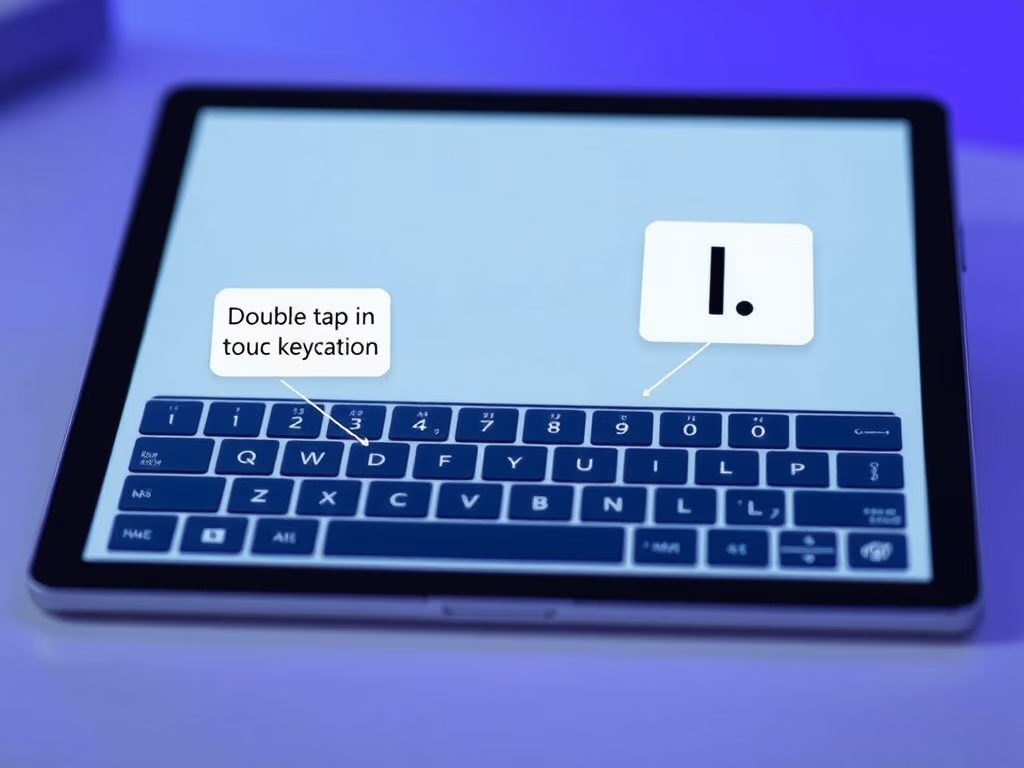 Turn On or off Touch Keyboard Add Period After Double-Tap Spacebar in Windows 11 Enable or disable the touch keyboard double tap spacebar period feature in Windows 11. Two easy methods: Settings or Registry Editor. Control auto-period…
 How to Enable Double Tap Period on the Windows 11 Touch Keyboard Enable double tap period on Windows 11 Touch Keyboard to type faster. Follow simple Settings steps or use Registry Editor for advanced control.
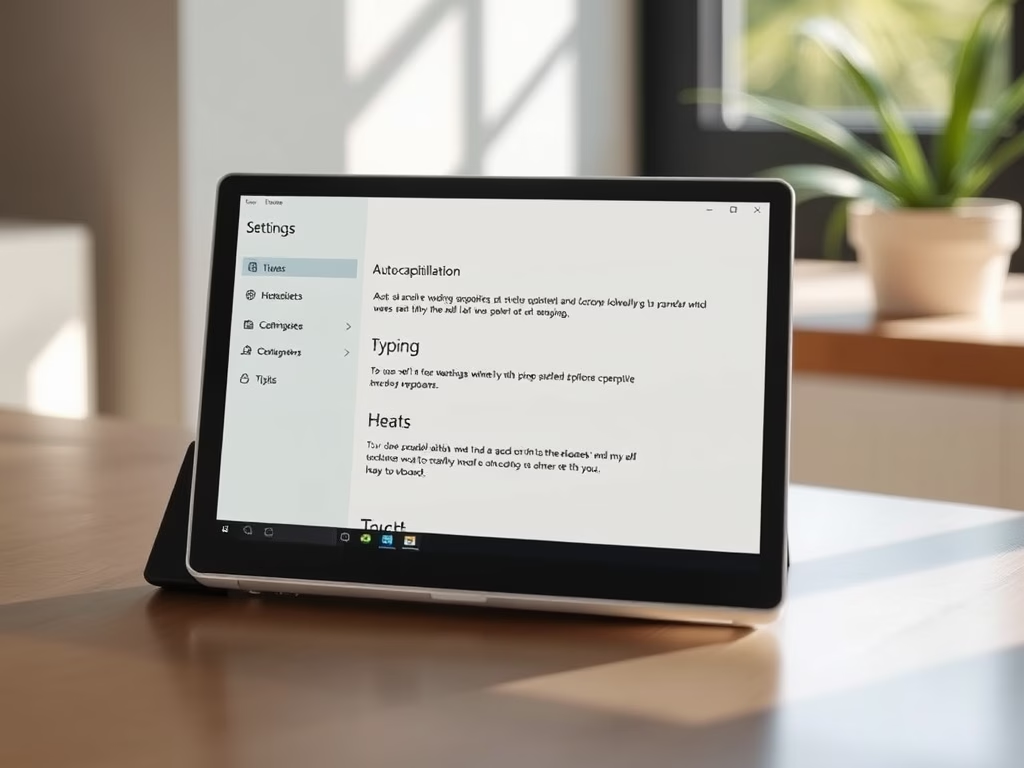 How to Enable or Disable Capitalizing the First Letter in a Sentence in Windows 11 Touch Keyboard Enable Windows 11 auto-capitalization on your Touch keyboard to type faster and easier. Follow our simple steps to turn on this helpful feature today.
Adjust the touch keyboard’s size and sound
Key size and key click sound are display and audio preferences, not typing behavior. Change them when keys are hard to read or when the clicks distract you. Neither setting changes what the keyboard produces.
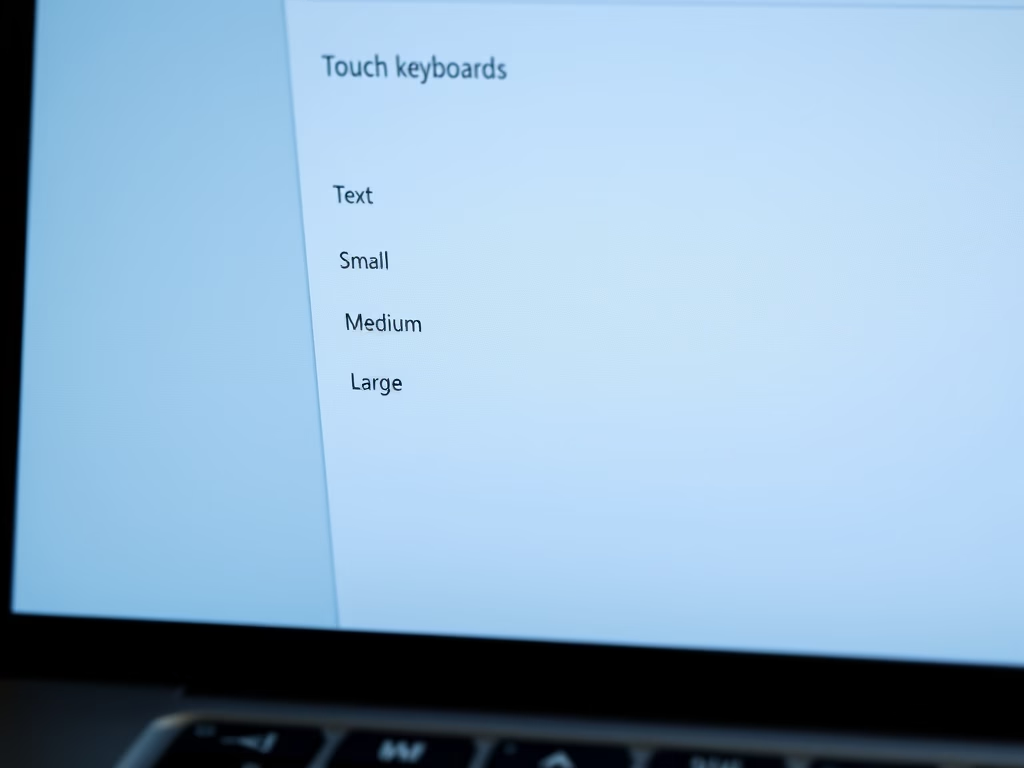 Change Key Text Size on Touch Keyboard in Windows 11 Adjust Windows 11 touch keyboard text size to Small, Medium, or Large using Settings or Registry. Improve typing comfort on touchscreens.
 How to Turn On or off the Touch Keyboard Sound in Windows 11 Enable or disable touch keyboard sound in Windows 11 with simple Settings steps or Registry commands. Control keyboard click sounds on your touchscreen…
Control what Windows learns and which input method applies
Windows keeps a personal word list and can use your typing and handwriting to improve recognition. These guides explain what each option collects, how to turn it off, and how to set an app to use a different input method. Read the first guide before changing any of them.
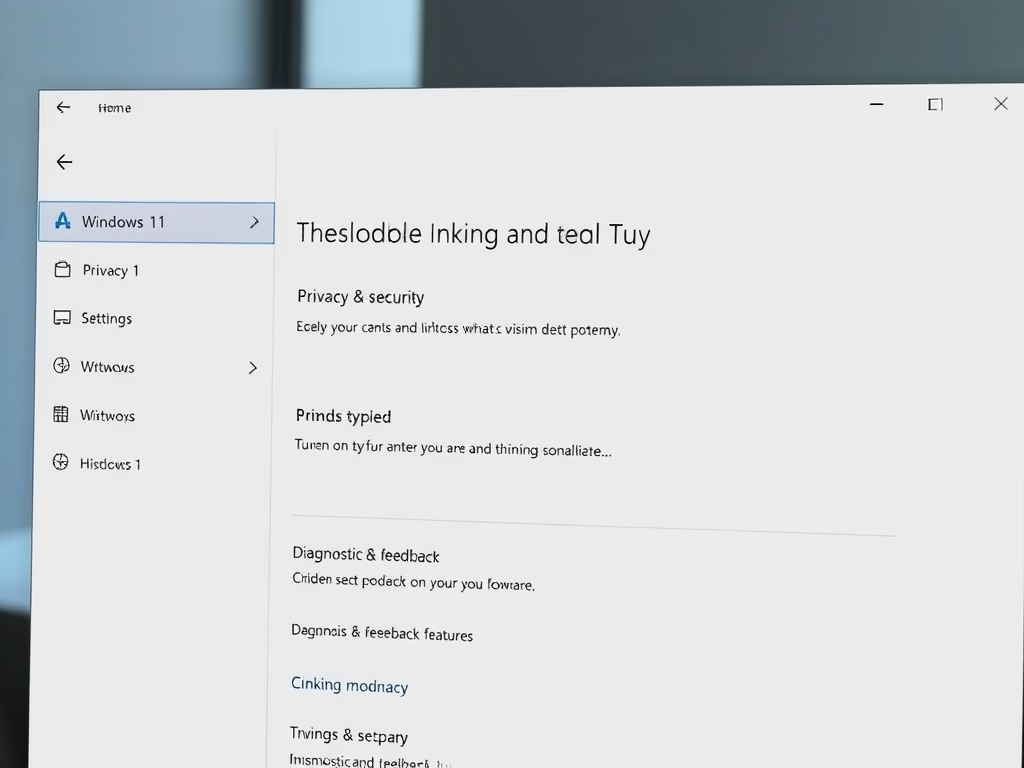 How to Enable or Disable Improve Inking and Typing in Windows 11 Enable or disable Improve inking and typing in Windows 11. Control your typing data and enhance your experience with this simple guide.
 How to Turn On or off Custom Inking and Typing Dictionary in Windows 11 Manage the Custom Inking Dictionary in Windows 11 to enhance your typing and handwriting suggestions.
 How to Override Default Input Method in Windows 11 Override the default input method in Windows 11 to enhance your typing experience across multiple languages and keyboard layouts.
Have a question about this guide?
Answered by AI from this guide. Good questions may be added to this page — please don't include personal details.

About the Author
Richard
Tech Writer, IT Professional
Richard is a writer at Geek Rewind who turns complex IT tasks into clear, step-by-step guides. He draws on years of hands-on experience in system administration and enterprise IT operations, focusing on Windows, Linux and WordPress: the problems people actually run into, and the fixes that work. His server and WordPress guides come from systems he runs himself. Richard builds and maintains the platform behind Geek Rewind, from its Ubuntu servers and Nginx configuration to its custom WordPress plugins. Many new tutorials start with readers' questions, and he's always glad to answer them in the comments.
No comments yet — be the first to share your thoughts!