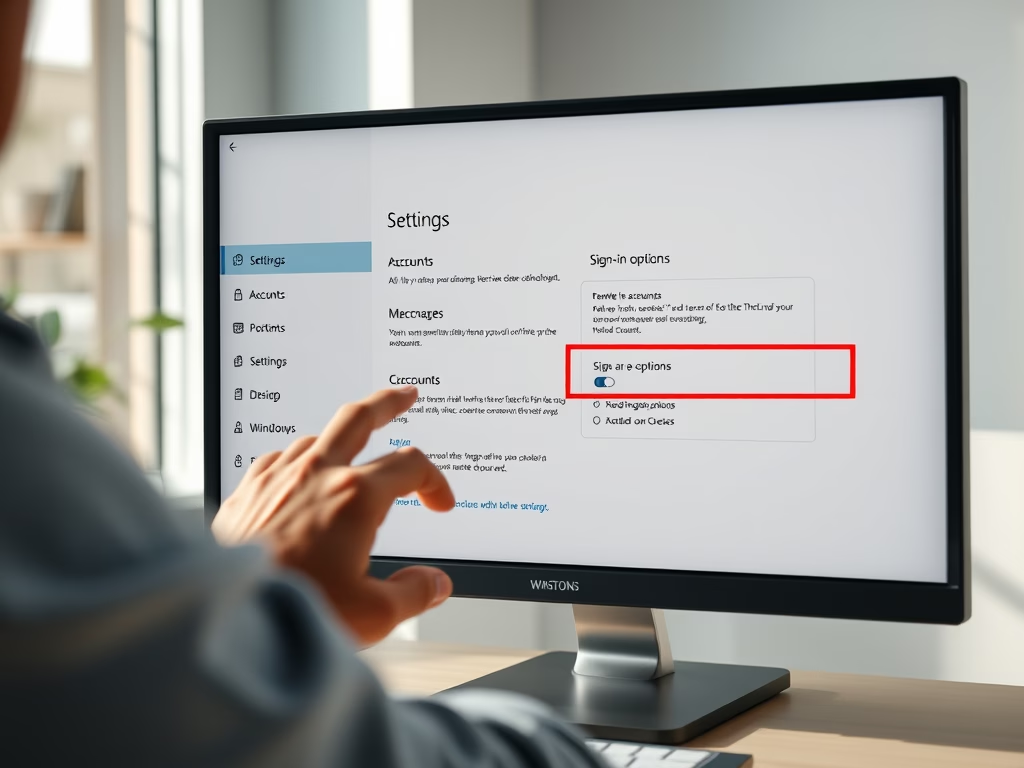
The new Outlook app on Windows 11 allows users to manage email notifications and mentions efficiently. Users can customize alert settings through the app's General and Notification options, or via Windows System settings. Enabling notifications can prompt quick responses, while disabling them reduces distractions, suiting personal workflow preferences. The process involves toggling switches in the app's settings.
#Windows 11
The new "Explain with Copilot" feature in Notepad on Windows 11 enables users to obtain explanations for selected text by right-clicking or using Ctrl + E. This function in version 11.2401.25.0, available in the Canary and Dev Channels, aids in understanding logs, code, and other content directly in Notepad.
The article guides on toggling notifications for the new Outlook app in Windows 11, highlighting its redesigned interface and added features. Users can opt to receive alerts when Outlook is closed, aiding in staying informed of emails and appointments, or disable them to avoid distractions. Instructions include accessing Outlook settings and modifying notification preferences under the General tab. It also recommends ensuring Windows Notification and Focus settings are conducive to receiving alerts.
This post guides on toggling sound alerts for email notifications in the Outlook app on Windows 11. The redesigned Outlook app offers various features including notification customization. To alter sound alerts, access Settings via the gear icon, navigate to General, and select Notifications. Enable or disable sounds using the checkbox provided. If issues arise, ensure Windows notifications are active, Focus settings and Battery Saver are off.
This guide outlines customizing the Terminal app's appearance in Windows 11, from choosing themes like dark or light mode to other personalization options. Windows Terminal supports various command-line shells and can be tailored regarding language, size, and default profile among other settings. Changing the theme can enhance usability, reduce eye strain, and help distinguish between multiple windows. The steps include opening Terminal, accessing Settings through the dropdown or shortcut (Ctrl +,), selecting 'Appearance', choosing a theme, and saving the changes.
This article details how to launch the Windows Terminal app in the center of the screen on Windows 11, including steps to open settings and enabling the "Center on launch" option. It highlights Terminal's customizability, such as changing the launch size and start-up behavior, and discusses the convenience of central screen launching for easier access and organization, especially on larger screens.
Hiding Windows Terminal in the notification area (system tray) on Windows 11 keeps your taskbar tidy. Windows Terminal is a single app that combines Command Prompt, PowerShell, and WSL, letting…
This article provides a guide on how to toggle the "Automatically hide window" feature in the Windows Terminal app. It details steps to access the Settings and adjust the visibility of the Terminal to either auto-hide when switching apps or remain visible on the desktop, depending on the user's workflow and preferences.
This article details configuring Windows Terminal to open on Windows 11 startup, saving frequent command-line users time. It walks through the steps to enable this option within the Terminal settings, ensuring custom configurations are applied at login, thus streamlining the process for users who regularly engage with command-line interfaces.
This article outlines methods to reset the Windows Terminal to default settings in Windows 11. Solutions include resetting via Windows Settings, Command Prompt, PowerShell, and manually deleting the settings.json file from the LocalState directory. Step-by-step instructions are provided for each approach to aid users in troubleshooting the Terminal app.
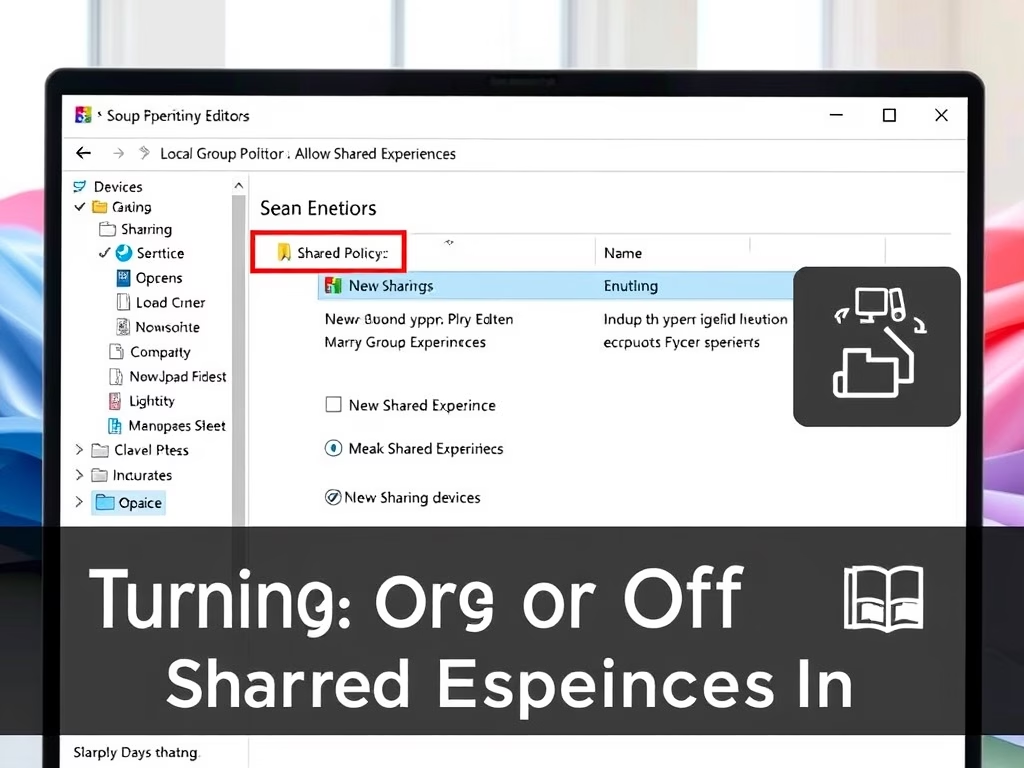
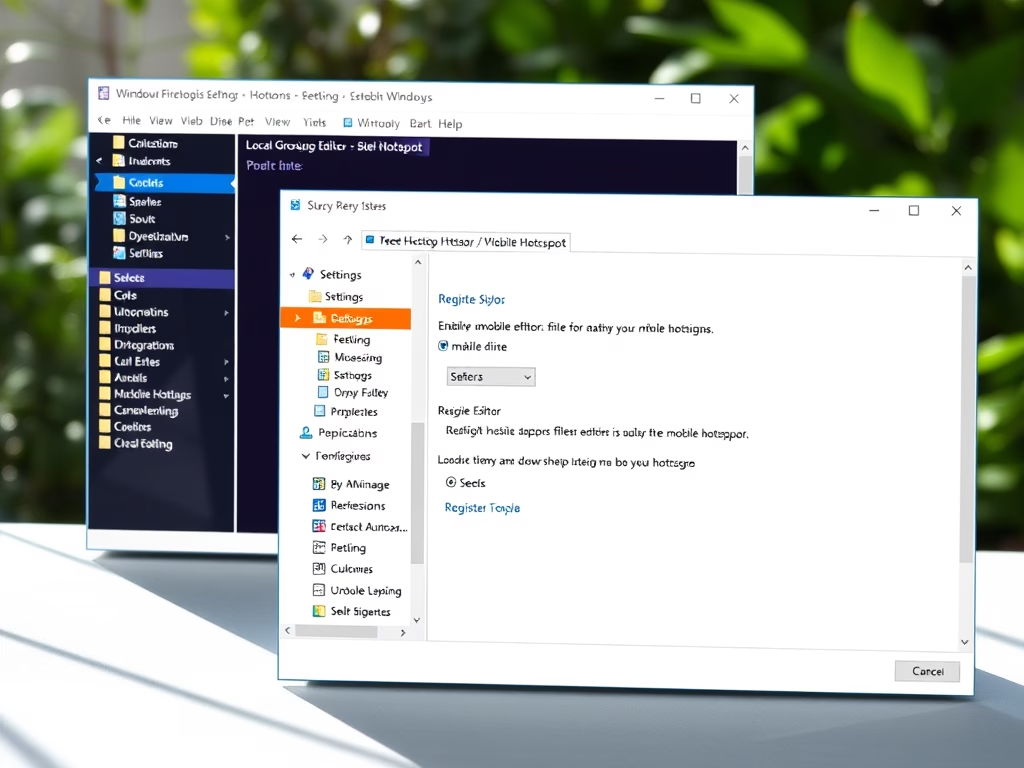
The article provides guidance on how to enable or disable the Phone Link feature, soon to be called "Mobile Devices," in Windows 11. Users can control this function using the Windows Settings app, Local Group Policy Editor, or Windows Registry Editor. Possible adjustments include syncing with mobile devices, managing notifications, and using the 'Continue on PC' experience. Changes may require a system reboot, and to make these edits users should be part of the Microsoft Insider Preview program.
This article provides instructions for toggling the option to show the desktop by clicking the Taskbar's far right corner in Windows 11. It details enabling/disabling the feature through Windows Settings and Registry Editor, highlighting its utility for quick desktop access or to avoid accidental triggers. Users can modify the setting in the Taskbar behaviors under Personalization or by adjusting the 'TaskbarSd' value in the Registry to '1' or '0'.
The article details how to toggle the OneDrive notification in Windows 11 for syncing files from multiple accounts. It highlights the feature's utility in keeping files organized across different accounts and its potential to reduce clutter when disabled. The post provides a step-by-step guide on accessing OneDrive settings and managing notification preferences based on individual needs.
Windows 11 users can utilize the Phone Link app to add or remove their mobile apps to the Start menu for easier access. This article demonstrates the process, which involves linking the phone to the PC, selecting the desired app in the Phone Link app, and using the context menu to 'Add to Start' or 'Remove from Start'. These steps streamline app access and enhance productivity.
This article details creating desktop shortcuts for Microsoft Store apps in Windows 11, offering a quicker access option to frequently used applications. You can drag app icons from the Start menu or use the 'shell:appsfolder' command in File Explorer to the Desktop. Additionally, right-clicking offers a 'Create shortcut' option. This process enhances workflow efficiency by saving time.