#Windows 11

Windows 2 min read
How to Remove Windows 11 Desktop Stickers

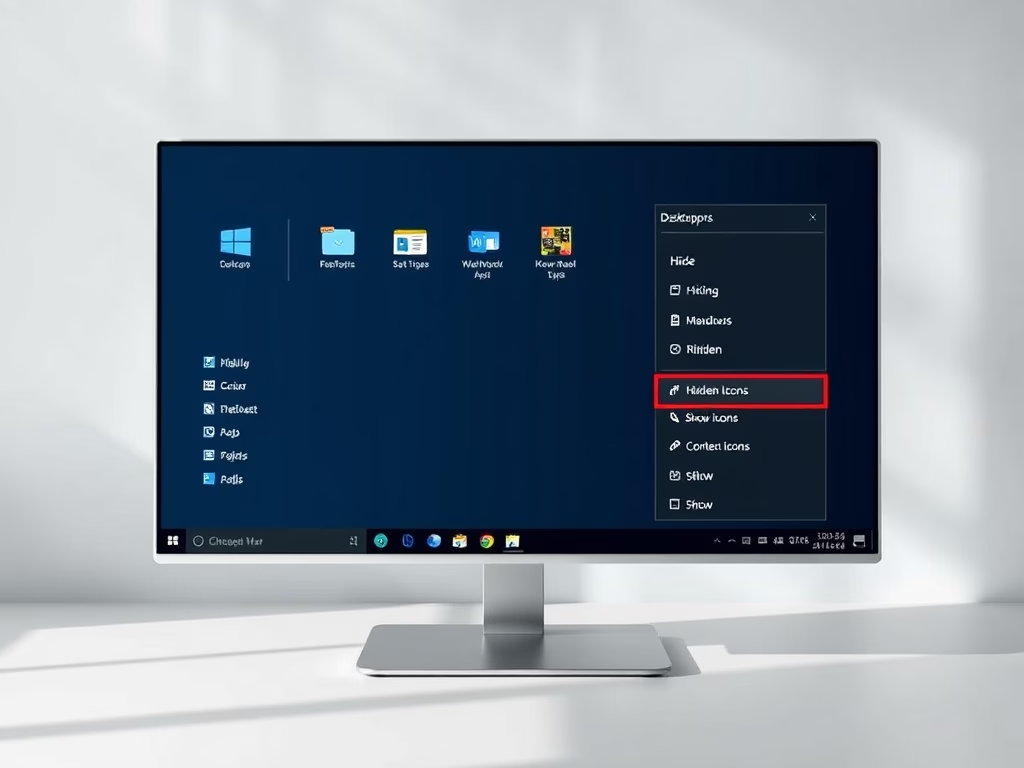
The article provides guidance on how to delete or remove desktop stickers (a non-default feature requiring enabling through the Windows registry) in Windows 11. The process involves a context menu command and sticker editor accessible via right-click on the desktop or Settings app. Instructions on adding/editing stickers are also covered.

December 9, 2022 Read more →
Windows 2 min read
How to Edit Desktop Stickers in Windows 11

This summary discusses the steps for editing stickers on the Windows 11 desktop, a new feature not enabled by default. To edit enabled stickers, users should access the context menu, select 'Add or edit stickers,' adjust size and position, and close the sticker editor. Alternatively, users may use the Settings app to launch the sticker editor.

Windows 3 min read
How to Sync Only Essential OneDrive Folders in Windows 11

The article provides instructions on choosing specific OneDrive folders to sync to your PC in Windows 11. By default, essential folders are automatically synced to Microsoft cloud, but users may not want all folders downloaded onto their computer. The OneDrive app allows users to choose which folders to sync and prevent unimportant or large folders from being downloaded. The specific procedure on individual folder selection and syncing is also explained step-by-step.

December 7, 2022 Read more →
Windows 3 min read
How to Back Up Important Folders to OneDrive in Windows 11

The article provides a detailed guide for backing up and managing essential files via the OneDrive app in Windows 11. It explains features of the OneDrive app, which syncs your files with Microsoft's cloud, accessible across multiple devices. The post also provides step-by-step instructions to set up and manage backup folders via the OneDrive app, and notes restrictions related to file size, path length, and invalid characters.

Windows 2 min read
How to Automatically Save Photos to OneDrive in Windows 11

The article provides instructions on how to activate or deactivate the "Save photos and videos from devices to OneDrive" feature on the OneDrive app in Windows 11. The feature allows for automatic uploading of media from devices connected to a Windows PC, directly to OneDrive. Detailed steps on enabling or disabling this feature are elaborated upon for clarity and ease of action.

Windows 2 min read
How to Enable or Disable OneDrive Sync Notifications in Windows 11

The article provides instructions on how to enable or disable the "Notify me when syncing is paused" feature in the OneDrive app on Windows 11. Users can do this through the OneDrive settings or via the Windows Registry. Additionally, notifications can be controlled based on whether the device is running in battery saver mode or on a metered connection.

Windows 3 min read
How to Enable or Disable OneDrive Screenshot Saving in Windows 11

The article outlines steps to toggle the automatic saving of screenshots to OneDrive in Windows 11. As part of the routine operation of OneDrive, it provisions for users to have their captured screenshots saved directly to the app, which can be enabled or disabled through the app's 'Settings'. Screenshots remain available on the clipboard regardless.

December 6, 2022 Read more →
Windows 1 min read
How to Change Task Manager Theme in Windows 11

The article outlines how to change the Task Manager app's theme in Windows 11. Microsoft has updated Task Manager in Windows 11, build 25247, to allow users their preferred theme regardless of the system’s active theme. It involves opening the Task Manager app, navigating to settings, and selecting a theme under 'App theme'.

Windows 2 min read
How to Enable or Disable Pop-up Descriptions in Windows 11

The article provides instructions for enabling or disabling pop-up descriptions for folder and desktop items in Windows 11. These pop-ups, or tooltips, show basic item details like creation date and size. Users can control this feature either via File Explorer Folder Options or the Windows Registry editor.

Windows 2 min read
How to Manage Office.com Files in Windows 11 File Explorer

The article guides users on managing the "Show Files from Office.com" feature in Windows 11 File Explorer. By default, the feature is enabled, presenting Office.com files in the home view. Users can disable it manually via Folder Options or using the Local Group Policy Editor or Windows Registry. The guide details each method for users.

Windows 1 min read
How to Change Night Light Strength in Windows 11

The article explains how to manually adjust the night light strength in Windows 11. It details how to navigate through the settings to change the strength level so that the blue light emitted from the computer is less likely to cause eye strain or disrupt sleep. The night light strength level is measured in Kelvin with a range from 0 (6500K) to 100 (1200K) in Windows 11.

December 4, 2022 Read more →
Windows 2 min read
How to Enable BitLocker with PIN and USB Key in Windows 11

The article provides a step-by-step guide on enhancing BitLocker security on Windows 11 by requiring a PIN and a USB containing a startup key during startup. BitLocker, which auto-checks for PC tampering at startup, can offer additional protective measures, hence shielding encrypted data more effectively. The article also instructs on enabling and disabling this feature.

December 3, 2022 Read more →
Windows 3 min read
How to Find Windows 11 Build Number Easily

The article provides instructions on how to find the Windows 11 build number installed on a computer. This can be done by checking the 'About Windows' screen, using the 'Settings' app, or via the Command Prompt in the 'Terminal' app. Regular software updates may change the initial build number. Knowing the build number helps in installing software compatible with a specific build.

Windows 2 min read
How to Access Windows Tools in Windows 11

The article provides a guide to locating and opening Windows Tools (formerly Administrative Tools) in Windows 11, which are located in the folder C:\Windows\System32\ or its subfolders. Users can access these tools using the Start menu, Control Panel, or File Explorer. The tools are useful for administering system settings and services for advanced users.