Installing a scanner on Windows 11, whether USB or wireless, is straightforward. Connect the scanner, and typically Windows will install it automatically. If not, use the Settings app to add the device and install necessary drivers. This setup allows easy scanning and saving of documents and photos.
#Windows 11
This guide explains how to add a printer to Windows 11, whether connected via USB or wirelessly. For USB printers, connect the cable and turn it on for automatic setup, or use manual settings if needed. For wireless printers, ensure both devices are on the same Wi-Fi network before adding.
This guide provides instructions for zipping and unzipping files in Windows 11. Zipping compresses files into a smaller ZIP file for easier sharing and storage, while unzipping restores them. The process is straightforward, requiring just a few clicks to organize files and save space effectively on your computer.
This guide explains how to grant someone full access to your Windows 11 PC by converting their account to an Administrator. Administrators can change settings and install programs, whereas Standard Users cannot. The process involves accessing Settings, selecting Accounts, and changing the user's account type to Administrator, ensuring security by only granting this privilege to trusted individuals.
The Taskbar in Windows 11 can be automatically hidden for a cleaner screen, especially useful on smaller displays. To enable this feature, access the Settings app and adjust Taskbar behaviors. Alternatively, users can utilize Command Prompt commands for the same purpose. Moving the mouse to the bottom will reveal it again.
Microsoft Defender, the free antivirus for Windows 11, automatically scans for viruses and malware. Users can schedule scans through Task Scheduler, ensuring scans occur at convenient times without disrupting work. This promotes computer security and performance, making it easy to manage protection with built-in tools. Regular scans maintain safety and efficiency.
This guide explains how to rename a printer in Windows 11 to simplify identification during printing. By following a series of steps in Settings, users can change the printer's name to something more meaningful. Renaming helps organize printers, especially in shared environments, enhancing ease of use and efficiency.
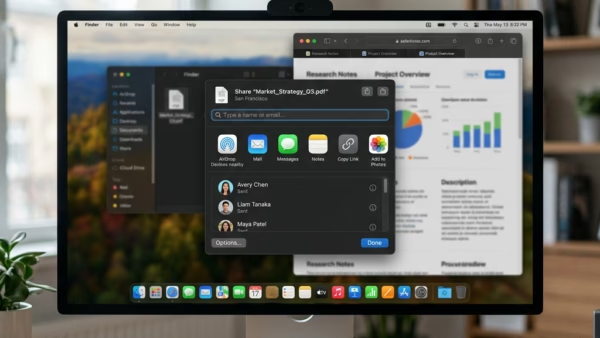
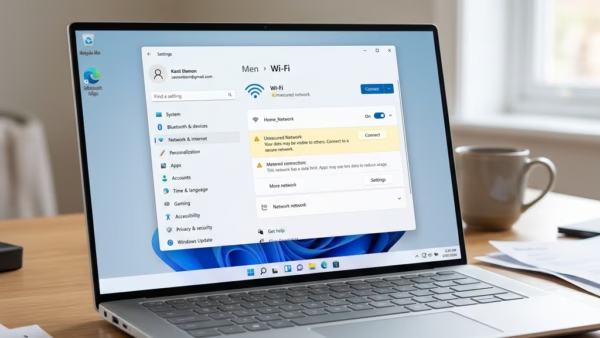
This guide explains how to enable Network Discovery and File Sharing on a Windows 11 PC. It details three methods: using Settings, Control Panel, or Command Prompt. Network Discovery allows your PC to connect with other devices on the same network. Use this feature safely on trusted networks for efficient sharing.
You can easily change your username in Windows 11, whether you use a local or Microsoft account. For a local account, adjustments are made in the Control Panel; for a Microsoft account, changes occur online via the Microsoft profile. Sign out or restart your PC to see the updates.
This guide explains how to edit the Hosts file on a Windows 11 computer. It outlines reasons for editing, such as blocking websites or testing them locally, and provides step-by-step instructions. Users must run Notepad as an administrator and save a backup before making changes, which take effect immediately.
Windows Sandbox is a safe, temporary environment on Windows 11 where you can test apps without affecting your main system. It can be activated through Apps & Features, Command Prompt, or PowerShell. Everything inside the Sandbox is deleted upon closing, protecting your computer from potential harm.
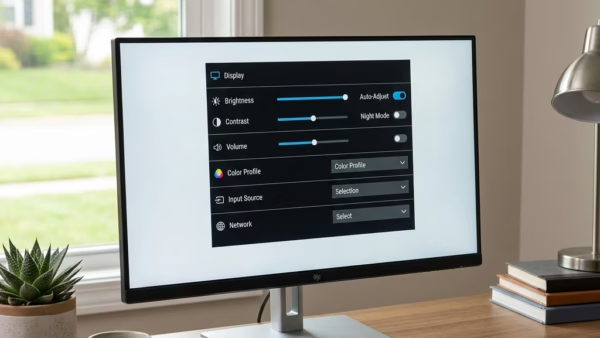
This guide explains how to enable or disable the Dynamic Refresh Rate (DRR) feature on Windows 11 PCs. DRR optimizes screen refresh rates for better performance and battery efficiency, requiring a screen that supports Variable Refresh Rate at 120Hz or higher. Simple steps in Display settings help manage this feature.
This guide explains how to rename your Windows 11 PC for a more personal touch and easier recognition on networks. Methods include using Windows Settings, System Properties, Command Prompt, and PowerShell. Each method is straightforward, and a restart is required to apply the new name. Choose the method that suits you best.
This guide explains how to customize folder shortcuts on the Start menu in Windows 11 for quicker access. By navigating to Settings under Personalization, users can easily add or remove folders like Documents and Downloads. Customizing these shortcuts enhances efficiency and allows for a more tailored user experience.
This guide explains how to turn off the Windows 11 startup sound. You can easily disable it through the Settings app or, for advanced users, via the Registry Editor. The Settings method is recommended for its simplicity and safety, allowing for a quieter startup experience on your PC.