The article provides instructions on how to enable or disable recent Windows functionality on Windows 11 build 22621.1635. This feature allows users to get non-security updates and enhancements immediately they become available. This can be done either via the Settings app or through Windows Registry Editor. It is disabled by default on managed devices.
Windows 11
2,911 tutorials · page 161
The article provides a guide on enabling or disabling the Controller Bar setting using the Xbox Controller button on Windows 11, allowing users to quickly access games and apps. When disabled, pressing the Xbox button opens the Controller Bar instead of the Game Bar, applicable even if they're not currently playing a game.
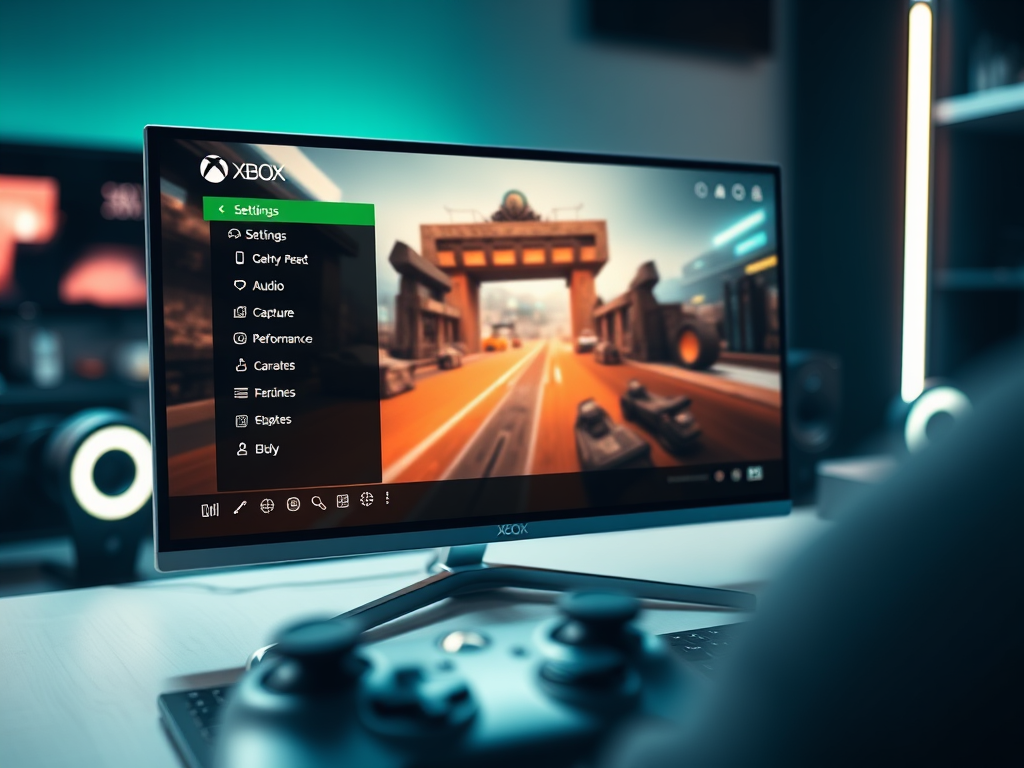
This article provides a guide on how to open the Xbox Game Bar in Windows 11. This feature can be activated by pressing Windows logo key + G, or by accessing it through the start menu. The Game Bar provides immediate access to various gaming activities and has a widget menu for added controls. Functions such as adjusting audio levels, recording gameplay, and tracking performance statistics are available upon activation.
Access keys are built-in keyboard shortcuts in Windows 11 File Explorer. Press Alt, then the underlined letter shown on a menu item or command button to run that command. The letters can differ between Windows 11 builds, so check what appears on your screen.
The article instructs on enabling or disabling the "end tasks" function via right-click on the taskbar in Windows 11. Initially missing from this Windows version, Microsoft has reintroduced this feature, albeit hidden by default. The guide details how to activate or deactivate this feature through the Windows Settings application, under 'For developers' option.
The article provides instructions for adding or removing the "Run as different user" option in the Start menu on Windows 11. This option allows users to perform tasks as a different user or administrator. It can be enabled or disabled via the Windows Settings app or through the Windows Registry Editor.
The article provides a guide on how to hide or show the time and date on the system tray in Windows 11. This option is available from Windows 11 build 23440 and can be accessed via the Settings app or the Windows Registry Editor. The feature, currently being tested, may not be released to the general public.
The article provides a step-by-step guide on adding, changing, or removing Internet Time Servers in Windows 11. By default, Windows computers sync their clock with an internet server, usually Microsoft servers. However, users can modify Internet Time Servers through the Control Panel app or Windows Registry Editor to keep accurate time and update its timezone and daylight save time when available.
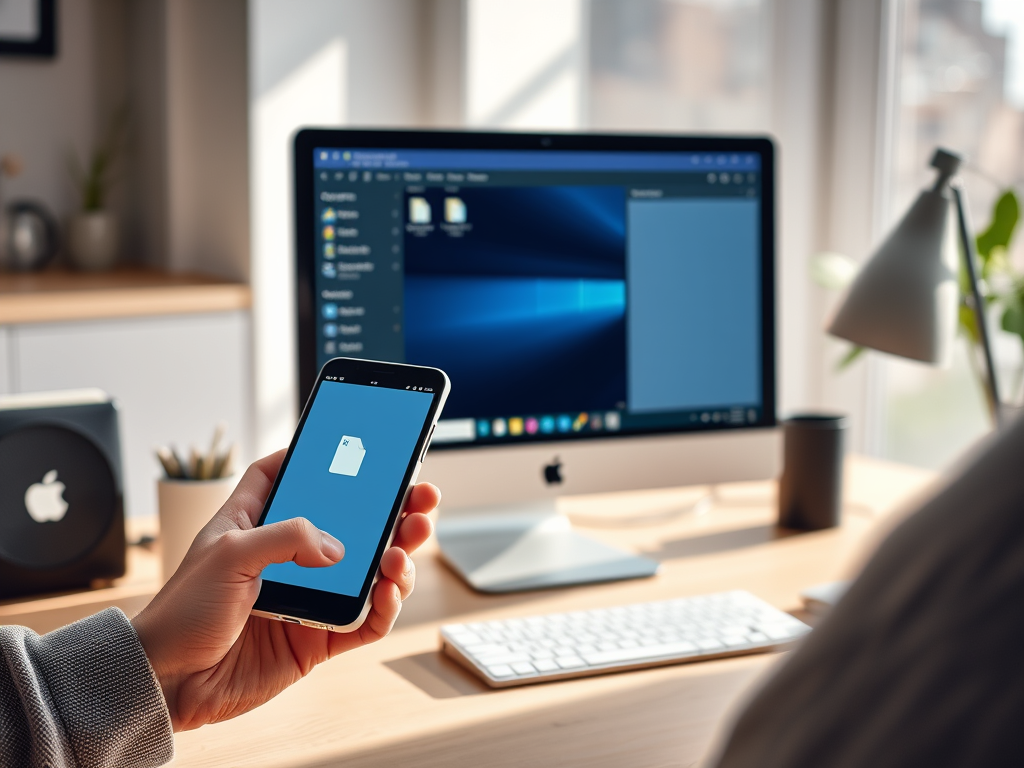
The article describes how to use the Phone Link app to transfer files between a phone and Windows 11, using Wi-Fi or Bluetooth. The app allows users to access phone apps from a PC, drag and drop files, excluding folders, with a limit of 100 files and a total size of 512 MB. Additionally, OneDrive can be used for backing up and restoring files.
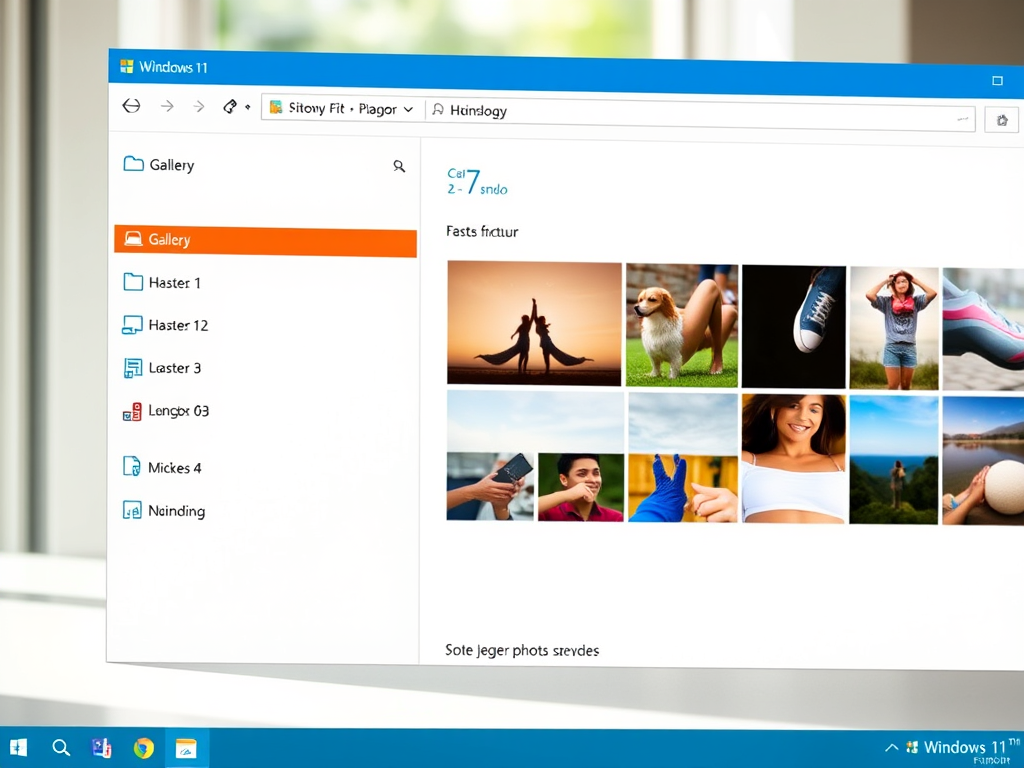
The article outlines how to show or hide the Gallery feature in the File Explorer navigation pane in Windows 11. Introduced in Windows build 23435, this feature eases access to photo collections, including auto-display of photos from OneDrive Camera Roll Backup. The steps to add or remove Gallery involve modifications in the Windows Registry and system restart.
The article provides instructions for showing or hiding the OneDrive icon on the desktop in Windows 11. OneDrive, a Microsoft Cloud app, helps users sync files across devices. Adding its icon to your desktop simplifies access. The method involves adjusting a key value through the Windows Registry and restarting the computer.
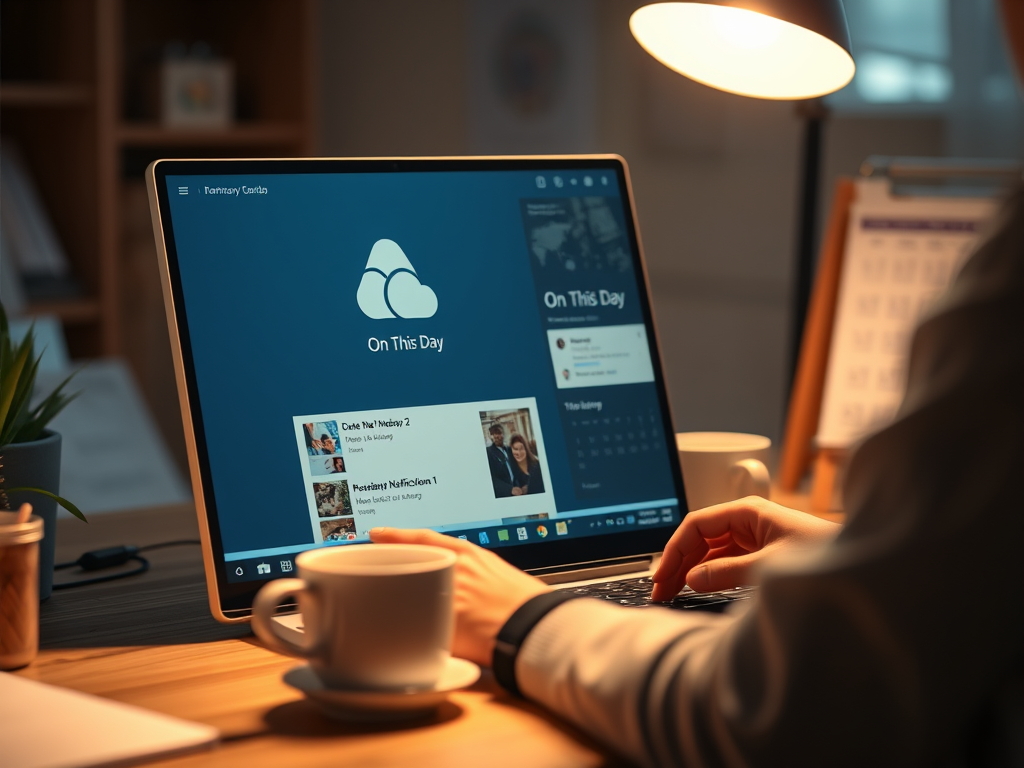
The article provides a guide on how to enable or disable 'On this day' memories notifications in Windows 11 through OneDrive app. The notifications can be managed by altering OneDrive settings or Windows Registry Editor. This feature allows users to recall past events based on backed-up photos, but some may wish to disable it to prevent unwelcome reminders.
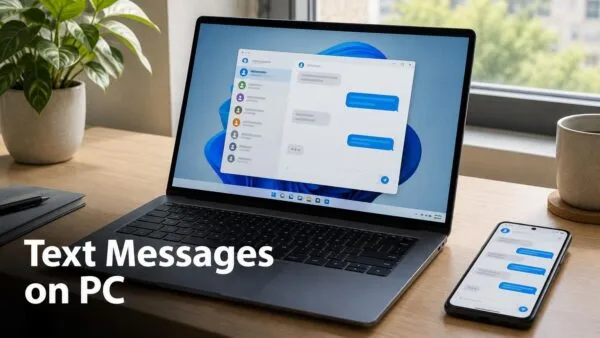
The Phone Link app in Windows 11 enables users to send and receive text messages, access phone apps, and transfer data between a PC and a smartphone using a Wi-Fi or Bluetooth connection. After linking the phone using Bluetooth or the same Wi-Fi network, users can type in messages, add emojis or GIFs, and hit send within the Phone Link app. Notifications for incoming messages are also displayed.
The article instructs on utilizing the Phone Link app in Windows 11 to view and download photos from your Android phone on your PC. It shows only photos in your phone's Camera Roll or Screenshots folders, letting you browse them on a larger screen. Over Wi-Fi or Bluetooth, users can view, download, and share these images. iPhone photos are copied with a USB cable and File Explorer instead.
The article provides instructions on how to open or mirror your phone screen on a Windows 11 computer using the Phone Link app. This app allows users to instantly access their Android or iPhone apps from their PC, browse, play, chat, or more using the PC's larger screen and keyboard. The mirroring feature can be helpful for explaining mobile functions to others.