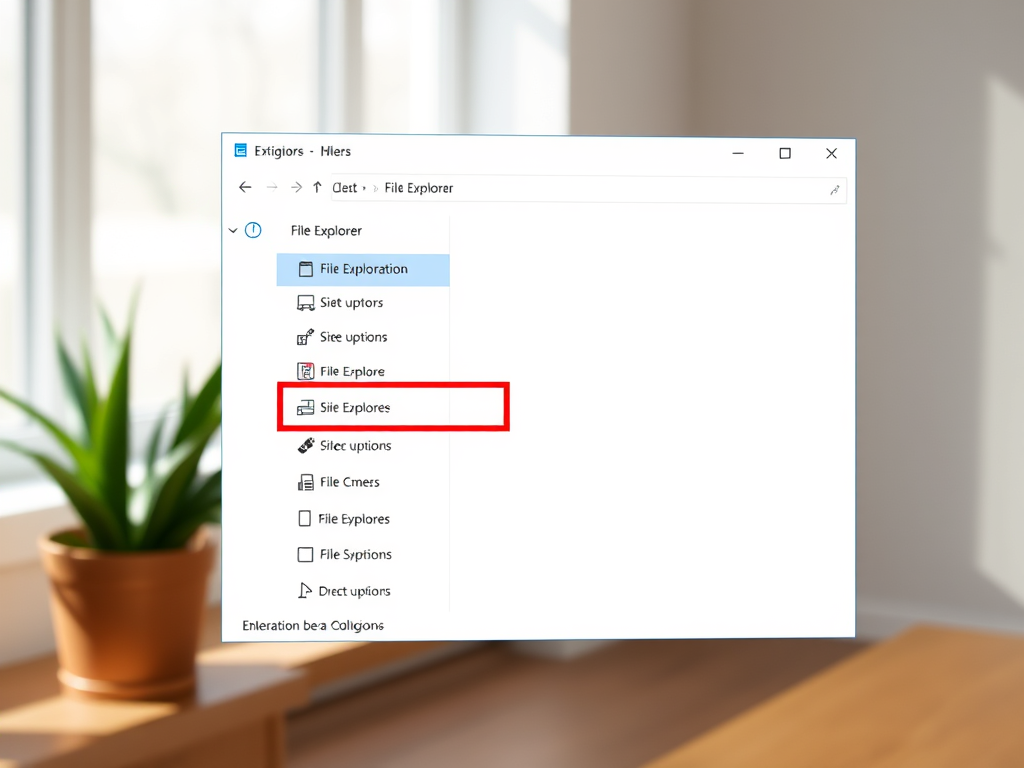
The article outlines how to access and configure settings in the File Explorer Options window in Windows 11. With a minimalistic design, Windows 11 has moved many menu commands and options to new menus - the layout and view, Filter, and See more. It provides detailed steps to open the window via File Explorer or the Control Panel.
Windows 11
2,714 tutorials · page 157
The article guides on determining the type of account used to sign into Windows 11, which supports multiple user profiles and allows users to sign in with either a Local account or a Microsoft account. Detailed instructions are given on how to use the Settings app to reveal the details of the logged-in account.
The article provides a step-by-step guide to enable or disable the "Show recently added apps" feature in Windows 11. This feature, which keeps track of recent activities like file access and added apps, enhances productivity by listing recently installed apps in the Start menu Recommended section and Jump Lists. It also includes instructions to remove added apps.
The article provides a guide on how to enable or disable the "Show recently opened items in Start, Jump Lists, and File Explorer" feature in Windows 11. This function, which tracks recent activities, is designed to improve productivity and ease file retrieval, but may be perceived as a privacy concern by some users. The steps include navigating through System Settings or the Local Group Policy Editor.
The article provides a step-by-step guide to enable or disable the auto-save screenshots function in the Snipping Tools app on Windows 11. Screenshots, by default, are automatically saved in PNG format in a specified folder and can be managed in the app's Settings page. Changes are applied immediately after exiting.
This text outlines how to enable or disable the requirement for users to press CTRL+ALT+DEL on the sign-in screen for added security in Windows 11. It provides a step-by-step guide on how to alter this setting using Local Security Policy for Windows 11 Pro, Enterprise, and Education editions, and the Windows Registry Editor for the Windows Home edition.
The post provides a guide on how to alter the Console Lock Display Off Timeout settings in Windows 11, which controls the delay before a locked screen automatically turns off due to inactivity. The default setting is one minute, and the instructions outline step-by-step how to change this preference.
This post outlines how to create a live kernel dump file in Windows 11, starting from the OS's 25197 build. It involves using the Task Manager to obtain a snapshot of kernel memory during operation, thereby aiding in problem-solving amid high-impact yet non-fatal faults. This method can minimize downtime and facilitate OS recovery.
This post provides a guide on how to enable or disable Task Scheduler history in Windows 11. By default, Task Scheduler only shows the "Last Run Time" for tasks. Enabling history allows for an overview of all task histories, accessible via Event Viewer. Steps for both enabling and disabling this feature are provided, including directions for using Windows PowerShell.
The post explains how to manage lock screen notifications in Ubuntu Linux. Ubuntu displays system notifications on both the lock screen and desktop by default. The author guides through the steps for turning these notifications on or off using the System Settings panel, ensuring privacy when the user isn't around or in public spaces.
This post guides you on how to schedule an automatic shutdown for Ubuntu Linux at a specific time using a job scheduler called Cron. Most administrative tasks in Ubuntu Linux are executed via the command line console, so familiarization with it is important. The guide includes how to edit the crontab to set specific days, dates, times, and other variables for different tasks.
This post outlines steps to control Bluetooth connectivity in Windows 11. By default, the Bluetooth setting is open to user control, but administrators can limit this through the Windows registry settings. The registry settings enable or disable Bluetooth, with the value representing the degree of Bluetooth accessibility - 0 is the most restrictive, disallowing Bluetooth, and 2 permits it.
The post outlines how to manually reset network data usage stats in Windows 11, which automatically resets data usage every 30 days. The data monitors usage by app and network adapter type. From System Settings, users select 'Network & Internet' to see each network interface's data usage, then select 'Reset usage stats' for each interface.
This text provides instructions on how to change the feedback frequency in Windows 11. Microsoft uses feedback and diagnostic data to understand users' experiences and improve their products. The feedback frequency, which can be adjusted in "Settings", determines how often Microsoft prompts users to rate or provide written feedback on their products and services.
This post explains how to set the default profile with Windows Terminal in Windows 11. The Terminal allows command-line shells like Command Prompt, Windows PowerShell, and bash. By default, Windows PowerShell is selected unless a different shell is specified. The Terminal also offers features like multiple tabs, Unicode and UTF-8 support, and customizable themes. The post details the steps to change the default profile to either Windows PowerShell, Command Prompt, or Azure Cloud Shell.