This guide explains how to alter Windows Terminal's start behavior in Windows 11. Windows Terminal, a modern host for command-line shells, allows users to choose between opening with a default profile or resuming from a previous session upon start. The option is accessible via the application's settings under startup.
Windows 11
2,714 tutorials · page 158
The post provides instructions on how to modify the Windows Terminal launch mode in Windows 11. Windows Terminal, a modern host application for command-line shells, features a customizable launch mode setting. Users can set the application to open in a maximized window, full-screen, or a default mode at startup. The adjusted setting can be saved for consistent use.
The content provides a guide on how to copy the full path of files or folders in Windows 11. It explains the use of options such as "Copy as path", "Copy address", and "Copy address as text" to duplicate the path, which is then saved onto the clipboard for further usage.
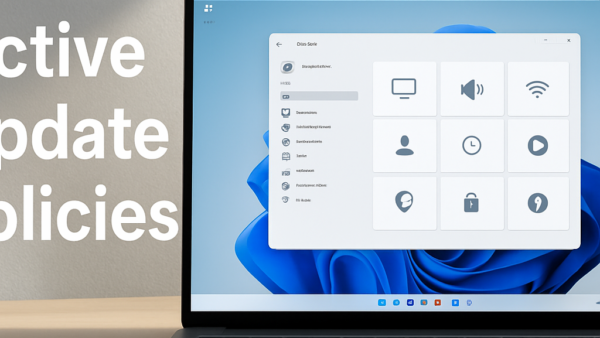
The post instructs on how to view configured Windows Update policies in Windows 11. Users can use the Windows Settings app for this, a departure from previous versions of Windows that required the Group Policy Editor. The Settings app provides a centralized location for system configurations, and allows user to check Windows Update policies applied to their device, helping diagnose issues with automatic updates.
The post outlines how to enable or disable delete confirmation for Microsoft Sticky Notes in Windows 11. The content highlights the permanence of note deletion and shows how a delete confirmation prompt can prevent accidental erasures. It also mentions the synchronization of deleted notes across devices when logging in with a Microsoft account.
The post explains how to enable or disable Insights for Microsoft Sticky Notes in Windows 11. The Insights feature allows interaction with the notes typed containing date, time, phone number, or address, triggering actions like adding reminders or showing maps. It also explains that signing in with a Microsoft account allows synchronization of notes across different devices and apps.
Microsoft Sticky Notes in Windows 11 allow users to create, save and discard post-it-like reminders quickly. Users can sign in with a Microsoft account to sync their notes across web and devices using the same account. The article elaborates the procedure to sign in and out of the Sticky Notes app.
The post explains how to enable or disable the Toggle keys tone in Windows 11. This feature emits a sound when the Caps lock, Num lock, and Scroll lock keys are pressed. Users can activate or deactivate it either by holding the Num Lock for five seconds to prompt a pop-up window or through the System Settings pane under Accessibility -> Keyboard settings.
The Microsoft Phone Link app on Windows 11 enables users to make and receive phone calls through their PC. The PC, connected to the user's phone via Bluetooth or the same Wi-Fi network, allows seamless communication using its larger screen and keyboard. To make calls, users open the Phone Link app and select the dial icon after searching contacts or entering the phone number. Incoming calls trigger notifications through Windows 11, which can be accepted or declined through the Phone Link app.
The post provides guidance on understanding if a Windows 11 PC supports WiFi 6, a feature that improves wireless performance, coverage, and security. The way to verify is by checking WLAN adapter capabilities via the Command Prompt, looking for the 802.11ax (WiFi 6) reference, or observing network properties when connected to a WiFi network.
This article provides detailed steps on transferring photos and videos from a mobile device to Windows 11 using the Photos app. The process involves connecting the device via a USB or USB-C cable, navigating to “Photos”, selecting “Import > From a connected device”, and then following the on-screen instructions. The write-up also instructs users to ensure pictures for import are stored in the device, not just the cloud.
This text explains how to set a WiFi network as public or private in Windows 11. Key instructions include accessing the System Settings pane, selecting Network & Internet, then WiFi, followed by Manage known networks. Using these options, the WiFi network can then be configured to either Public or Private, depending on user preference and context.
This content explains how to enable or disable the lock screen background picture on the sign-in screen in Windows 11. The procedure involves accessing the System Settings pane, navigating to Personalization, selecting the Lock Screen option and toggling the button switch. This either enables or disables the lock screen background image on the sign-in screen.
The post explains how to rename a drive or volume label in Windows 11. The user-friendly names assigned to internal and external drives can be changed in different ways, such as through File Explorer or via the Windows Settings app. However, changes can only be made by members of the administrator's group or equivalent. CD/DVD drive labels cannot be altered.
This post explains how to map a local folder as a drive in Windows 11. The process involves creating a shortcut with a specific command, linking it to the desired folder, and adjusting settings to allow the 'drive' to be automatically mounted upon startup. The mounted folder simulates a physical drive and saves contents onto the actual drive.