How to Show or Hide OS Edition on Windows 11

- 8 steps
- Needs administrator rights
- Group Policy needs Windows 11 Pro, Enterprise or Education
- Includes a restart or sign-out
The OS edition watermark in Windows 11 places your Windows version and build details in the bottom-right corner of the desktop. You can show or hide it with the Registry Editor (an advanced tool that changes core system settings) or the Group Policy Editor (a tool for managing system rules, available only on Windows 11 Pro and Enterprise). Home editions do not include the Group Policy Editor, so the registry method is the one for them.
You can show or hide the OS edition watermark on Windows 11 by editing the registry. Navigate to either 🗝️HKEY_CURRENT_USERControl PanelDesktop or 🗝️HKEY_LOCAL_MACHINESOFTWAREMicrosoftWindows NTCurrentVersionWindows, create a DWORD value named PaintDesktopVersion, and set its data to 1 to show or 0 to hide.
Why do this?
Leaving the build number visible lets you check your exact Windows version at a glance, without opening the Settings app. This helps most if you look after several test machines and need to tell them apart quickly.
Hiding it gives you a clean desktop, which is useful for screenshots, screen recordings and shared display PCs. Either way, the change is easy to reverse.
What happens when you are done?
Once you have made your change and restarted the PC, the desktop background either shows or hides the small text listing the Windows edition and build number. The change is purely visual. It does not alter system files or your activation status.
If nothing changes after the restart, go back and check that you edited the right value, in the right location, and that you saved it with OK.
Steps to Show or Hide the Watermark
You can show or hide the OS edition on Windows 11 by changing one value in the Registry Editor. You do not need to install any extra software. Because the registry controls core settings, a wrong edit can cause problems. Before you start, consider exporting the key you are about to change (File Export in the Registry Editor), so you can restore it if needed.
To open the editor, press the Win and R together to open the Run box, type regedit.exe, and press Enter. If Windows asks Do you want to allow this app to make changes to your device?, click Yes.
First, open the Windows Registry. Press Win+R, type regedit.exe, and hit Enter. The Registry Editor window should open, with a tree of folders (keys) on the left and values on the right.
You have two options. You can apply the change only to your current user account, or you can configure it for everyone on the PC. Pick one of the two below.
- Use 🗝️HKEY_CURRENT_USER to change settings for your account only. You do not need administrator rights for this one, and other accounts are not affected.
- Use 🗝️HKEY_LOCAL_MACHINE to change settings for all users on the computer. You need to be signed in with an administrator account to save changes here.
The 🗝️HKEY_CURRENT_USER key stores settings for the account you are signed in with. Changes made under this key affect only your user profile and leave other accounts on the computer untouched. This is the safer choice if you are not sure which to use.
In the left pane, expand the folders until you reach this path. You can also paste it into the address bar at the top of the Registry Editor and press Enter:
HKEY_CURRENT_USER\Control Panel\Desktop
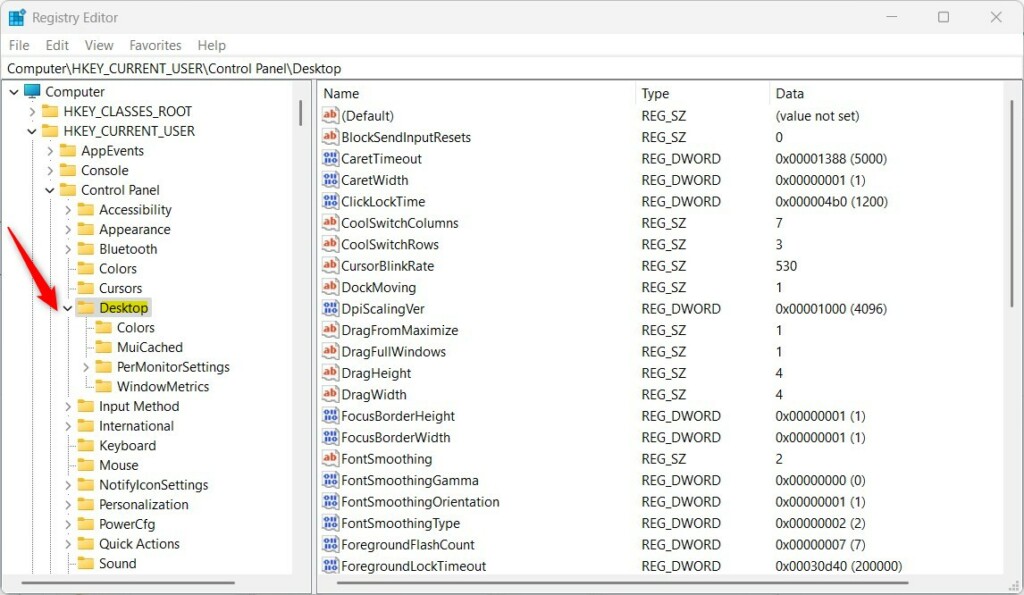
If the Desktop folder is missing under Control Panel, you need to create it. Right-click the Control Panel key, choose New then Key, and name the new key “Desktop”. Click the new Desktop key so its contents show in the right pane.
- Right-click in the empty space on the right side of the Desktop folder. A small context menu should appear.
- Select New then DWORD (32-bit) Value. A new entry appears in the list with its name highlighted for editing.
- Name this new item
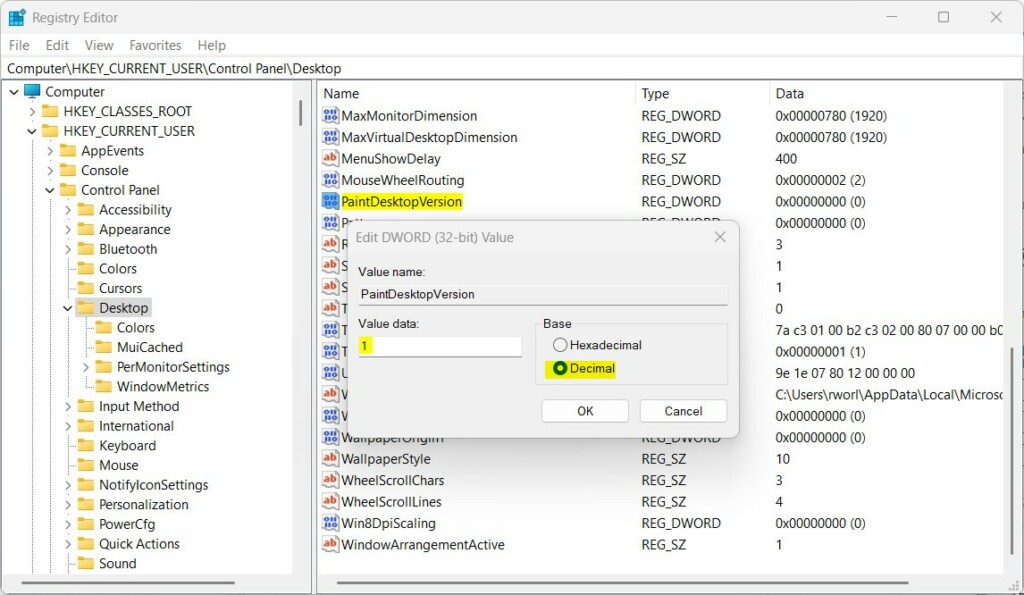
PaintDesktopVersion. Press Enter to confirm the name. If the value already exists, skip this step and use the existing one. - Double-click
PaintDesktopVersionand ensure the Base is set to Decimal. The edit window should show the Value name and a Value data box. - In the Value data box, type
1to show the watermark or0to hide it. Click OK to save, and the new data appears next to the value name in the list.
Close the Registry Editor and restart the PC so the change takes effect. To undo it later, open the same value and enter the opposite number.
For a change that applies to every user on the computer, use 🗝️HKEY_LOCAL_MACHINE instead. Sign in with an administrator account, then navigate to this path:
HKEY_USERS\.DEFAULT\Control Panel\Desktop- Create the item
PaintDesktopVersionif it does not exist. Right-click the empty space on the right, choose New then DWORD (32-bit) Value, and name it. If it already exists, double-click it to edit it. - Set the Base to Decimal in the edit window.
- Type
1to show the watermark or0to hide it, then click OK. Restart the PC to apply the change.
If Windows says it cannot edit the value, you are not running as an administrator. Close the Registry Editor, reopen it from an administrator account and try again.
Using Group Policy Editor (GPO)
Windows 11 Pro and Enterprise users can also toggle the OS edition watermark using the Group Policy Editor. This tool is not included in Windows 11 Home, so if you cannot find it on your PC, use the registry steps above instead.
Policy changes usually need a restart, or a sign-out and sign-in, before they show on the desktop. To undo a policy change, set the policy back to Not Configured.
Risk Mitigation and Updates
Major Windows feature updates occasionally reset registry values to their defaults. If the watermark comes back (or disappears) after an update, repeat the steps above to restore your preference. It is also worth checking again after a large update if you manage several machines.
Always consult official Microsoft documentation for system requirements and update details.
Summary
Editing the registry controls the OS edition watermark on the Windows 11 desktop. Change the value under 🗝️HKEY_CURRENT_USER for your own account, or under 🗝️HKEY_LOCAL_MACHINE for everyone, then restart. To reverse it, set the value back to its previous number or use the registry export you saved before making the change.
Have a question about this guide?
Answered by AI from this guide. Good questions may be added to this page — please don't include personal details.
Did this guide fix your problem?

About the Author
Richard
Tech Writer, IT Professional
Richard is a writer at Geek Rewind who turns complex IT tasks into clear, step-by-step guides. He draws on years of hands-on experience in system administration and enterprise IT operations, focusing on Windows, Linux and WordPress: the problems people actually run into, and the fixes that work. His server and WordPress guides come from systems he runs himself. Richard builds and maintains the platform behind Geek Rewind, from its Ubuntu servers and Nginx configuration to its custom WordPress plugins. Many new tutorials start with readers' questions, and he's always glad to answer them in the comments.
2/13/2026 – Does not work anymore. Does not match my System > About information. I ‘see’ the watermark says: Windows 11 Pro, Build 26100.ge_release.240331-1435.
The System > About reads: Windows 11 Pro, 25H2, 26200.7840. And a Windows Feature Experience Pack of 1000.26100.291.0.
I have used Chris Titus WinUtil previously and wonder if that changed something necessary.