Set a Plain Black Wallpaper on the Windows 11 Desktop

- 17 steps
- Needs administrator rights
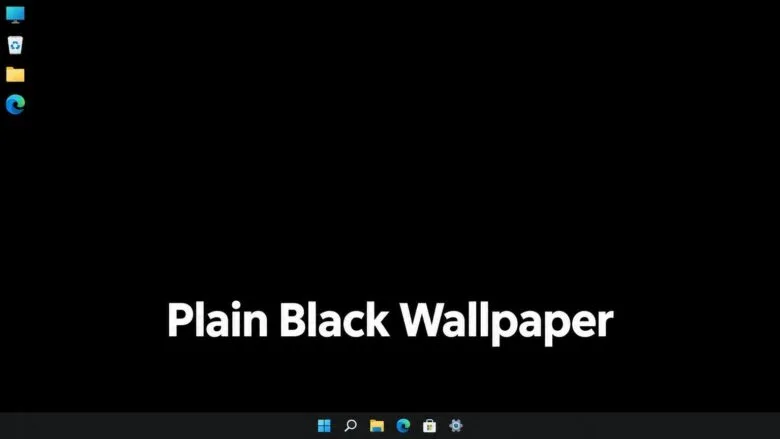
To get a plain black desktop in Windows 11, set your background to Solid color and choose black. The change is quick to make and quick to reverse. The result is a solid black desktop with no picture on it.
The quickest way to do it is Settings Personalization Background, where you set Personalize your background to Solid color and pick black.
The change applies to the desktop only. It takes effect at once, needs no restart, and you can reverse it in a few clicks. This guide covers the Solid color method and a second method that uses a black image file. It also covers what to check if the option is missing or the desktop turns black on its own.
The steps match Windows 11 versions 24H2 and 25H2.
To get a plain black background wallpaper in Windows 11, open Settings, select Personalization, then Background. Set Personalize your background to Solid color, select View colors, and enter 000000 in the Hex field, or 0 in the Red, Green and Blue fields. Then select Done. The desktop turns solid black at once, with no restart needed.
Before You Start
No administrator rights are needed for any step in the main method. A standard account can change its own desktop background.
Set a Black Background Wallpaper with Solid Color
Solid color replaces the wallpaper picture with one flat color, so no image file is needed. The steps below set a black background wallpaper and use the custom color picker to get true black (red, green and blue all set to 0), not a dark grey.
- Press Win+I. The Settings app opens, with a list of categories on the left.
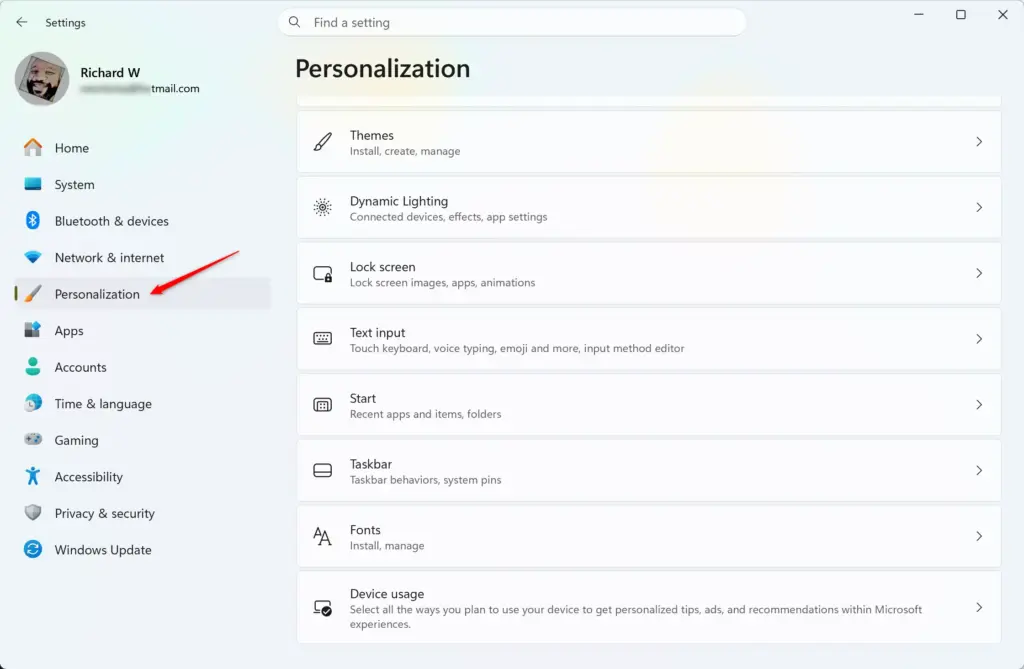
Windows 11 Start menu search panel for opening OpenSSH Client settings - Select Personalization. The left pane shows it below Network & internet. The right side shows themes and shortcuts to Background, Colors and other pages.
Settings › Personalization - Select Background. The page shows a preview of your current wallpaper at the top.
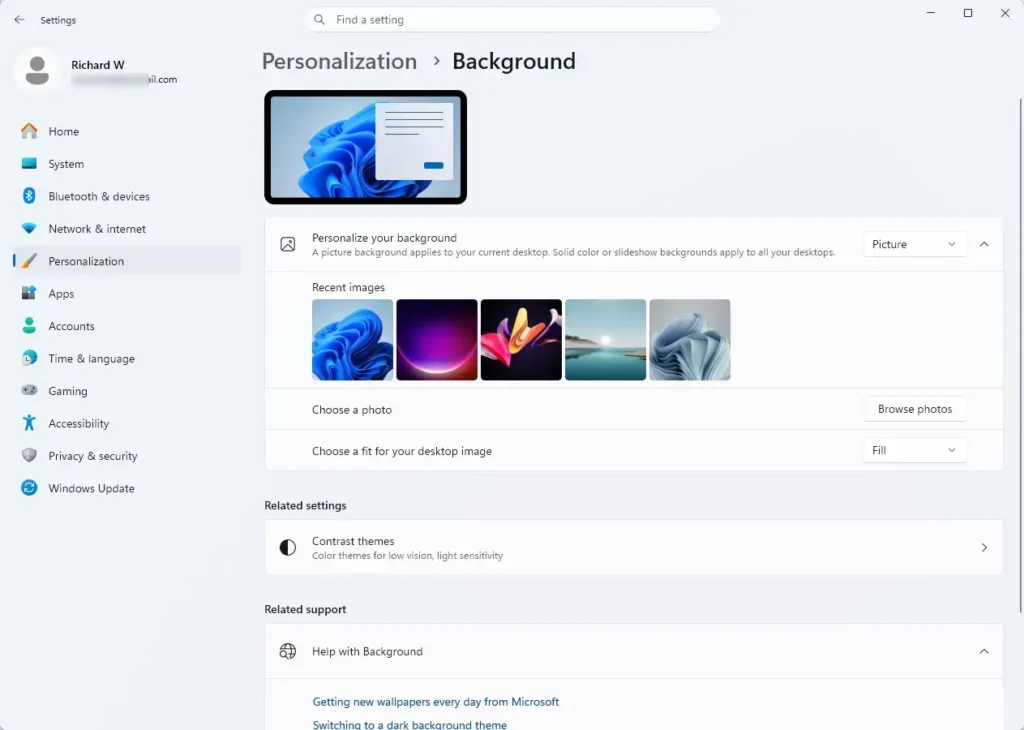
Settings > Personalization > Background - Open the Personalize your background list. The choices are Picture, Solid color, Slideshow and Windows spotlight (a feature that shows rotating pictures Windows picks for you).
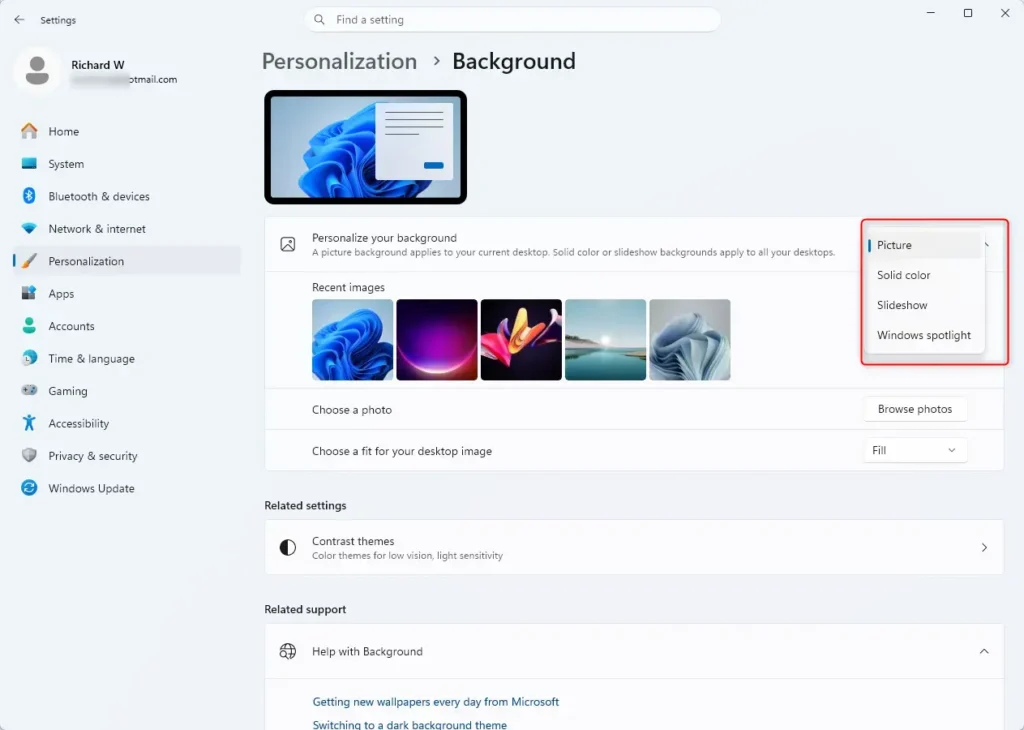
- Select Solid color. A row of color swatches (small colored squares) appears under Choose your background color.
- Select View colors. The swatch row has a limited choice of shades, and a custom picker lets you set exact black. A color picker opens. Its large square shows shades you can click through.
- Select More if the number fields are hidden. The Red, Green and Blue fields and a Hex field appear.
- Enter 0 in the Red, Green and Blue fields. You can type a hex code (a short code of letters and numbers that names a color) in the Hex field instead. For black, enter
000000. The preview square turns black. - Select Done. The desktop turns solid black right away, and the preview at the top of the page matches.
- Close Settings. Your desktop icons and taskbar stay where they are, now on a black background.
Windows remembers the color. It stays black after you restart, sign out, or lock the PC.
What Solid Color Does Not Change
A black desktop does not switch Windows or your apps to dark mode. That setting is separate and lives under Settings Personalization Colors, in the Choose your mode list. Pick Dark there if you want File Explorer, Settings and the Start menu to match.
The lock screen is a separate image too. Change it under Settings Personalization Lock screen, using the Personalize your lock screen list.
Desktop icon labels are white with a soft shadow, so they stay readable on black. On an OLED display (a screen where each pixel makes its own light), true black pixels switch off, which can reduce power use on a laptop.
Set a Black Image as Your Wallpaper Instead
A black picture file does the same job as Solid color, and it works as a regular wallpaper image. Use this method if you want black to be one image among several in a Slideshow, or if the color picker is hard to use on your screen. Paint is built into Windows 11, so no download is required.
The picture does not need to match your screen resolution. A flat black image has no detail to lose when Windows stretches it.
- Open the Start menu and type Paint. Select Paint from the results. A blank white canvas opens.
- Select the Fill with color tool in the Tools group. The icon looks like a tipped paint bucket.
- Select black in the Colors palette. It is the first swatch in the top row. The palette marks it as the active color.
- Click anywhere on the canvas. The whole canvas turns black.
- Select File Save as PNG picture. A save dialog opens.
- Type black-wallpaper in the file name box and save the file in your Pictures folder. Paint writes the file and shows the name in its title bar.
- Right-click the saved file in File Explorer and select Set as desktop background. The desktop turns black. If the option is not in the first menu, select Show more options and look there.
You can also set the file from Settings. Go to Settings Personalization Background, set Personalize your background to Picture, and select Browse photos. Choose your black-wallpaper file.
Then set Choose a fit for your desktop image to Fill, so the black covers the whole screen. The guide on choosing the right fit for a Windows 11 desktop background image explains each fit option.
For a full walkthrough of the Picture options, including the row of recently used images, see how to change your desktop background in Windows 11.
If Solid Color Is Missing or Greyed Out
When the Background page will not let you change anything, one of four causes is usually responsible. Check them in this order.
Windows Is Not Activated
An unactivated copy of Windows 11 blocks personalization. The Background page then shows a message that you need to activate Windows before you can personalize your PC, and the list is greyed out. Open Settings System Activation to see the activation status. Once Windows is activated, the options become available again without a restart.
The PC Is Managed by an Organization
On a work or school PC, an administrator can lock the wallpaper. Settings then shows a line such as “Some of these settings are managed by your organization”. Only the people who manage the PC can lift that restriction, so ask your IT staff. Do not try to get around that restriction on a managed PC.
Windows Spotlight Is Replacing Your Choice
If Personalize your background is set to Windows spotlight, Windows rotates pictures on its own. Switching the list to Solid color ends that. For background on the feature, read how to set Windows Spotlight as desktop wallpaper. If a Spotlight icon or the Explore background item still shows on the desktop afterwards, see how to turn off Windows Spotlight on the desktop background.
A Slideshow or Theme Changes It Back
If the wallpaper switches away from black after a while, a Slideshow or a theme change is the likely cause. Applying a new theme under Settings Personalization Themes replaces the wallpaper with the theme’s own. The article on why the desktop background keeps changing in Windows 11 walks through each cause, and how to control desktop background changes in Windows 11 shows how to stop them.
If the Desktop Turns Black When You Did Not Choose It
A black desktop you never set is a different problem from this guide’s task. It can come from a known Windows 11 issue. Microsoft lists a problem on Windows 11 24H2 and 25H2 after installing the optional preview update KB5120998 (a test update you can choose to install) or a later one. Desktop settings fail to load, and the desktop background shows as solid black.
Microsoft has also released a fix. Update KB5124008 resolves an issue where the desktop background and other personalization settings might not load correctly, which made the background appear black. It is available for Windows 11 24H2 and 25H2.
To check whether the fix is on your PC, open Settings Windows Update and select Check for updates. Install any update offered, restart when asked, and then set your wallpaper again from Settings Personalization Background. On a PC managed by an organization, your IT staff controls which updates arrive, so ask them.
This section is for a black desktop you did not choose, when you expected a picture. If black is what you want, the methods above give you the same look without waiting on any update.
Switch Back from a Black Wallpaper
Going back needs no special tool. Open Settings Personalization Background and change Personalize your background to Picture. Select one of the recent images, or select Browse photos to choose a file. The desktop changes as soon as you pick the image.
To return to a full theme with its own wallpaper, open Settings Personalization Themes and select a theme. For the other color options, including a non-black solid background, see how to change the desktop background color in Windows 11 Personalization settings.
The black PNG you made in Paint stays in your Pictures folder after you switch away. Keep it to reuse later, or delete it in File Explorer if you no longer need it.
What to Do Next
Your desktop now shows a flat black background, and the file or color stays in place until you change it. To match the rest of Windows, set Choose your mode to Dark under Settings Personalization Colors and change the lock screen separately. If you later want black as part of a rotating set, read how to automatically change desktop wallpaper in Windows 11, and put your black image in the slideshow folder.
Have a question about this guide?
Answered by AI from this guide. Good questions may be added to this page — please don't include personal details.
Did this guide fix your problem?

About the Author
Richard
Tech Writer, IT Professional
Richard is a writer at Geek Rewind who turns complex IT tasks into clear, step-by-step guides. He draws on years of hands-on experience in system administration and enterprise IT operations, focusing on Windows, Linux and WordPress: the problems people actually run into, and the fixes that work. His server and WordPress guides come from systems he runs himself. Richard builds and maintains the platform behind Geek Rewind, from its Ubuntu servers and Nginx configuration to its custom WordPress plugins. Many new tutorials start with readers' questions, and he's always glad to answer them in the comments.
No comments yet — be the first to share your thoughts!