Why Does My Desktop Background Keep Changing in Windows 11

Your desktop background keeps changing in Windows 11 when Windows spotlight or a Slideshow is switched on under Settings Personalization Background. Set Personalize your background to Picture and the changes stop within seconds.
If that is not the cause, a theme, a synced setting from another PC, a third-party app or a work policy is replacing the picture. This post lists each cause in the order you are most likely to hit it, and explains how to confirm and fix it.
The desktop background keeps changing in Windows 11 because Windows spotlight or a Slideshow is selected under Settings Personalization Background. Open Settings , select Personalization, then Background, and set Personalize your background to Picture to stop the changes.
Why Does the Desktop Background Keep Changing?
Windows 11 changes the wallpaper on its own only when something tells it to. The usual sources are below, most common first.
- Windows spotlight (a Microsoft feature that downloads new photos and rotates them) is selected as the background.
- You turn on a Slideshow that rotates through a folder of pictures.
- A theme (a saved bundle of wallpaper, colors and sounds) includes several images.
- Settings sync from another PC signed in to the same Microsoft account applies a different wallpaper.
- An app, such as a wallpaper manager or a manufacturer utility, sets the picture.
- Your employer or school applies a policy that overrides your choice.
Work through the sections in order. Each takes a minute or two, and you can stop when the background holds still.
Check the Background Setting First
This page shows which mode controls your wallpaper. Most cases end here.
- Press Win+I to open Settings.
- Select Personalization in the left pane, then select Background.
- Look at the Personalize your background drop-down. It shows Picture, Solid color, Slideshow or Windows spotlight.
If it says Windows spotlight or Slideshow, you have found the likely cause. Use the matching section below.
Turn Off Windows Spotlight
Windows spotlight pulls in new photos from Microsoft and swaps them regularly. On the desktop it also adds a Learn more about this picture icon. Switching to a fixed picture stops both.
- Open Settings Personalization Background
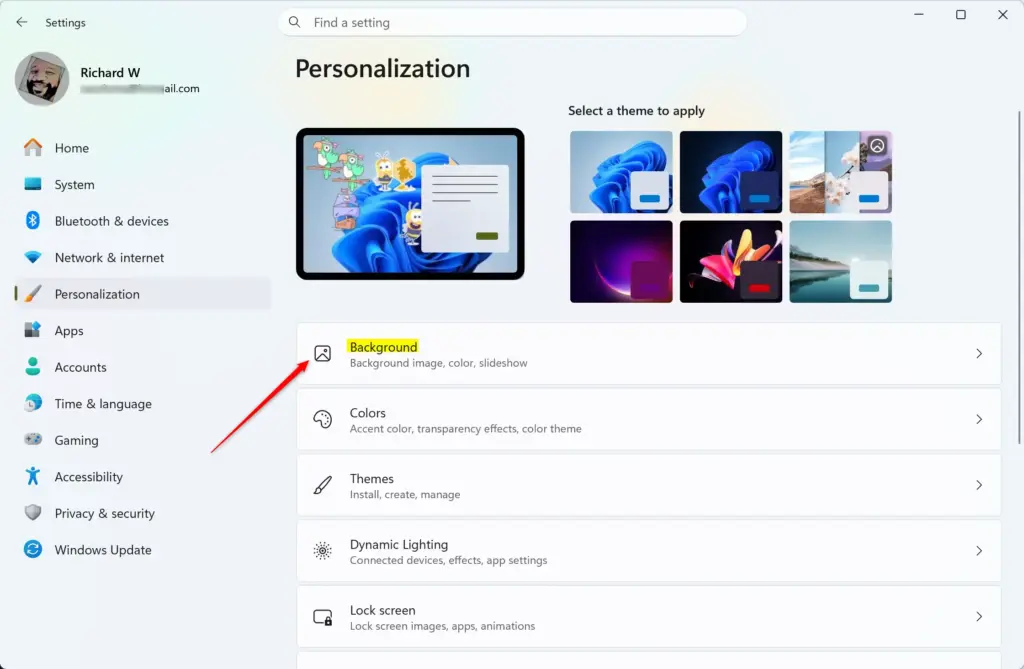
Settings › Personalization › Background - Open the Personalize your background drop-down and select Picture.
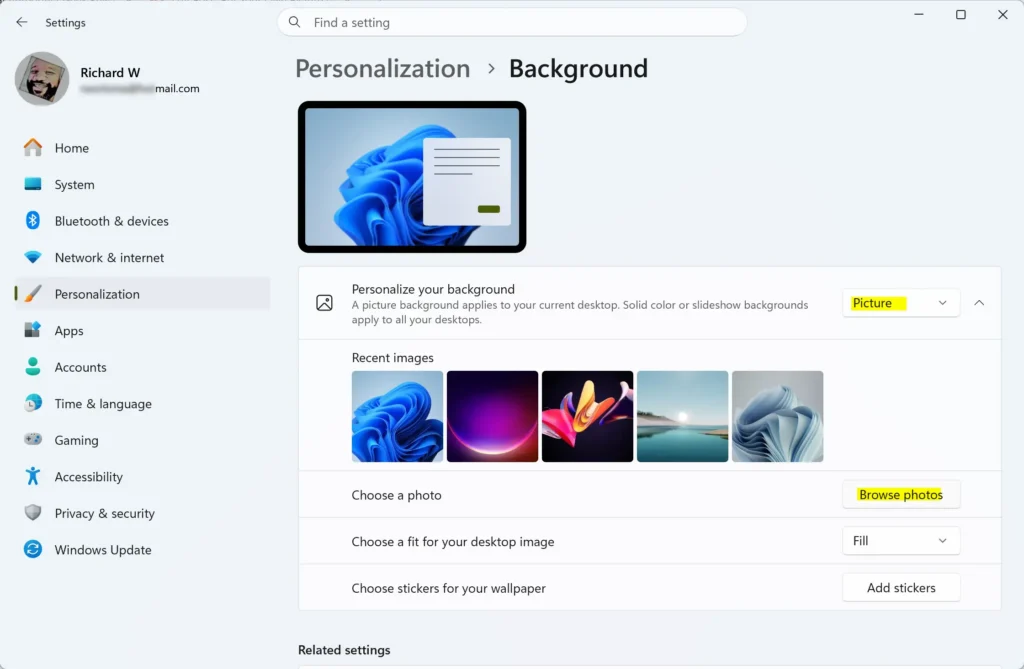
- Under Recent images, select the picture you want. Select Browse photos to choose a file of your own.
- Check the desktop. Your chosen picture replaces the spotlight image, and the Learn more about this picture icon disappears.
If the icon stays, close Settings and wait a few seconds, or sign out and back in. Our post on how to turn off Windows Spotlight on the desktop background in Windows 11 covers the leftover icon in more detail.
Stop a Slideshow
A Slideshow rotates through every picture in a folder at a set interval. This is a common cause when the wallpaper changes at regular intervals, such as every 10 minutes.
- Open Settings Personalization Background
- Open the Personalize your background drop-down and select Picture.
- Choose one image from Recent images, or select Browse photos and pick a file.
- Wait for the next interval to pass. The same picture stays on screen.
Open the Change picture every drop-down and choose a longer interval, such as one day. Turn off Shuffle the picture order if you want a fixed sequence.
Also check the folder listed under Choose a folder for your slideshow. If the folder holds old photos you forgot about, they will appear on your desktop. Select Browse to point it at a smaller folder.
One more setting matters on laptops. Let slideshow run even if I’m on battery power controls whether the rotation continues when unplugged. If the wallpaper only changes while the laptop is charging, this toggle explains it.
Check Whether a Theme Is Changing It
A theme can contain more than one wallpaper. When you apply such a theme, Windows 11 turns the background into a Slideshow automatically. The Background page then shows Slideshow even though you never chose it.
- Open Settings Personalization Themes
- Look at the Current theme card at the top. Note its name.
- Select a single-image theme, such as Windows (light) or Windows (dark), from the theme thumbnails.
- Go back to Settings Personalization Background and set Personalize your background to Picture, then pick your image.
The desktop now shows one fixed wallpaper. If you later apply a multi-image theme again, the Slideshow comes back, so check this page after any theme change.
For a full walkthrough of choosing a picture, see how to change your desktop background in Windows 11. If the image looks stretched or cropped after you set it, choosing the right fit for a Windows 11 desktop background image explains the Choose a fit options.
Stop Settings Sync from Another PC
If you sign in to Windows 11 with a Microsoft account, Windows can sync personalization settings between your PCs. Changing the wallpaper or theme on one PC can then change it on the others. This explains a background that changes after you sign in, or that changes with no obvious trigger on a PC you rarely touch.
Sync only works with a Microsoft account. A local account does not sync.
- Open Settings Accounts Windows backup
- Find the Remember my preferences section. Select its arrow to expand it if it is collapsed.
- Turn the Remember my preferences switch off. If your build lists separate checkboxes, clear the one for personalization or themes instead.
- Repeat the same steps on the other PCs that use the same Microsoft account.
The exact labels in this area differ between Windows 11 builds. If you do not see Remember my preferences, look for a sync or backup option on that page that mentions preferences or themes.
Turning sync off on only one PC is not always enough. The other PCs can still send their theme to your account, and a PC with sync on can still receive changes. Check every PC if the problem returns.
Look for Apps That Change the Wallpaper
Several apps set the desktop picture on their own. Examples include Bing Wallpaper, Wallpaper Engine and some PC manufacturer utilities. If your wallpaper changes at sign-in, or the Background page already shows Picture and the image still changes, an app is the likely cause.
Check Startup Apps
Apps that change the wallpaper usually start with Windows. Disabling their startup entry stops them from running in the background after you sign in. You can reverse this at any time.
- Press Ctrl + Shift + Esc to open Task Manager.
- Select Startup apps in the left pane. On a narrow window, select the menu icon first to see the list of pages.
- Look for a wallpaper, theme or desktop-customization app.
- Right-click the app and select Disable.
- Restart the PC and watch whether the wallpaper still changes.
The entry's Status column now shows Disabled. To undo this, right-click the entry again and select Enable.
Uninstall the App
If you do not need the app, remove it. Removing an app that was installed for all users can require administrator rights. Windows asks for an administrator password if you are not signed in as one.
- Open Settings Apps Installed apps
- Find the app in the list. Use the search box if the list is long.
- Select the three dots next to the app, then select Uninstall.
- Confirm when Windows asks, and follow any prompts from the app's own uninstaller.
- Set your wallpaper again at Settings Personalization Background. Some apps leave their last image in place.
If you installed a wallpaper app on purpose and want it to stay, open that app and change its own schedule or rotation setting. Windows settings cannot override an app that sets the picture itself.
Check for Work or School Policy
On a PC managed by an employer or school, an administrator can force the wallpaper. This uses Group Policy (a Windows feature that applies settings to many PCs) or a device management service such as Microsoft Intune (a cloud service IT teams use to manage company PCs). Windows then resets the picture, often at every sign-in, and your changes do not hold.
Signs of a managed PC:
- A message such as Some settings are managed by your organization appears at the top of a Settings page.
- The Personalize your background drop-down or the picture options are greyed out.
- The wallpaper returns to the same company image after every restart or sign-in.
You cannot fix this from your side without changing the policy. Ask your IT team whether a wallpaper policy applies to your account. If you are the administrator, our post on how to control desktop background changes in Windows 11 covers how to set and remove the restriction. The related post on stopping users from changing desktop themes in Windows 11 applies when the theme, and not only the picture, keeps getting replaced.
Windows 11 Home does not include the Local Group Policy Editor, so a Group Policy rule is unlikely on a personal Home PC. A Home PC can still be managed through a work account added under Settings Accounts Access work or school. Check that page if a message says the PC is managed and you did not expect it.
Make Sure It Is the Desktop, Not the Lock Screen
The lock screen and the desktop have separate settings. Windows spotlight on the lock screen changes the sign-in picture daily, and people often mistake that for the desktop wallpaper changing.
- Open Settings Personalization Lock screen
- Look at the Personalize your lock screen drop-down. It shows Windows spotlight, Picture or Slideshow.
- Select Picture if you want a fixed image on the lock screen.
Changing this setting does not affect your desktop. If the desktop wallpaper is fine and only the sign-in screen changes, you are done.
Why the Setting Does Not Stick or Is Greyed Out
If you change the background and it reverts, one of the causes above is still active. Use this list to narrow it down.
- Reverts after a restart: an app on the Startup apps list, a synced setting or a work policy is resetting it. Check Task Manager for a startup app first. Then check sync.
- Reverts after a theme change: the new theme brought its own images. Return to the Background page and reselect Picture.
- Options greyed out: a policy from your organization is locking the page. Contact your administrator.
- Changes only on battery or only on charge: check Let slideshow run even if I'm on battery power on the Slideshow page.
- Changes on one PC after you edit another: sync is applying your other PC's theme.
If the background still changes after you have ruled out every item here, test with a new account. You need administrator rights to create an account. If you do not have them, ask whoever manages the PC.
- Open Settings Accounts Other users
- Select Add account next to Add other user and follow the prompts to create a local test account.
- Sign in to the new account and set a wallpaper.
If the wallpaper holds in the new account, something in your original account, such as a synced setting or an app installed only for your account, is the cause. If it changes there too, the cause is system-wide, such as a policy or an installed app.
A full reset is hard to undo and takes time. Back up your files before you start. The post on resetting Windows 11 and keeping your files explains the option.
If This Didn't Work
To go back to rotating photos, return to Settings Personalization Background and choose Windows spotlight or Slideshow again. Sync or a new theme can switch the mode back later, so check that page after you apply any theme or sign in on another PC. If icons also move on their own, read why desktop icons keep rearranging in Windows 11 next.
Have a question about this guide?
Answered by AI from this guide. Good questions may be added to this page — please don't include personal details.
Did this guide fix your problem?

About the Author
Richard
Tech Writer, IT Professional
Richard is a writer at Geek Rewind who turns complex IT tasks into clear, step-by-step guides. He draws on years of hands-on experience in system administration and enterprise IT operations, focusing on Windows, Linux and WordPress: the problems people actually run into, and the fixes that work. His server and WordPress guides come from systems he runs himself. Richard builds and maintains the platform behind Geek Rewind, from its Ubuntu servers and Nginx configuration to its custom WordPress plugins. Many new tutorials start with readers' questions, and he's always glad to answer them in the comments.
No comments yet — be the first to share your thoughts!