How to Add or Remove “Explore Background” Desktop Context Menu in Windows 11


The “Explore background” option appears when you right-click an empty spot on your Windows 11 desktop. On Windows 11 you may need to click Show more options first. You add or remove it with Registry Editor, the built-in database Windows uses for system settings, and you need an administrator account to change it for all users. It opens the hidden folder where Windows Spotlight saves its desktop background and lock screen images.
Windows saves these images in a folder inside your user profile. The full path begins with 📁C:\
The path then continues with \AppData\Local\Packages\Microsoft.Windows.ContentDeliveryManager_cw5n1h2txyewy\LocalState\Assets. Getting there by hand takes a lot of clicks, and AppData is hidden by default, so the shortcut saves time. The registry changes work the same on Windows 11 Home and Pro.
To remove the Explore background context menu for your account only, open Windows Terminal and run reg delete “🗝️HKEY_CURRENT_USER\
Why This Matters
The “Explore background” option shows wallpaper details and is meant for Windows Spotlight images. Spotlight is the picture source you choose under Settings Personalization Background, in the Personalize your background list. Some people search for it as “explorer background”, but the menu entry is named Explore background. If your desktop background is not set to Windows Spotlight, the entry does little for you, so removing it is a reasonable choice.
What Happens When Done
The steps below make the option appear on or disappear from the desktop right-click menu . Before you edit the registry, create a restore point or export the key you are changing, so you can go back if something goes wrong. To undo any change, run the opposite command or procedure from this guide. None of the changes in this guide needs a restart of the PC. Restarting Windows Explorer or signing out is enough.
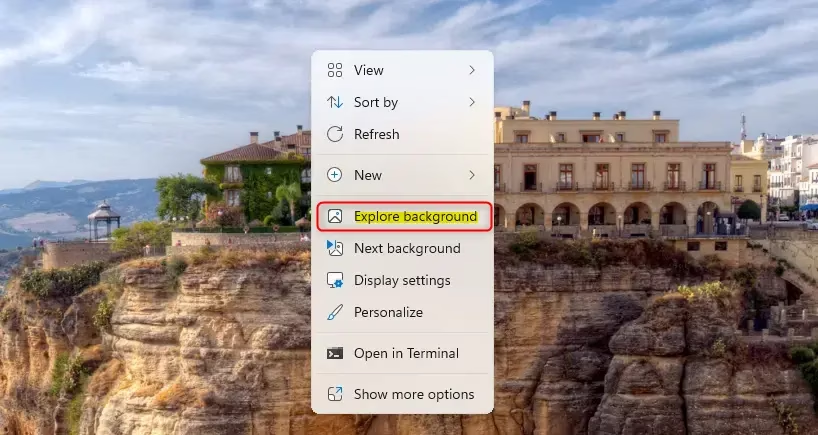
Option 1Current User Only
To remove the Explore background context menu for just your own account, open the Windows Terminal app and run a single registry command. This hides the shortcut from your right-click desktop menu without affecting anyone else who uses the PC. Because it only touches your user settings, it should not need administrator rights. Run the steps below in order.
- Open the Windows Terminal app.
- Run this command:
reg delete "HKEY_CURRENT_USER\Software\Classes\DesktopBackground\Shell\SpotlightLearnMore" /v ProgrammaticAccessOnly /f
Remove "Explore background" Context Menu for Current User
When the command finishes, check the result on the desktop. Right-click an empty area of the desktop. On Windows 11 you may need to click Show more options to see the classic menu. The entry should no longer be listed. If it still is, restart Windows Explorer or sign out and back in.
- Open the Windows Terminal app.
- Run this command:
reg add "HKEY_CURRENT_USER\Software\Classes\DesktopBackground\Shell\SpotlightLearnMore" /v ProgrammaticAccessOnly /t REG_SZ /d "" /f
Option 2All Users on Your Computer
These steps add the Explore background option to the desktop right-click menu for every user account on the PC. You open Windows Terminal with administrator rights and run the setup command. The shortcut then appears for anyone who signs in. A machine-wide change needs elevation, so a standard account will get an access error.
Add "Explore background" Desktop context menu for All Users
- Right-click the Start button. A short menu opens with power-user tools.
- Choose Terminal (Admin). Approve the User Account Control prompt, and a Windows Terminal window opens with "Administrator" in the title bar.
- Run the following command. It is shown just below.
reg add "HKEY_CLASSES_ROOT\DesktopBackground\Shell\SpotlightLearnMore" /v CommandStateSync /t REG_SZ /d "" /f
reg add "HKEY_CLASSES_ROOT\DesktopBackground\Shell\SpotlightLearnMore" /v ExplorerCommandHandler /t REG_SZ /d "{5C6B744C-4CD1-5EA7-BDC6-0E6679A956BF}" /f
reg add "HKEY_CLASSES_ROOT\DesktopBackground\Shell\SpotlightLearnMore" /v Position /t REG_SZ /d "Bottom" /f- Right-click an empty area of the desktop. On Windows 11, click Show more options to open the classic menu, where "Explore background" should now be listed.
- Restart Windows Explorer or sign out and back in if the entry is missing. In Task Manager, right-click Windows Explorer and choose Restart.
If the command reports "access denied", the terminal is not elevated. Close it and reopen it as administrator. To take the entry away again, use the removal steps below.
Remove "Explore background" Desktop context menu for All Users
This method uses Registry Editor instead of a command. Work through the steps in order and read each key path carefully, because deleting the wrong key can break other menu entries. You need administrator rights here too. If you want a safety net, export the key before you delete it.
- Open Registry Editor by typing
regedit.exein your search bar. - In the left pane, navigate to this location:
HKEY_CLASSES_ROOT\DesktopBackground\Shell\SpotlightLearnMore - Important: You need admin privileges to change the owner and permissions. Right-click on the
SpotlightLearnMorekey and select Properties. - Click the Owner tab. Click Edit, then change the owner to Administrators. Click OK.
- Go to the Permissions tab. Select Administrators and check the box for "Full Control". Click OK.
- You can now close Registry Editor.
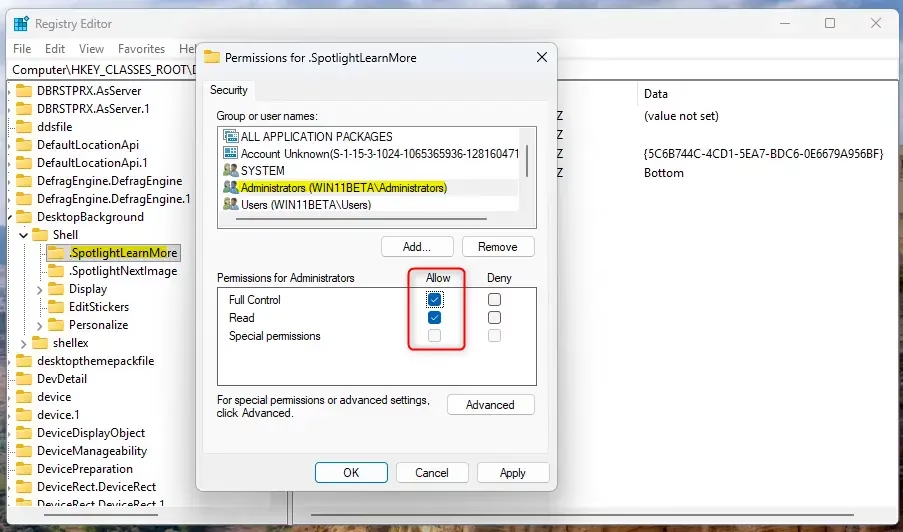
Deleting the registry key SpotlightLearnMore finishes the task. Restart Windows Explorer or the PC to apply the change. Then right-click the desktop to confirm the entry is gone. If you want it back later, use the add command from the all-users section above.
reg delete "HKEY_CLASSES_ROOT\DesktopBackground\Shell\SpotlightLearnMore" /f
Summary
In short, the "Explore background" option turns on or off depending on whether you change it for your own account or for all accounts on the PC. Per-user changes affect only you. System-wide changes need administrator rights and apply to everyone. Either way, the opposite command or procedure puts things back the way they were.
Have a question about this guide?
Answered by AI from this guide. Good questions may be added to this page — please don't include personal details.
Did this guide fix your problem?

About the Author
Richard
Tech Writer, IT Professional
Richard is a writer at Geek Rewind who turns complex IT tasks into clear, step-by-step guides. He draws on years of hands-on experience in system administration and enterprise IT operations, focusing on Windows, Linux and WordPress: the problems people actually run into, and the fixes that work. His server and WordPress guides come from systems he runs himself. Richard builds and maintains the platform behind Geek Rewind, from its Ubuntu servers and Nginx configuration to its custom WordPress plugins. Many new tutorials start with readers' questions, and he's always glad to answer them in the comments.
No comments yet — be the first to share your thoughts!