How to Enable Windows Hello Sign-In for Microsoft Accounts in Windows 11

Windows Hello sign-in for Microsoft accounts in Windows 11 lets you unlock your PC with a PIN, a facial scan, or a fingerprint instead of typing a long password. On supported hardware it checks your identity in under two seconds, which saves time every time you start or wake your computer.
You set it up from the Settings app on any compatible device. It works the same on Windows 11 Home and Pro, because what you can use depends on your hardware, not your edition.
Microsoft’s October 15, 2026 release notes, “What’s new in Windows 11: Everyday experiences, reimagined”, say face and fingerprint sign-in now work faster and more reliably. The update KB5089573 also makes Windows Hello the default sign-in method when face or fingerprint is set up. Microsoft is rolling the changes out gradually, so some PCs will get them later.
Open Settings, go to Accounts Sign-in options, and set up a PIN, face, or fingerprint under the sign-in methods. Face recognition needs a compatible infrared camera and fingerprint needs a reader; if a method is missing, check the device’s connection and driver. The setup takes a few minutes and works the same on Windows 11 Home and Pro.
How to Enable Windows Hello Sign-In for Microsoft Accounts
Setup takes a few minutes in the main system settings. Open your account settings, go to the sign-in preferences, and pick the methods that match your hardware.
Before you start, check what your PC supports:
- PINworks on every Windows 11 PC. The PIN is tied to this one device, so it is not a second copy of your Microsoft password.
- Face recognitionneeds a compatible infrared camera, which is common on laptops and tablets with Hello support. A normal webcam usually won’t work.
- Fingerprint recognitionneeds a fingerprint reader, built in or USB.
About the recent update: the October 15, 2026 release notes describe improvements to both face and fingerprint recognition. Microsoft says signing in with Windows Hello is now faster and more reliable. The notes do not describe any change to the setup screens, so the steps below stay the same.
The release notes for KB5089573 add one change to how sign-in behaves. When Windows Hello face or fingerprint is set up and available, it is now the default sign-in method every time you sign in. That holds even if you used a different method before.
Because the rollout is gradual, your PC may not have these changes yet. Open Settings Windows Update and install any pending updates. If the changes still do not show up, they have probably not reached your device, and Windows Hello keeps working as it did before.
- Open Windows Settings:
- Click the Start button and select Settings, or
- Press
Windows key + Ion your keyboard.
- In the Settings window, click on Accounts from the left menu.
- Select Sign-in options on the right side.
- Scroll down to the section labeled Additional settings.
- Find the option that says: “For improved security, only allow Windows Hello sign-in for Microsoft accounts on this device” and click the toggle switch to turn it On.
- Close the Settings app.
The screenshots below show the key screens in order:
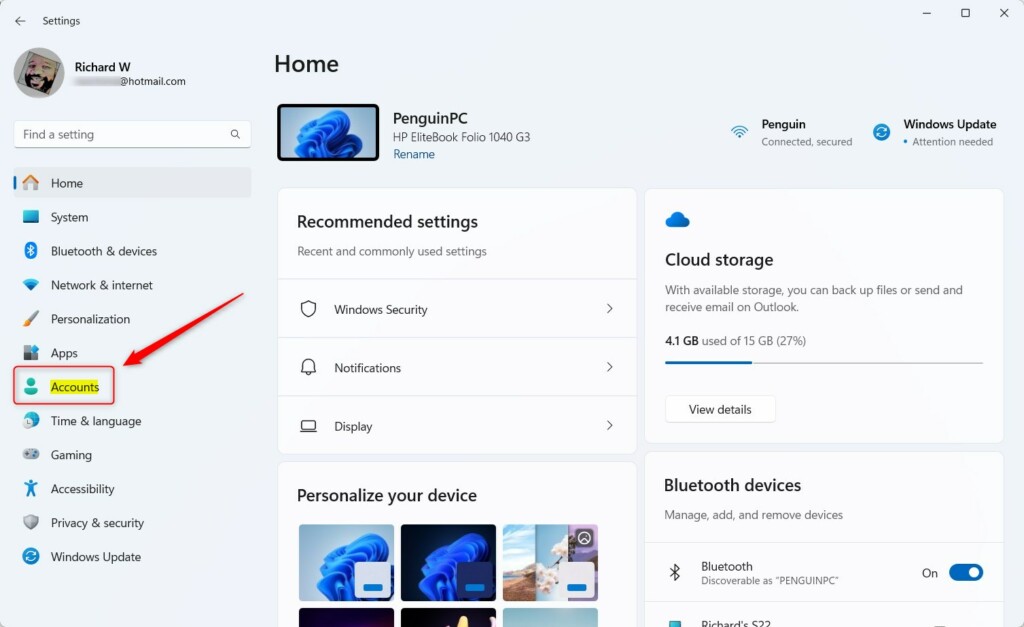
- Click Accounts in the Windows Settings list on the left. The Accounts page opens and shows your account details and your sign-in settings.
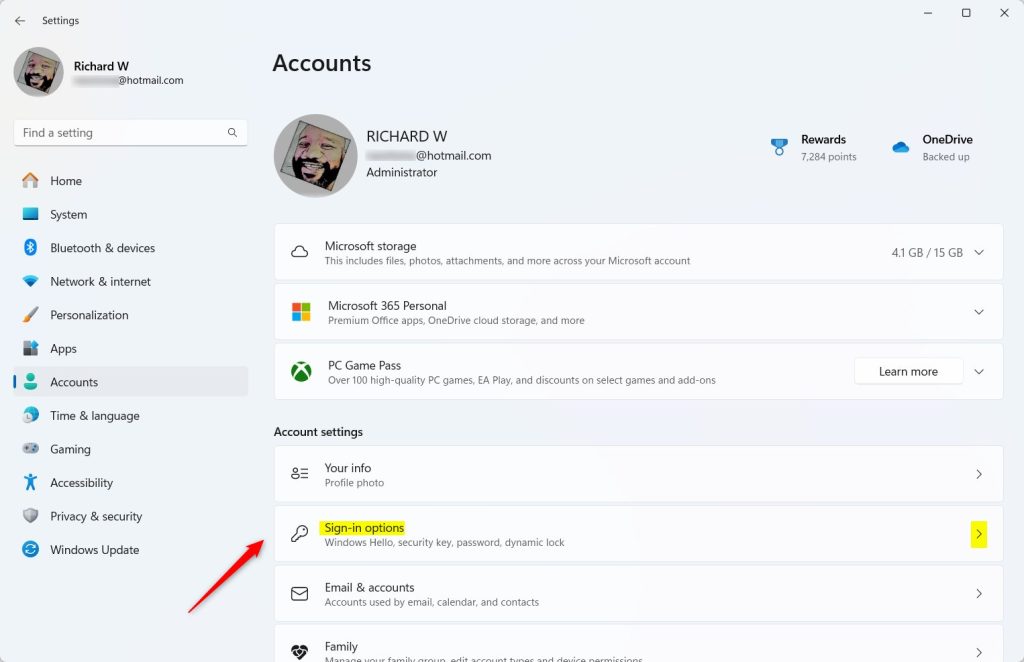
- Choose Sign-in options. A list of the ways you can sign in appears, and each one expands when you click it.
Set up a PIN, face, or fingerprint here, and Windows walks you through each one. Whichever method you set up, you also create a PIN as a backup. Face and fingerprint appear only if Windows detects the matching camera or reader.
With the KB5089573 update, the order in which you set methods up matters less than what you end up with. Once face or fingerprint is working, Windows offers it first at every sign-in, even if you previously signed in with a PIN.
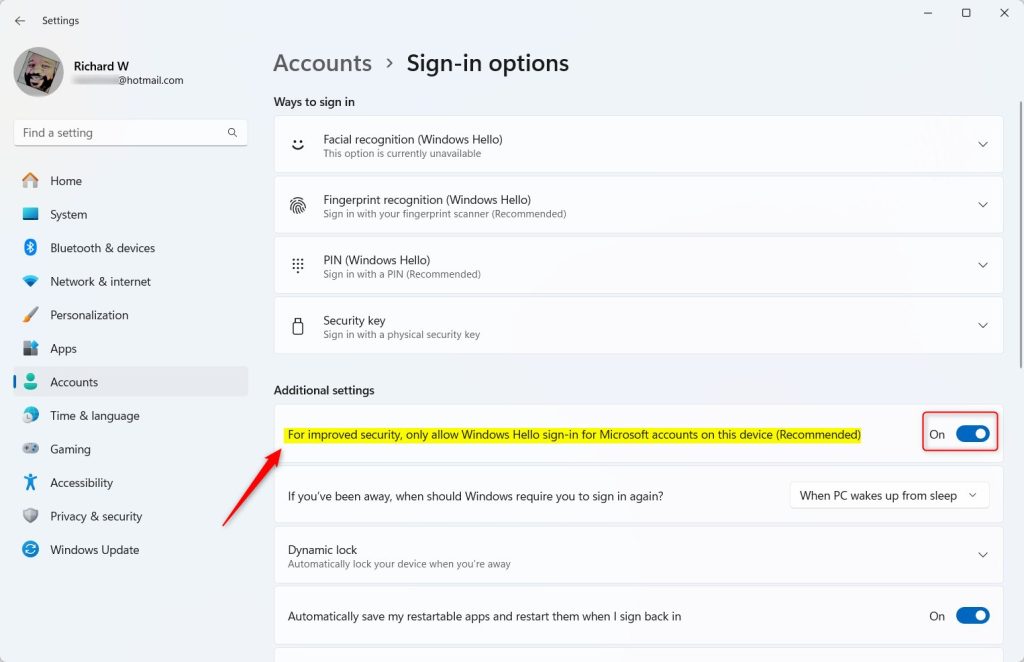
- Under Additional settings on the same page, turn on the setting that allows only Windows Hello sign-in for Microsoft accounts. Its on-screen wording is along the lines of “For improved security, only allow Windows Hello sign-in for Microsoft accounts on this device”. The toggle should switch to On.
That’s it. Your Microsoft account now signs in to this PC only through Windows Hello, and the password option is gone from the sign-in screen.
To undo it, return to the same page and switch the toggle to Off.
Why Use Windows Hello Only for Microsoft Accounts?
- Better securityOnly you can unlock your computer using your face, fingerprint, or PIN.
- No more passwords to rememberSigning in is fast and easy.
- Protects your personal infoHelps keep your data safe from others.
Windows Hello gives you much better security than a typed password. You do not need to remember a complex password. Only your face, your fingerprint, or your PIN can unlock the PC.
A PIN works only on the device where you created it, so someone who learns it cannot use it to sign in to your account from another computer.
Since KB5089573, there is one thing to know if you often type your PIN. If you use your PIN three times in a row, Windows stays with PIN until you switch methods. To go back to face or fingerprint, choose that method from the sign-in options on the sign-in screen.
If you forget your PIN, use the I forgot my PIN link on the sign-in screen. You will have to confirm your Microsoft account details to set a new one.
How to Use Fingerprint Sign-In
The Windows 11 device now runs with tighter access controls. Lock the PC with the Win+L and sign back in to confirm that your chosen method works. If face or fingerprint is set up and available, Windows should offer it first. If your PC has received the recognition improvements from the October 2026 update, that sign-in should also feel faster and more reliable.
Summary
Windows Hello sign-in for your Microsoft account is a fast, secure way to get into your Windows 11 PC. You can use your face, fingerprint, or PIN instead of a password. Setup is done in Settings under Accounts Sign-in options.
Microsoft’s October 15, 2026 release notes describe faster, more reliable face and fingerprint recognition. KB5089573 also makes Windows Hello face or fingerprint the default sign-in method when it is set up and available. If you use your PIN three times in a row, Windows stays with PIN until you switch methods. The rollout is gradual, so some PCs will get these changes later.
Have a question about this guide?
Answered by AI from this guide. Good questions may be added to this page — please don't include personal details.
Did this guide fix your problem?

About the Author
Richard
Tech Writer, IT Professional
Richard is a writer at Geek Rewind who turns complex IT tasks into clear, step-by-step guides. He draws on years of hands-on experience in system administration and enterprise IT operations, focusing on Windows, Linux and WordPress: the problems people actually run into, and the fixes that work. His server and WordPress guides come from systems he runs himself. Richard builds and maintains the platform behind Geek Rewind, from its Ubuntu servers and Nginx configuration to its custom WordPress plugins. Many new tutorials start with readers' questions, and he's always glad to answer them in the comments.
No comments yet — be the first to share your thoughts!