How to Turn On Eco Mode in Windows 11

Eco mode in Windows 11 limits how much processor power a single app can use, which cuts battery drain and heat. Windows labels the feature Efficiency mode in Task Manager and marks active apps with a green leaf icon, which is why people call it eco mode.
The quickest way to turn it on is to open Task Manager with Ctrl+Shift+Esc, select an app on the Processes page, and click Efficiency mode. This guide covers those steps, why the button sometimes greys out, how to undo it, and which system-wide settings save power when one app is not the problem.
Open Task Manager with Ctrl+Shift+Esc, select an app on the Processes page, and click Efficiency mode in the toolbar. Windows labels this eco mode with a green leaf icon in the Status column. The app runs in a power-saving mode right away, with no restart needed, but it resets when you close and reopen the app.
What Eco Mode (Efficiency Mode) Does in Windows 11
Efficiency mode lowers the priority of a process (a running program or one of its background parts). Windows then schedules it behind your other work. It also asks the processor to run that process in a power-saving way, usually at lower clock speeds.
The result is less CPU use and less heat from that app, and often a quieter fan. The cost is speed. A process in Efficiency mode can run more slowly, so use it on apps that work in the background, not on the one you are actively using.
Efficiency mode applies to one process at a time. It does not change your whole PC. For a system-wide change, see the power mode section later in this guide.
Before You Start
Efficiency mode is part of the redesigned Task Manager in Windows 11 version 22H2 and later. It works on a currently supported Windows 11 version (25H2 or 26H2), and it appears on both Home and Pro editions. If your Task Manager has a left-hand menu with Processes, Performance and App history, you have the new layout.
How to Turn On Eco Mode in Windows 11
To turn on eco mode in Windows 11 for a single app, use Task Manager and follow these steps.
- Press Ctrl+Shift+Esc. Task Manager opens in its own window. You can also right-click the Start button and select Task Manager.
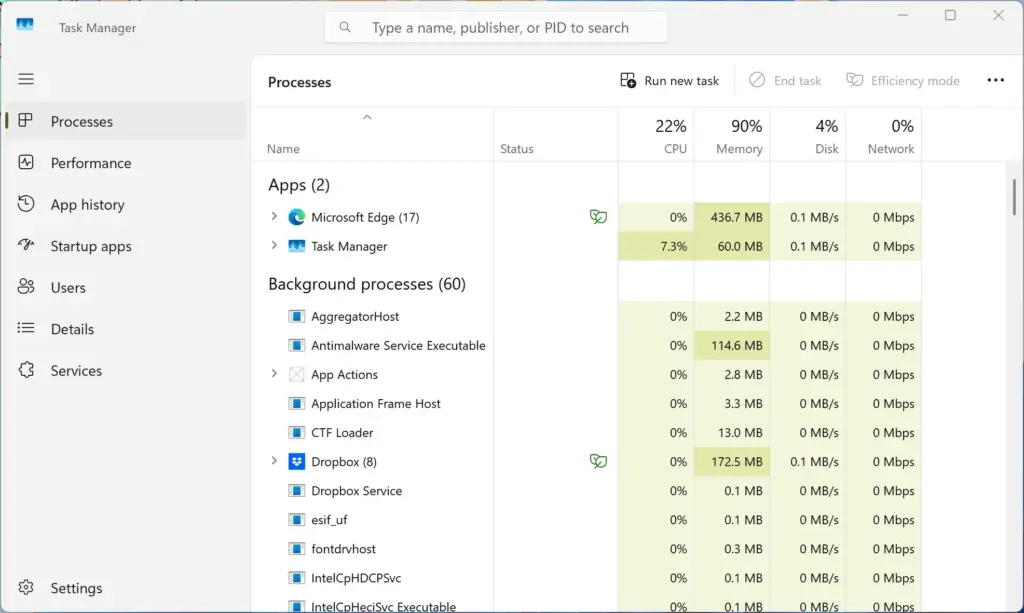
Task Manager - Select Processes in the left pane. This page lists your running apps and background processes with their CPU, memory, disk and network use. Task Manager usually opens here already.
- Click the CPU column heading. This sorts the list so the apps using the most processor time sit at the top. Those are the best candidates for savings.
- Select the app you want to slow down. Pick a background app, such as a sync client, a chat app you leave open, or a browser window you are not using. If the app has a small arrow beside it, it is a group of related processes. Selecting the group name covers the whole group.
- Click Efficiency mode in the toolbar. The button sits near the top of the window, next to End task. You can also right-click the app and select Efficiency mode. A confirmation prompt appears.
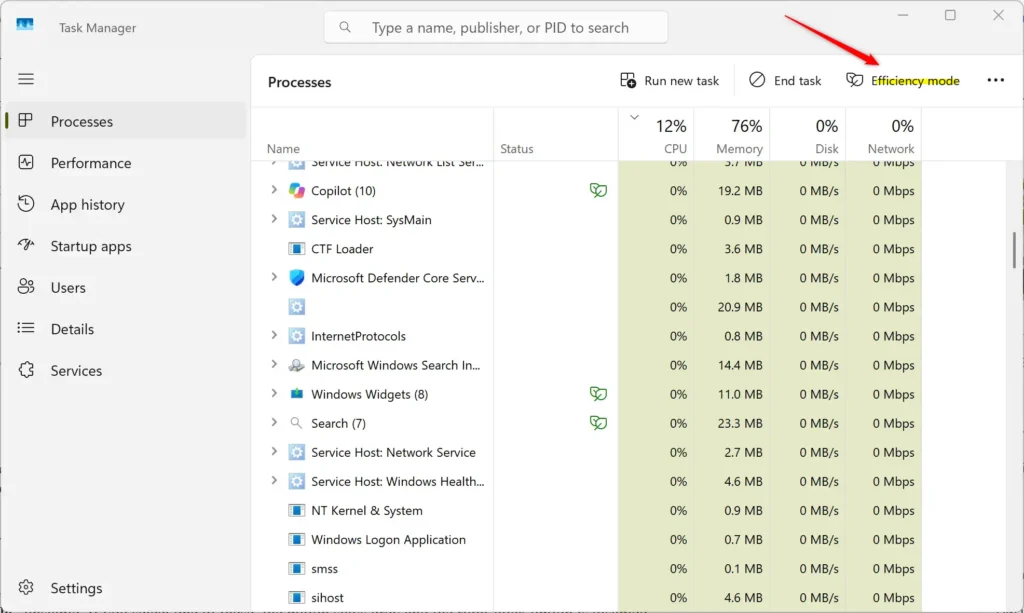
Task Manager - Confirm the prompt. The prompt warns that the app may become less responsive. Select the button that turns on Efficiency mode.
- Check the Status column. A green leaf icon with the words Efficiency mode appears beside the app. That confirms eco mode is active for it.
If you do not see a Status column, right-click any column heading and look for Status in the list. Turn it on and the leaf icons appear.
If the Efficiency Mode Button Is Greyed Out
The button is unavailable for some processes. Windows blocks it for core system processes, because slowing them down can make the PC unstable. If you select one of these, the button stays grey and the right-click option is disabled.
Try these checks in order:
- Select a different entry. Pick a normal app under the Apps heading instead of an entry under Windows processes.
- Select the group, not a child process. When an app shows a list of sub-processes, click the parent name at the top of the group.
- Check your layout. If Task Manager has a tab bar across the top instead of a left-hand menu, you are on an older build. Run Windows Update from Settings Windows Update to get the new Task Manager.
If a process has no button at all and you still want to reduce its load, close the app or end its task instead. Do not end a Windows process you do not recognise.
How to Turn Off Eco Mode for an App
Turning the feature off is the same action in reverse. This helps when an app feels slow or unresponsive after you slowed it down.
- Open Task Manager. Press Ctrl+Shift+Esc.
- Select Processes. Find the app with the green leaf icon in the Status column.
- Select the app. Click its name once.
- Click Efficiency mode in the toolbar. The button works as a toggle. The leaf icon disappears and the app returns to normal priority.
You can also close the app and open it again. Windows does not keep Efficiency mode between launches.
Which Apps Are Worth Putting in Eco Mode
Avoid it for anything you are working in right now. A video editor, a game or a compiler runs more slowly in Efficiency mode, and the saving rarely justifies the wait. For games, Game Mode in Windows 11 works in the opposite direction, so the two do not mix well.
Leave unfamiliar Windows processes alone as well. If you do not know what a process does, search for its name before you change anything.
Use Edge’s Own Efficiency Mode for Browser Tabs
Microsoft Edge has a separate Efficiency mode inside the browser. It reduces resource use by putting inactive tabs to sleep and limiting background activity. You find it in Edge by selecting Settings and more (the three dots), then Settings System and performance.
This is a different switch from the one in Task Manager. Turning one on does not turn the other on. If a browser is your biggest power drain, you can use both.
Save Power for the Whole PC
Eco mode handles one app at a time. If you want Windows as a whole to use less power, change the power mode. This setting is available on laptops and on some desktops.
- Open Settings. Press Win+I.
Windows 11 Start menu search panel for opening OpenSSH Client settings - Select System. It is in the left pane.
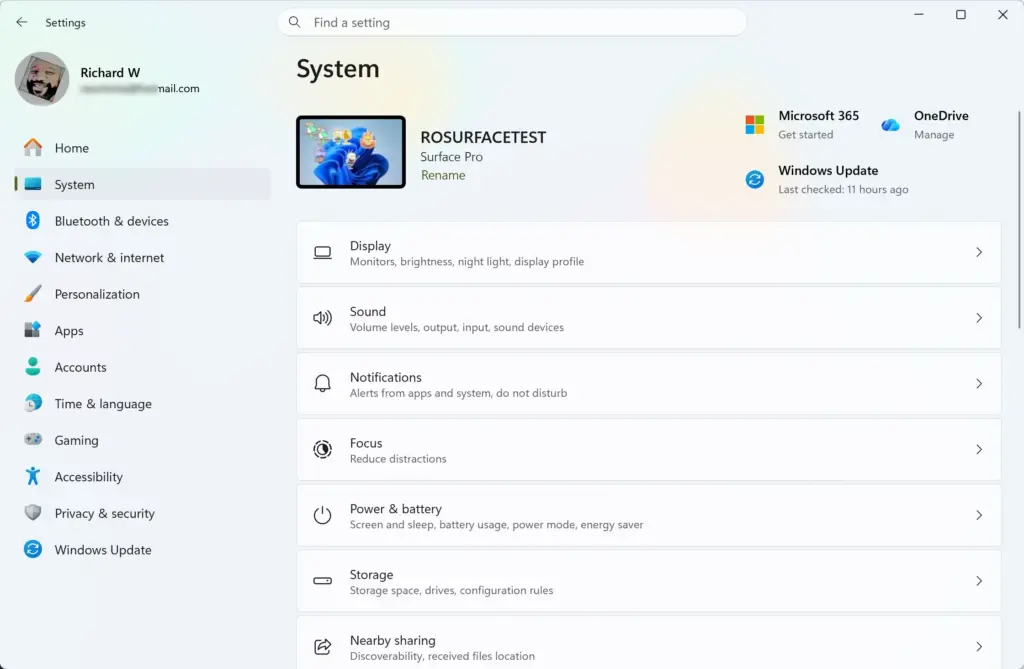
Settings › System - Select Power & battery. This page holds all the battery and power options.
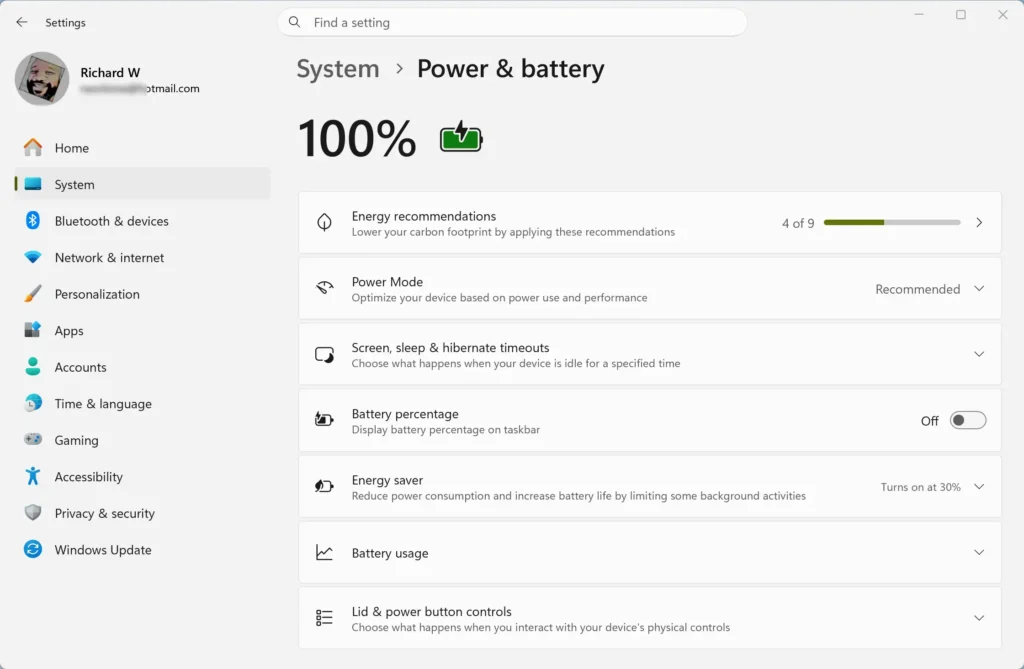
- Expand Power mode. Click the drop-down next to it.
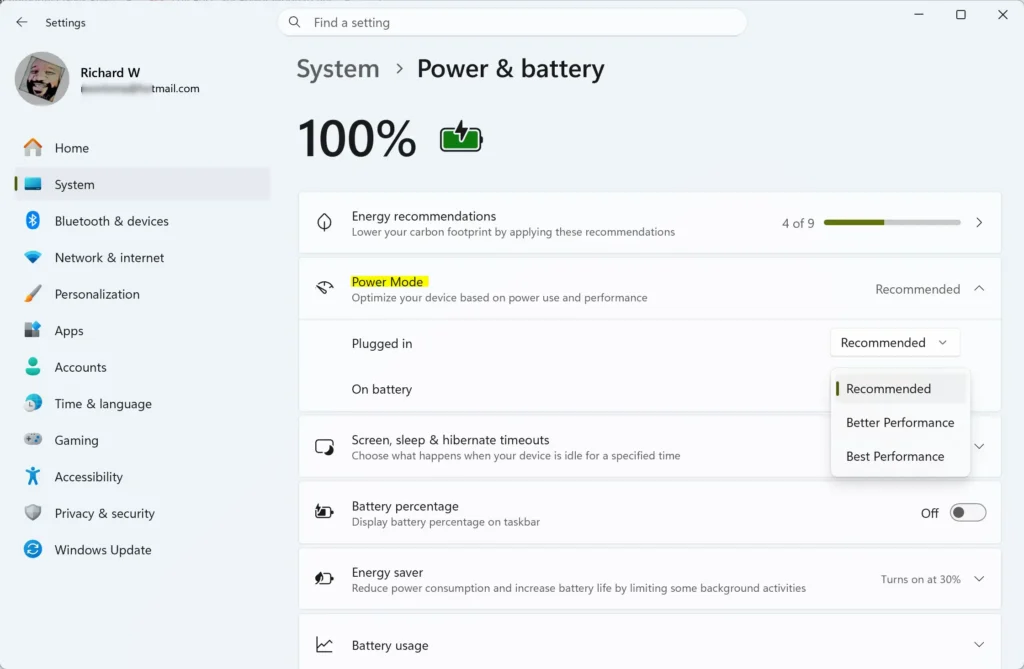
- Select Best power efficiency. Windows lowers performance in favour of battery life. The other choices are Balanced and Best performance.
To go back, return to the same drop-down and select Balanced. The full walkthrough, including what to expect on desktops, is in Set Power Mode to Best Power Efficiency in Windows 11.
Battery saver is a second system-wide option. In Settings System Power & battery, expand Battery saver and select Turn on now. It reduces background activity and dims the screen until you charge the laptop or turn it off.
Other Settings That Reduce Power Use
If battery life is still short after you apply the steps above, two related settings are worth a look. The first is the processor boost behaviour in Power Options, which controls how aggressively the CPU speeds up. The guide on turning Processor Performance Boost Mode on or off in Power Options explains how to change it.
The second is sleep behaviour. A laptop that wakes by itself in a bag drains the battery fast. If that sounds familiar, read Laptop Keeps Waking up Randomly from Sleep Mode in Windows 11. For long periods away from the PC, Hibernate mode saves your session to disk and uses no battery power at all.
Do not reach for the opposite settings unless you need them. Ultimate Performance mode raises power use, so it works against the goal of this guide.
Limits to Know About
Efficiency mode is a per-app, per-session tool. These limits explain most of the confusion people have with it:
- It does not last. Closing the app clears the setting, and Windows does not offer a way to make it permanent from Task Manager.
- It slows the app. The app may take longer to respond, especially if it is busy while you use it.
- It does not cover everything. Screen brightness, wireless radios and the display refresh rate also use battery, and Efficiency mode does not change them.
- It is not a power plan. Power mode and Battery saver in Settings apply to the whole PC. Efficiency mode applies to the app you choose.
What to Do Next
Open Task Manager again after a few minutes and check that the leaf icon is still next to your chosen apps. If it has gone, the app restarted and you need to turn Efficiency mode on again. For a change that applies to the whole PC, set Power mode to Best power efficiency in Settings System Power & battery.
Have a question about this guide?
Answered by AI from this guide. Good questions may be added to this page — please don't include personal details.
Did this guide fix your problem?

About the Author
Richard
Tech Writer, IT Professional
Richard is a writer at Geek Rewind who turns complex IT tasks into clear, step-by-step guides. He draws on years of hands-on experience in system administration and enterprise IT operations, focusing on Windows, Linux and WordPress: the problems people actually run into, and the fixes that work. His server and WordPress guides come from systems he runs himself. Richard builds and maintains the platform behind Geek Rewind, from its Ubuntu servers and Nginx configuration to its custom WordPress plugins. Many new tutorials start with readers' questions, and he's always glad to answer them in the comments.
No comments yet — be the first to share your thoughts!