This article explains how to enforce BitLocker encryption type on removable data drives in Windows 11. BitLocker protects data on external, fixed, and operating system drives. Users can use policy settings or the Windows Registry Editor to control and enforce encryption type. The process involves using Group Policy Editor or editing the Windows Registry.
Windows
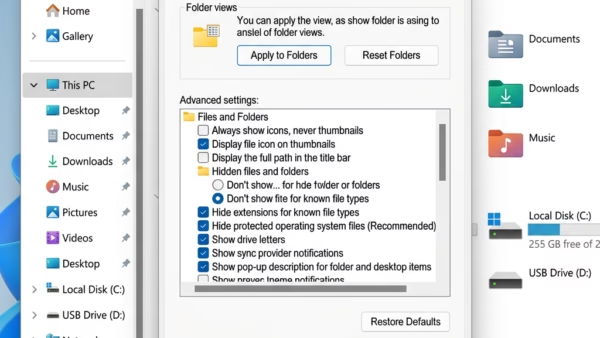
This article details how to enable or disable the "Recommended" section in Windows 11 File Explorer, aiding easy access to relevant cloud files. Users can toggle this feature in Folder Options or through the Windows Registry editor. The process involves modifying specific registry keys and may require a computer reboot for the changes to take effect.
This article explains how to enable or disable the Narrator feature that announces Arrow, Tab and other navigational keys in Windows 11. The feature can be toggled in the Narrator settings under "Verbosity." This auditory feedback is helpful for users with visual impairments or disabilities, aiding in interface navigation.
This article provides a guide for installing the Microsoft PC Manager app on Windows 11. The app offers disk cleanup, performance optimization, and security scanning tools. Users can download it from the Microsoft Store for free or use the winget command. Alternatively, they can download and install the EXE file directly from the website.
This article provides a guide on how to enable the Narrator to announce function key typing in Windows 11. Narrator, a screen-reading app for users with visual impairments, offers various settings, including the function key announcement feature. Users can easily toggle this feature in the Windows Settings app under the Narrator settings pane.
This article explains how to suspend or resume BitLocker protection for various drives in Windows 11. BitLocker protects data on computers, and users can protect external, fixed, and operating system drives. Suspend protection for specific system operations, but ensure to resume it promptly for ongoing security. Different methods, including using Control Panel and PowerShell, are provided.
This article explains changing the BitLocker drive encryption method and cipher strength in Windows 11. BitLocker protects computer data and can be applied to external, fixed, and operating system drives. The encryption method can be customized using the Local Group Policy Editor or Windows Registry Editor. These steps allow users to enhance data protection.
This article explains how to adjust Mouse Keys acceleration in Windows 11, a feature allowing control of the mouse cursor using the numeric keypad. By changing the acceleration, users can enhance pointer movement. It can be done through the Settings app or Windows Registry Editor with value data between 1000 and 5000.
This article provides a guide on adding a passkey to your Microsoft account on your Android phone. A passkey adds an extra layer of security, requiring a unique code for accessing your account. The process involves selecting a sign-in method, saving the passkey in Google Password Manager, and completing the setup on your device for enhanced account protection.
This article explains how to customize capitalized text reading in Windows 11 Narrator, a screen-reading app for users with low vision. Users can adjust capitalization reading by accessing Narrator settings in Windows Settings app and selecting from options like "Don't announce", "Increase pitch", or "Say cap". This enhances accessibility for visually impaired users.
This article provides a guide on removing a Passkey from a Security Key on your Microsoft account. Passkeys are crucial for securing access to electronic devices. To remove a passkey, access the Advanced Security Options page, select the Passkey to be removed, and click "Remove." This ensures protection in case of theft or compromise.
This article explains how to set up a Microsoft account Passkey using a FIDO security key. A passkey restricts access to Microsoft apps and websites, adding an extra layer of security. To set up the passkey, connect the FIDO key to your PC, go to Advanced Security Options, choose "Add a new way to sign in or verify," and follow the prompts.
This article explains how to enable or disable advanced details reading with Narrator in Windows 11. Narrator is a screen-reading app that reads text aloud and describes events for users with low vision or blindness. Users can adjust verbosity settings in Windows Settings > Accessibility > Narrator to toggle advanced details reading.
This article explains how to enable or disable profanity filtering in Live Captions on Windows 11. Live Captions, a feature for the deaf and hard of hearing, can be activated with a shortcut or through Quick Settings. Profanity filtering can be adjusted through the Settings or Windows Registry Editor.
This article explains how to enable or disable phonetic reading with Narrator in Windows 11, a screen-reading app for users with low vision or blindness. It covers adjusting voice, speed, and volume, managing natural voices, and more, providing flexibility to accommodate different reading needs. Users can enable or disable phonetic reading in the Narrator settings.