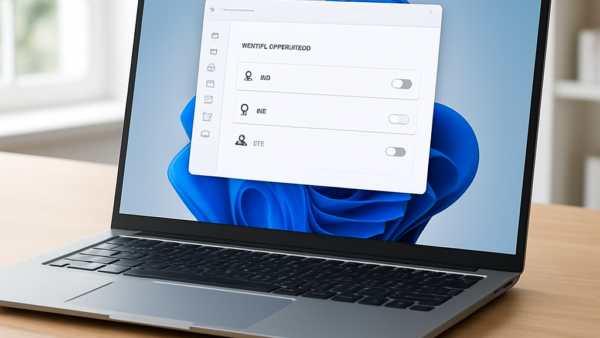
Windows 11 features a Do Not Disturb mode that allows users to mute most notifications while still receiving priority alerts. Users can customize which notifications get through via Settings, ensuring important calls and reminders are noted. This mode enhances focus, provides privacy, and is easy to manage by adding or removing apps.
Windows
When adding a new hard drive or SSD, it requires initialization and formatting to be usable. This can be done via the Settings app or Disk Management. Caution is advised to avoid erasing existing data. Typically, GPT is recommended for new drives. Once set up, the drive appears in File Explorer for file storage.
This guide explains how to safely move a secondary hard drive between Windows 11 computers. It advises ensuring the disk's health, using Device Manager to uninstall it, and physically transferring it. On the new computer, users should utilize Disk Management to rescan and recognize the hard drive.
The Quick Settings panel in Windows 11 allows users to quickly adjust volume, screen brightness, and Wi-Fi without accessing the full Settings app. Accessible via the Windows key + A, you can customize the panel by adding, removing, or rearranging buttons for a more efficient experience.
This guide explains how to enable or disable Variable Refresh Rate (VRR) in Windows 11, a feature that synchronizes monitor refresh rates with game speeds for smoother visuals. Users can adjust VRR settings through Windows Settings or the Registry Editor, provided their hardware supports this technology.
Data Execution Prevention (DEP) in Windows 11 is a security feature that prevents harmful software from running in critical memory areas. Typically enabled by default, it enhances computer safety. Users can manage DEP settings via the Windows Security app, but it is recommended to keep it on unless specific software issues arise.
This guide explains how to add or remove the Sleep button from the power menu in Windows 11. Users can easily manage this feature through the Control Panel, Windows Registry Editor, or Group Policy Editor, allowing for customization of power management to suit personal preferences while maintaining workflow continuity.
This guide outlines how to add or remove the hibernate button from the power options menu in Windows 11. Users can easily manage this via the Control Panel or, for advanced users, through the Windows Registry Editor and Local Group Policy Editor. Choose your preferred method to customize settings effectively.
Windows 11 features Dynamic Lighting, allowing apps and devices like LED peripherals to control lighting effects. Users can set the active app to always control lighting or allow background apps to do so. This setting can be adjusted through Windows Settings or the Registry Editor, with caution advised for the latter.
This guide explains how to adjust the brightness of LED devices using Windows Dynamic Lighting in Windows 11. It details simple steps in the Settings app and offers an advanced method via the Registry Editor. Adjusting brightness can reduce eye strain and personalize your computer setup for comfort and style.
Windows Terminal is an advanced app in Windows 11 for command-line tools, using the system language by default. Users can change the language by accessing the Settings menu, selecting the Appearance tab, choosing a preferred language, and restarting the app. This guide simplifies the process for users.
Windows 11 allows users to personalize the handwriting panel font when using touchscreen devices. You can change the font easily via Settings under Bluetooth & devices or, for advanced users, through the Windows Registry Editor. This customization can enhance the handwriting recognition experience and overall usage comfort.
In Windows 11, the handwriting panel allows users to adjust font sizes for handwritten text to small, medium, or large. This can be done easily via the Settings app under Bluetooth & devices, or for advanced users, through the Windows Registry Editor. For assistance, users are encouraged to leave comments.
This guide explains how to modify User Account Control (UAC) settings in Windows 11, which governs permission requests for programs needing admin access. Users can choose to automatically deny requests, prompt for credentials on a secure desktop, or use the default prompt method by adjusting settings via the Local Security Policy or Registry Editor.
This guide explains how to find your Wi-Fi password on a Windows 11 PC if you're already connected. It outlines methods using Windows Settings, Quick Settings, and Command Prompt to retrieve the saved password. Accessing your Wi-Fi password is useful for connecting other devices and sharing the network with others.