The article provides a guide on how to use the Windows Memory Diagnostic Tool in Windows 11 to identify and fix system memory (RAM) issues. This built-in tool can automatically detect issues, offering tests of varying depths (basic, standard, extended). It requires administrator access to run, can be found through the Start menu or taskbar search, and may necessitate a system restart.
Windows
The article guides users on how to hide or show the Device Security section within the Windows Security app in Windows 11. This segment can be managed through the Local Group Policy Editor and the Windows Registry. These modifications permit users to control access to critical security settings and ensure their device's protection against malicious software.
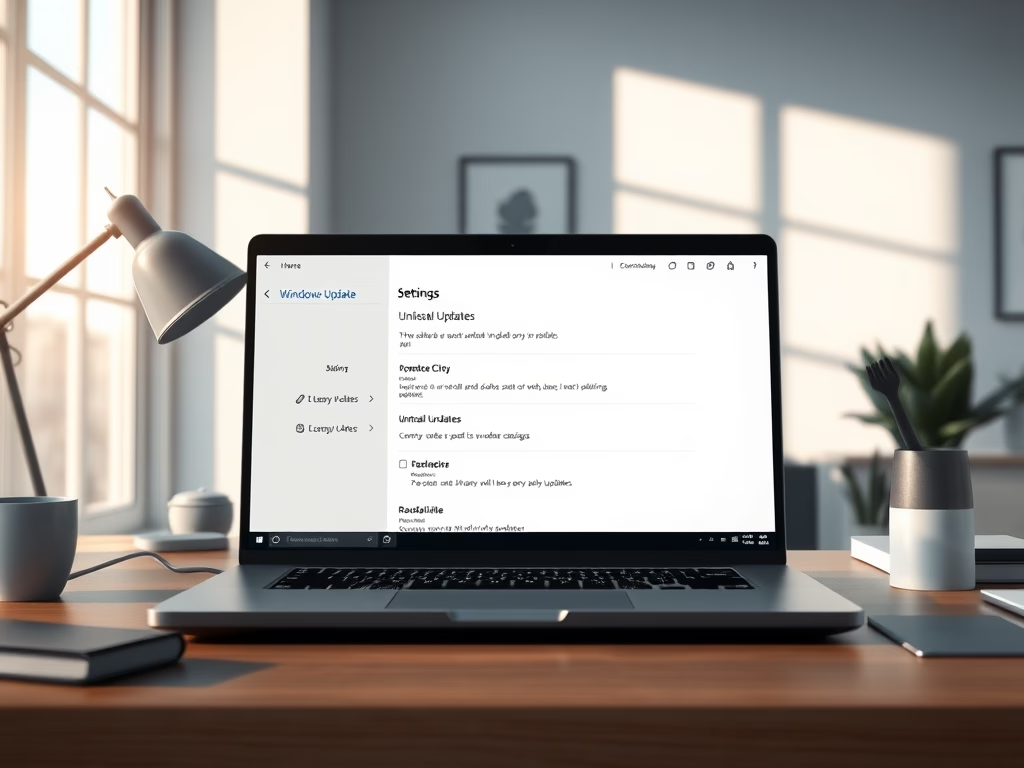
This article explains how to find and install Optional Updates in Windows 11. These updates include some Windows features, drivers, and apps not automatically installed by Windows Update. The guide walks users through accessing these in the Windows 11 Settings app under Windows Update -> Advanced Options -> Optional Updates, allowing selection and installation of desired updates. A restart may also be required.
The article provides steps to enable or disable the option to show seconds in the system tray clock in Windows 11, a feature available in DEV builds and potentially for public versions soon. This can be altered via the Personalization settings or the Windows Registry. Additionally, the article mentions the ability to display multiple time zones and taskbars on multiple monitors.
The article provides a guide for managing the App & browser control section of the Windows Security app in Windows 11. Users can hide or show this section, which offers settings for Microsoft Defender SmartScreen, to protect against unsafe apps, files, and sites. Instructions are provided for using Local Group Policy Editor and Windows Registry for this purpose.
The article outlines two methods for automatically switching desktop background wallpaper in Windows 11. The first method utilizes the slideshow feature, which rotates pictures in a chosen folder. The second method uses Windows Spotlight, which downloads and rotates random images from Microsoft servers worldwide. Both features are found in the Themes settings on the Personalization page.
The article provides a guide on how to hide or show the Account Protection section in the Windows Security app on Windows 11. It details methods of doing this using two different tools: Local Group Policy Editor and Windows Registry. This feature allows users to secure their device's settings according to their preferences.
This article provides a detailed guide on identifying printer details such as manufacturer, model number, and supported drivers in Windows 11. This information can be found by navigating to the Settings app, selecting the "Bluetooth & devices" section, and then choosing "Printers & scanners". By expanding specific printer tiles, one can access all necessary printer details.
The article provides a guide on how to hide or show the Firewall & Network Protection section in the Windows Security app on Windows 11 using two methods: Local Group Policy Editor and Windows Registry. The Windows Security app, a built-in application in Windows 11, allows controlling network access and managing security settings.
The article provides steps to hide or display the Virus & Threat Protection section in the Windows Security app of Windows 11. Users can use either the Local Group Policy Editor or Windows Registry to make these changes. Configuring the highlighted settings will determine if the section appears or not, depending on users' preferred device security settings.
The article provides a guide on how to shut down or terminate a Ubuntu Linux OS on Windows 11 using Windows Subsystem for Linux (WSL). It shows how to use the wsl.exe command to terminate specific Linux distributions or all Linux systems running in the background after exiting the command shell or terminal.
The article provides a guide on how to remove DLNA media sharing devices in Windows 11. It involves enabling DLNA media streaming from the Control Panel, followed by selecting and removing the unwanted device from the 'Allow All / Block All' list. The removal process may require turning off the online device and confirming the action.
This article provides instructions on how to selectively allow or block DLNA devices' access to shared media in Windows 11. To do this, users can navigate to the "Media streaming options" via the Control Panel app. Once DLNA media streaming is enabled, users can allow or block specific devices. Security protocols are noted; the feature should only be used in a trusted network environment.
The article provides instructions on how to enable or disable audio and video input from the host to the Sandbox in Windows 11. The Sandbox, a lightweight, isolated desktop environment, by default does not allow audio and video input. This can be changed manually through the Local Group Policy Editor or the Windows Registry. Following these steps permits the Sandbox to receive audio and video input from the host machine.
The article provides a guide on how to configure the print screen key to open screen Snipping in Windows 11 using the System Settings panel. Windows 11 replaces the previous Snip & Sketch app with a new Snipping Tool, which some users might find inconvenient because it requires pressing many keys. By adjusting system settings, users can use the print screen key for screen snipping, simplifying the screenshot process.