Block Adult Content for a Child’s Account on Windows 11


- 15 steps
- Needs administrator rights
- Includes a restart or sign-out
Blocking adult content on Windows 11 works through Microsoft Family Safety (Microsoft’s free parental controls service), which filters websites and searches for a child’s Microsoft account. To block adult content on Windows 11, turn on Filter inappropriate websites for that child on the Family Safety page at account.microsoft.com/family.
The filter applies in Microsoft Edge and blocks other web browsers on the child’s account, so switching to another browser on the child’s account does not get around it. It works on both Windows 11 Home and Windows 11 Pro. Setup takes about ten minutes.
To block adult content on Windows 11, turn on Filter inappropriate websites for your child’s Microsoft account at account.microsoft.com/family, under Content filters, then Web and search. The filter works in Microsoft Edge and blocks other browsers on that account, and it applies to any Windows 11 device where the child signs in. It does not cover a parent’s sign-in or guest accounts.
What Family Safety blocks and what it does not
Family Safety filters by account, not by PC. The settings follow the child’s Microsoft account to any Windows 11 device where the child signs in, and to Xbox and Android devices where Microsoft Edge is used.
When Filter inappropriate websites is on, Family Safety blocks adult websites and enforces strict SafeSearch (a Bing setting that hides explicit results) in search. Microsoft also requires Microsoft Edge for filtering to work, so other browsers on the child’s account are blocked.
The filter is not perfect. No automatic filter catches every site, and it only covers the child’s own account. A child who uses a parent’s sign-in, a guest account or a different device without these settings is not protected. The sections below cover how to close those gaps.
What you need before you start
Check these requirements first. Most “the filter does nothing” problems come from one of them.
- A Microsoft account for the child. Local accounts (accounts that exist only on one PC) cannot be filtered. If the child has no Microsoft account, follow how to create a Microsoft account in Windows 11.
- A family group. The child’s account must belong to your Microsoft family group (the group that links parents and children in Family Safety), with you as the organizer or a parent. The guide on adding your child’s Microsoft account to Windows 11 covers this.
- An accepted invitation. A child who has been invited but has not accepted shows as pending, and no filters apply until they accept.
- An account under 18. Microsoft does not let you set filters on adult accounts.
If you are not sure whether the account on the PC is a Microsoft account or a local account, check the account type in Windows 11 before continuing.
How to block adult content on 🪟 Windows 11 for a child’s account
These steps turn on website and search filtering for the child, which is how you block adult content on Windows 11. Optional steps are marked. Microsoft changes the Family Safety page layout from time to time, so a label may sit in a slightly different place than described.
- Open Settings. Press Win+I on your parent account’s PC.
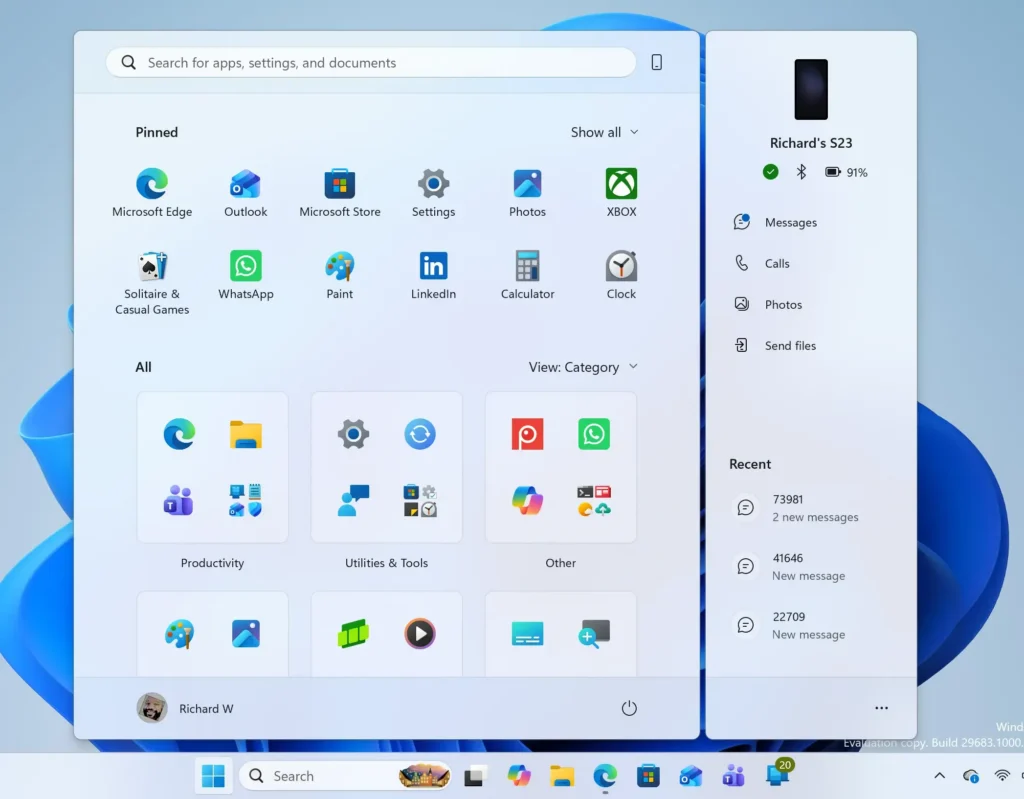
Start Menu - Select Accounts, then Family. The Family page lists the people in your family group. This path is Settings Accounts Family.
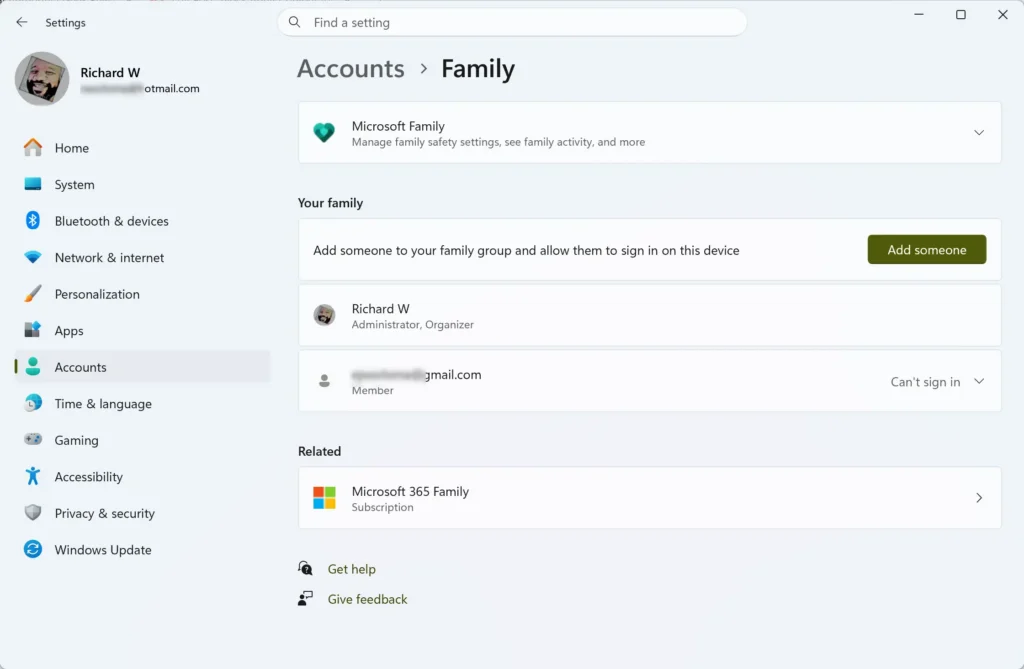
- Check that the child is listed. If the child’s name is missing or shows as pending, add them first using the child account guide and accept the invitation from the child’s email.
- Go to account.microsoft.com/family in a browser. This is the Family Safety page, where the filter settings live. They are not stored in the Windows Settings app.
- Sign in with your parent account. Use the Microsoft account that organizes the family group. If you need a refresher, see how to sign in to a Microsoft account in Windows 11. You should now see a card for each family member.
Microsoft account login page for signing in with email and password. - Select the child’s name. The child’s page opens with tabs such as Overview, Screen time and Content filters.
- Select Content filters. This section holds every setting that controls what the child can see. It has separate tabs for web and search and for apps and games.
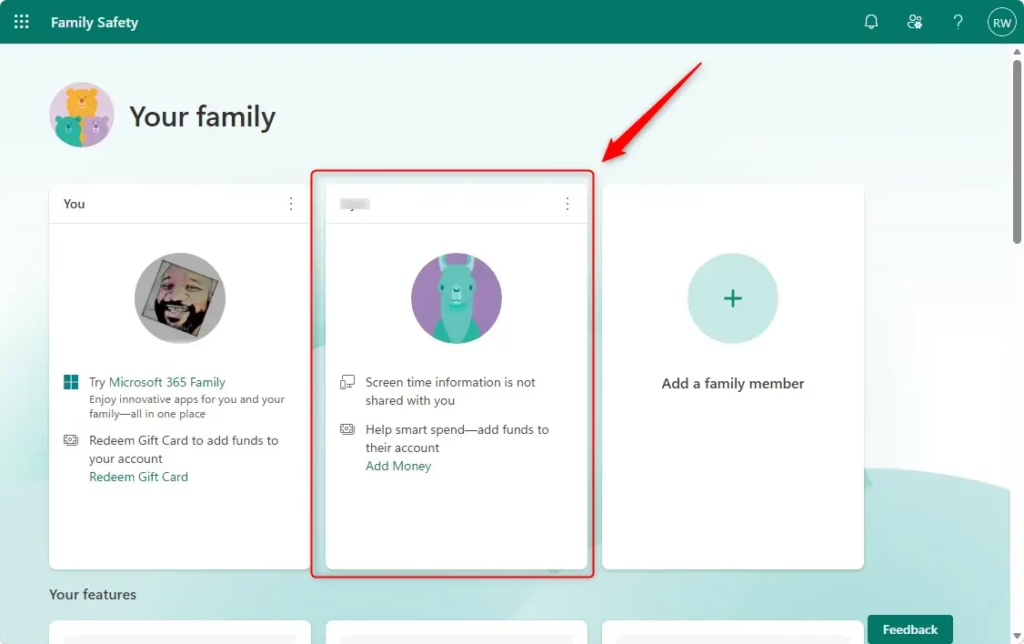
Microsoft Family Safety portal showing a list of family members to select. - Open the Web and search tab. This is where the adult-content filter is.
- Turn on Filter inappropriate websites. Move the toggle to On. Do this even if it already looks on, because the toggle state is what Microsoft enforces. With it on, Microsoft Edge blocks adult sites, applies strict SafeSearch to searches, and other browsers are blocked.
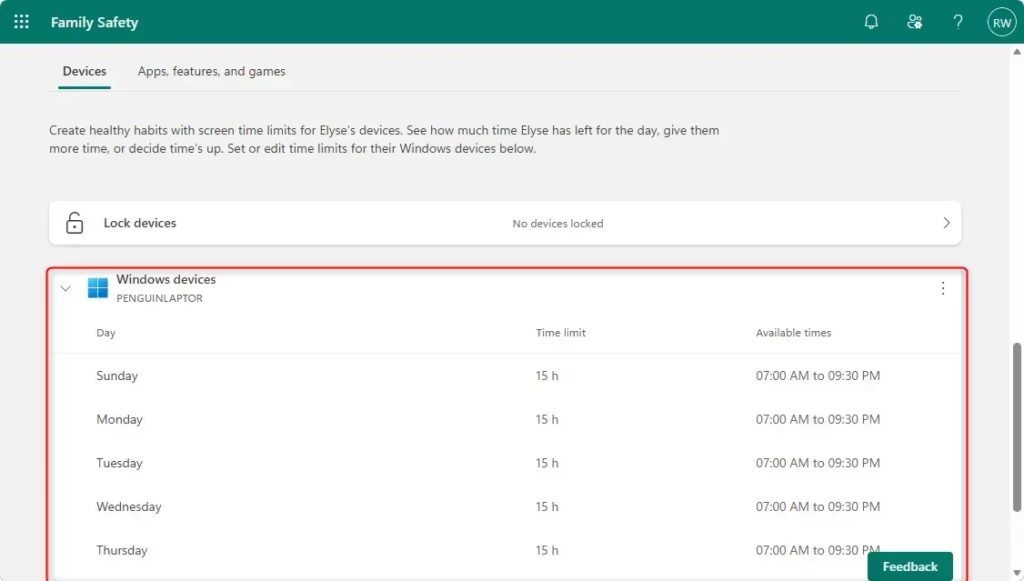
Windows 11 managed device settings for a child's family account. - Review Only use allowed websites (optional). This stricter mode blocks every site except the ones you list. Turn it on for young children. Leave it off for older children, since it blocks a large share of normal sites such as school resources.
- Add blocked websites (optional). Under Blocked sites, type a web address and select the plus button. Use this for a specific site the automatic filter misses. Under Allowed sites, you can do the reverse for a site that the filter blocks by mistake.
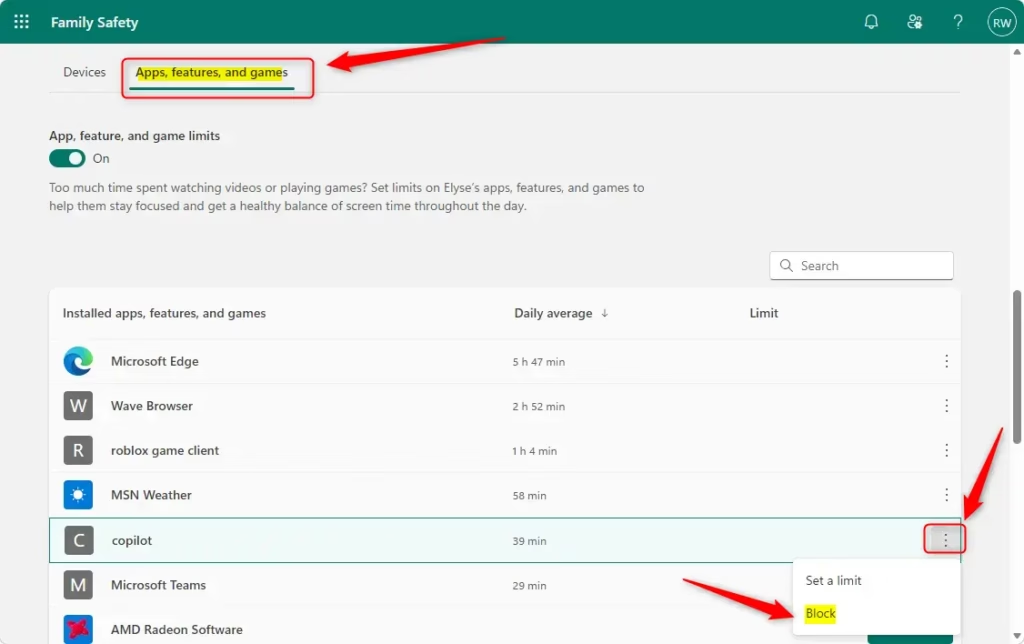
Blocking apps for a child in Microsoft Family Safety settings. - Open the Apps and games tab (optional). Here you can block apps, games and media that are rated above a chosen age. Choose the age limit that matches the child. Adult-rated games from the Microsoft Store are then blocked or need your approval.
- Sign in to Windows 11 as the child. Use the Start menu, select the account picture, then select the child’s account. The child must sign in with their Microsoft account, not a local one.
- Open Microsoft Edge on the child’s account. If Edge asks to sign in, choose the child’s Microsoft account. Edge shows the filtering state once the account is recognized.
- Test the filter. Search for something that should be blocked. Edge shows a page saying the site is blocked, and the search results should come back with strict SafeSearch applied.
Changes usually apply within a few minutes. If the test fails, sign out of the child’s account, sign in again and retry, then read the troubleshooting section below.
How approval requests work
When the child visits a blocked site, the block page lets them ask a parent for access. You receive the request by email and in Family Safety. You choose whether to allow the site.
Make the child’s PC account a standard user
Requires administrator. A child signed in as an administrator on the PC has more control over Windows than a child on a standard account. The Family Safety filter is tied to the Microsoft account and stays active. A standard account limits what else the child can change on the PC, such as installing software or modifying other accounts.
To check or change the type, sign in with an administrator account (an account with full control of the PC) and go to Settings Accounts Other users. Select the child’s account and choose Change account type. The full steps are in how to change account type in Windows 11.
Close the other gaps
Remove other ways in
If you set up a shared guest account, remember that the guest has no Family Safety settings. In Windows 11, guest access is something to avoid on a PC the child uses unsupervised. If an old account is no longer needed, you can delete the user account from the same Settings area.
Other devices and browsers
The settings follow the child’s Microsoft account, but only where the child signs in with it. A phone or a school laptop that does not use the account has none of these filters. Check each device the child uses.
Some third-party apps, such as VPNs (apps that route internet traffic through another server) and proxy apps, can hide traffic from the filter. Family Safety blocks other browsers on the child’s account, but it does not replace talking with the child about what they are allowed to do online.
If the filter is not working or the option is missing
The Content filters tab is missing or greyed out
This happens when you sign in to Family Safety with an account that is not a parent in the group, or when the selected member is an adult. Sign out and sign in as the family organizer. Then confirm that the child’s account is under 18 and has accepted the invitation.
Adult sites still open
Check these causes in order:
- The child is signed in to Windows with a local account. The filter does not apply to local accounts. Switch them to their Microsoft account.
- The child is using a browser other than Microsoft Edge on a device that does not enforce the block. Use Edge and make sure it is signed in with the child’s account.
- The child is signed in with a different Microsoft account than the one you configured. Compare the email address on the family page with the one on the PC.
- If you changed the setting in the last few minutes, sign out and back in to refresh it.
Safe sites are blocked
If Only use allowed websites is on, every site not on your list is blocked. Turn it off, or add the sites the child needs to Allowed sites. A site blocked by the normal filter can also be added to the allowed list.
The child is not in the Family list
Windows 11 shows only accounts that joined the family group. Send the invitation again from the Family Safety page and have the child accept it. If you invited a Gmail or other non-Microsoft address, the child must first sign in to a Microsoft account with that Gmail address before the invitation works.
How to undo the change
To remove the filter, return to account.microsoft.com/family, select the child’s name, open Content filters and turn Filter inappropriate websites off. To remove app and game limits, go to the Apps and games tab and turn them off, as above. Entries under Blocked sites and Allowed sites stay until you delete them.
If the child turns 18, Microsoft lets them manage their own account, and these filters may no longer apply in the same way. Plan for that change rather than expecting the settings to stay in place indefinitely.
What to do next
If the filter blocks the wrong sites, add them to Allowed sites and test again in Edge. If it fails to block anything on the child’s account, check first whether the PC account is a Microsoft account and not a local one. For a child’s account that is already filtered, the next useful task is confirming it is a standard user so the child cannot change other settings on the PC.
Have a question about this guide?
Answered by AI from this guide. Good questions may be added to this page — please don't include personal details.
Did this guide fix your problem?

About the Author
Richard
Tech Writer, IT Professional
Richard is a writer at Geek Rewind who turns complex IT tasks into clear, step-by-step guides. He draws on years of hands-on experience in system administration and enterprise IT operations, focusing on Windows, Linux and WordPress: the problems people actually run into, and the fixes that work. His server and WordPress guides come from systems he runs himself. Richard builds and maintains the platform behind Geek Rewind, from its Ubuntu servers and Nginx configuration to its custom WordPress plugins. Many new tutorials start with readers' questions, and he's always glad to answer them in the comments.
No comments yet — be the first to share your thoughts!