How to Pause and Resume OneDrive Sync on Windows 11


You pause and resume OneDrive sync on Windows 11 by right-clicking the OneDrive cloud icon in your system tray and selecting the desired option.
Pausing OneDrive sync temporarily stops all file uploads and downloads between your PC and the cloud, conserving your internet bandwidth. This is incredibly useful when you need to free up your connection for gaming, streaming, or to manage data usage on a metered connection.
When sync is paused, any changes made to your files will not be reflected on other devices or in the cloud until you manually resume the synchronization process. This quick action gives you immediate control over your network resources and ensures your important tasks aren’t interrupted by background sync operations.
Click the OneDrive icon in the System Tray, then click the gear icon, select Pause syncing, and choose a duration. To resume, click the OneDrive icon and select Resume syncing.
How to Identify the OneDrive Icon
You can find the OneDrive icon in the System Tray, which is usually at the bottom right of your screen next to the clock.
How to Pause OneDrive Sync 🪟 Windows 11
You can pause OneDrive sync on Windows 11 easily to temporarily stop your files from updating.
- Click the OneDrive icon in the System Tray.
- Click the Help & Settings gear icon.
- Select Pause syncing.
- Choose 2 hours, 8 hours, or 24 hours.
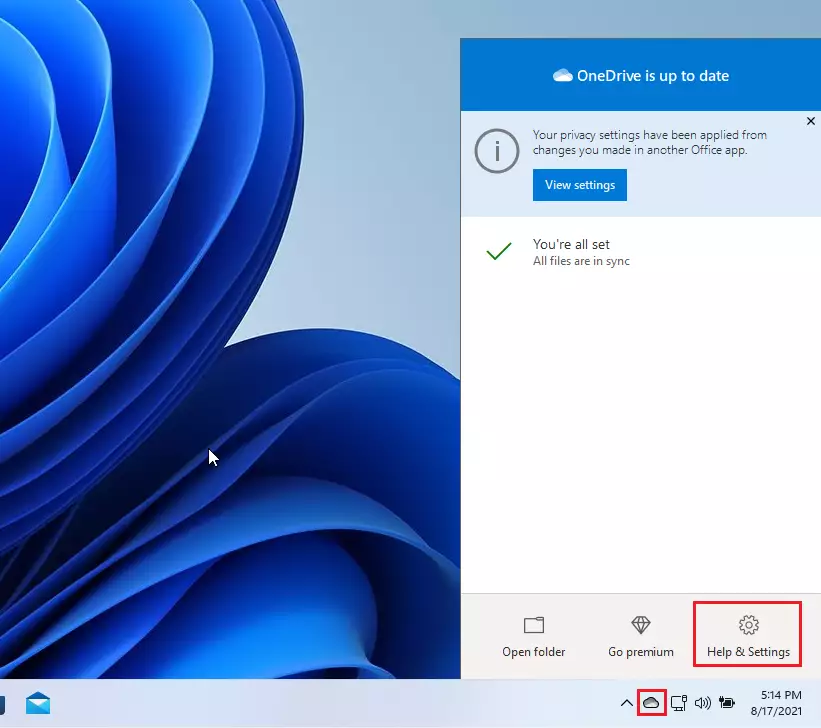
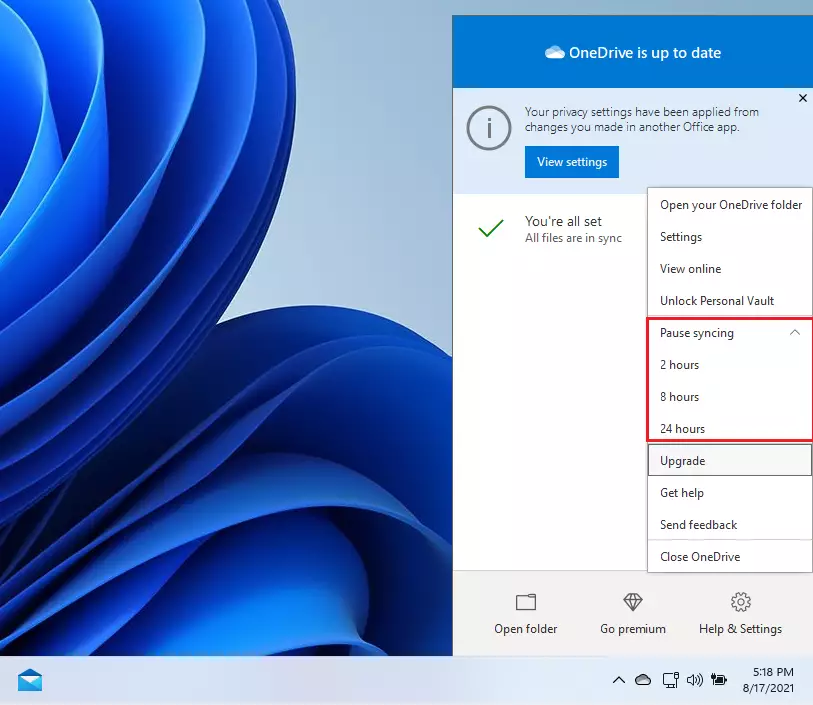
The icon will now show a pause badge. Your files remain safe on your computer and the cloud; they just stop talking to each other for now.
Temporary Pause vs. Quitting OneDrive
Pausing is temporary. It resumes automatically after your chosen time. If you choose Quit OneDrive, the app will shut down entirely. It won’t start again until you open it manually. Use Quit if you need to stop syncing for a long time.
How to Resume Syncing
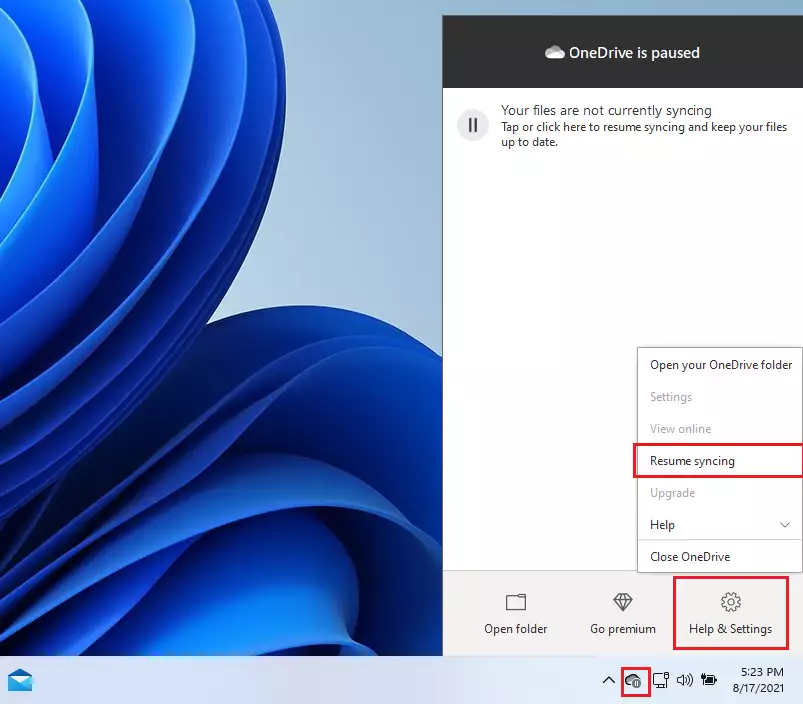
To start again, click the cloud icon and select Resume syncing. OneDrive will check for changes and update your files.
Troubleshooting Sync Issues
If sync is stuck, try these steps:
- Check your internet connection.
- Click the icon to see if there are specific file errors.
- If you need to remove your account, go to Settings > Account > Unlink this PC.
Note: Unlinking does not delete your files.
Summary
Managing your OneDrive sync settings lets you control how much internet and computer power it uses.
Does pausing OneDrive sync delete my files?
No, pausing OneDrive does not delete your files. It simply stops the connection between your computer and the cloud. Your local files remain exactly where they are on your hard drive, and your cloud files remain safe on the server until you choose to resume the sync process.
Why does OneDrive keep resuming automatically?
OneDrive is designed to keep your data backed up. If you manually pause it, it will resume once the timer expires (2, 8, or 24 hours). If it resumes sooner, it may be due to a system restart or a change in network status that triggers the app to reconnect.
Was this guide helpful?

About the Author
Richard
Tech Writer, IT Professional
Richard, a writer for Geek Rewind, is a tech enthusiast who loves breaking down complex IT topics into simple, easy-to-understand ideas. With years of hands-on experience in system administration and enterprise IT operations, he’s developed a knack for offering practical tips and solutions. Richard aims to make technology more accessible and actionable. He's deeply committed to the Geek Rewind community, always ready to answer questions and engage in discussions.




I have Windows 11; When I open One Drive there is no place to Resume Sync when I go in to “help and settings”.
i am not able to see microsoft one drive i have also did settings in taskbar but icon is not coming ion taskbar
[…] can also pause OneDrive syncing temporarily if you are on a slow or mobile […]