Outlook for Windows: How to Enable or Disable Offline Mode


The new Outlook for Windows is a modern tool for managing your emails and calendar. It is designed to be fast and easy to use. It supports many features, including sharing a calendar, changing language, date, and time format, public a calendar, showing week numbers in Outlook calendar, deleting your search history, exporting your search history, adding or removing events from emails to your Calendar, switching to dark mode, link preview, sound alerts for notifications, turn on or off notifications when Outlook is closed, turn on or off incoming email alert sounds, customizing Calendar alerts, and sharing your work hours and location.
Why use Offline Mode?
Sometimes you might not have an internet connection, such as when you are traveling. Offline mode lets you keep working on your emails and calendar events even when you are not online. It saves a copy of your information directly to your computer. This also makes the app feel faster because it does not have to wait for the internet to load your data.
What happens when you are done?
Once you finish your work offline, Outlook will automatically sync your changes with your email server the next time you connect to the internet. Any emails you wrote or folders you moved will update across all your devices.
How to turn Offline Mode on or off
You can change these settings at any time using the steps below. Note: You do not need special permissions for this, though some corporate computers may restrict these settings.
- Open the Outlook app from your Start menu.
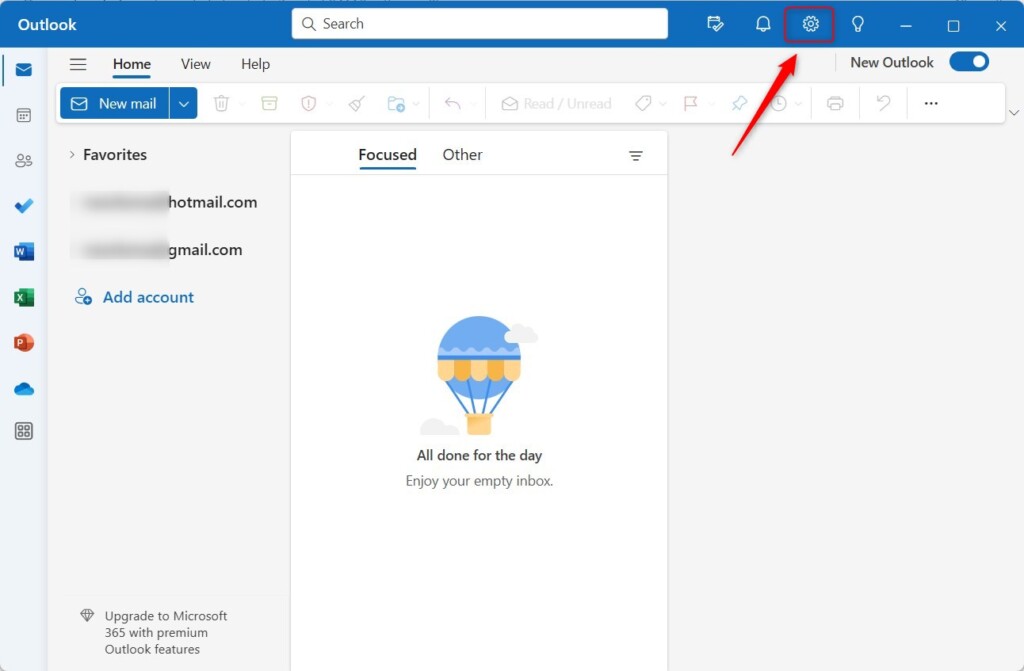
- Click the Settings (gear) icon in the top right corner.
- Select General from the menu on the left.
- Click on Offline in the side panel.
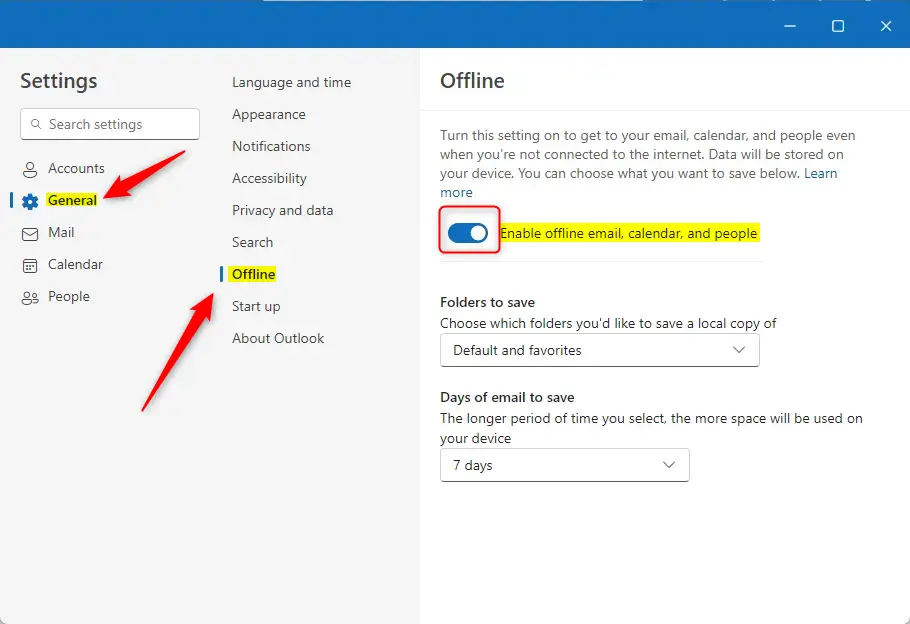
- Use the toggle switch next to Enable offline email, calendar, and people to turn the feature on or off.
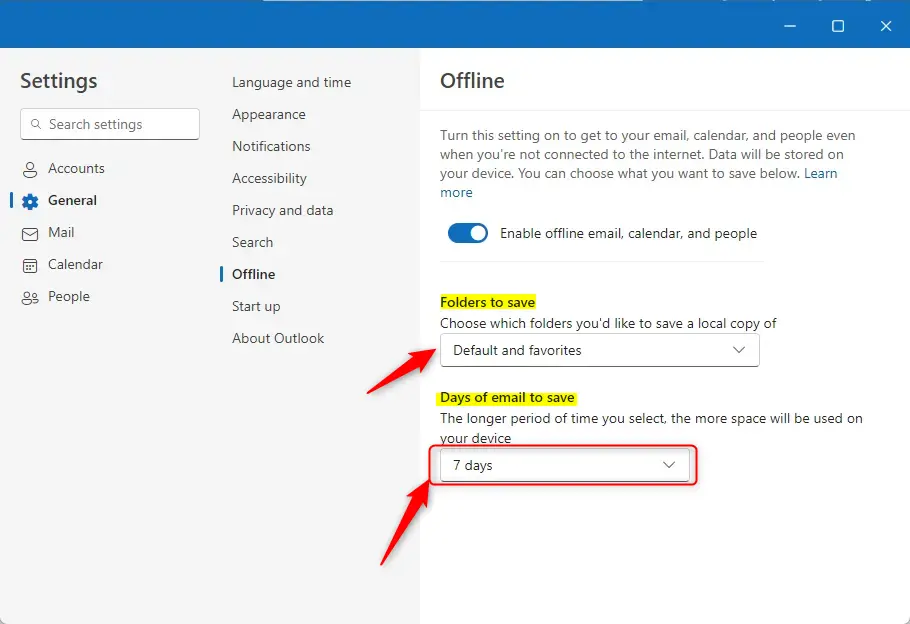
- Choose which folders you want to save to your computer and how many days of email you want to keep.
- Click the Save button to finish.
What can you do while offline?
You can perform many common tasks without an internet connection, including:
- Reading and organizing your emails.
- Writing new email drafts.
- Moving, deleting, or flagging messages.
- Viewing your calendar and contacts.
If you try to do something that requires the internet, Outlook will show you an error message. Your changes will not be saved until you reconnect.
For more details, see Microsoft.com.
Summary
Offline mode in Outlook for Windows allows you to stay productive without an internet connection by saving your data locally. You can easily enable or disable this feature through the Settings menu. Once turned on, your emails and calendar events are accessible anytime, and they will sync automatically once you are back online.
How do I enable offline mode in Outlook for Windows?
What can I do while in offline mode on Outlook?
Can I choose which folders to save for offline access in Outlook?
How do I disable offline mode in Outlook for Windows?
Is it necessary to be connected to the internet to use Outlook?
Was this guide helpful?

About the Author
Richard
Tech Writer, IT Professional
Richard, a writer for Geek Rewind, is a tech enthusiast who loves breaking down complex IT topics into simple, easy-to-understand ideas. With years of hands-on experience in system administration and enterprise IT operations, he’s developed a knack for offering practical tips and solutions. Richard aims to make technology more accessible and actionable. He's deeply committed to the Geek Rewind community, always ready to answer questions and engage in discussions.




No comments yet — be the first to share your thoughts!