How to Find the Music Folder in Windows 11

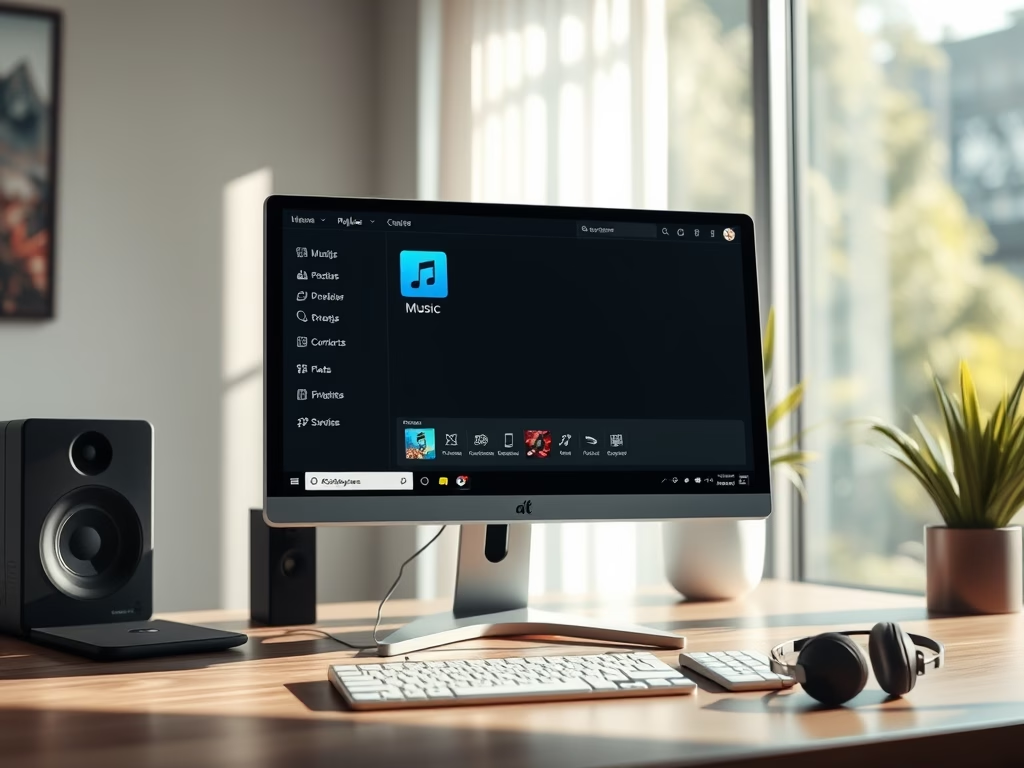
You find your Music folder in Windows 11 inside your user profile directory.
This folder is the default location for all your downloaded and saved audio files, keeping your music collection neatly organized.
Typically, you’ll locate it at 📁C:\Users\[YourUsername]\Music. This makes accessing your songs and audio projects incredibly straightforward.
When you save music from various applications or download tracks, Windows 11 automatically directs them to this Music folder, simplifying your file management process.
Open File Explorer and click “Music” under Quick access on the left. Alternatively, navigate to C:Users[YourUsername]Music in the address bar.
How to Find the Music Folder in 🪟 Windows 11
The Default Location
By default, your Music folder is located here:
C:\Users\<username>\Music
Just replace <username> with your actual Windows account name.
Method 1Use File Explorer
This is the fastest way to access your Music folder.
- Open File Explorer by clicking the folder icon on your taskbar.

windows 11 file explorer icon on taskbar - Look at the left side of the window under “Quick access.”
- Click on “Music.”

windows 11 music folder in file explorer
Method 2Pin to Quick Access
If you want the folder to stay at the top of your list, right-click the Music folder and select “Pin to Quick access.” This ensures it is always visible regardless of how many other folders you open.
How to Move Your Music Folder
You can move your Music folder in Windows 11 to another drive if your main one is getting full. Just right-click the folder, go to Properties, then the Location tab, and click Move to pick a new spot.
- Right-click your Music folder and select “Properties.”
- Go to the “Location” tab.
- Click “Move” and select a new folder on your external drive.
- Click “Apply” and then “OK.”
Note: Windows will ask if you want to move all existing files to the new location. Click “Yes” to keep your library intact.
How to Restore a Deleted Music Folder
If you accidentally delete your Music folder in Windows 11, don’t worry, you can easily restore it. Simply create a new folder named ‘Music’ inside your user profile folder (📁C:\Users\) in File Explorer.
- Open File Explorer and navigate to
C:\Users\<username>. - Right-click in an empty space and select “New” > “Folder.”
- Name the folder “Music.”
- If the system does not recognize it as a special folder, right-click it, select “Properties,” go to the “Location” tab, and click “Restore Default.”
Fixing Missing ‘Play All’ Functionality
If your Music folder in Windows 11 is missing the ‘Play All’ option when you right-click, it’s probably because Windows doesn’t know it’s a music folder. You can fix this by going to the folder’s Properties and setting its type to ‘Music’.
- Right-click your Music folder and select “Properties.”
- Go to the “Customize” tab.
- Under “Optimize this folder for,” select “Music” from the dropdown menu.
- Check the box that says “Also apply this template to all subfolders.”
- Click “OK.”
Advanced Registry Tweak (Admin Required)
Advanced users can fix a broken Music folder path or icon in Windows 11 using the Registry Editor, but you’ll need administrator rights. Open the Registry Editor by typing ‘regedit’ and navigate to a specific location to check the ‘My Music’ entry.
- Press ⊞ Win+R, type
regedit, and hit Enter. - Navigate to
HKEY_CURRENT_USER\Software\Microsoft\Windows\CurrentVersion\Explorer\User Shell Folders. - Look for the entry named “My Music” and ensure the path points to your correct directory.
Summary
Keeping your Music folder in Windows 11 organized is simple when you know how to manage its location, restore it if deleted, and fix features like ‘Play All’.
Why is the Music folder missing from my Quick Access?
It may have been unpinned by accident. To fix this, navigate to your user profile folder in File Explorer, right-click the Music folder, and select “Pin to Quick access.” This will restore the shortcut to the left-hand navigation pane immediately.
Was this guide helpful?

About the Author
Richard
Tech Writer, IT Professional
Richard, a writer for Geek Rewind, is a tech enthusiast who loves breaking down complex IT topics into simple, easy-to-understand ideas. With years of hands-on experience in system administration and enterprise IT operations, he’s developed a knack for offering practical tips and solutions. Richard aims to make technology more accessible and actionable. He's deeply committed to the Geek Rewind community, always ready to answer questions and engage in discussions.


Hi, I’m baffled. In the Music folder, please can you tell me what the # symbol, located between ‘Name’ and ‘Title’ signifies?
how do I find my music files
I didnt ask you to back steel my music that I have paid for and now have no access to where’s my music