
This article explains how to find and use the Music folder in Windows 11.
What is the Music Folder?
The Music folder is a special storage area that Windows 11 creates for every user. It’s designed to hold your music files and audio recordings in one easy-to-find location.
Why does this matter? Instead of saving music files all over your computer, Windows automatically puts them in the Music folder. This means you know exactly where to look when you want to find your songs.
What happens when you use it? When you import music or download audio files, Windows tries to save them to your Music folder by default. This keeps everything organized and simple.
If you are an administrator, you can use folder redirection to move your Music folder to a network drive or another partition.
In older versions of Windows, this folder was called “My Music.” In Windows 10 and Windows 11, it’s simply called “Music.”
How to Find the Music Folder in Windows 11
The Default Location
By default, your Music folder is located here:
C:\Users\<username>\MusicJust replace <username> with your actual Windows account name.
You can also change or move Music your personal folders to a different location whenever you want.
Method 1: Use the Start Menu
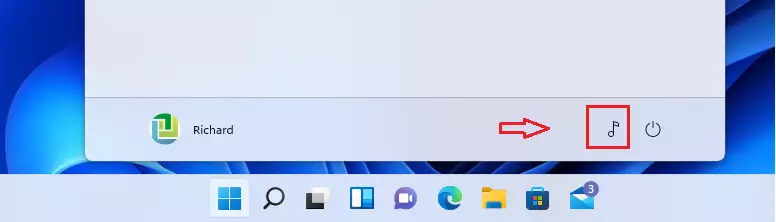
If you have customized your Start menu, you might see a Music option there. Simply click it, and Windows will open a window showing your Music library.
Method 2: Use File Explorer
This is the fastest way to access your Music folder.
- Open File Explorer by clicking the folder icon on your taskbar.

- Look at the left side of the window under “Quick access.”
- Click on “Music.”

That’s it! You’re now in your Music folder.
Method 3: Browse Through Folders
You can also navigate manually:
- Open File Explorer.
- Click “This PC”
- Click “Local Disk (C:)”
- Click “Users”
- Click your username folder
- Click “Music”
Again, replace <username> with your actual account name.
Method 4: Use Your User Profile Folder
Another quick way is to access the User Profile variable in your profile folder. This shows all the folders in your home directory at once.
How to Add the Music Folder to the Start Menu
Why do this? Adding Music to your Start menu gives you instant access without digging through File Explorer every time.
Follow these steps:
- [ADMIN] Press the Windows key + I to open Settings.
- Go to Personalization and then Start.
- Look for the “Folders” section.
- Choose which folders you want to appear on the Start menu next to the Power button.
- Select “Music” from the list.
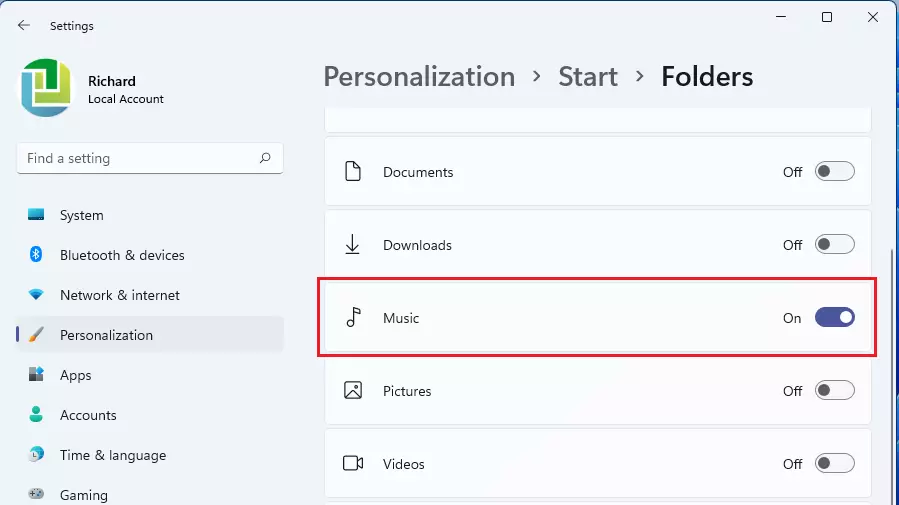
Now the Music folder will appear on your Start menu next to the Power button for quick access.
Customizing Your Music Folder
You can also move the Music folder to other locations or change where applications save files. Additionally, you can enable Music folder is also in your Libraries, which takes just a few clicks.
Summary
Finding your Music folder in Windows 11 is simple and straightforward. Here’s what you need to remember:
- Your Music folder is located at
C:\Users\<username>\Music - The fastest way to access it is through File Explorer’s Quick access menu
- You can add Music to your Start menu for even quicker access
- You can move or redirect your Music folder to a different location if needed
- Your Music library is also available through the Libraries feature in Windows
By following these steps, you can easily find and manage all your audio files on Windows 11.





Leave a Reply to Joseph Dominic Cristoforo Cancel reply